
Start playing
How to set up Xbox Remote Play on Android with XBPlayer
Prepare your game on Xbox, enable remote features and connect through XBPlayer. Run the first session at home, then test waking the console separately.
On this page
To set up Xbox Remote Play on Android with XBPlayer, enable remote features on your Xbox One or Xbox Series X|S, sign in to the app with the Microsoft account you use on the console, and connect to your Xbox. The game runs on the console; your phone receives video and audio and sends your inputs. Home, near the TV, is a convenient place for the first session.
1. Check the game and your home network
Turn on the Xbox, sign in to the right profile and launch your chosen game on the TV. Wait for any required updates to finish. At this stage, the game should open and respond to controls without the phone. If it asks you to confirm your right to play, check the account, installation and access to the game first. Remote Play itself does not require Game Pass, but the game's own requirements and those of its online mode still apply.
Connect the Xbox and Android device to the same home network with internet access. This is a recommendation for the first connection, not a requirement for every later session. Where possible, connect the console to the router by Ethernet and the phone by Wi-Fi near the router. Pause large downloads so they do not interfere with the test.
2. Enable remote features on Xbox
- Press the Xbox button on the console's controller and open Profile & system → Settings → Devices & connections → Remote features.
- Select the Enable remote features checkbox.
- Leave the console switched on and connected to the network for the first connection. Test waking it after a successful session.
Check that the permission remains enabled after leaving settings. If you cannot find the section, consult Xbox's Remote Play setup help. Power and network settings are covered in more detail in the console preparation guide.
3. Install XBPlayer and choose your account
On a phone running Android 10 or later, open the official XBPlayer website and follow the Android link to Google Play. Look for XBPlayer: Remote Play & Cloud by Hetko Apps & Games. Install it on the phone you will play on; the app's minimum OS and compatibility requirements differ from those of browser-based Remote Play.
Open XBPlayer and tap “Use a Microsoft sign-in code”. On the next screen, tap “Open Microsoft sign-in” or scan the QR code with another device. Enter the displayed code if Microsoft asks for it, choose your account and return to XBPlayer. In the account menu, compare the gamertag with the console's profile. See signing in and choosing a profile for details.
The free mode is enough to check the picture and controls. Before starting, check your playtime balance; if the app requires a top-up, use the offered ad view. Reaching zero does not interrupt a session already in progress, but you need to top up before the next one. These minutes cover XBPlayer usage and do not grant access to games. The terms are explained in the free mode and paid version guide.
4. Connect to the console and launch the game
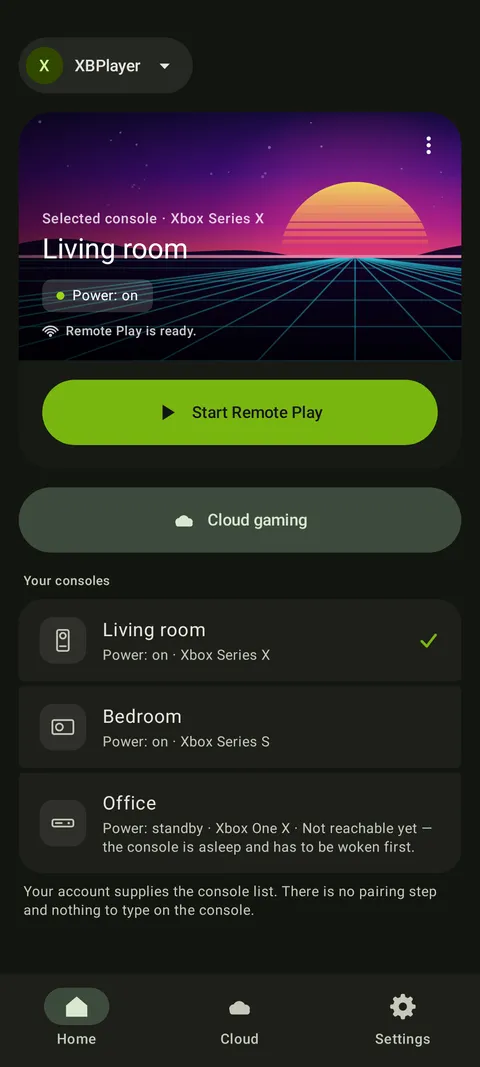
On the home screen, select the Xbox you prepared under “Your consoles” and tap “Start Remote Play”. If the list is empty or out of date, use “Refresh consoles”. The selected Xbox's name should match the one on which you just launched the game. “Cloud gaming” opens a different mode and is not needed here.
A successful connection shows your Xbox's picture on the phone. Use it to open the same game that worked on the TV, or return to the game if it is still running.
- The console does not appear. Check the account in XBPlayer, Xbox power and the remote features permission. Then follow the console discovery checks.
- The Xbox appears, but the stream will not start. Record the error message and work through Remote Play troubleshooting.
- The picture appears, but the game will not open. Check whether it launches on the Xbox itself under the same profile. Buying the paid client does not fix missing access to a game.
5. Check controls, picture and sound
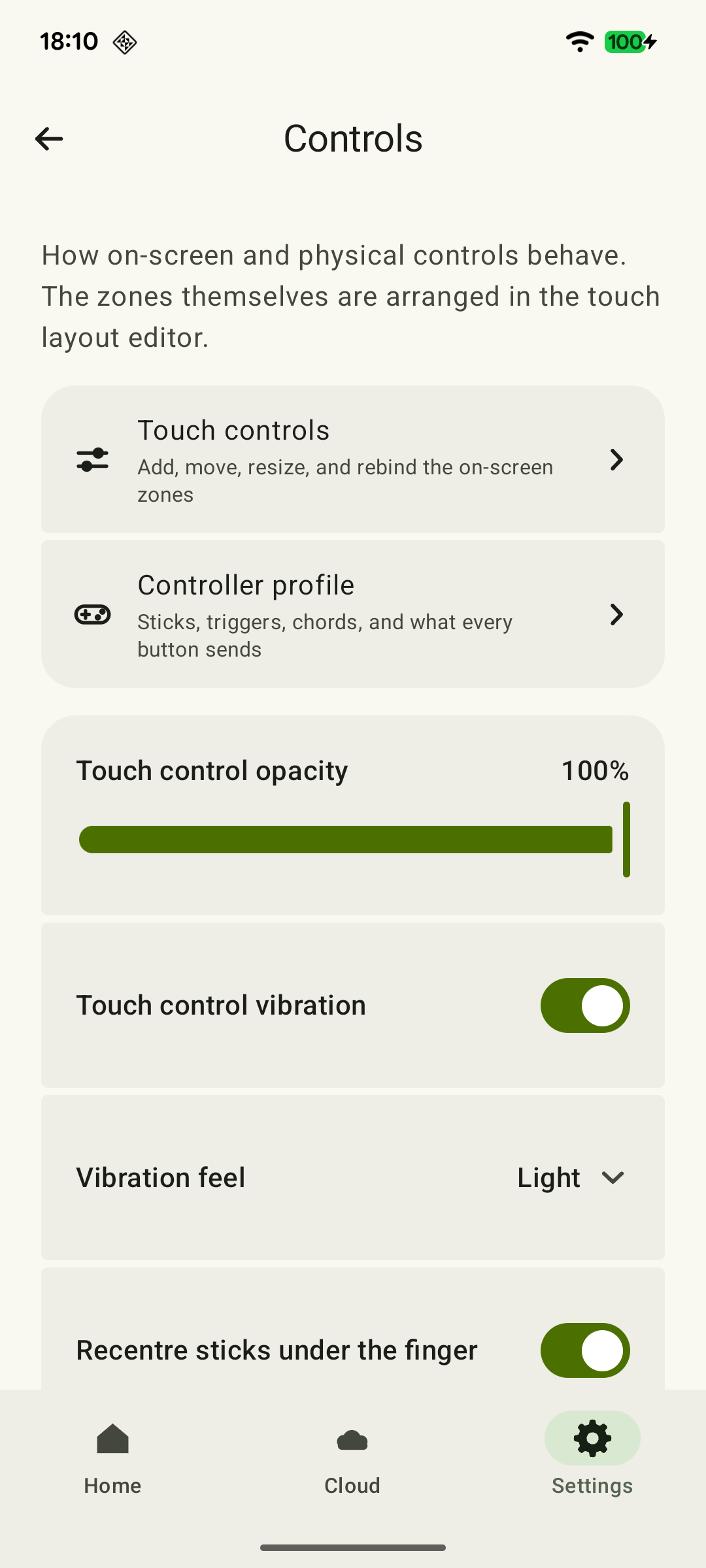
On the phone, you can use XBPlayer's on-screen controller. Try the default layout first. If buttons are difficult to reach, change their position and size, then save the layout. Keep important prompts visible; see the touch controls guide for details.
 Enlarge screenshot
If you use a physical controller, connect a compatible model to Android by Bluetooth or USB. To test input through the phone, the controller must send commands to Android: playing successfully with a controller connected only to the Xbox does not establish that.
Choose a quiet part of the game. Check the sticks, main buttons and triggers, then a familiar combination such as moving while jumping. Read small text and listen to the audio. If there is no sound, check media volume and any headphones connected to the phone.
If the picture freezes, open the stream statistics and note FPS, video bitrate and the change in the loss counter during the same repeatable sequence. Loss is shown as a cumulative count, while Decode includes waiting and the output of a decoded frame, not the entire response to an input. Explanations and next steps are in the statistics guide.
6. Save and check reconnection
Save the game or wait for autosave to finish. Then end the stream and reconnect while the Xbox is still on. Check the picture and controls. Reconnecting to a running game checks the connection, not save loading; test save loading separately through the game menu when safe. Ending a stream does not itself save the game or confirm that the console has shut down.
To wake the Xbox from your phone, configure its sleep mode: choose Sleep in the console's power options. Then put the Xbox to sleep, leaving power and the network connected, and reconnect. If it works only while the console is already on, follow the Xbox wake-up checks.
Once the home session and reconnection work, prepare for Remote Play away from home. That needs a separate test through another network: a successful connection over home Wi-Fi does not test mobile internet.
Your first launch is complete. Use the full session checklist to check loading a save, sound and button combinations; there is no need to change every setting at once.
Check your first Remote Play session
Tick each result after testing it. All main checks are shown together; test waking from sleep if you intend to use it.
The game works on the Xbox itself
Open the chosen game under the right profile and wait for a playable screen with working controls. If a license or subscription is required, restore access first.
An Xbox game you own asks you to buy it again: account, license and cloud →Remote features are enabled
Check the Xbox setting. Leave the console on for the first session and connect Android to the same home network.
How to prepare Xbox for Remote Play: remote features and Sleep →The right profile is selected in XBPlayer
Complete Microsoft sign-in and check the Xbox profile. In free mode, check your time balance before a new session and top it up if needed.
How to sign in to XBPlayer and check your Xbox profile →The correct Xbox picture appears
Choose Remote Play and the console you prepared. Open the game you tested; if the stream will not start, record the error.
Xbox Remote Play not working: troubleshoot by symptom →Controls, picture and audio are checked
Use the on-screen buttons or a controller connected to Android. Test the required action combination, text readability and audio. A controller connected only to Xbox does not test input through the phone.
Xbox touch controls in XBPlayer: buttons, layouts and transfers →Reconnection works
Wait for the game to save, end the stream and reconnect while the Xbox is on. Check the picture and controls. Returning to a game that is still running confirms the connection, but not that a save loads; test that separately when it is safe.
Xbox Cloud Saves: How to Continue a Game from Your Console →Waking from sleep works
If you need remote startup, configure Sleep and active hours, save, and put the console to sleep. Leave power and the network connected and reconnect without switching on the Xbox manually.
Xbox will not turn on remotely: wake-up settings →Ending the stream does not save the game or turn off your Xbox. Before traveling, test a connection from another network separately.
Sources and further reading
- XBPlayer: Remote Play & Cloud — Google Play — Hetko app; Remote Play/Cloud, cloud game search, Android minutes and Pro. Check the type and price of a specific purchase offer in that offer.
- XBPlayer — official website — Client features and the central starting point for downloads.
- Xbox Support — How to set up remote play — Setting up Xbox remote features and advice on saving progress. Official-client requirements apply to that client.
- Xbox Support — About power options on Xbox One and Xbox Series X|S — Xbox power options: remote features work while the console is on; remote wake-up requires Sleep.
- Touch controls: make them your own — XBPlayer — Positioning and sizing touch controls, saving layouts and checking combinations. Making a button transparent does not disable its input.
Get the key points
Open a summary request with this article’s link. For Gemini, the request is copied — paste it into the chat.