
Start playing
Your first XBPlayer session: a checklist before extended play
Open a familiar game and check text, motion, buttons, sound and your save. Choose one setting based on the result, then repeat the same sequence.
On this page
In your first XBPlayer session, check five things: text readability, smooth movement, main buttons, sound and loading saved progress. Choose a familiar game with a quiet sequence you can safely repeat. If something gets in the way, change one condition and test that sequence again.
Position the device and connect headphones or speakers as you normally would. Choose training or a single-player scene where you can stop. The checks do not require a long play session, although loading and synchronization may take extra time.
Record the device, profile and mode
Make sure the correct Xbox account is selected and the right game has opened. Record the device, XBPlayer mode, controls and network: for example, “tablet, Remote Play, controller, home Wi-Fi”. For Remote Play, add whether the Xbox connects to the router by cable or Wi-Fi. These details help you compare results after changes.
Remote Play runs the game on your console; Xbox Cloud Gaming runs it in the cloud if it is available to your account and region. If the game has not opened yet, start with Remote Play checks or cloud launch checks. Continue the steps below in a game that is already running.
Read small text and check movement
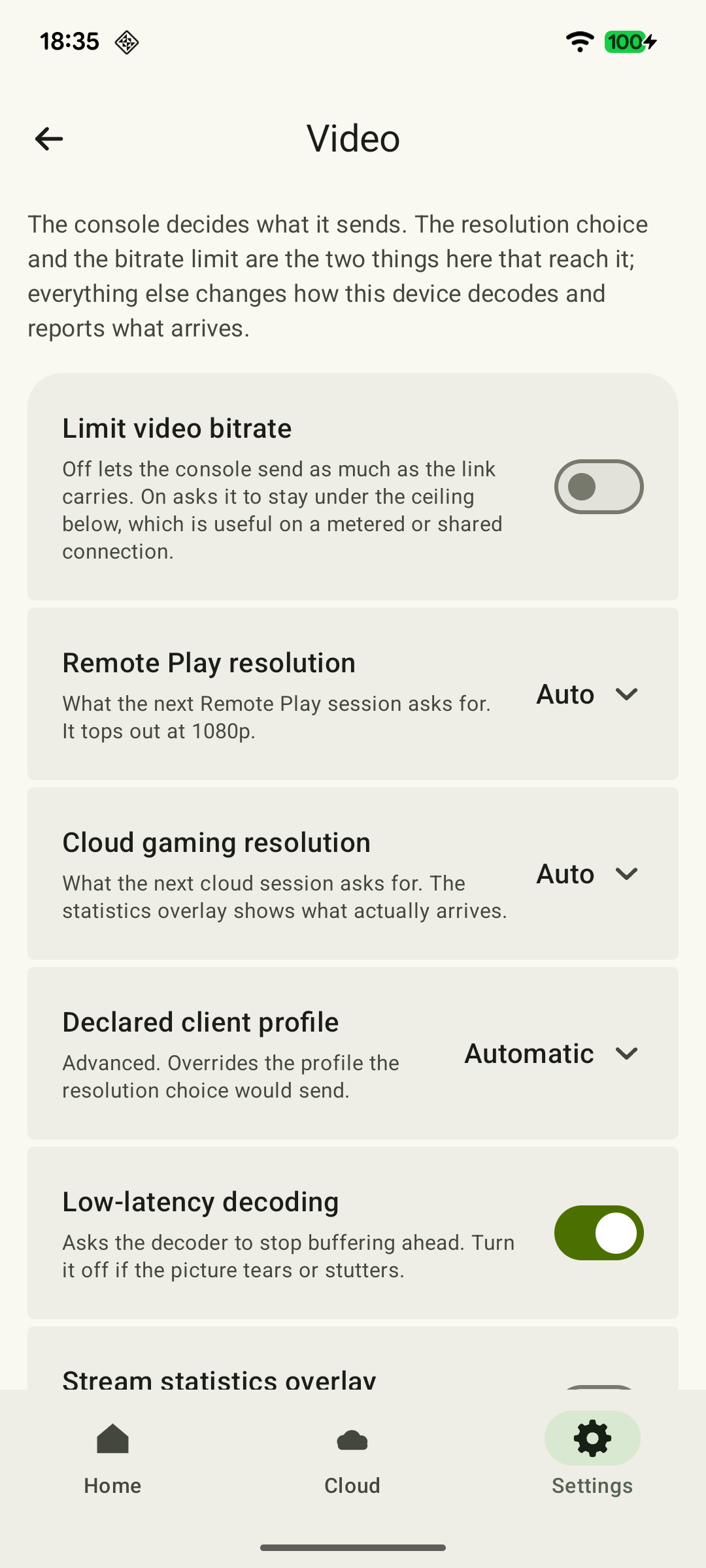
Open a map, inventory or conversation. Try to read small labels from your normal distance. Then turn the camera smoothly or move the character. Record unreadable text, motion blur and picture freezes separately.
 Enlarge screenshot
If you need to lean toward the screen, change its position first. If the game offers text or interface size settings, test them. Other options are covered in small-screen readability.
If movement stops and starts, open XBPlayer statistics and record readings during one repeatable sequence. Loss is a cumulative count of lost video packets: compare its increase over equal periods, not the totals of sessions with different lengths. Decode includes queuing and frame output from the decoder, and is not total control latency. Interpret FPS and video bitrate using the statistics reference.
Test buttons inside the game
- On a controller, test both sticks, main buttons, bumpers and triggers in actions that use them.
- On a phone or tablet with touch controls, perform two actions at once, such as moving while turning the camera, if the game allows it.
- Open the game menu and test pausing in a scene that supports it. Make sure you can return to the game.
Successful menu navigation does not test character control. The desired result is that required actions work and buttons are reachable without awkwardly regripping the device. If a touch control gets in the way, move or resize it in XBPlayer and repeat the action. See touch control setup for details. On Android TV, test a compatible physical controller.
Listen to a familiar sound
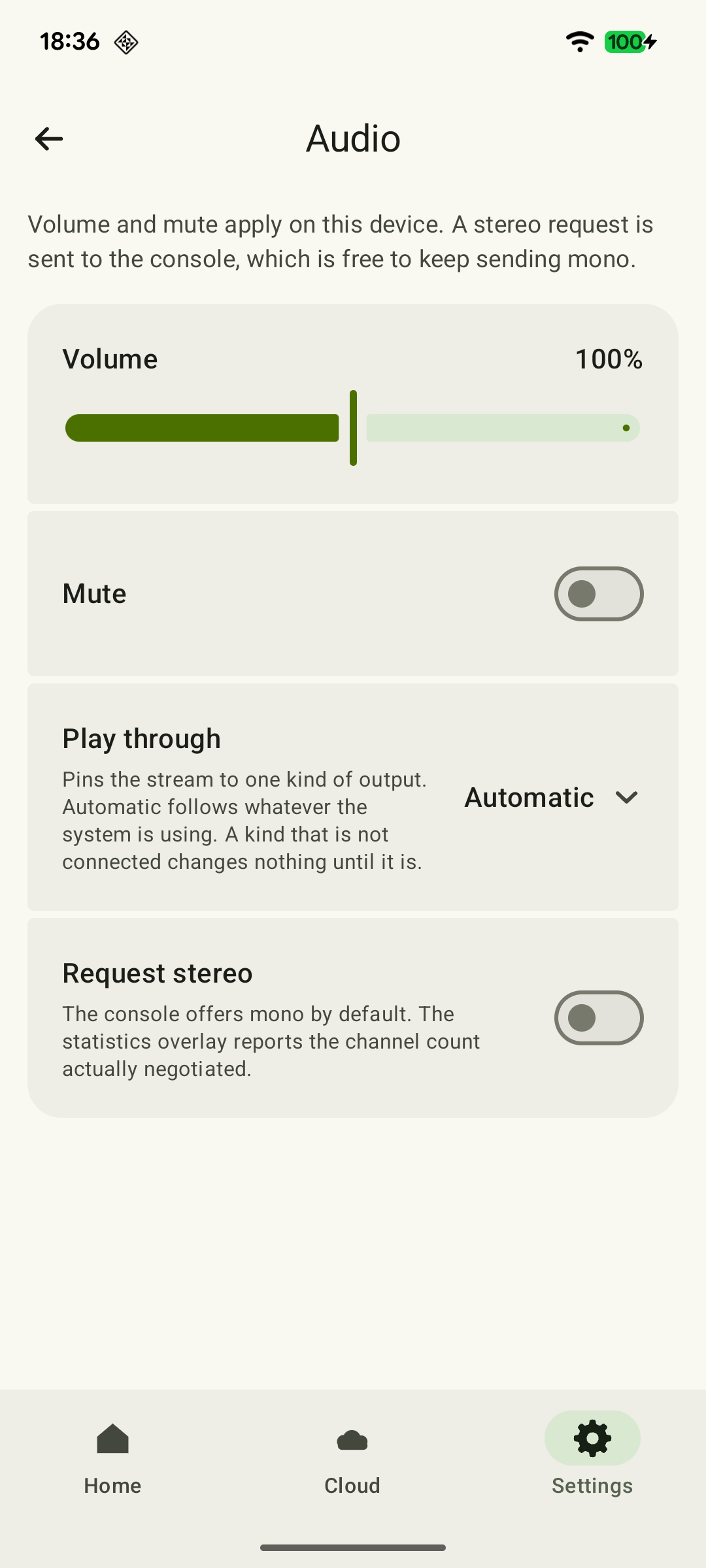
Choose an action with a clear sound effect: a footstep, menu transition or hit. Audio should come from the chosen headphones or speakers and should not lag enough to interfere with that action. Check device media volume and the game's separate volume setting, if available.
 Enlarge screenshot
If there is no sound, proceed to audio-output checks. If it is audible but noticeably behind the action, use the audio/video synchronization guide.
Load a save safely
Choose a sequence you can repeat without losing important progress. Save in the game's normal way, manually or through a checkpoint. Wait for writing to finish. Then, if the game allows it, return to its main menu and load that save. Check the location, objective or another recognizable result.
Simply returning to a game that is still running after disconnecting the stream is not enough: it does not test loading a save. If you cannot safely load progress now, leave this item unchecked. If a synchronization error appears or an old checkpoint loads, record the message and check the account and selected save; do not overwrite it with new progress or delete data for this test.
Do not interrupt synchronization while it is displayed. Successfully loading a save in the current mode confirms that it is available here; transfer between console and cloud needs a separate check.
Five results from the first session
Tick only confirmed results in a game that is already running. An unchecked item means there is no result yet.
The text I need is readable
Open a map, inventory or conversation. Tick this if the required text is readable from your usual distance.
Small Text in Xbox Games on Your Phone: What You Can Adjust →Movement does not interfere with play
Repeat a gentle camera turn or movement through the same area several times. Tick this if there are no disruptive picture freezes. If there is a problem, record the symptom; the linked detailed guide applies to Remote Play.
Xbox Remote Play stuttering: how to find the cause →The required game actions work
Test sticks and buttons or touch controls used by the game, an action combination if supported, and returning from the menu. Tick this if commands work and controls feel comfortable.
Sound is audible and matches the action
Perform a familiar action with a sound effect. Tick this if audio comes through the chosen headphones or speakers at a comfortable volume without disruptive lag. For complete silence, use the audio-output checks.
No sound in Xbox Remote Play: checks for Android and TV →A safe save loaded
Wait for writing to finish, then load the save through the game menu if safe and supported. Check the location or objective. Returning to a game that is still running does not confirm this result.
If you cannot safely load a save, leave the last item unchecked. Stop if progress is old or a conflict appears: do not overwrite or delete data. If you find a problem, change one condition and repeat the same sequence. Checkmarks last on this page until it is reloaded and do not assess the entire future session.
Repeat the problem sequence after one change
For each issue you notice, choose one change: screen position, touch-button size or audio output. Repeat the previous action and note whether it is more comfortable. For Remote Play stuttering, use the stream smoothness checks and compare what you observe with diagnostic readings.
If text is readable, movement does not interfere with play, buttons respond, sound is satisfactory and the save loads, continue with normal play. If you could not test an item, do not count it as passed. A short session does not reveal all possible device heating or network stability over an evening.
Sources and further reading
- XBPlayer — official website — Client features and the central starting point for downloads.
- Xbox Remote Play — Microsoft — Xbox One/Series, remote features and separate requirements for games and online modes. The official web route's system requirements are not XBPlayer requirements.
- Xbox Cloud Gaming — Microsoft — Cloud catalog, supported devices, certain free games and selected purchased games. A separate announcement establishes the dates of monthly limits.
- Microsoft Learn — Understanding the Game Saves sync flow — Local saving and cloud synchronization, dependencies on the user and network, errors and version conflicts. The game itself determines the saving process.
Get the key points
Open a summary request with this article’s link. For Gemini, the request is copied — paste it into the chat.