
Start playing
Xbox Remote Play away from home: checks before a trip
Before leaving, connect to your Xbox over mobile data and repeat after it goes to sleep. This tests both outside access and remote wake-up.
On this page
Xbox Remote Play can work away from home: your home console runs the game, and your phone receives the picture over the internet. Before a trip, test two actions over a mobile network: connecting to an Xbox that is on, and starting again after it goes to sleep. A successful session over home Wi-Fi does not replace this test.
The steps below prepare XBPlayer on Android. The Xbox One or Series X|S and home router must remain connected to electricity and the internet. With Xbox Cloud Gaming, the game runs on the service's server; that option requires its own access check and does not become available automatically when your home Xbox has a problem.
Prepare the console and game first
- Check the game directly on Xbox. Finish required system and game updates, sign in to the correct profile and launch the game to a playable screen. If it asks for a license or subscription, resolve that before testing the network: a library listing is not enough.
- Enable remote features. On the console, open “Settings” → “Devices & connections” → “Remote features” and select “Enable remote features”. Initial preparation is covered in the Xbox Remote Play setup guide.
- Check the power mode after updates. Choose Sleep for remote wake-up. An Xbox in Shutdown does not support remote wake-up, although remote features can work while the console is on. A successful connection to a running Xbox therefore does not prove it is ready for a trip.
- Check active hours if a sleep schedule is configured. Compare the console's schedule with your expected playing times while traveling, allowing for time zone differences. The Xbox may shut down fully outside active hours.
- Prepare the home connection. Connect the Xbox to the router by Ethernet if possible. Leave the router and any other equipment providing your home internet switched on.
Run the first session on the home network
Connect the device running XBPlayer to your home Wi-Fi. Sign in to the right Microsoft account, select the Xbox under “Your consoles” and tap “Start Remote Play”. Open the prepared game and check picture, sound and controls. A step-by-step guide covers the first connection on Android.
Wait for saving to finish as required by the game, end the stream and put the Xbox to sleep. Then connect again. If a running console is accessible but a sleeping one will not wake, check power settings and active hours first. This is easier to resolve while the console is nearby.
Turn off Wi-Fi and repeat over mobile data
Run the external test before leaving, while you can still reach the Xbox. Turn off Wi-Fi on the phone, enable mobile data and confirm that an ordinary web page opens through it. If the phone remains connected to your home router, you are still testing the home network.
- Connect to the Xbox while it is on. Open XBPlayer with the same account, choose the console and start Remote Play. The expected result is your home Xbox's picture on the phone over mobile internet.
- Test a familiar part of the game. Confirm that you can hear sound and the game responds to controls. Choose a quiet place where a disconnection will not jeopardize an important save.
- Test wake-up from outside. Save, end the stream and put the Xbox to sleep. Wait for it to enter that state. Start a new session without manually switching on the console or restoring Wi-Fi on the phone.
- Record both results. Note separately whether you could connect to the running console, wake it from sleep and play without noticeable disconnections. Repeat wake-up after a longer break resembling the gap you expect between sessions.
The test passes if the game opens through the external network and the Xbox wakes for the next session. This result applies to the connection tested: a hotel network or another carrier may behave differently. If launch fails, work through the diagnostics below before traveling.
Assess data use, controls and home upload speed
When you are away, the console sends video through your home internet's upload connection. The download speed in your plan does not tell you its upload speed. If someone at home is uploading a backup or large video to the cloud, pause that transfer temporarily and compare the same part of the game.
Check your phone's data allowance, roaming charges and throttling terms beforehand. To estimate usage, record XBPlayer's system data counter before and after a short session, along with the playing time. The Xbox streaming data guide explains how to estimate hourly usage and account for measurement limitations.
For the external test, use the controller or touch layout you intend to play with. Choosing games, checking saves and preparing something to play without a connection are covered separately in preparing Xbox games for a trip. The result to establish here is working access to your home Xbox and wake-up through another network.
If the local session works but the external one does not
| Result | Next check |
|---|---|
| Connection works only while the Xbox is on | Check Sleep and active hours, then repeat wake-up over the same external network. See the remote wake-up guide for further steps. |
| Everything works over home Wi-Fi, but mobile data cannot connect | Confirm the phone has mobile internet and that the console and home network are available. If possible, repeat using a second external network. Then follow Remote Play troubleshooting over mobile data. |
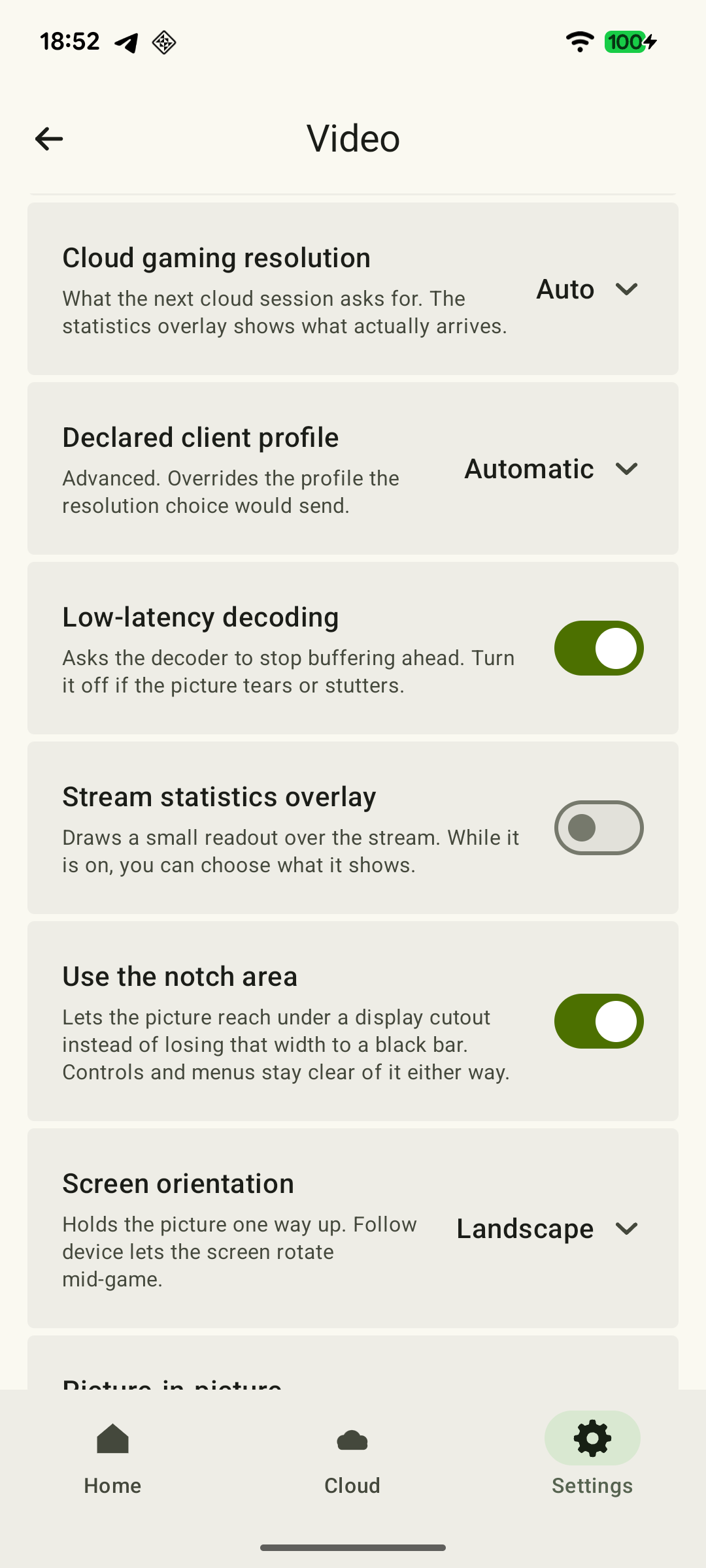
| The game opens, but the picture freezes or controls lag | Check frame rate, packet loss, bitrate and decoding time in XBPlayer's diagnostics. Pause background transfers, repeat the same section and compare the readings. Change one setting at a time. |
Record the exact error and test conditions: whether the Xbox was running or asleep, which network the phone used, and whether streaming started. Do not open ports based on a random guide or reset the console for the first attempt. If the Xbox has no power or home internet is unavailable, phone settings will not solve that cause.
At your destination, test the network before a long session
At a hotel, complete any required Wi-Fi sign-in page first and confirm internet access. Then start a short session. If it fails, compare it with mobile data, taking your plan into account: access restrictions and congestion on the hotel network can interfere with streaming. See the hotel Remote Play guide for details.
 Enlarge screenshot
Before leaving, keep the Xbox in the sleep mode you tested and leave home networking equipment on. If external launch or wake-up still fails, prepare another way to play: once you have left, you will no longer be able to physically restart the console yourself.
Before you leave: what has been tested
Complete this list while you can still reach the Xbox. Tick successful results, not just settings you changed.
The game opens on Xbox
After required updates, launch the game under your profile to a playable screen and check the expected progress.
How to prepare Xbox for Remote Play: remote features and Sleep →Power settings and the schedule fit the trip
Enable remote features and Sleep. If active hours are set, compare them with your intended playing times, allowing for time zones. The Xbox and home network equipment must retain power and internet access.
Xbox will not turn on remotely: wake-up settings →The home session and reconnection work
Test the game over home Wi-Fi: picture, sound and controls. Wait for saving to finish and test a new connection; resolve home-network failures first.
How to set up Xbox Remote Play on Android with XBPlayer →An external connection to the running Xbox works
Turn off the phone’s Wi-Fi, confirm mobile data works and start Remote Play. Check picture, sound and inputs through the phone.
Xbox Remote Play works at home but not over mobile data →The sleeping Xbox wakes over an external network
Wait for the save, end the stream and put the Xbox to sleep. Start another session without restoring Wi-Fi or switching on the console manually. Repeat after a break similar to the expected gap between sessions.
Xbox will not turn on remotely: wake-up settings →Travel controls and costs are checked
Test the controller or layout you will use on the trip. Estimate data use during a short session, check your allowance and roaming, and pack charging equipment and the required cable.
How much data does Xbox streaming use per hour? →All checks confirm only the conditions tested; test the network at your destination separately.
Sources and further reading
- XBPlayer — official website — Client features and the central starting point for downloads.
- Xbox Remote Play — Microsoft — Xbox One/Series, remote features and separate requirements for games and online modes. The official web route's system requirements are not XBPlayer requirements.
- Xbox Wire — Sleep and active hours — April 12, 2023 article about Sleep active hours and full shutdown outside them. For travel, check your own console schedule.
- Xbox Wire — Shutdown and remote wake-up — January 11, 2023 article: Shutdown does not support remote wake-up, but remote features are available while the console is on.
- Xbox Support — Remote Play setup — Xbox remote features menu path, enabling the checkbox and choosing Sleep.
- Xbox Support — Xbox power modes — Power options: Sleep is required for remote wake-up; Shutdown supports remote features while the console is on.
Get the key points
Open a summary request with this article’s link. For Gemini, the request is copied — paste it into the chat.