
Network and quality
XBPlayer statistics: packet loss, jitter, FPS and decoding
Loss in XBPlayer is a packet count, not a percentage; Decode includes the decoder queue. Understand the actual statistics fields and find what coincides with a stutter.
On this page
When Xbox Remote Play stutters, first check whether the loss counter increases at the same moment. In XBPlayer it shows the cumulative number of lost video packets, not a percentage. Jitter measures uneven packet arrival, while “Decode” measures time through the decoder. These fields describe different parts of streaming; one number cannot identify the cause of a failure.
The statistics fields are also useful in Cloud Gaming. The network checks differ: cloud play does not use your home Xbox’s upload connection, so compare the receiving device, its network and a new cloud session.
How latency, jitter and packet loss differ
| Metric | Meaning | How to read the units |
|---|---|---|
| Latency and RTT | Latency is delivery time. RTT, usually reported by ping, is the time for an exchange to the chosen destination and back. | Often shown in milliseconds, or ms. Check whether it describes one direction or a round trip. |
| Jitter | Variation in packet delivery delay. The calculation method depends on the tool. | A time value, often in milliseconds. Values from different tests are comparable only with the same method and conditions. |
| Packet loss | Packets not received within the waiting period used by that measurement. | A packet count or a percentage. A loss percentage and a cumulative counter are different metrics. |
RTT is not total input latency: that also includes input processing, the game’s work, video preparation and display. To estimate response, use the button-to-picture latency check. A stutter, frozen picture or audio dropout does not determine the cause by itself either: network and video-processing problems can produce similar symptoms.
How to read XBPlayer diagnostics
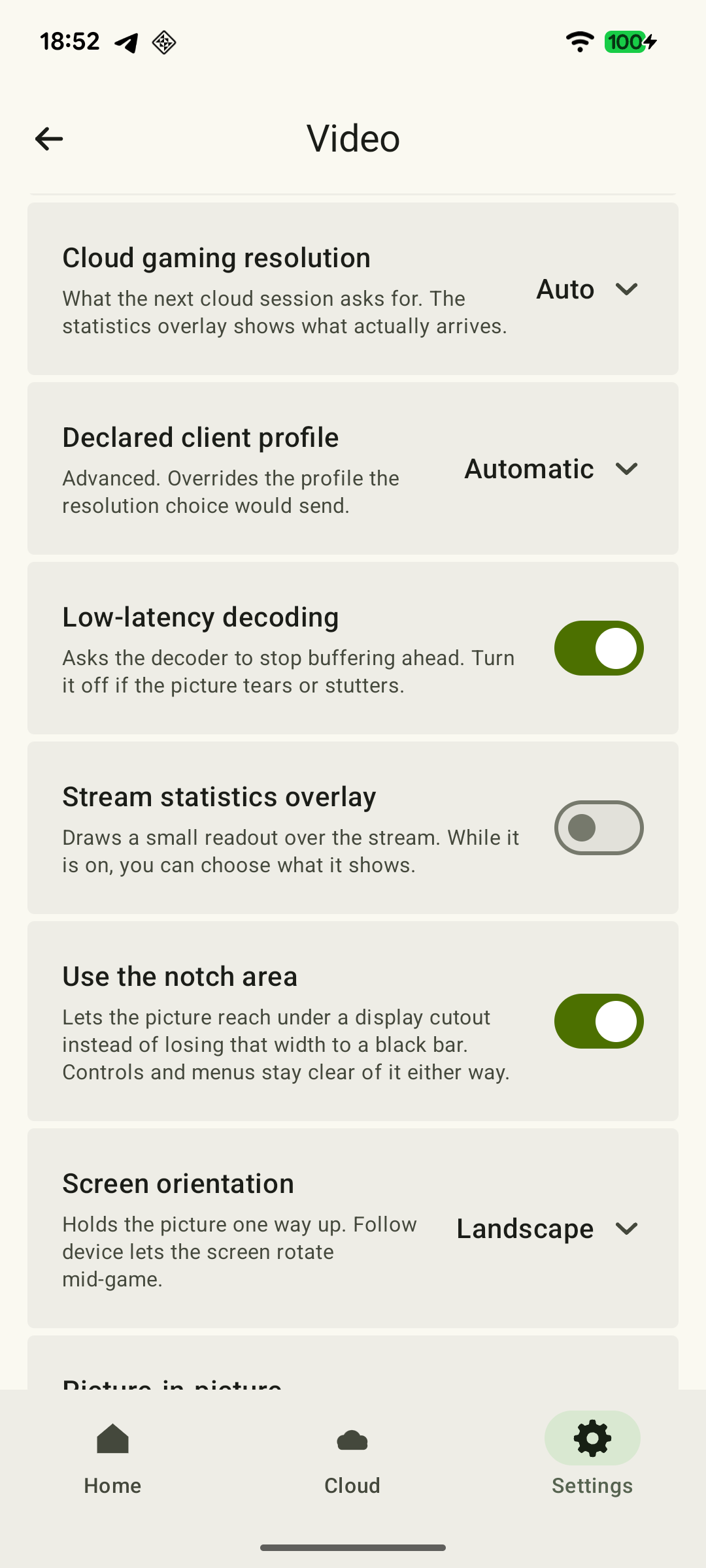
During a session, open XBPlayer’s stream controls and enable statistics. Under “Settings → Video”, use “Stream statistics overlay”; choose the metrics and corner so the readout does not cover an important part of the game.
 Enlarge screenshot
| Field | What it shows | How to use it |
|---|---|---|
| Packet loss | The cumulative number of video packets considered lost after waiting for late arrivals. | Look at the increase within one session. It is not a percentage or a ready-made per-second value. |
| Jitter, ms | Variation in video-packet arrival intervals using the RTP method. | Compare it with the usual level in the same session and the time of a stutter; do not apply thresholds from another client. |
| Decode, ms | The average interval from the decoder queue to an output frame, including waiting. | Compare the same scene and device; it is not pure computation time or the full response to a button press. |
| Frame rate, fps | A fresh presentation rate where the platform measures it; otherwise, the decoding rate. | Do not equate it with new frames from the game engine or the display’s refresh rate. An average can hide a brief stutter. |
| Bitrate, Mb/s | The rate of incoming video data between samples. | Do not confuse it with the configured cap, your internet plan’s speed or total usage including audio. |
| Present, ms | Time from submitting a decoded frame for presentation to its measured appearance, where the platform reports it. | A missing value does not mean instantaneous presentation. |
| A/V offset, ms | The difference between video and audio timelines in the measured part of the stream. A positive value means video is behind. | It does not measure additional Bluetooth headphone delay; use the audio output comparison. |
| Frame loss | A cumulative count of dropped frames where it is measured. | Do not add it to lost network packets: these are different events. |
| Ping | The general readout does not provide a measured value. | “not measured” is not 0 ms. Pinging an unrelated website does not fill this field. |
The readings update roughly once a second, and the rate is calculated over the actual interval between successful samples. This does not mean the loss row contains only the last second. Some fields remain “not measured” until the necessary data is available.
Example: the counter is 12 at the start of a minute and 17 at the end. Five lost packets were added during that minute; this is not 5%. A percentage would also require the total packet count for the same period. Record a new starting value after starting a new session. Do not directly compare totals from a five-minute game and a two-hour game.
Relate the readings to the moment of a stutter
- Start Remote Play from your console. Choose a repeatable section, such as a training scene with the same camera movement, and show diagnostics over the game.
- Record normal readings, then the time, approximate duration, and picture and sound behavior when the problem occurs. Note which fields change at the same time.
- Repeat the observation. If needed, film the screen with a second device so recording does not add load to the device receiving the stream.
- Change one condition and repeat the same scene with the same quality settings and observation duration. If it improves, restore the original condition if possible and check whether the problem returns.
Even a small overall increase may occur during a short freeze. “From 12 to 17 between 14:05 and 14:06; video froze at 14:05:30” is more useful than a number without a time. If only “Decode” rises, check the device separately. A correlation suggests the next test, but does not yet prove the cause.
Check the home connection one change at a time
Start in your usual playing location and record the result. Then run the available comparisons in turn:
- Background traffic. Pause nonessential downloads and repeat the scene. If the problems return with downloads, continue with checking bandwidth competition and queues.
- Console connection. If the Xbox uses Wi-Fi, connect it to the main router with Ethernet and repeat the observation, leaving the receiving device in the same place.
- Playing location. With the console connection unchanged, compare the receiving device near the main router and in your usual room. Problems only farther away are a reason to check coverage and the connection between mesh nodes or a repeater.
If everything changes at once, it is difficult to relate an improvement to a specific action. Keep the conditions of a successful comparison and record what you change next.
If problems occur only away from home
When the stream is stable at home but stutters through an outside connection, repeat Remote Play on the same device through another outside network. Your home upload connection, the receiving network and the route between them all contribute here. A difference between two outside connections narrows the search, but does not by itself identify a responsible provider or network node.
Ping to a public website tests an exchange with that website, not the stream from your Xbox. Routers may also limit ICMP replies. Missing ping replies or responses from an individual traceroute hop do not by themselves prove that game packets are being lost at that hop.
When the readings are enough for the next step
A universal “acceptable percentage” will not help here: the counting method, timing of losses and their relationship to a visible failure matter. Zero in one counter does not guarantee the absence of network problems, and one lost packet does not mean a game is unplayable.
For support, prepare the date and time with time zone, receiving device model, app and system versions, both devices’ connection methods, quality settings and any background downloads. Add the field labels, values before and during the problem, and the result of a comparison with one condition changed. This record helps choose the next test without resetting the console or randomly changing settings.
Send the observations you have to hi@hetko.eu. If some fields are not measured or you cannot perform a comparison, say so—there is no need to calculate missing values.
Sources and further reading
- XBPlayer: diagnostics and advice for stuttering — Frame rate, bitrate, packet loss and decoding time in XBPlayer diagnostics. Recommendations: change one setting per attempt, use Ethernet for the Xbox and pause background downloads.
- RFC 3393: IP Packet Delay Variation Metric — Different uses of the term jitter, the definition of delay variation and its time units. The calculation method depends on the measurement tool.
- RFC 7680: A One-Way Loss Metric for IP Performance Metrics — Loss depends on the chosen waiting period; a loss ratio requires the lost and total packet counts. This RFC replaces RFC 2680; its network metrics do not establish a universal Remote Play usability threshold.
- RFC 2681: A Round-trip Delay Metric for IPPM — RTT measures a round-trip packet exchange between specified endpoints and does not describe the entire game-response chain.
- RFC 1812: Requirements for IP Version 4 Routers, section 4.3.2.8 — Routers may rate-limit ICMP control messages, including Echo Reply; a missing response is not proof of loss in the game stream.
Get the key points
Open a summary request with this article’s link. For Gemini, the request is copied — paste it into the chat.