
Controls
Xbox touch controls in XBPlayer: buttons, layouts and transfers
Copy a layout, place the buttons for your hands and transfer it to another screen. XBPlayer remembers a separate selection for each window orientation.
On this page
To play through Xbox Remote Play without a physical controller, enable XBPlayer touch controls on Android, iPhone or iPad. Move the sticks and buttons to suit your grip, adjust their size and check your usual game combinations. Save a setup that works, then make a copy before further changes.
On-screen controls send controller commands. They do not turn an Xbox game into a mobile app: if an inventory item is selected with a stick and the A button, tapping its picture does not replace those actions. XBPlayer’s layout also differs from a dedicated touch interface provided by an individual cloud game.
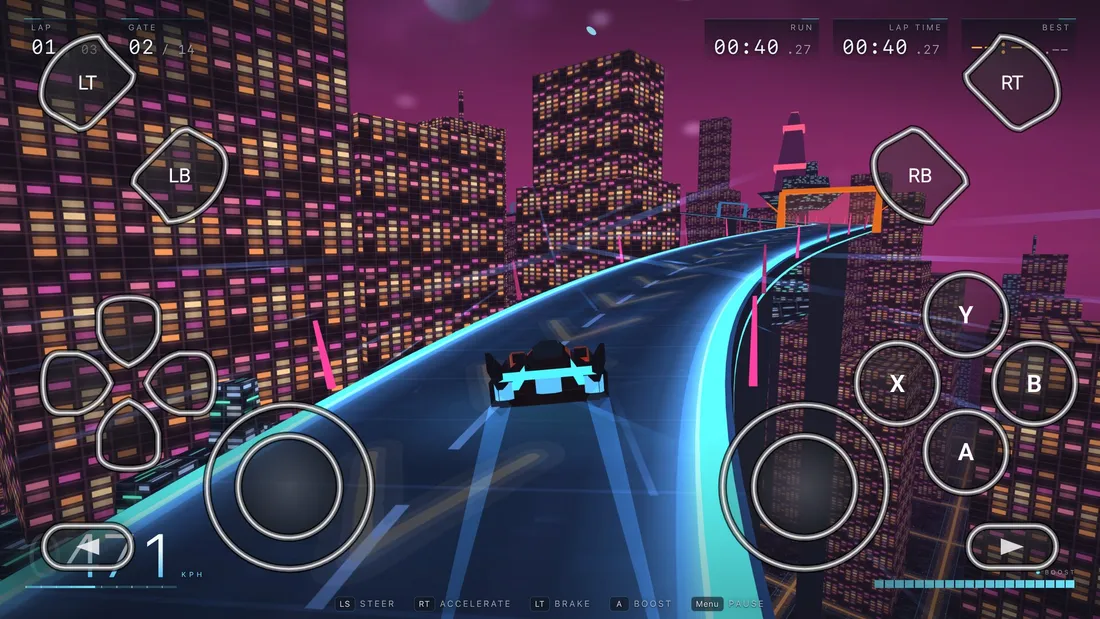
Prepare the session and starting layout
Connect to your console through Remote Play and open an installed game. Choose a menu, training session or quiet section where an accidental press will not affect your progress. If the connection is not working yet, fix streaming first: moving buttons will not fix a connection to the Xbox.
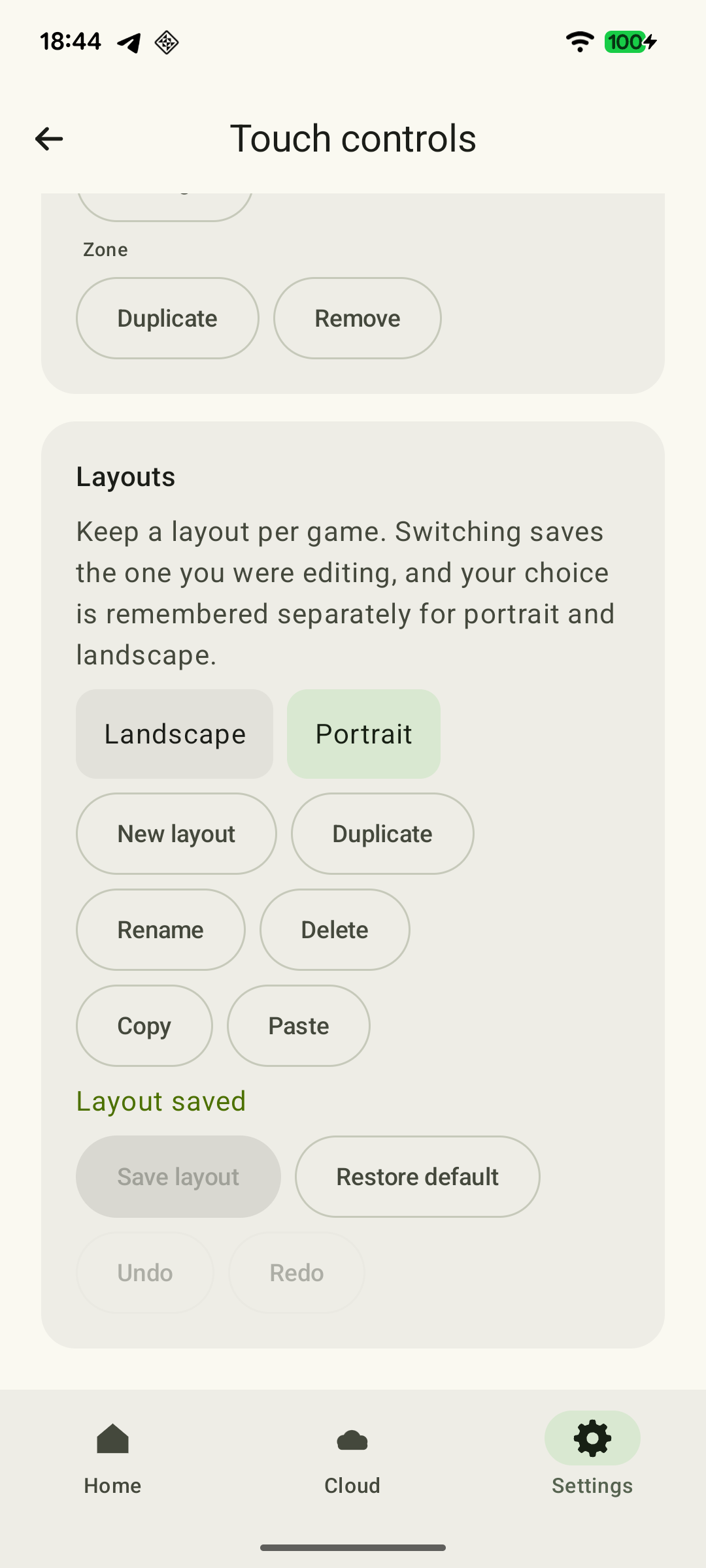
Hold the device as you intend to play and choose the window orientation. If you use a stand, keep it in place while setting up. Open “Settings → Controls”, then the touch layout editor. Under “Layouts”, select the starting layout, choose “Duplicate”, then “Rename”. Give the copy a clear name, such as “Racing — handheld”. Keep the original layout to return to.
Place the sticks and frequent actions
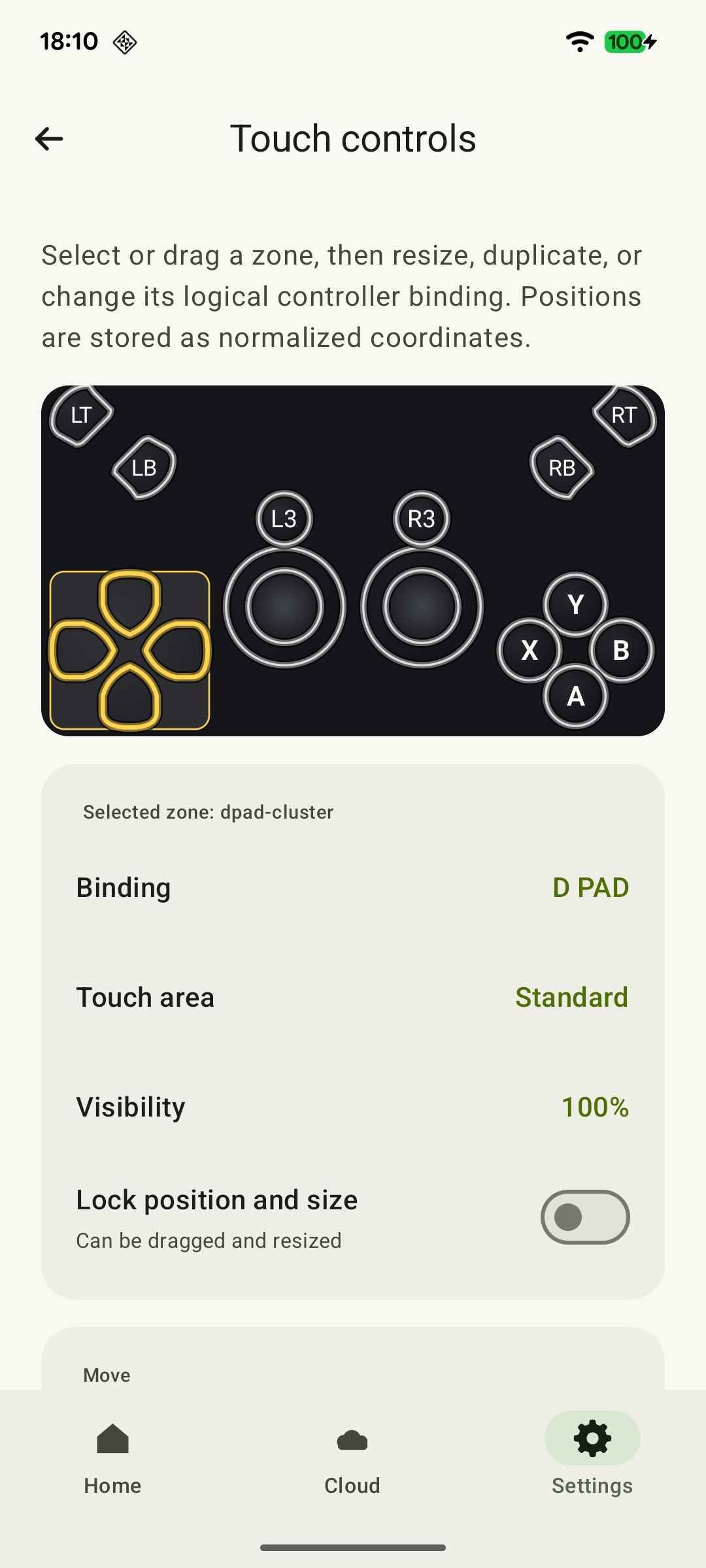
Put the stick centers where your thumbs naturally rest. Symmetry is optional. Test each stick in every direction: your finger should move freely without changing your grip or hitting neighboring buttons.
 Enlarge screenshot
- Move a frequently used button to an area your finger can reach comfortably.
- Choose a size you can hit reliably.
- Leave space between it, nearby controls and the screen edge.
- Add the other actions you need and check access to game menus.
- Make sure the layout does not cover the crosshair, minimap, health or prompts.
Change one setting at a time: position first, then size. Press highlighting helps show which control received the touch; also check the action in the game itself. The D-pad and sticks are separate controls—increasing one does not change another.
Select the required zone in the editor. Drag it or use the movement commands; adjust its size with “Smaller” and “Larger”. Under “Binding”, check which Xbox command the zone sends. “Lock position and size” protects it from accidental changes in the editor—it does not hold a game button down. After saving, return to the game and repeat the action: the editor shows the geometry, while the session shows whether it is comfortable.
Separate opacity from disabling touch
If you need a button but it blocks your view, reduce its opacity or use adaptive fading to make unused controls less visible. Choose a visibility level at which you can still find the actions you need easily.
A fully transparent button may still accept touches. If you want to remove an unnecessary action and prevent accidental presses on its control, remove that control from the layout copy. Before deleting it, check whether you will need it in menus, inventory or another game mode. You do not need to remove a useful button just to clear the view.
Check combinations and latching
After individual presses, try combinations: moving while turning the camera, moving while jumping, or steering while accelerating. If an action requires you to release a stick you need, move the button and test again. Two thumbs cannot independently hold any number of widely spaced controls: sometimes a different grip or a physical controller is more comfortable.
XBPlayer offers latching for supported individual buttons and triggers. After a touch, the button remains held even when you lift your finger; a second touch releases it. Try this in a quiet scene and check both parts of the action: activation and release. This lets you judge whether it suits a long hold in your game.
Latching does not apply to sticks or groups of controls. It maintains one press rather than generating repeated presses: it is not rapid-fire. If an action must stop as soon as you lift your finger, ordinary hold behavior may be more suitable.
Shooters have another control type: an Aim zone. One touch holds the selected command, while movement of the same finger deflects the assigned stick. This can be useful for firing while aiming, for example, but is not automatic aiming. Setups with a normal stick and with Aim are covered in the shooter layout guide; differences between touch triggers are explained in the racing layout guide.
Save, select or transfer a layout
“Layouts” can store variants for different games and grips. XBPlayer remembers the selected layout separately for landscape and portrait windows and automatically uses the corresponding option when the window orientation changes. To configure both, select the required layout in each orientation. When you switch games or change your grip, manually select the saved layout that suits that game or grip.
 Enlarge screenshot
Physically rotating the device does not always change the window: with landscape orientation locked, the window stays horizontal and the layout stays the same. After an orientation change, check the edges and access to menus, especially on a different aspect ratio.
How to copy a layout to a second device
- Select the layout in the library and choose “Copy”.
- Transfer all the copied text using your preferred method, keeping it intact. Do not edit individual lines manually.
- On the second device, copy the received text to the clipboard, open “Layouts” and choose “Paste”.
- Pasting adds a new entry to the library. Select it, check all required controls, save it and try your game combinations.
- If the result is uncomfortable, select the previous layout by name. You do not need to restore it from the imported text.
A message about skipped controls means that some elements were not imported, so the layout may be incomplete: inspect it before playing. If the text is not recognized, copy the complete export from XBPlayer again and check the app versions on both devices. Do not replace a working layout with an incomplete one. Normalized positions help with transfer, but do not make distances equally comfortable on a phone and tablet.
If a touch does not produce a command
Check that the stream is active and not covered by a system panel. Make sure the required control exists in the selected layout; if it is transparent, temporarily make it visible. Press a button with a known action in the current scene: no gunfire in a menu says nothing about whether the trigger works.
Watch the press highlight. If it responds but the action does not happen, check the in-game control binding and whether that action is available in the scene. If an action unexpectedly continues, check whether latching is enabled and touch the corresponding button again to release it.
Try another button, then another quiet game section. If no input works, end the stream and reconnect. To contact hi@hetko.eu, record the device model, XBPlayer version, streaming mode and the name of the problem control. Attach the layout text if you are willing to share it; passwords and sign-in codes are unnecessary.
Assess the layout in your own game
For a shooter, check movement, looking and firing together. For a racing game, check steering, throttle, throttle release and braking. On a tablet, assess button reach separately: a larger screen changes the distances.
Save a setup in which the required actions work reliably and the game interface remains readable. If a frequent combination still requires an awkward grip change after adjustment, try a compatible Bluetooth or USB controller.
Sources and further reading
- XBPlayer: features and touch controls — Android phones and tablets, on-screen sticks/triggers/buttons, position and size adjustments, saved layouts, and compatible Bluetooth/USB controllers.
- Xbox Remote Play — Remote Play streams games installed on your own Xbox One or Series X|S with remote features enabled.
Get the key points
Open a summary request with this article’s link. For Gemini, the request is copied — paste it into the chat.