
Troubleshooting
Xbox Remote Play not working: troubleshoot by symptom
Identify the last successful step: sign-in, Xbox discovery, connection or game launch. Check the next stage and compare results with just one condition changed.
On this page
If Xbox Remote Play is not working, start with the last step that succeeded: signing in, finding the console, connecting or launching the game. Check the next stage. If you can access your Xbox, turn it on manually for a comparison test and connect the device running XBPlayer to the same home network. If you are away, use the outside-network checks.
This guide covers streaming from your own Xbox One or Series X|S. If you are launching a game on Microsoft’s servers, use the Xbox Cloud Gaming troubleshooting guide. There is no need to reset the console, delete saves, buy a subscription or open router ports before you have identified the cause.
Choose your symptom and first check
| What happens | What to check first |
|---|---|
| Sign-in keeps repeating or never completes | Note the error message and check the selected Microsoft account using the sign-in guide. |
| The Xbox is missing from the list | Turn on the console manually, then check the account and remote features: Xbox not found. |
| The Xbox is listed but will not wake up | Connect while the Xbox is already on. If that works, check power settings and remote wake-up. |
| The Xbox is on and listed, but the connection fails | Note the error. If you can access the console, test the connection at home. If you are already away, compare two independent external networks on the same device; without a direct check, the state of the Xbox and its home network remains unknown. |
| There is sound, but the screen is black | Check whether XBPlayer’s interface is visible and whether the problem occurs on another device: black screen troubleshooting. |
| There is a picture, but no sound | Check media volume and the selected audio output: audio checks. |
| The picture is moving, but the controller does not control the game | Check the controller’s connection to the device running XBPlayer: buttons not responding. |
| The picture has frozen, but XBPlayer’s interface responds | Note whether audio continues, then compare the readings using the stuttering and freezing guide. If you see a message saying the session has ended, use the Remote Play disconnection guide. |
| The session starts and then disconnects | Note whether the stream ended or the app closed: disconnection troubleshooting. |
| It works at home but will not connect elsewhere | Compare two outside networks on the same device: mobile data and access away from home. |
| The stream works, but playing is uncomfortable | Choose the specific symptom: input lag, video stutter or a blurry picture. |
| The Xbox menus work, but one game will not launch | Open that game directly on the console and note the message. If the error occurs there too, start with the account and access to the game. |
Being returned to the Android home screen is different from seeing a session-ended message inside XBPlayer. Avoid playing without a picture: restore the image first.
Check the service, account and console while it is on
- Check the official Xbox status page. If it reports a sign-in issue or a problem with another service you need, note the time of your error and try again after service is restored. The absence of an outage notice does not prove that your connection is working correctly.
- If you can access the console, turn on your Xbox manually and open the game on the TV. Make sure the console is online and the selected profile can access the game. If the error already occurs here, resolve it first: video stream settings will not fix it.
- Check the account in XBPlayer. Use a Microsoft account with an Xbox profile that has access to the console. If you have several accounts, make sure the correct one is selected.
- Check remote features on your Xbox. Open “Profile & system → Settings → Devices & connections → Remote features” and check “Enable remote features”. See preparing your Xbox for Remote Play for details.
Leave the console on for the first test. Sleep mode is needed for remote wake-up; remote features remain available while the Xbox is on even if Shutdown is the selected power mode. If connecting only worked after you turned the console on manually, continue with the power checks in the wake-up guide.
Compare connections, changing one condition at a time
If you can access the Xbox: leave it on, use the same account and connect the device running XBPlayer to the console’s home network. This gives you a useful comparison test. It does not mean that Remote Play always requires the same network.
Compare clients. End the current stream and try the same account, console and network through xbox.com/remoteplay in a supported browser. Use the same device if possible, and have a compatible controller ready for the official option. Test the clients one at a time. If the browser connects but XBPlayer does not, send our team the results of both attempts and your connection conditions so we can reproduce the problem.
If you are away from your Xbox: compare connections on the same device, with the same account, console and stream settings. First try mobile data with Wi-Fi off, then a Wi-Fi network with a separate internet connection. Two network names on the same router are not an independent comparison. Keep VPN and proxy settings consistent, and record the last successful stage and the exact error for each attempt.
If only one network works, the difference points to an influence of the network or route. If both fail, the state of the Xbox and its home network remains unknown unless someone can check them. A console appearing in the list does not prove it is on; two failed attempts do not identify the client as the cause or establish that ports must be opened. Keep the results and continue with Remote Play troubleshooting away from home.
If you already have a connection, choose the comparison that matches the symptom: a different audio output for missing sound, or another supported device for a black screen. Repeat the same action after each change and record the result. Do not change the network, resolution and controller all at once.
Record the readings when the problem occurs
XBPlayer’s diagnostics include frame rate, bitrate, packet loss and decoding time. If the stream starts, compare the available readings during a normal scene and when the problem occurs. Keep the field names and units as well as the numbers.
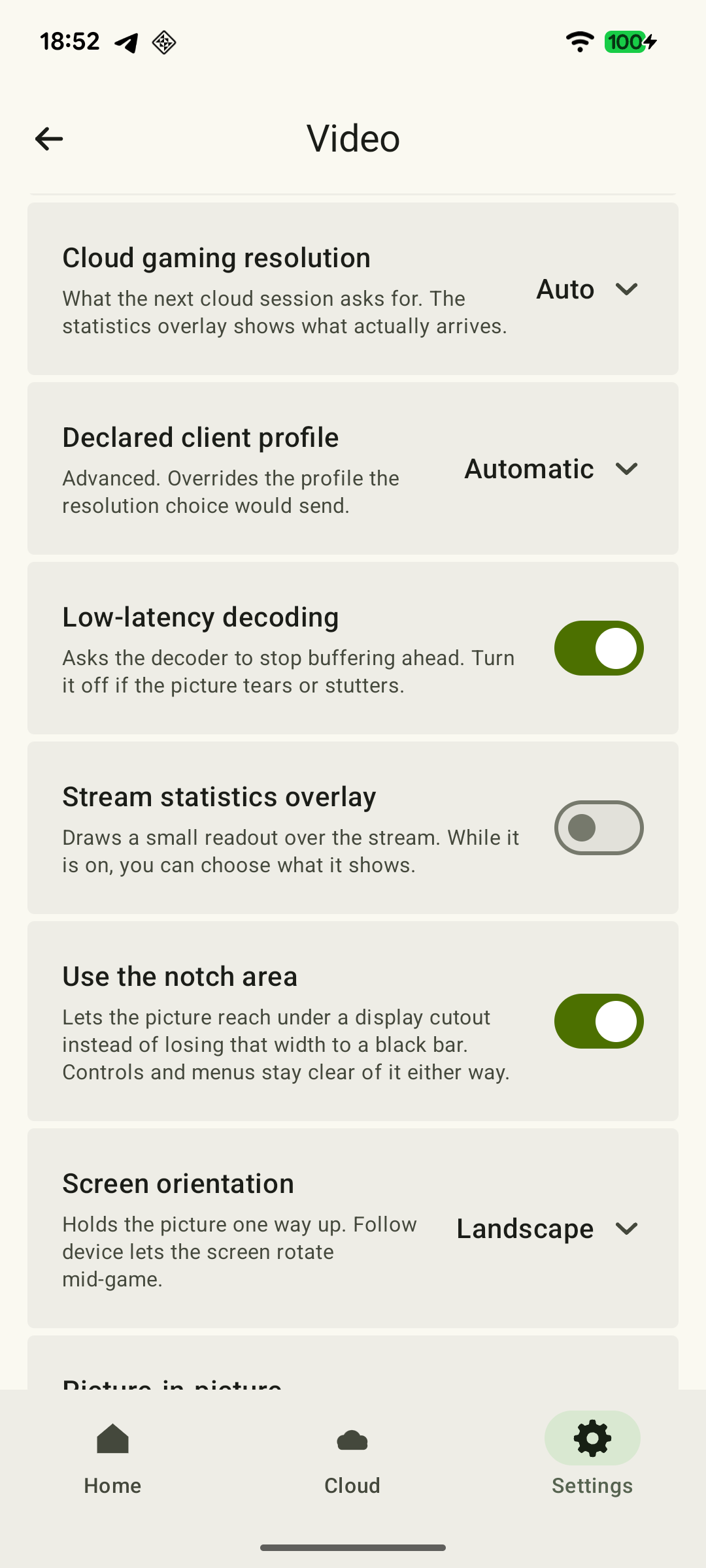 Enlarge screenshot
“Packet loss” in XBPlayer is a cumulative count of video packets. Compare how much it increases over equal intervals within the same session: a high total after a long session does not mean packets are still being lost now. The metrics table and counter example will help you relate a change to a stutter. “Decode” includes the queue until a frame leaves the decoder and does not measure total input latency; a low video bitrate alone does not prove insufficient connection speed either.
If the error occurs before streaming starts, video statistics may not be available. The exact stage where progress stops and the message shown are then more useful. Do not try to fix an account sign-in problem by lowering the resolution.
Send support a reproducible description
Include your Xbox model, the model of the device running XBPlayer, the Android and app versions, and the error time with its time zone. Add the console’s state—turned on manually or expected to wake up—and the connection type at both ends. Say whether it worked before and what changed before the first failure.
Describe a short sequence: “I sign in, choose Remote Play, see the console, and when I connect…” Include the exact error message and one or two comparison results, such as “It connects at home, but not over mobile data or guest Wi-Fi.” If the session starts, attach the available diagnostics from the time of the problem.
Contact our team at hi@hetko.eu. Before sending screenshots, hide your email address, sign-in codes and links containing authentication parameters. If the same error occurs directly on the Xbox, mention that and use the relevant Xbox help: this will help identify the right troubleshooting path.
Sources and further reading
- XBPlayer — Xbox Remote Play and cloud gaming — First test on the home network, XBPlayer modes, diagnostics, multiple accounts and contact details for our team.
- Xbox Remote Play — official requirements — Xbox Remote Play requirements: Xbox One or Series X|S, remote features, a Microsoft account with an Xbox profile, and internet access.
- Xbox Support — how to set up remote play — Xbox remote features menu path, browser access, a compatible controller and one remote gaming session at a time.
- Xbox Support — Xbox power options — Xbox power options: Sleep is needed for remote wake-up; Shutdown supports remote features while the console is on.
- Xbox Wire — Xbox April Update, April 16, 2025 — April 16, 2025 announcement: official browser access to Remote Play through xbox.com/remoteplay.
- Xbox Support — service status — Xbox service status page. Check outage notices at the time of your error.
Get the key points
Open a summary request with this article’s link. For Gemini, the request is copied — paste it into the chat.