
Start playing
XBPlayer requirements: Android, iPhone, iPad, TV and Steam Deck
XBPlayer requires Android 10 or later, or iOS/iPadOS 18 on iPhone/iPad. OS support is only the first step: check controls, decoding and game access separately.
On this page
XBPlayer for Android requires Android 10 or later; the iPhone and iPad version requires iOS/iPadOS 18 or later. Steam Deck has its own client variant. Your phone, home Xbox and cloud service have different requirements: a compatible OS alone does not confirm the whole gaming setup will work.
Which device can run XBPlayer?
| Device | What to check | Next step |
|---|---|---|
| Android phone or tablet | Android 10 or later; installation availability for that device | Remote Play or cloud launch |
| Android TV / Google TV | Android 10 or later and a compatible controller | TV setup |
| iPhone / iPad | iOS / iPadOS 18 or later | Setup after installation |
| Steam Deck | The Deck client version and controls on the device | Setup after installation |
Open the official XBPlayer website and choose the download for your platform. An Android TV or Google TV label on the box does not replace checking the OS version in TV settings. A third-party APK does not lower the app's minimum Android version.
Do not apply browser-based Xbox Remote Play requirements to XBPlayer: Microsoft lists a different minimum for its web route, including Android 6.0 and iOS 15.1. If your phone does not meet the app requirements, check the official browser option and its compatibility with your device.
Do you need your own Xbox?
| Mode | What runs the game | Access requirements |
|---|---|---|
| Remote Play | Your Xbox One or Xbox Series X|S | A compatible installed game, permission to play it and remote features enabled |
| Xbox Cloud Gaming | A Microsoft cloud server | A game in the available cloud catalog, appropriate account access and a supported region |
An Xbox 360 cannot act as a Remote Play host. A compatible Xbox 360 game is played through its version running on Xbox One or Series. Remote Play does not turn a computer into an Xbox either: streaming a PC game requires a different solution.
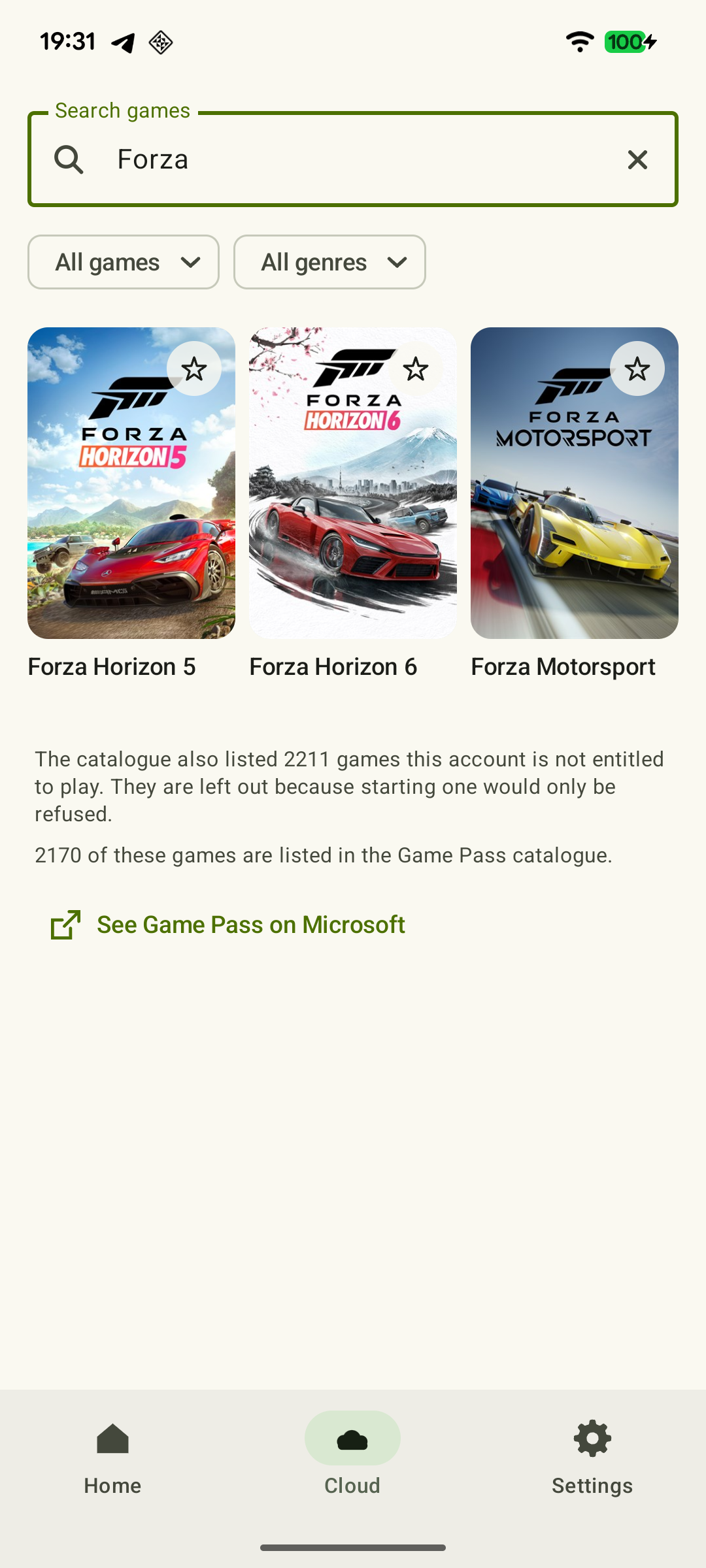 Enlarge screenshot
For your first connection to your Xbox, follow console setup. If you do not have a console, start by choosing cloud access. You do not need to buy Game Pass just to install the client.
Screen, controller and sensors
- Phone or tablet. Use touch controls or a compatible physical controller. Comfortable button combinations depend on the game, screen size and your layout.
- TV. Prepare a compatible controller; having a remote control does not mean Xbox games will be comfortable to play.
- Steam Deck. Check the built-in buttons and sticks after installing the client. The setup process is covered in the separate Deck guide.
- Gyroscope. This needs an available sensor and suitable configuration. Support for the phone's gyroscope does not imply support for the sensor in every Bluetooth controller.
Image processing and control features vary by platform. When choosing a device, check the feature you actually need: touch buttons, controller profiles or gyro aiming. Do not expect to find an Android decoder setting under the same name on iPhone.
Why can the app install but the game still stutter?
The minimum OS lets the app install, but does not guarantee hardware decoder speed, stable Wi-Fi or identical heat behavior across devices. Both ends of the network matter for Remote Play: your home Xbox sends the picture and your device receives it. Cloud play depends on the route to Microsoft's service.
Start a familiar game with the default settings, then follow the first-session checks. For picture problems, use the stream statistics and change one setting at a time. There is no need to disable every limit or buy paid access to address an unexplained error.
What to check on your device
Choose the point where your preparation stopped.
The OS version is supported
Choose your platform’s guide in the table above: Android, iPhone/iPad, Android TV or Steam Deck.
I want to play from my home Xbox
Prepare the console and enable remote features.
How to prepare Xbox for Remote Play: remote features and Sleep →I do not have a console
Check the game, region and cloud account access.
Which Game Pass do you need for phone gaming and Xbox Cloud Gaming? →The game launches but stutters
Look at the stream readings and run one repeatable test.
XBPlayer statistics: packet loss, jitter, FPS and decoding →Sources and further reading
- XBPlayer — official website — Client features and the central starting point for downloads.
- XBPlayer: Remote Play & Cloud — Google Play — Hetko app; Remote Play/Cloud, cloud game search, Android minutes and Pro. Check the type and price of a specific purchase offer in that offer.
- Xbox Remote Play — Microsoft — Xbox One/Series, remote features and separate requirements for games and online modes. The official web route's system requirements are not XBPlayer requirements.
Get the key points
Open a summary request with this article’s link. For Gemini, the request is copied — paste it into the chat.