
Start playing
How to start Xbox Cloud Gaming on Android with XBPlayer
Xbox Cloud Gaming does not need a console. Check access to the game, install XBPlayer on Android and sign in with the same Microsoft account.
On this page
To start Xbox Cloud Gaming on Android with XBPlayer, check access to the game, install the app, sign in to Microsoft and open the cloud library. You do not need your own Xbox console. You need a compatible phone or tablet, a stable internet connection and controls: XBPlayer's on-screen buttons or a compatible controller. Games run in the cloud, with video and audio streamed to Android.
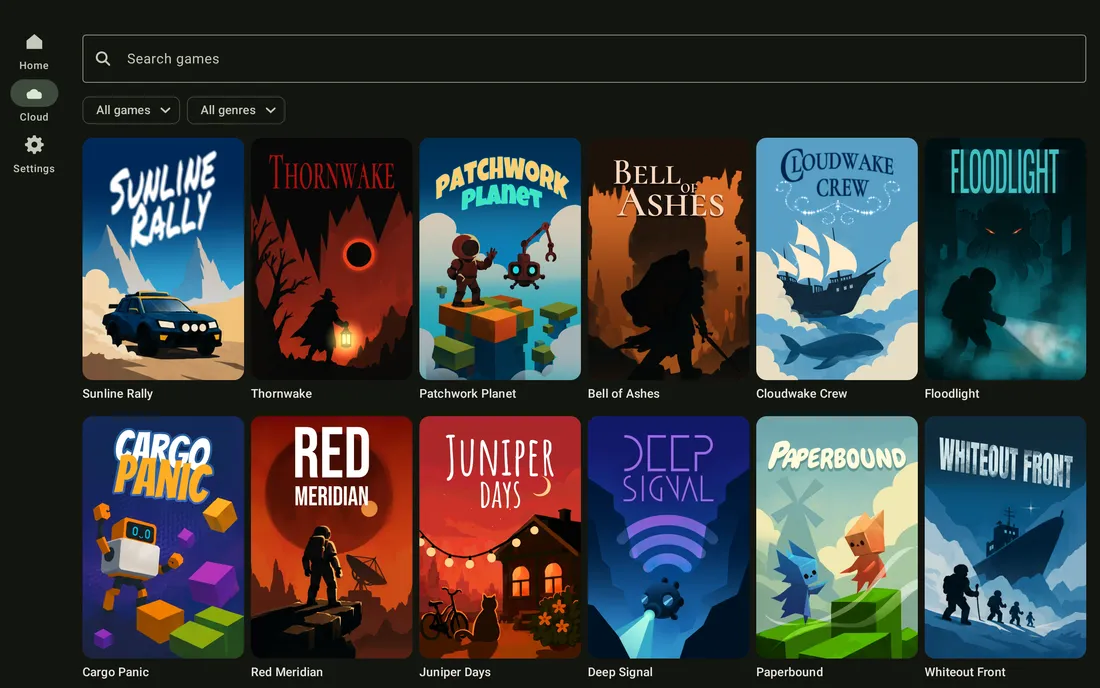
1. Check the region, account and game
- Open the Xbox supported regions page and check Cloud Gaming specifically for the country where you intend to play. Xbox Store availability or the language of the app interface does not establish cloud availability.
- Sign in to your Microsoft account at xbox.com/play. If you have several accounts, choose the one with the relevant subscription or game purchase. You can check your active plan in Microsoft subscriptions.
- Find the game and check its cloud launch requirements. Verify the full title and edition: a catalog listing alone does not confirm your account's right to launch it.
Microsoft lists cloud access for Game Pass Essential, Premium and Ultimate; the selection of games varies by plan. PC Game Pass alone does not include cloud access. Certain free-to-play games, such as Fortnite, are available with a free Microsoft account. Games you have bought also need checking: streaming supports only selected titles, and buying a game does not replace the access requirements of the service itself.
Terms as of October 24, 2026. Monthly cloud limits have been announced for November; buying hours without Game Pass is currently available to eligible Xbox Insiders. Choosing a plan and the difference between cloud hours and app minutes are covered in the Game Pass guide.
If the service reports an age or family restriction, address it with the family group organizer first. Changing clients does not change a profile's permissions.
2. Install XBPlayer and prepare your controls
On a phone or tablet running Android 10 or later, follow the Android download link on the XBPlayer website and install the app through Google Play. If the store does not offer installation, check the app requirements and the message for that particular device.
For the first attempt, use a stable Wi-Fi connection; Microsoft recommends the 5 GHz band. Move closer to the router and pause large downloads during the test. A high speed-test result alone does not guarantee a smooth stream.
Connect a compatible controller to Android by Bluetooth or USB, or use XBPlayer's on-screen buttons. These differ from Xbox's dedicated touch controls available in certain cloud games: an on-screen controller does not make the game's own menus easier to use with your fingers.
3. Sign in and open “Cloud gaming”
- Tap “Use a Microsoft sign-in code”. Open the supplied Microsoft page or use the QR code; sign in to the account you checked at xbox.com/play, then return to XBPlayer.
- Check the gamertag in the account menu. Tap “Cloud gaming” on the home screen. You do not need your own Xbox for this section.
- Enter the title in “Search games”. If nothing appears, clear the search and any selected filters. XBPlayer's catalog reflects games the service offers this account; it is not a list of every Xbox Store product.
- Select the game and its play action. In the free Android version, a new session requires a positive XBPlayer balance; top it up with the offered ad view if necessary.
- Wait for the queue and loading to finish. A successful result is a game menu that responds to the on-screen buttons or connected controller.
Minutes and Pro relate to the app. Paying for XBPlayer does not include Microsoft games, subscriptions or hours. If the game does not appear, check catalog search and filters first; for a missing-access message, follow the game access guide.
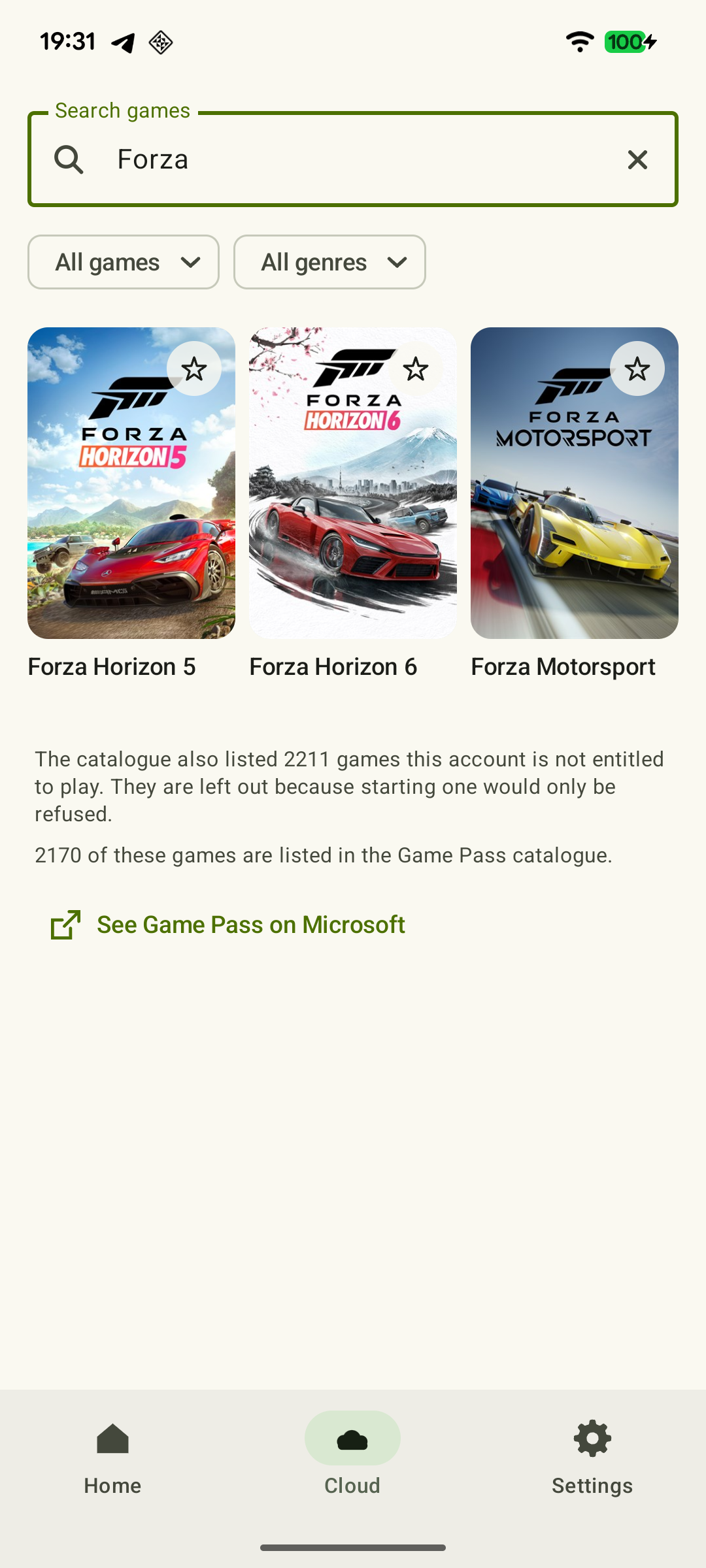 Enlarge screenshot
Which cloud settings can you change?
Under “Settings → Video”, cloud games offer “Auto”, “720p” and “Maximum”. “Maximum” requests the quality available from the service, but does not override account limits. The bitrate limiter is off by default; when enabled, its ceiling can be set from 500 to 15,000 kbit/s. This is a requested limit, not a guarantee of a constant stream rate.
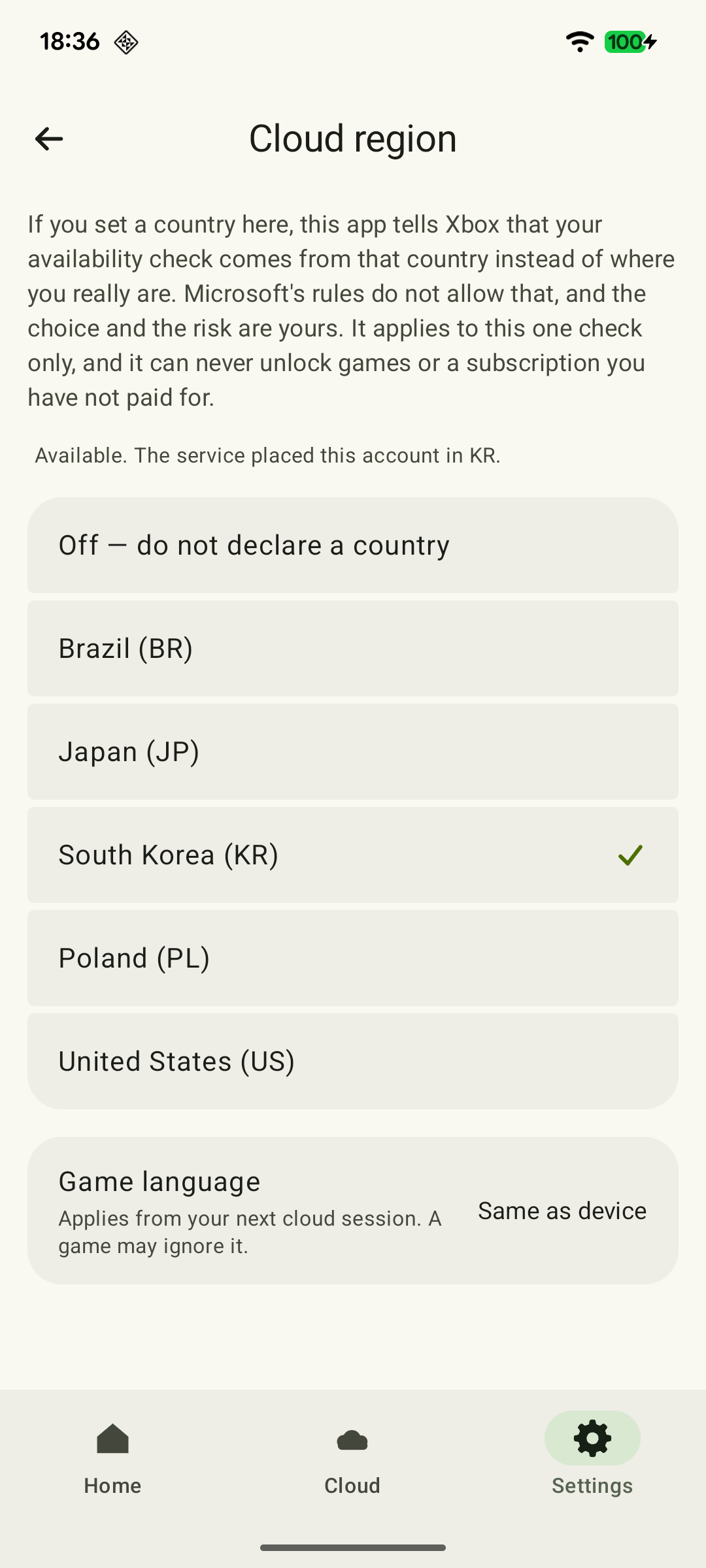 Enlarge screenshot
Assess changes to cloud resolution and bitrate in a new session: save the game first, then end the current stream and start it again. The full quality settings table explains how requested values differ from actual results.
4. Check controls and saves
Start with a tutorial or a quiet scene. Check sound, text readability, movement and a familiar button combination, such as moving while jumping. If on-screen controls cover important details, adjust their size and position, then save the touch layout.
If the game asks for a separate publisher account, use the profile with your existing progress. Before leaving, save through the game or wait for autosave to finish. When safe and supported by the game, load the latest save through its menu, or quit the game itself and check your progress after starting it again. Reconnecting to a still-running game does not confirm that a save has been loaded. If your progress is missing, check the account and edition using the Xbox and cloud saves guide; do not start by deleting saves.
First cloud session: check the result
Tick confirmed results. If a check fails, work through it before continuing the game.
The service is available where I will play
Check Cloud Gaming specifically on the official Xbox regions page. Xbox Store support does not confirm cloud support.
Can you play Xbox games without a console? Cloud and PC options →The correct profile is selected
Compare the Microsoft account at xbox.com/play with the one in XBPlayer. Check which profile owns the relevant subscription or purchase.
An Xbox game you own asks you to buy it again: account, license and cloud →The required edition can launch in the cloud
Find the exact title at xbox.com/play and read your account requirements. A store listing or ownership of another version does not establish cloud access.
How to find a game in XBPlayer: console library and cloud →Android and controls are ready
Install XBPlayer from Google Play on the chosen device. Prepare a compatible controller or on-screen buttons; check installation support for that device.
How to install and update XBPlayer on Android →XBPlayer is ready to start a session
In free mode, check your balance and top it up before launch if needed. The paid option removes this client requirement, but does not grant Microsoft game access.
XBPlayer free mode and Pro: minutes, purchases and restoring access →The game has loaded and accepts inputs
Launch the selected game from the cloud library. Check movement, the required button combination, text and sound. A queue or an open game page is not yet a successful play session.
Xbox Cloud Gaming will not launch a game: what to check →Existing progress and a new save are checked
Find the expected save slot before continuing. If it is missing, stop and check the account and edition. After playing, wait for the save to finish. When safe, quit the game itself and check progress in a fresh launch. Returning to a game that is still running does not confirm the save was written.
Xbox Cloud Saves: How to Continue a Game from Your Console →These checks apply to the game and network you tested. Repeat the relevant checks when changing games or networks.
If the first launch fails
- A subscription or purchase is requested. Check the account, plan and cloud availability of the specific game. Paying for XBPlayer does not resolve Microsoft denying access.
- A queue appears. Wait for the outcome. If an error appears instead of the game, keep its wording: that is more useful than assuming insufficient speed.
- The game loads, but the picture stutters. Open XBPlayer's diagnostics, check packet loss and test the connection near the router without background downloads.
- The cause is unclear. Try the same game at xbox.com/play in an up-to-date Chrome or Edge, using the same account and network. If the browser launches it but XBPlayer does not, check for an app update and record its version and the error message. If both clients fail, continue checking cloud access, the service and the network.
Sources and further reading
- XBPlayer — official website — Client features and the central starting point for downloads.
- XBPlayer: Remote Play & Cloud — Google Play — Hetko app; Remote Play/Cloud, cloud game search, Android minutes and Pro. Check the type and price of a specific purchase offer in that offer.
- Xbox Cloud Gaming — Microsoft — Cloud catalog, supported devices, certain free games and selected purchased games. A separate announcement establishes the dates of monthly limits.
- Upcoming Changes to Xbox Cloud Gaming — September 3, 2026 — Monthly allowances of 5/10/15 hours were announced for November 2026; those monthly limits do not apply before the change. No exact day or universal price was announced.
- Cloud Playtime for Xbox Insiders — October 21, 2026 — Buying hours without active Game Pass is a limited Insider preview; broader availability was announced for November.
- Xbox Supported Countries & Regions — Xbox service support by country. Before starting, check Cloud Gaming specifically for where you will play.
- Xbox Cloud Gaming on Xbox.com — Cloud game search and the selected purchased-games section. Check your account's launch requirements after signing in.
- Troubleshooting Microsoft Family Safety — Microsoft Support — Microsoft Family Safety troubleshooting: account and game restrictions in a family group.
- Touch controls: make them your own — XBPlayer — Moving and sizing XBPlayer touch controls, saving layouts and checking simultaneous inputs.
Get the key points
Open a summary request with this article’s link. For Gemini, the request is copied — paste it into the chat.