
Controls
Gyroscope in XBPlayer: aim by moving your phone or controller
Use the stick for large turns and the gyroscope for small corrections. Select an available sensor, set the activation condition and calibrate the stationary device.
On this page
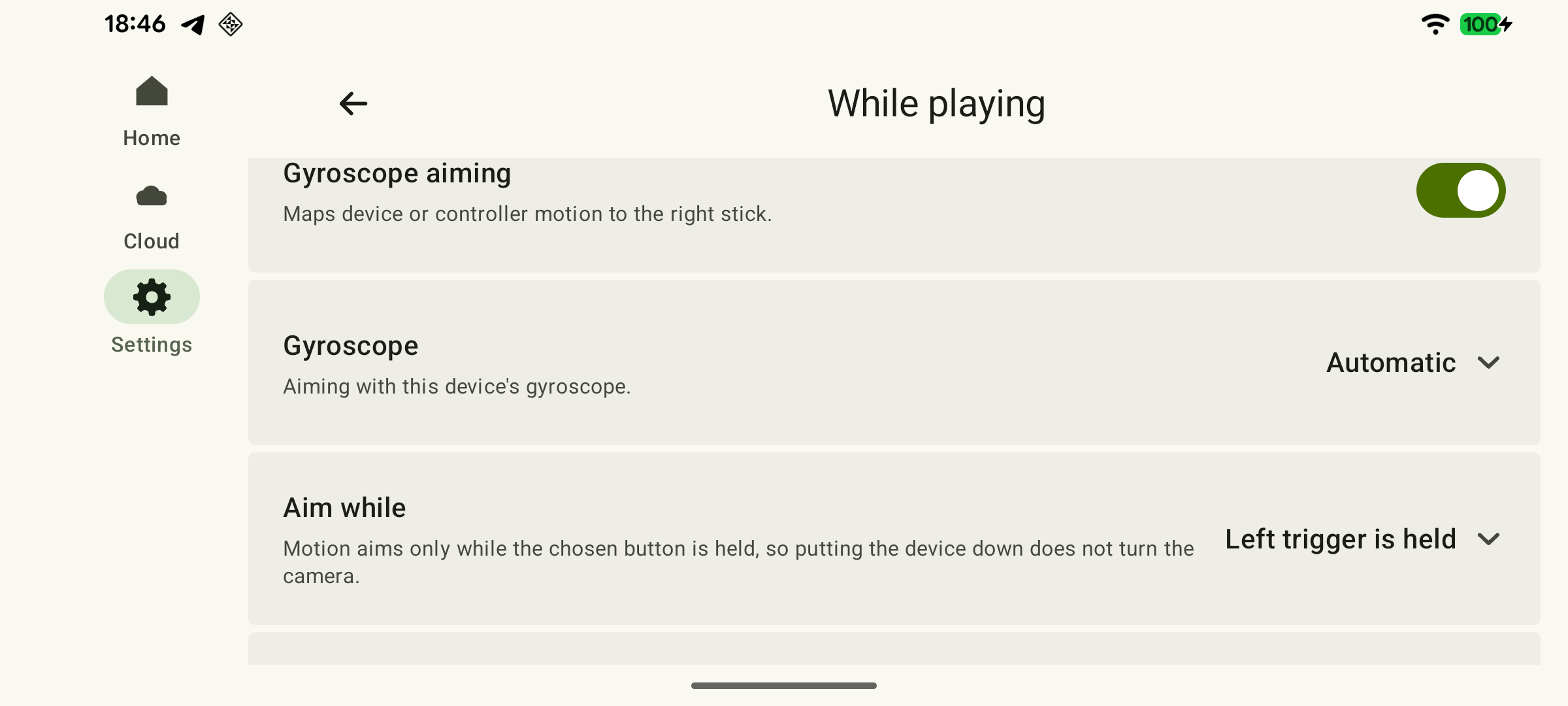
Gyroscope aiming in XBPlayer turns movement of your phone, tablet or supported controller into right-stick deflection. It helps with small adjustments by moving the device while you use the ordinary stick for larger turns. Open “Settings → While playing” and turn on “Gyroscope aiming”. The source selector and other settings will then appear. If the switch is unavailable, check the sensor-support message.
Choose an available source
“Gyroscope” offers three options: “Automatic”, “This device” and “Controller”. Automatic mode prefers the connected controller’s sensor and falls back to the device’s sensor if unavailable. Read the status line: it shows which source is in use or why it is unavailable.
 Enlarge screenshot
| Setup | Where to start |
|---|---|
| Android phone or tablet with a gyroscope | Choose “This device”. If you play with a phone mounted on a controller, the phone remains the sensor. |
| Controller with a gyroscope on Android | Requires Android 13 or later and a sensor the OS exposes to XBPlayer. Bluetooth support alone does not mean a gyroscope is present. Check the app’s status. |
| iPhone or iPad | Use the device’s own gyroscope. The “Controller” source is not used in this iOS implementation. |
The source matters for comfort: if a tablet is stationary on a stand, its sensor will not follow movement of a separate controller. If no sensor is reported, use a normal stick or a touch Aim zone. There is no need to buy another controller before checking the exact model and system support.
Activate aiming only when needed
“Aim while” offers always-on operation, holding the left trigger, holding the left bumper, or holding either. For the first test, choose a hold that conveniently activates aiming in your scheme. For example, if LT is assigned to aiming, try “Left trigger is held”.
Check the in-game binding: the gyroscope does not turn LT into an aim command or change the bumper’s action. When you release the activation condition, tilting should not add aiming. Try “Always” later if you want device movement to control the camera outside aiming too.
The gyroscope sends right-stick input. The game’s scheme, sensitivity and deadzone also affect response. It does not add automatic target selection or mouse precision; tune the result for your game.
Calibrate at rest before adjusting sensitivity
- Select the source and place the corresponding device or controller on a stable surface.
- Choose “Calibrate” and do not move it while measurement runs.
- Wait for the result. If the app reports movement, repeat on a stable support. If the sensor is unavailable or reports no readings, return to source selection.
- Start a stream and a familiar, quiet scene. For this check, use a hold-to-activate mode. Hold the selected button or trigger: the camera should remain still when the device is stationary and respond to a small turn. Release it and check that moving the device no longer adds aiming input.
Change one setting for the problem you observe
| Setting | When to change it | How to check |
|---|---|---|
| Aim sensitivity | A small, comfortable device turn produces too much or too little camera movement. | Aim at one stationary target several times. Seek an adjustment that does not require abrupt repositioning of the device. |
| Invert vertical aim or Invert horizontal aim | The direction feels unfamiliar. | Change only the required axis and repeat up/down or left/right movement separately. |
| Smoothing | Small hand tremors are visible. | Increase only enough for comfort. Excessive smoothing can delay the start of movement. |
| Steadiness threshold | After calibration, the camera slowly drifts while the source is stationary. | First rule out physical-stick movement, then raise the threshold slightly and repeat resting and slow aiming. |
| Smallest deflection sent | Slow sensor movement does not clear the deadzone the game applies to stick input. | Increase gradually; if aiming starts with a jump, restore a lower value. |
Do not use every setting at once for one problem. If the camera also moves with the gyroscope off, check physical-stick drift. If the whole stream is delayed, sensitivity comparisons do not replace latency troubleshooting.
A short test in your game
Choose training with a stationary target. Aim first with the normal right stick, then activate the gyroscope condition and make a small correction. Release the condition, change hand position and make sure the camera does not turn as a result. Then combine a large stick turn with a fine gyroscope adjustment in one movement.
Keep a setup that does not require repeated abrupt movements to settle on the target and lets you hold the device comfortably. If a new setting makes the result worse, restore its previous value. “Reset calibration” clears the rest measurement, while “Reset gyroscope settings” restores the entire set of gyro settings—these are different actions.
For a problem, email hi@hetko.eu with the device and OS, source, sensor status, chosen activation condition, game, calibration result and what happens with gyroscope aiming disabled. A brief description of a repeatable movement and its result in a quiet scene is enough.
Sources and further reading
- XBPlayer — official website and installation — Official channel for choosing a version and installing the app.
Get the key points
Open a summary request with this article’s link. For Gemini, the request is copied — paste it into the chat.