
Start playing
Remote Play missing from the Xbox app: where to play on your phone
Open xbox.com/remoteplay for your own Xbox, or xbox.com/play for the cloud. The mobile Xbox app handles purchases, downloads and communication; streaming starts separately.
On this page
If the familiar Remote Play button is missing from the mobile Xbox app, open xbox.com/remoteplay in your phone's browser. To launch a cloud game, use xbox.com/play. Microsoft lists these addresses in its current mobile app help. You do not need to reinstall the Xbox app to recover an old button.
Why older instructions show a missing button
In the April 2025 update, Microsoft announced that mobile Remote Play was moving to Xbox.com. The Xbox app still displays your library, lets you buy games and send downloads to the console, and supports communication and captures. An install-to-Xbox command downloads the game to the console; it does not stream the game's picture to your phone.
| What you want to do | Where to go | Where the game runs |
|---|---|---|
| Continue an installed game from your Xbox | xbox.com/remoteplay or Remote Play in XBPlayer | Your Xbox One/Series X|S |
| Play without a console | xbox.com/play or XBPlayer's “Cloud gaming” | Xbox Cloud Gaming service |
| Buy a game, queue a download or message friends | The mobile Xbox app | These actions do not start a stream |
Remote Play from your Xbox: the quick route
- Launch the game on your console under your profile and enable remote features. Leave the Xbox on for the first attempt.
- Connect a compatible controller to your phone. Open xbox.com/remoteplay and sign in with the Microsoft account linked to the console.
- Select your Xbox and connect. The expected result is your console's picture on the phone.
- After a successful session, separately set up and test Xbox wake-up if you want to start it remotely.
The same home network is a convenient place to test the phone and Xbox for the first time. Playing over mobile data needs a separate external test. If the console does not appear, check the profile, power, internet and remote features; a game's purchase page will not help here.
Cloud Gaming: the quick route without a console
- Open xbox.com/play in a supported browser; start with Safari on iPhone/iPad. Sign in to Microsoft.
- Find the exact title and edition. Check cloud availability in your country and the account's access to the game.
- To play without a controller, choose a game listing that supports touch. Otherwise, connect a compatible controller.
- Launch the game and wait through any queue. You do not need to install the console game on your phone.
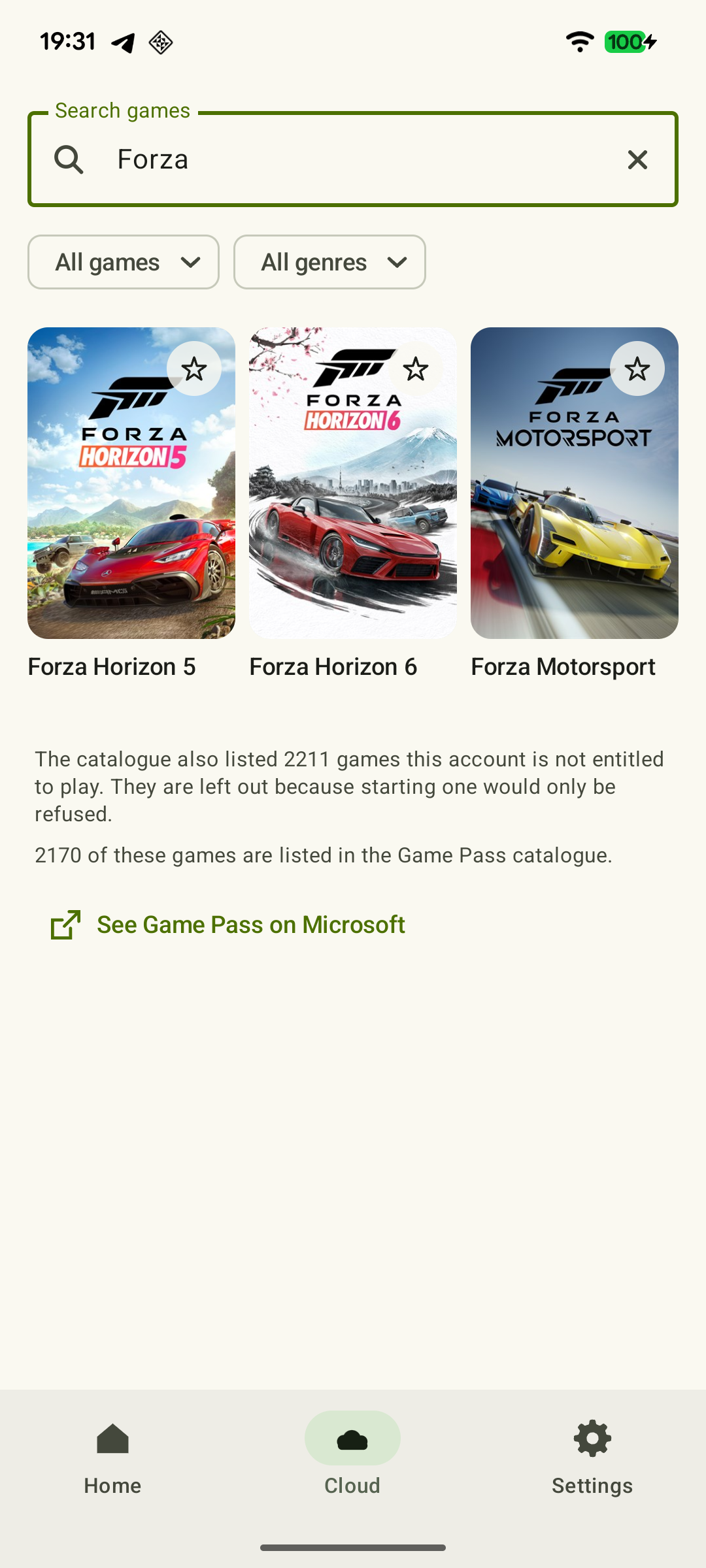
On iPhone/iPad, you can add the web service through Safari → Share → Add to Home Screen. This creates a shortcut to Microsoft's official site. Plans, purchased games and free exceptions are covered in the Game Pass guide for phone gaming.
 Enlarge screenshot
When to use XBPlayer
XBPlayer combines Remote Play and cloud games in an app. On a phone or tablet, you can customize the on-screen layout and physical controller profiles. Android has guides for Remote Play setup and cloud launch; iPhone/iPad has a guide covering both modes.
The same console and game-access requirements still apply. Paying for XBPlayer covers the app and does not replace games or Microsoft services. If browser play meets your needs, you can keep using it.
If the game still will not start
- Only a purchase or install button appears. You are on a store or library page; use the address for the required mode above.
- The Xbox is not found. Check the Microsoft account and available console list.
- Cloud play asks for a subscription or purchase. Check the license and edition under the current account.
- The picture appears but buttons do not work. Make sure the controller is connected to the phone; browser touch input depends on the game's support.
Sources and further reading
- Xbox mobile app — Microsoft — Mobile Xbox app: purchases, downloads to a console and communication. Official Remote Play and cloud launch addresses; Safari and a shortcut on iOS.
- Xbox Remote Play — Microsoft — Xbox One/Series, remote features and separate requirements for games and online modes. The official web route's system requirements are not XBPlayer requirements.
- Xbox Cloud Gaming — Microsoft — Cloud catalog, supported devices, certain free games and selected purchased games. A separate announcement establishes the dates of monthly limits.
- Xbox April Update — April 16, 2025 — Remote Play moved from the mobile Xbox app to the browser route; compatible original Xbox/360 games through a console are supported separately.
Get the key points
Open a summary request with this article’s link. For Gemini, the request is copied — paste it into the chat.