
Controls
How to remap controller buttons in XBPlayer
Manual remapping changes only the selected row. Configure both rows to swap A/B; a separate switch swaps A/B and X/Y after manual mappings.
On this page
XBPlayer lets you remap physical controller buttons and save a control profile. Start with a working controller and record its original mappings. Then change one button or pair, check the result in the game, and only then move on to the others.
This guide covers physical controllers. Moving touch buttons on the screen is a separate setting: it does not change the mappings of a connected controller.
Check controls before making changes
Connect a compatible controller to the device running XBPlayer through Bluetooth or USB. If it is not connected yet, start with the Xbox controller connection guide. Start a stream in XBPlayer and open a familiar game. On a quiet screen, check movement, confirm, cancel and the buttons you plan to change.
If the entire controller is unresponsive, first investigate missing input. Remapping makes sense when the game already receives commands but their positions are uncomfortable.
Open “Settings → Controls → Controller profile”. Under “Profiles”, save the working setup, then choose “New profile”: it starts as a copy of the current one. Use “Rename” to give it a separate name. The original profile remains available to return to. If several controllers are connected, check the selected slot.
Choose where to change mappings
A command can be transformed by the controller’s own profile, its companion utility, a third-party Android input app, XBPlayer and the game’s settings. Check only the layers present in your setup and record their active settings. Do not reset every profile for one button swap.
If you want a familiar layout across several games, configure buttons in XBPlayer. If you are changing only jump or another action in one game, look at that game’s controls first: there, the button is associated with an action name. For the first test, change mappings in one chosen place. If you previously changed the same pair at another layer, temporarily restore its original mapping while keeping a way to restore it afterward.
Swapping A and B at two successive layers can restore the previous behavior. For example, the client turns A into B, while the game assigns the incoming B to the action previously performed by A. Judge the result by the in-game action, not just the editor row.
Distinguish the button, Xbox command and action
A physical button has a label and a position on the controller. XBPlayer receives its press and, after remapping, sends the selected Xbox command. The game associates that command with an action and displays its own prompt. After changing the scheme, the controller label and prompt letter may differ.
This is the expected result of swapping A and B on a controller with those labels:
| Physical button | Xbox command after the swap | How to read the prompt |
|---|---|---|
| A | B | For a B prompt, press physical A |
| B | A | For an A prompt, press physical B |
The table assumes no other layer changes that pair. If your controller has different labels, also record each button’s physical position. Do not apply the example’s letters to another controller without checking.
How two remappings combine
An A and B learning example: change the mappings and follow the resulting chain. The simulator does not change app or controller settings.
This is a teaching model with two buttons and a hypothetical game. “Original action A” means the action the game performed for command A before any changes; the same rule applies to B. No specific gameplay actions are assigned here.
The simulator does not connect to a controller or Xbox and does not change real mappings. It does not establish what the XBPlayer editor supports or change in-game button prompts. Other buttons and remapping layers are not included.
How to read the result: physical button → command after the client mapping → action after the game mapping.
Example: original mappings
- Physical A → command A → original action A.
- Physical B → command B → original action B.
If the client swaps commands A and B and the game swaps the original actions assigned to them, the two swaps cancel out: the physical A and B buttons perform their original actions again.
Use the guide below to configure the app. Save the original profile and test both physical buttons in the game.
Change one pair and check the result
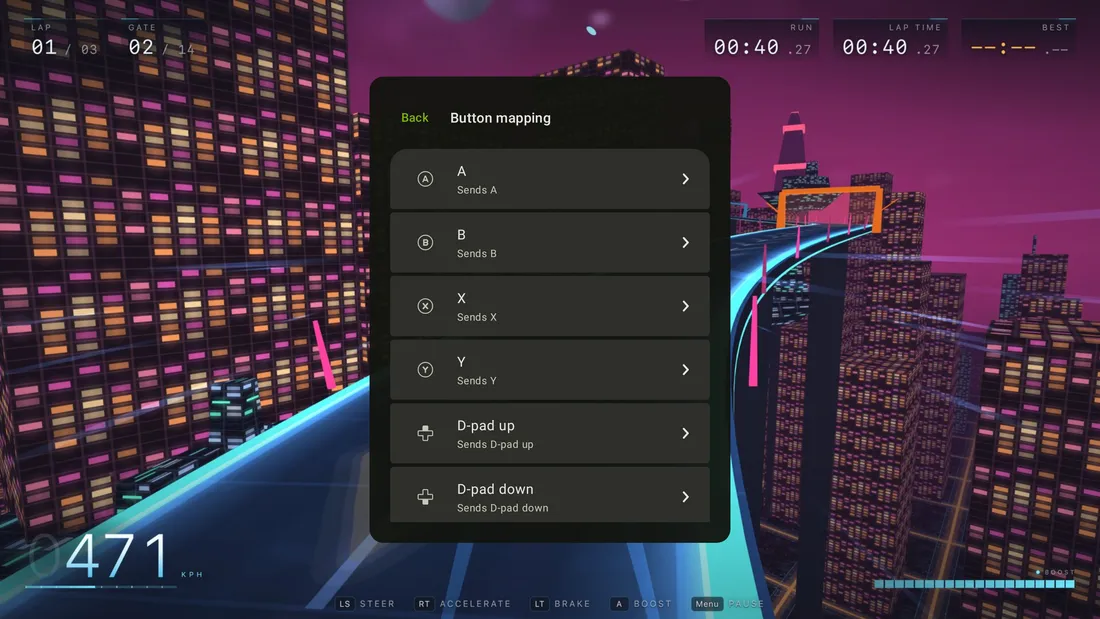
Under “Settings → Controls → Controller profile”, open “Button mapping”. Each physical button’s row shows “Sends”. For the example below, first make sure “Swap A/B and X/Y” is off and no other layer changes those buttons.
Swap only A and B
- Open the A row and select Xbox command B. Only that row changes: the reverse mapping does not change automatically.
- Open the B row and select command A. Check both “Sends” labels against the table above.
- Choose “Save profile”. If you change your mind before saving, use “Discard profile changes”.
- In a safe game menu, press each button separately. Check confirm, back and the required in-game combination.
Swap both pairs of face buttons
If you want another familiar arrangement for all four buttons at once, the profile has “Swap A/B and X/Y”. It swaps both pairs and applies after manual remapping. It is therefore not a replacement for the two-row example above. With default mappings, it produces A ↔ B and X ↔ Y; with edited rows, check each button’s final result.
Restore the original
For one button, open its row and choose “Reset to default”, then save the profile. To undo a whole experiment, select the saved original profile. Switching profiles automatically saves the one being edited, so to cancel unsaved changes, choose “Discard profile changes” first. Do not reset the entire app for one button swap.
Before starting a stream, open “Settings → Controls → Controller profile” and find “Live virtual gamepad”. Press buttons, move both sticks and pull the triggers one at a time. Changing readings confirm that the client sees the corresponding input after its own processing; these are not raw Android events or confirmation that commands reached the Xbox. Check the in-game result separately.
One physical button can have several output commands. If a row contains multiple mappings, inspect the entire list; the troubleshooting order is in the incorrect and duplicate actions guide.
Save the profile and check the next launch
When the main actions work, save the profile in XBPlayer and give it a clear name. The next time you start a stream, check the selected profile and repeat the main actions. If the problem occurs after reconnecting the controller, repeat the check after that step separately.
If the layout was not restored, compare the selected profile and mappings with your notes. Record the app version and the point after which behavior changed. Do not try to fix the result by adding more swaps on top of an unknown setup.
What to do about missing or duplicate commands
Restore the last changed pair to its original values and test the game again. If the problem disappears, check whether a required command was lost or another active profile also transforms it.
A double action alone does not prove a remapping conflict. Check additional input apps and other connected controllers, then repeat short individual presses in another game menu. Further steps are in the swapped buttons and double presses guide.
Sources and further reading
- XBPlayer — Xbox Remote Play and cloud gaming — Compatible Bluetooth/USB controllers, physical-button remapping during streaming, and saved profiles.
Get the key points
Open a summary request with this article’s link. For Gemini, the request is copied — paste it into the chat.