
Start playing
How to find a game in XBPlayer: console library and cloud
Remote Play needs an installed Xbox game; cloud play needs service support and account access. Check purchases and the recently played list separately.
On this page
To find a game in XBPlayer, first choose how to launch it. For Remote Play, check the installed game on your Xbox and connect to that console. For Xbox Cloud Gaming, search the cloud catalog and check your account's access. Purchasing a game, installing it and having it available in the cloud are separate requirements.
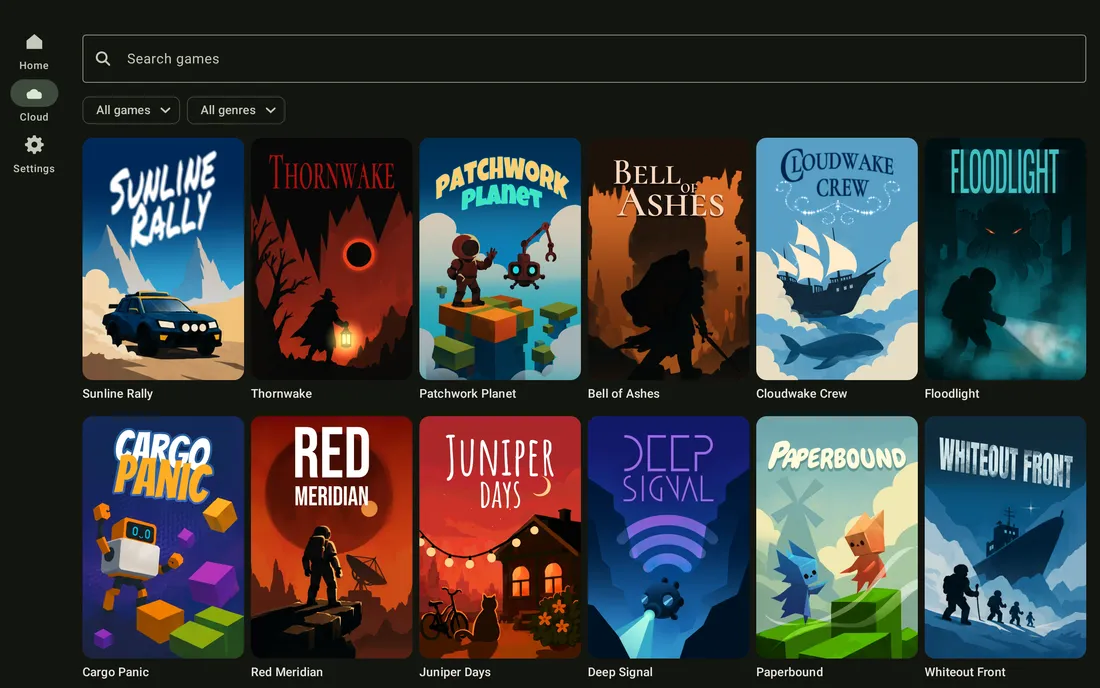
How the four game lists differ
| Where the game appears | What it means | What to check before launch |
|---|---|---|
| Installed games on Xbox | The game is downloaded to the console | Whether it launches under the right profile and is available through Remote Play |
| The account's purchased games | The account has the corresponding purchase | Platform, edition contents, installation for Remote Play or cloud launch support |
| Xbox Cloud Gaming catalog | The service offers a cloud version of the game | Access for your account, region and subscription or purchase terms |
| XBPlayer's “Recently played” | Launch history in the cloud library | Find other cloud games in the catalog and installed games on the console |
A game missing from recently played does not prove it is unavailable. That list does not replace the Xbox's installed-game list or show all purchases. If you are still choosing a mode, start with the Remote Play and Xbox Cloud Gaming comparison.
How to launch a game from your Xbox
- Check whether the required Xbox version is installed on the console. If you have only bought it, first install it on a compatible console. Finish necessary downloads and updates.
- Open the game under the profile you intend to play with. Wait for the main menu. If the console requests a purchase or subscription, check the account's rights and the edition's contents first.
- Make sure remote features are enabled on the Xbox, then connect to it through Remote Play in XBPlayer. The expected result is that console's picture.
- Use the console interface to open the game you checked and confirm the correct profile is selected inside it. Check the save before continuing your playthrough.
If there is no Xbox picture, restore the Remote Play connection first. If the picture appears but the game will not launch, record the game's error. Reinstalling XBPlayer will not create a license or install the game on the console. See the accounts, purchases and subscriptions guide for access details.
How to find a game in XBPlayer's cloud library
- Tap “Cloud gaming” on the home screen and check the selected account.
- Enter the exact title in “Search games”. If the list is empty, clear the search and filters; a selected genre or collection may hide the game you need.
- The catalog includes “Recently played”, “Favourites” and “All games”. “Recently added” means new catalog entries, not your launch history.
- Select the game and its play action. Mark it as a favorite for quick access; removing that mark does not delete the purchase.
XBPlayer shows cloud games the service offers the selected account. “No games to play yet” differs from an empty search result: check the profile and access first. If the official xbox.com/play launches the game under the same account but the client does not show it, tell support the exact title, edition, XBPlayer version and selected filters.
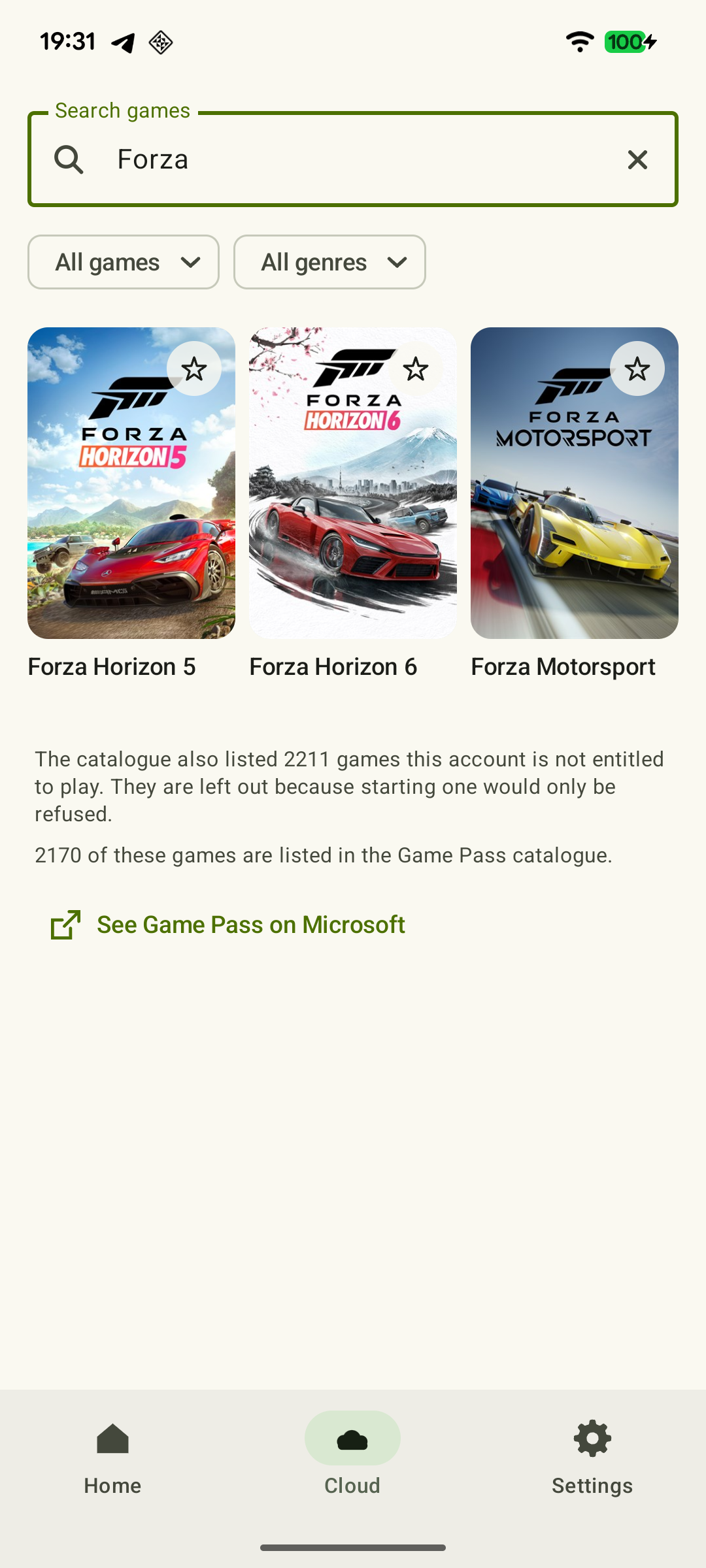 Enlarge screenshot
Buying an Xbox version does not add every game to the cloud. Only selected games are supported; cloud launch does not require installation on your home console. Check subscription and license requirements using the purchased-game access guide.
What to check if you see only a purchase or add-on
Open the purchase contents on the official store listing. An expansion, item bundle and base game may be sold separately. Also check the platform: having the PC version alone does not confirm access to the Xbox version.
If the game previously worked through a subscription, check the subscription's current status and the game's availability in the relevant catalog. If cloud launch is unavailable but a supported Xbox version is installed and runs on your console, you can test Remote Play. Picture and network settings do not change what a purchase or cloud catalog includes.
How to check that the right save loaded
With Remote Play, you control a game on your own Xbox. Moving between console and cloud requires the same gaming profile, a compatible game version and save synchronization. Matching titles across editions do not establish compatible progress.
Before switching, save in the game's usual way and wait for writing to finish. Quit the game on the source device, leaving that device connected to the network. At the next launch, wait for any displayed synchronization and check the character, chapter or last checkpoint.
If progress differs or a save conflict appears, stop before continuing. Compare the profile, game version and information in the conflict message. Do not choose a copy at random or delete saves to find a game. Once you locate the correct playthrough, run the short first-session check for picture, controls and sound.
Sources and further reading
- XBPlayer — official website — Client features and the central starting point for downloads.
- Xbox Remote Play — Microsoft — Xbox One/Series, remote features and separate requirements for games and online modes. The official web route's system requirements are not XBPlayer requirements.
- Xbox Cloud Gaming — Microsoft — Cloud catalog, supported devices, certain free games and selected purchased games. A separate announcement establishes the dates of monthly limits.
- Official Xbox Cloud Gaming catalog — Cloud game search and the section for selected owned games available to stream. Check game access terms after signing in to your account.
- Microsoft Learn — XR-052: User State and Title-Save Location, Roaming and Dependencies — Progress is associated with the user; transfer depends on the platform, game identifier and Xbox Play Anywhere support. Compatibility between editions must be checked separately.
- Microsoft Learn — Understanding the Game Saves sync flow — Local saving and cloud save synchronization: upload after the session ends, network checks and version conflicts.
- Xbox Play Anywhere — A shared digital purchase for Xbox and PC, and progress transfer for games that support Xbox Play Anywhere.
Get the key points
Open a summary request with this article’s link. For Gemini, the request is copied — paste it into the chat.