
Troubleshooting
Xbox Cloud Gaming will not launch a game: what to check
Read the message first: a queue, repeated sign-in and denied access need different actions. Then check the game with the same account at xbox.com/play.
On this page
If Xbox Cloud Gaming will not launch a game, start with the on-screen message. If there is a queue, leave the attempt open; if access is denied, check the account and selected game; for a connection error, check Xbox status first, then compare launching in XBPlayer with the official cloud service. “Loading” without an explanation does not identify the cause.
Identify where the launch stopped
| What is on screen | First action |
|---|---|
| A queue or a wait for an available slot | Wait for this attempt’s result unless the service offers another action. Do not restart the game just to refresh the time estimate. |
| A request to sign in to Microsoft | Complete sign-in and check which account is selected in XBPlayer. |
| No access, or a subscription or purchase is required | Open the same game at xbox.com/play under the same account and read the launch requirements. |
| Only “Loading”, with no queue or error | Record the stage and duration. If you decide to stop waiting, end this attempt and compare the same game in a browser using the steps below. Do not assume loading means a queue without a service message. |
| A connection error or failed launch | Keep the exact message and error code, then check Xbox service status. |
Microsoft warns that server availability and wait times vary. A queue is not a Wi-Fi speed test, and the displayed wait time should not be treated as an exact start time. If you see only a loading screen rather than a clear message, record when it started and the action that preceded it.
Check the account and cloud access to the game
- Open the official Xbox Cloud Gaming catalog. Sign in with the same Microsoft account selected in XBPlayer. With multiple accounts, it is easy to compare different access rights.
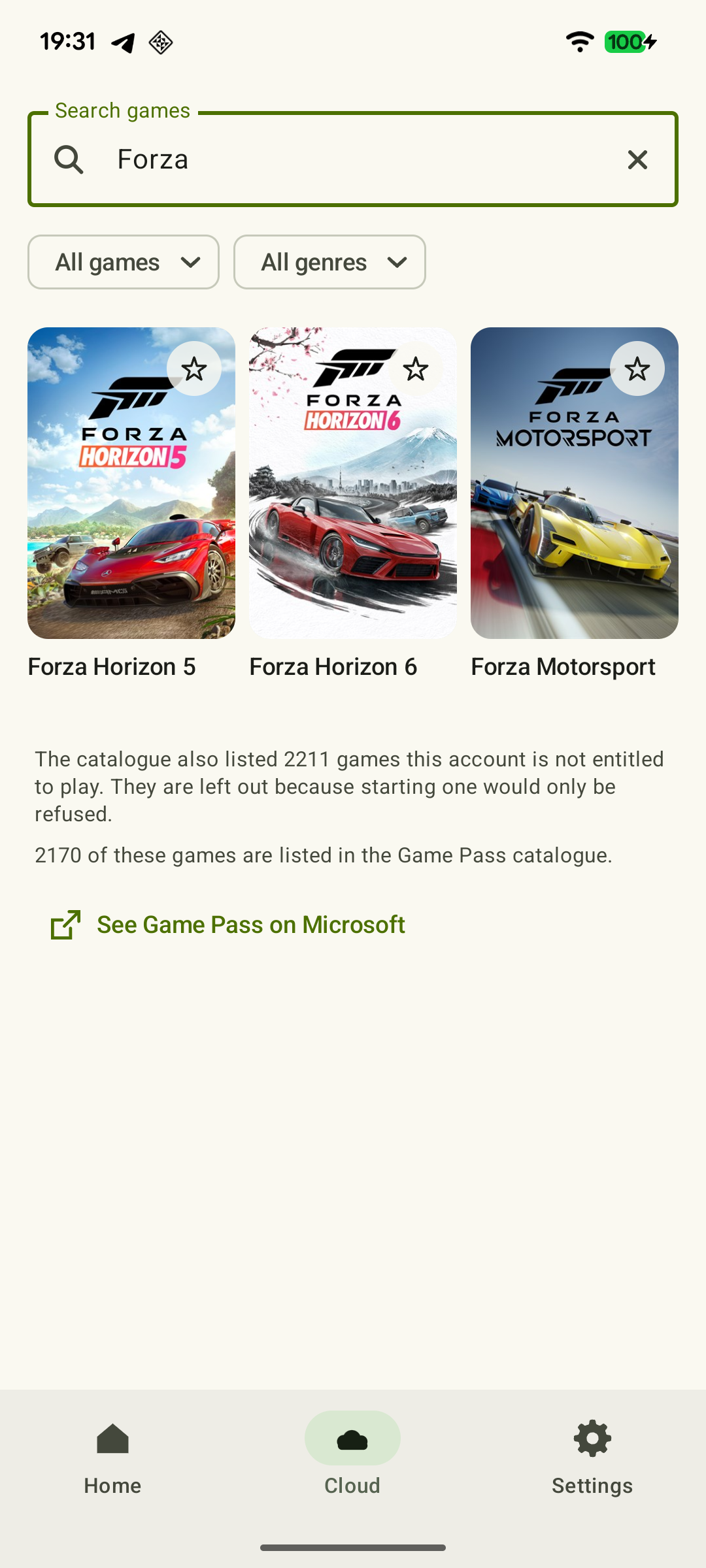
- Find the game and check whether cloud play is available. Buying an Xbox version does not let you stream every game: cloud streaming supports selected games only. If you cannot find the title, use the game search guide.
- Read the conditions for your account. Access depends on the game, plan and region. For certain free-to-play games, such as Fortnite, a free Microsoft account in a supported region is enough. This does not mean the whole catalog is free.
- Check Xbox Cloud Gaming specifically in the list of supported countries and regions. XBPlayer’s language does not determine service availability.
This guide covers launching on Microsoft’s servers. Connecting to your own Xbox requires a different sequence of checks—see the difference between Cloud Gaming and Remote Play.
 Enlarge screenshot
If you bought the game but the service asks you to pay again, check the purchasing account, exact edition and base game: an add-on does not replace the game itself. Open the cloud listing for that exact edition. The purchase and access guide also explains sharing on a home Xbox. If the edition does not support cloud play, Remote Play remains an option only if you own a console on which it runs.
XBPlayer’s time balance and Microsoft’s conditions are separate. Check who is showing the limit: the client reports its own balance, while the cloud service reports Microsoft’s plan or time conditions. The app’s terms are explained in the XBPlayer payment guide, and cloud access choices in the Game Pass and Cloud Gaming guide. Buying a paid client option does not itself unlock Microsoft’s catalog.
Check Xbox status and launch in a browser
Open the Xbox service status page when the error occurs. If it reports a cloud service outage, wait for a status update and try again. Router settings will not fix an announced server problem. Conversely, the absence of an outage notice does not prove that the problem is on your side.
If there is no known outage, end the failed XBPlayer attempt and launch the same game through xbox.com/play in a supported browser on the same device. Keep the same account and network. Use compatible controls offered by the official service for this test: XBPlayer’s on-screen buttons do not transfer to the browser. If the device does not support the official access method, testing on another device is still useful, but changes two conditions.
If the game consistently opens in the browser but XBPlayer repeats the error, check for an app update and try launching again. If the error remains, send the comparison to the XBPlayer team. If both methods fail, try another available cloud game. A successful launch narrows the search to the first game and its access conditions. A difference in queue time alone does not support that conclusion.
Compare two networks for a connection error
If the error persists, try launching through another network—for example, mobile data instead of Wi-Fi, if your plan allows the data usage. Keep the same device, account, game and launch method. Compare the error text, the stage where progress stops and whether you successfully enter the game.
If the second network helps, retest the first soon afterward. A repeatable difference is a reason to investigate the first network or its route to the service. One successful launch does not establish the cause: the service may have recovered in the meantime. Change one condition at a time so the result is meaningful.
Try again and keep details for support
If the service offers a retry after an error, save the message first, then start a new attempt. While you are in a queue, repeatedly leaving provides no useful diagnostic information; do not assume your place will be kept after you leave. If the app repeatedly returns to Microsoft sign-in, use the repeated sign-in checks. Reinstalling does not fix game access rights, so there is no need to start there.
For support, record the game name, date and time with time zone, device model, system and XBPlayer versions, Cloud Gaming mode and exact error message. Add browser, other-game and second-network results only for checks you actually completed. Hide your email address, sign-in codes and payment details in screenshots.
For an error that occurs only in XBPlayer, email hi@hetko.eu. If it also occurs in the official cloud service, use Xbox Support. If a comparison is unavailable, contact support with the information you have: you do not have to identify the exact cause yourself.
Sources and further reading
- Xbox Cloud Gaming — access conditions and supported ways to play — Cloud gaming access conditions: account, plan, region, selected free-to-play games and the list of purchased games available to stream. See the dated Xbox Wire announcement for the introduction date of monthly limits.
- Xbox Cloud Gaming — official catalog and launch — Official Xbox Cloud Gaming catalog and launch. Sign in to your account to check access to a particular game.
- Xbox on Mobile — Official cloud access at xbox.com/play and information about variable server wait times.
- Xbox Supported Countries & Regions — Supported Xbox countries and regions. Select Xbox Cloud Gaming specifically for this check.
- Xbox Support — service status — Current Xbox service status: check it when the error occurs and watch for updates during an announced outage.
- Xbox Wire — Upcoming Changes to Xbox Cloud Gaming, September 3, 2026 — Monthly cloud limits were announced for November; until their introduction, eligible subscriptions allow play without these monthly limits.
- Xbox Wire — Cloud Playtime Now Available to Test with Xbox Insiders, October 21, 2026 — Cloud playtime purchases are currently being tested with Xbox Insiders without an active Game Pass subscription; a wider rollout is planned for November. Access depends on preview conditions.
- XBPlayer — cloud mode, accounts and time balance — XBPlayer cloud mode, multiple accounts and the app’s separate time balance. Microsoft games and subscriptions are not included in XBPlayer.
Get the key points
Open a summary request with this article’s link. For Gemini, the request is copied — paste it into the chat.