
Start playing
Can you play Xbox games without a console? Cloud and PC options
Xbox Cloud Gaming does not require your own console. Start with free Fortnite in a browser, then check access to the games and saves you want.
On this page
Yes, you can play supported Xbox games without a console through Xbox Cloud Gaming. The game runs on Microsoft's servers, while your phone, tablet or computer receives the stream. For an initial test, you can launch Fortnite in a browser without Game Pass. If a game has a Windows version, another option is to install it on a suitable PC.
Which options work without your own Xbox?
| Method | Where the game runs | What to check |
|---|---|---|
| Xbox Cloud Gaming | On Microsoft's servers | Cloud availability of the game, account access, region and connection quality |
| Installing the Windows version | On your computer | PC support, a license and the specific game's system requirements |
| Xbox Remote Play | On your Xbox | This method requires a console, so it does not solve playing without an Xbox |
XBPlayer supports both cloud play and Remote Play. If you do not have a console, choose Xbox Cloud Gaming. The comparison of the two modes explains the difference in more detail.
How to try the cloud without a subscription
Microsoft explicitly lists Fortnite as offering free cloud access: you need a free Microsoft account, a compatible device and a supported region. This is a useful way to test the connection and controls before paying for Game Pass.
- Check your region. On the Xbox regions page, look specifically for Cloud Gaming support where you will play. Xbox Store availability alone does not confirm cloud availability.
- Open the game. In a supported browser on your phone, tablet or computer, visit the Fortnite cloud page and sign in to your Microsoft account. This launch does not require buying Game Pass or the paid version of XBPlayer.
- Choose your controls. Cloud Fortnite supports touch controls and controllers. On a phone, try the on-screen buttons; on a device without a touchscreen, connect a compatible controller. Check control support for other games separately.
- Play a short session. Check responsiveness, text readability and smoothness on the network you plan to use. A successful launch shows this method works in your conditions; access to other games must be checked separately.
If the game will not start, read the service's message: a regional limit, a profile restriction and a connection problem require different actions. Make sure you opened Fortnite's cloud page under the right account. If the picture freezes, try Wi-Fi near the router and pause background downloads. Buying a subscription does not resolve those causes.
Check the game you want before paying
- Find the exact title at xbox.com/play. Check the edition: an add-on or content bundle does not replace the base game. If cloud launch is unavailable, do not buy it solely expecting to stream it.
- Check access you already have. If you own the game, find out whether it is among the purchased games supported for cloud play. An arbitrary Xbox Store purchase does not automatically grant that access.
- Read the launch requirements under your account. Most games need an eligible Game Pass plan; Essential, Premium and Ultimate offer cloud features, but catalogs and terms differ. Check your existing plan and the particular game first. A more expensive plan is not required simply because you do not have a console.
XBPlayer does not include Microsoft games or subscriptions. Its paid version covers use of the client itself. The different costs and announced changes to cloud playtime are explained in the Game Pass selection guide.
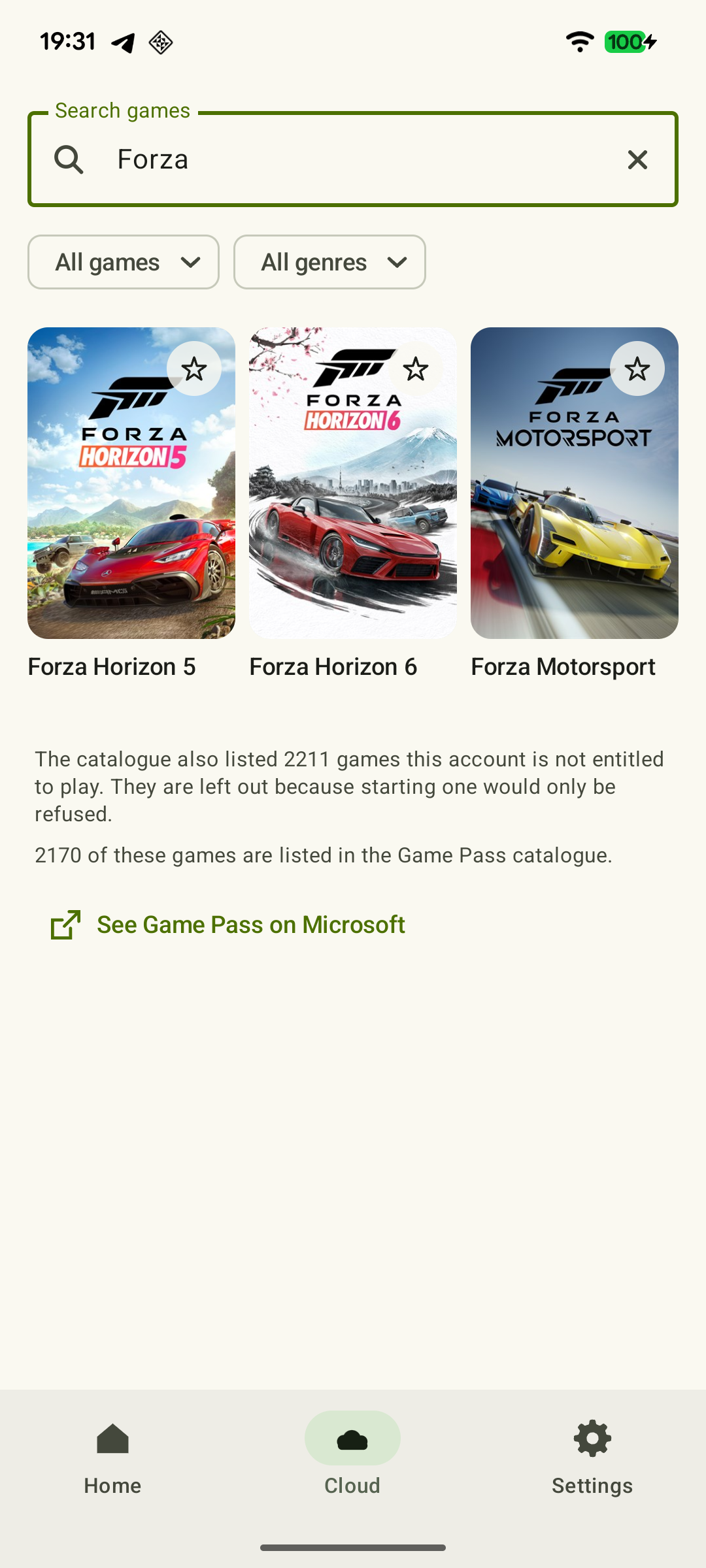 Enlarge screenshot
Microsoft’s Insider announcement describes digital entitlements for supported discs. Check availability on your console: disc eligibility, Xbox Play Anywhere and cloud access are separate conditions.
Which device should you use for cloud play?
On a phone or tablet, use XBPlayer or Xbox's official web route. On Android, start with the cloud launch guide; on iPhone/iPad, use iOS setup; on Steam Deck, follow Deck setup. In a browser, open xbox.com/play on a supported device.
XBPlayer offers on-screen buttons on Android and iOS phones and tablets; Android TV requires a physical controller, while Steam Deck uses its built-in controls. The client's on-screen controller does not mean every game has a dedicated touch layout in the official browser. Check OS requirements separately from those of the web service.
For a TV, check compatibility of the specific model and app first. A Smart TV label alone does not guarantee cloud launch. Every cloud option needs a continuous internet connection; a high advertised connection speed does not replace testing the actual stream.
Check PC purchases and saves
If you already have a suitable computer, consider installing the game. Digital games marked Xbox Play Anywhere and bought through Xbox Store or Windows Store include the Windows version. Sign in to the same Microsoft account in the Xbox app on PC and find the game in your library. That installation does not require buying Game Pass for cloud play. For other games, check the PC license separately.
Check cloud progress under the correct Xbox profile and in the same game edition. Transfer from a separate mobile or PC version depends on the game; an identical title does not guarantee it. For Xbox Play Anywhere games, Microsoft specifically confirms shared progress across supported devices.
If the previous save is present, reach a normal save point, end the session and check the progress at the next launch. If the game unexpectedly offers to start over, first check the account, edition and transfer support. Do not overwrite an old slot just to test it.
Sources and further reading
- Xbox Cloud Gaming — Microsoft — Cloud catalog, supported devices, certain free games and selected purchased games. A separate announcement establishes the dates of monthly limits.
- Fortnite — Xbox Cloud Gaming — Fortnite cloud listing: account sign-in and support for controller and touch input.
- Xbox Supported Countries & Regions — Xbox service support by country. Check Cloud Gaming specifically where you will play.
- XBPlayer — official website — Client features and the central starting point for downloads.
- Xbox Play Anywhere | Xbox — Digital Xbox Play Anywhere game purchases from Xbox Store or Windows Store, installation on Windows at no extra charge, and shared progress within the program.
- Getting Started with Xbox Cloud Gaming — Xbox Wire — Guide to browser launch, controls, networking and cloud saves. Check current plans and availability under your own account.
- Upcoming Changes to Xbox Cloud Gaming — September 3, 2026 — Monthly allowances of 5/10/15 hours were announced for November 2026; those monthly limits do not apply before the change. No exact day or universal price was announced.
- Cloud Playtime for Xbox Insiders — October 21, 2026 — Buying hours without active Game Pass is a limited Insider preview; broader availability was announced for November.
Get the key points
Open a summary request with this article’s link. For Gemini, the request is copied — paste it into the chat.