
Network and quality
Xbox streaming quality: resolution, bitrate and FPS
Choose the mode and requested resolution, check the limiter’s state and apply changes to a new stream. Remote Play’s built-in restart does not need a second manual restart.
On this page
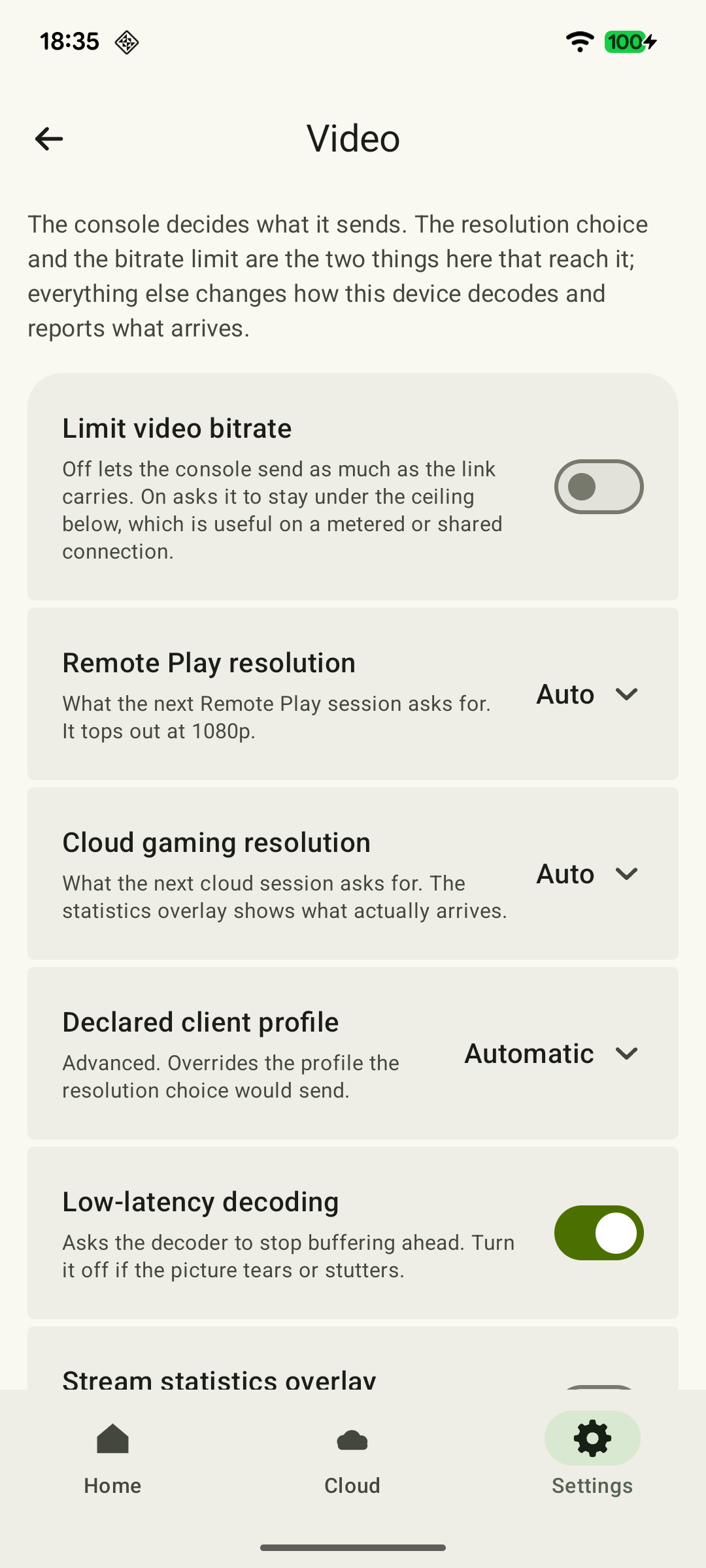
In XBPlayer, quality is configured under “Settings → Video”. Remote Play offers “Auto”, 720p, 1080p and 1080p (HQ); Cloud Gaming offers “Auto”, 720p and “Maximum”. You can leave the video bitrate limiter off or set a ceiling of 0.5–15 Mb/s. Choose one setting and compare a new stream: changing a saved setting does not mean the current stream has already changed.
What resolution, bitrate and FPS change
| Setting | What to look at | What to consider |
|---|---|---|
| Resolution | Small text, thin lines and image detail. | More pixels help carry detail that exists in the source game. Scaling to a large screen does not add it by itself. |
| Bitrate, Mb/s | Blocky breakup and loss of detail in motion. | The result depends on the scene, codec and encoder behavior. Equal bitrate does not guarantee equal clarity. |
| FPS, frames/s | Smooth camera turns and even motion. | Game FPS, video stream frame rate and screen refresh rate are different quantities. |
A 4K TV can display an upscaled 1080p stream, and a 144 Hz screen does not itself turn it into 144 FPS. If the game creates new images less often than stream frames are sent, repeated frames add no new stages of motion. Even a steady average FPS can hide stutters; see the frame rate and frame delivery guide.
Available settings in Remote Play and cloud gaming
| Setting under “Video” | Options | How to understand the choice |
|---|---|---|
| Remote Play resolution | Auto / 720p / 1080p / 1080p (HQ) | The client requests a mode from your Xbox. “Auto” is a useful starting point; assess the actual picture in a session. |
| Cloud gaming resolution | Auto / 720p / Maximum | “Maximum” requests the highest mode available to the account. It does not remove service limits or guarantee the same resolution for everyone. |
| Limit video bitrate | Off by default; when enabled, “Ceiling” is 0.5–15 Mb/s | This is a manual video-stream cap. 15 Mb/s is the slider’s upper end, not a universal maximum when the limiter is off. |
| Frame rate in statistics | Measured FPS | This is a reading, not a selector for arbitrary 30/60/120 FPS. |
1080p (HQ) requests a different profile. It may behave differently with apps on the Xbox; its name alone does not guarantee a better picture. Compare it with regular 1080p in one game and return to the previous option if problems occur.
 Enlarge screenshot
The cap and actual bitrate are different. “Limit video bitrate” sets an upper boundary, while the statistics row shows video data received over an interval. A quiet menu may need less than movement through a detailed scene. Enabling the limiter does not guarantee better quality: a stream you had not previously limited may become smaller.
Cloud Gaming depends on Microsoft access, described in the Game Pass and cloud gaming guide. The client limit, plan capabilities and actual stream received are three different things.
How to apply a setting and compare the result
Choose a familiar scene with text and camera movement. Keep the device, location, network and observation duration the same. For Remote Play, connect the Xbox with Ethernet if possible; this step is unnecessary for Cloud.
- Record the starting setup. Remote/Cloud mode, selected resolution, whether the limiter is enabled and its value. In statistics, note the actual mode, FPS, video bitrate and increase in packet loss.
- Choose one test. For unclear static text, compare 720p and 1080p in Remote Play, or 720p and “Maximum” in Cloud. For detail lost in motion, raising the ceiling makes sense only if the limiter is already on. If it is off, leave it off for the first resolution comparison.
- Apply the setting to a new stream. When changing resolution in active Remote Play controls, confirm the restart. Canceling the dialog keeps the previous selection. The app reconnects automatically; a second manual restart is unnecessary. When changing general resolution/bitrate settings, end the current stream and start a new Remote or Cloud session.
- Repeat the same scene. Read the text first, then turn the camera. Assess detail, freezes and response; compare measured readings rather than just the slider position.
- Keep or undo the change. If there is no improvement or freezes appear, restore the previous value and apply it to a new session again. Do not try to compensate for an unsuccessful setting with several new changes at once.
A new Remote Play session means a new connection to the console; you do not need to close the game itself. Save your progress first and choose a safe menu: a stream disconnection does not guarantee a pause. In cloud gaming, save through the game before ending the cloud session.
Sharpness, brightness, contrast, saturation and picture-fit settings process the picture already received and can change during the current session. You do not need to repeat the resolution restart procedure automatically for them. “Decode” and the other metrics are explained in the statistics reference.
What to do if higher quality does not help
- Text is still too small. Increase interface or subtitle size in the game itself if the option exists. Sharper text can still be too small for a phone.
- Packet loss or freezes appear. Restore the limiter’s previous state, apply it to a new session and compare operation closer to the router. Separately try lowering resolution; this is a suggested check, not a guaranteed network fix.
- Stutters begin after the device heats up. Let it cool and repeat the original scene. Compare decoding time and FPS before and after; one metric does not establish the cause.
- Blur remains with every setting. In Remote Play, compare the same scene directly on the console’s display. If it is already blurry there, transmission settings will not remove source blur. Other causes are covered in the blurry picture guide.
Account for a large screen and data usage
On a TV, judge the stream from your usual viewing distance: artifacts visible up close may not interfere with playing from the couch. On a phone, focus first on the readability of important interface elements.
A higher average bitrate over the same duration increases data usage. For a mobile plan, measure a short session with the system’s data counter, which also includes accompanying traffic. The measurement steps and calculation are in the Xbox streaming data usage article. Keep the selected settings after repeating the check under your usual playing conditions.
Sources and further reading
- XBPlayer: picture settings and diagnostics — The app’s official website: installation channels, general help and team contact.
- XBPlayer: Remote Play & Cloud — Google Play — Quality selection, bitrate adjustment and stream statistics in XBPlayer.
- Xbox Remote Play — Remote Play streams games from your own console. The page’s requirements apply to Microsoft’s official connection method.
- W3C: Identifiers for WebRTC’s Statistics API — Frame dimensions, bitrate and the difference between source and encoded-stream frame rates in WebRTC. The formulas apply to WebRTC statistics.
Get the key points
Open a summary request with this article’s link. For Gemini, the request is copied — paste it into the chat.