
Troubleshooting
Xbox Remote Play black screen: sound but no picture
Reconnect to the console and compare the same game on its display, your device’s screen and in a browser. Check XBPlayer updates, resolution and diagnostic readings.
On this page
If Xbox Remote Play has sound but shows a black screen instead of the game, first reconnect to the same console, then compare the picture on the Xbox with the device running XBPlayer. Continuing audio means part of the session is working, but does not confirm that the video stream is healthy. The following checks will help locate the problem.
Start by reconnecting
- If you can access the Xbox and TV, save the game and leave it in a safe menu. If there is no picture anywhere, do not press game buttons without being able to see the result.
- Check whether XBPlayer’s buttons and the Android system interface are visible. Try opening another app. If the device’s entire screen stays black, address its display or system operation first.
- If Android and the client interface work, end the remote session, close XBPlayer, reopen it and connect to the same Xbox. Keep the same network and game scene.
If the picture returns, note when it disappeared: on the first connection, after locking the screen, returning to the app or connecting an external display. If the screen is black again, move on to comparing the source and devices. If there is neither sound nor picture and the connection never completes, start with general Remote Play troubleshooting.
Compare the game with the picture on the Xbox itself
If you can access the console and its connected TV, check whether the same game is visible there. If the picture is normal, open a familiar game menu and connect again in XBPlayer. If you cannot currently access the Xbox, skip this check and note that in your results.
If the TV also shows a black screen, check the selected input and HDMI connection, then the picture in the console menus and game. A black TV screen alone does not prove a game failure: the issue may be with the local display output.
After saving your progress, compare two installed games if possible. Note whether video disappears in both or only one. If the black screen appears only after switching to a video service or another Xbox app, record its name and test a game separately: that result does not describe how all games work through Remote Play.
Separate an external display from the device’s own screen
If your phone or tablet is connected to a monitor or TV, or is casting its screen to one, disconnect that output and repeat the session on the built-in screen. Keep the same game and network. This step applies to devices with their own screens; on Android TV, move straight to a comparison with another device.
If the game appears on the built-in screen, the problem occurs in combination with the external display. Check the connection, adapter and output settings using your equipment’s instructions. Note when the picture disappears: when the display is connected or after the game starts.
Check for an update and try 720p
Record your XBPlayer version and check for an update in your official installation channel. If the picture disappears after switching apps, repeat that exact sequence once after updating.
 Enlarge screenshot
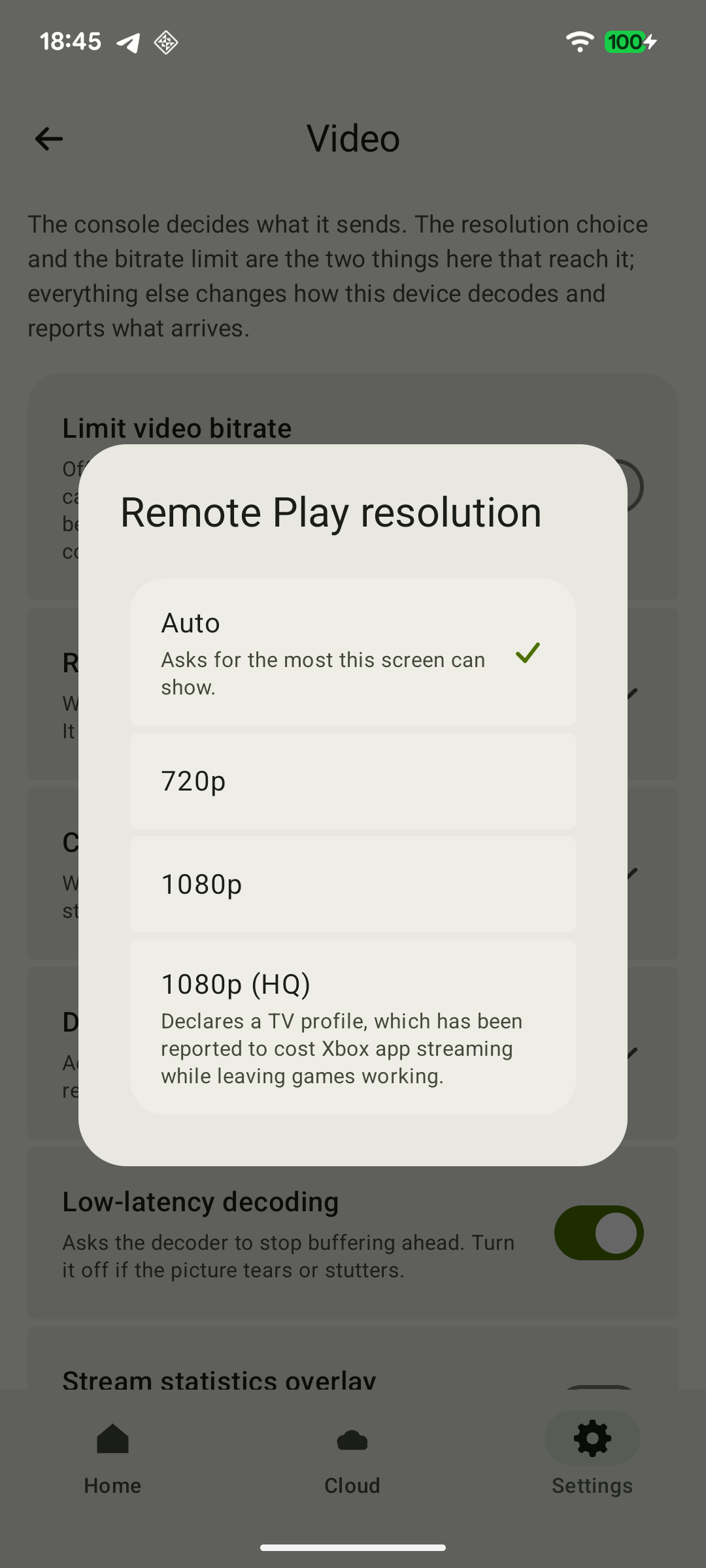
If the screen stays black at 1080p or 1080p (HQ), try 720p under “Remote Play resolution”. In the active stream’s controls, confirm the offered restart; this already creates a new stream. If you change the resolution in the main “Video” section, start a new session manually. Remember the original option and restore it if 720p does not help. A returning picture gives you a temporary usable mode, but does not prove the cause. See quality settings and how they take effect for details.
Compare another connection method
End the XBPlayer session and try official Remote Play through xbox.com/remoteplay in a supported browser. Connect to your own console with the same account; launching the cloud version of the game is not an equivalent comparison. Use the same device, network and scene if possible.
If the browser shows the game but XBPlayer does not, tell our team. If both methods show a black screen on one device while the picture on the Xbox is normal, test the same console and network with another supported device if one is available. This is also useful when browser access is unavailable. Record any changed conditions; success on a second device does not prove that the first is faulty.
If another game displays correctly but the first goes black in both clients, record its name and the exact transition after which video disappears. This is a separate case you can report to the game’s support team and Xbox. Mark any checks you could not perform because you lacked access to the console or another device as not completed.
Collect details if the video has not returned
If XBPlayer’s diagnostic overlay is visible over the black area, record frame rate, bitrate, packet loss and decoding time. A nonzero bitrate does not prove that frames are displayed successfully; decoding time relates to video processing, not the entire delay from button press to screen. If packet loss increases when the picture disappears, add a network check using the general guide.
For an XBPlayer support request to hi@hetko.eu, prepare the device model, Android and XBPlayer versions, Xbox model, game name and when the black screen appears. Include the results: whether sound works, the client interface is visible, what the Xbox TV shows, whether 720p helps, and whether video works on the built-in screen and in the browser.
Before sending a screen recording, check that it matches what you observe and hide personal information. If you see a frozen frame or stuttering video instead of a black screen, use the stream smoothness checks. If the picture works but sound has disappeared, go to the audio output checks.
How to interpret picture comparison results
Use only the comparisons you were able to complete. Note whether the device, network or connection method changed.
There is no picture even in the Android interface
If the system and other apps are not visible, check the device’s screen and operation first. This differs from a black game area with a working XBPlayer interface.
The TV connected to the Xbox is also black
Check the TV input and HDMI, then the console menus and game. A missing local picture alone does not prove a game or video-stream error.
The game is visible on the built-in screen, but not externally
With the same game and network, check the external connection, adapter and output settings using the equipment’s instructions. Include the models and when the picture disappears. This comparison is available on devices with their own screen.
Official Remote Play has video, but XBPlayer does not
Test one console, account and game; run the clients one at a time. Record the reconnection result and app and system versions. If you compared 1080p with 720p, add the result; if you had to change devices, say so.
Both clients show a black screen on one device
If the Xbox’s direct picture is normal, compare another supported device on the same network. If the failure affects only one game, record the game and exact transition point. Mark any missing check as not completed.
Do not press game buttons without a picture. If the game is visible on an available screen, save your progress before making changes. If none of the outcomes fits, send your actual observations using the list of details for support without assuming a cause.
Sources and further reading
- XBPlayer — features and FAQ — The app’s official website: installation channels, general help and team contact.
- XBPlayer: Remote Play & Cloud — Google Play — Official installation and update channel for the Android version of XBPlayer.
- Xbox Remote Play — official Xbox website — Remote Play streams games from your own Xbox to compatible devices. The requirements on this page apply to Microsoft’s official connection method.
- Xbox Wire — Access Xbox Remote Play From More Devices — Microsoft’s guide to starting Remote Play through xbox.com/remoteplay in a supported browser.
Get the key points
Open a summary request with this article’s link. For Gemini, the request is copied — paste it into the chat.