
Troubleshooting
No sound in Xbox Remote Play: checks for Android and TV
Start with media volume and the output on the device running XBPlayer. Headphones plugged into an Xbox Wireless Controller do not receive audio over Bluetooth.
On this page
If Xbox Remote Play has a picture but no sound, check media volume and the selected audio output on the device running XBPlayer. Play an ordinary video through the same speakers or headphones. This will help you decide where to continue: the device’s audio settings or the game and stream.
This guide checks game music, effects and dialogue. If you can hear those but other party members cannot hear you, open the Xbox Party Chat microphone guide.
The volume, headphone and Android checks below also apply to Cloud Gaming. In cloud mode, skip the steps involving your home Xbox and compare a new cloud session of the same game.
Start with volume and an ordinary video
- On your phone or tablet, play a familiar video or audio recording. Use the output you want to hear the game through.
- During playback, press a volume button and check the media level. This controls games, music and video; ringtone volume is separate.
- Check which device is selected for playback. A previously paired Bluetooth headset may have reconnected automatically. The audio output selector varies by Android version and manufacturer.
- Stop the video, return to XBPlayer and repeat a familiar action with sound, keeping the same output and volume.
If the video is silent too, address Android or accessory audio first. If you can hear the video but not the game, open Settings → Audio in XBPlayer. Make sure Volume is above zero and Mute is off. Under Play through, select Automatic for this test, then check the sound again before changing game settings or reconnecting.
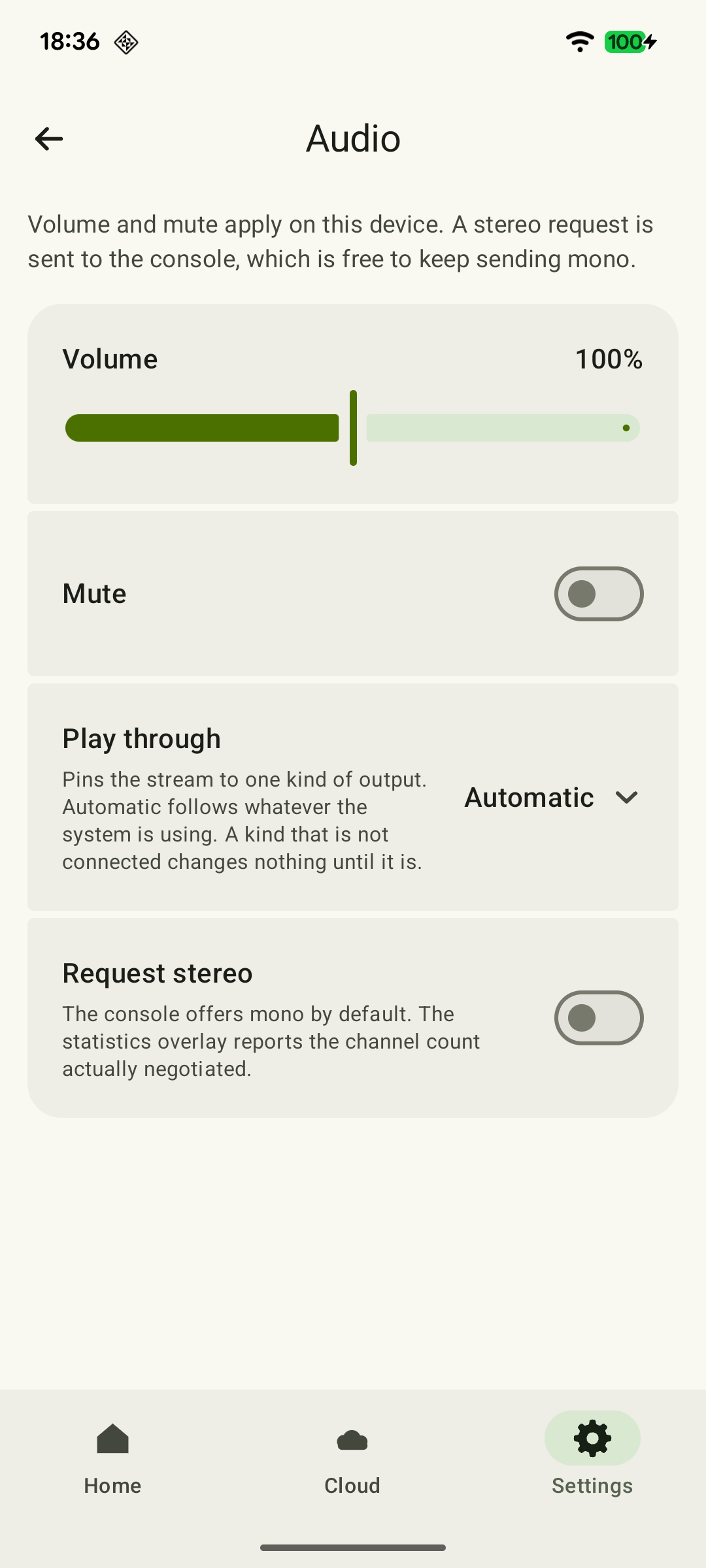 Enlarge screenshot
Connect headphones to the device running XBPlayer
The headset jack on the controller is a separate case. If an Xbox Wireless Controller is connected to a phone over Bluetooth, audio through headphones plugged into the controller is not supported. Working buttons do not change this. Microsoft recommends connecting the headset directly to the phone; the same Bluetooth limitation matters when using this controller with a TV.
Connect compatible headphones to the phone, tablet, TV or TV box running XBPlayer, and select their audio output. For another controller, check its manufacturer’s documentation: a 3.5 mm jack alone does not confirm audio support over the connection you are using. Connecting a controller over USB does not guarantee that its audio jack will work on Android either.
For comparison, temporarily disconnect only the audio accessory and select the phone’s built-in speakers. Do not turn off all Bluetooth if your controller needs it. If the game becomes audible, reconnect the headphones and repeat the check. If sound disappears only with them, check their own volume, connection and playback of an ordinary video.
For a wired connection, check the plug, cable and adapter using the same video. Verify USB-C adapter compatibility in the phone and accessory documentation.
On Android TV, check the entire audio path
If XBPlayer is installed on a TV box, check sound from that box specifically. A video in an app on the TV itself uses a different path and does not confirm that audio from the box works.
- Check mute settings and the available volume controls on the box, TV and soundbar or receiver.
- Find the selected audio output in the TV or box settings. It should match the speakers, headset or external sound system you want to use.
- Play an ordinary video on the device running XBPlayer through the same sound system. If that is silent too, check the connections and settings along this path.
- If possible, temporarily select the TV speakers instead of the soundbar. Note the original output, change one setting at a time, and restore your preferred setting after the comparison.
Menu names and HDMI ARC/eARC settings depend on the model. For external sound systems, use the instructions for your particular TV or box.
Separate game settings from a session problem
If other apps sound normal, open the game’s audio settings. Check master volume, music, effects and dialogue if they have separate controls. Choose a scene with an action you know makes a sound: silence in a menu or while paused tells you little.
Save your progress, end the remote session, select the required audio output in advance, and reconnect to the console. If sound returns, note whether it previously disappeared after connecting or disconnecting headphones. If the problem recurs, close XBPlayer fully and reopen it.
If possible, compare another installed game. Sound in only one game is a reason to check the other game’s settings. You can also listen to the same scene directly on the console through its TV or headset. The console and the device running XBPlayer have different audio outputs: silence on the console’s TV needs its own checks, while sound there does not guarantee that the remote stream is working correctly.
If an ordinary video has sound but two games and a new XBPlayer session are still silent, compare the same mode through the official method with the same audio output: Remote Play or Cloud Gaming. Run the clients one at a time. If your device does not support that method, you can still ask for help with the results you already have.
If the picture has disappeared too, use Remote Play connection troubleshooting. If there is sound but it lags behind, go to audio and video sync checks.
What to record for support
Include the device model, Android and XBPlayer versions, game name and the exact audio connection: for example, “Bluetooth headphones connected to the phone” or “TV box connected to the TV over HDMI, with sound through a soundbar”. Add the results for an ordinary video, built-in speakers, another game and a new session. Note when silence begins: immediately or after switching audio devices.
A useful description might be: “Remote Play has sound through the phone speakers. It disappears when I connect these Bluetooth headphones, but an ordinary video is audible through them. Starting a new session with the headphones already connected does not fix it.” If sound returns, use the short XBPlayer session checklist before a long game.
Send the description to hi@hetko.eu. If sound is also missing through the official method, include that result when contacting Xbox Support. You do not need to identify the exact cause yourself before asking for help.
Sources and further reading
- XBPlayer — Xbox Remote Play and cloud gaming — XBPlayer on Android and Android TV: streaming from your own console and connecting a compatible controller.
- Android: change volume, sound and vibration settings — Media volume for games, music and video, and selection of the playback device. The exact interface depends on the device.
- Android: find and set up Bluetooth devices — Bluetooth setup on Android, automatic reconnection of previously paired devices and disconnecting an individual accessory.
- Xbox: connect and troubleshoot Bluetooth on an Xbox Wireless Controller — Microsoft explains the Xbox Wireless Controller’s Bluetooth audio limitation and recommends connecting the headset directly to the phone.
- Google TV: troubleshoot your device — Audio output selection and external sound-system checks. The exact menus in the example apply to the TCL 6-Series; use the manuals for other models.
- Xbox Remote Play — Remote Play streams games from your own Xbox. The page’s requirements apply to Microsoft’s official connection method.
Get the key points
Open a summary request with this article’s link. For Gemini, the request is copied — paste it into the chat.