
Network and quality
Xbox Remote Play input lag: how to find the cause
Test one game scene while changing one condition at a time. Diagnostics suggest where to look, while a recording of the button and screen helps compare response before and after a change.
On this page
To find the cause of input lag in Xbox Remote Play, compare the same scene while changing one condition at a time: the network, controller connection or display mode. Low ping and short decoding time do not show the full path from a button press to the response on screen. For an estimate at home, record the button and screen with one camera.
What contributes to input latency
In Remote Play, the game runs on your Xbox. If the controller is connected to the device running XBPlayer, its command first reaches the client and is then sent to the console. The game processes the input and produces a picture; the console encodes it and sends it back. The receiving device decodes the video and displays it. Touch buttons also send input through the client. Every part of this chain takes time.
Ping usually means the time for a network exchange there and back—RTT. The result depends on the destination and measurement method: ping to a website or an online game server does not describe the connection to your console. Even RTT between the client and Xbox excludes game input processing, video encoding and displaying the frame.
“Decode” is the average time from placing a video block in the decoder queue to receiving an output frame. It includes waiting in the pipeline, not just computation. It is not total input latency. Do not add it to an arbitrary ping: that calculation omits other stages and combines metrics with different measurement boundaries.
Choose a scene and establish the initial response
Open a training session, single-player mode or a menu within the streamed game. Moving the highlight between menu items is convenient: the response is visible and does not depend on confirmation from an online match server. XBPlayer’s own menus are unsuitable because they do not go through the game on the console. When testing camera movement, keep the same sensitivity.
 Enlarge screenshot
Repeat the action several times. Note whether it is consistently delayed or occasionally freezes along with the picture and sound. If the Xbox is nearby, check the same scene directly on the console: noticeable lag there is a reason to check the game, controller and display connected to the Xbox first. That comparison provides a starting point, but does not isolate the network’s contribution by itself.
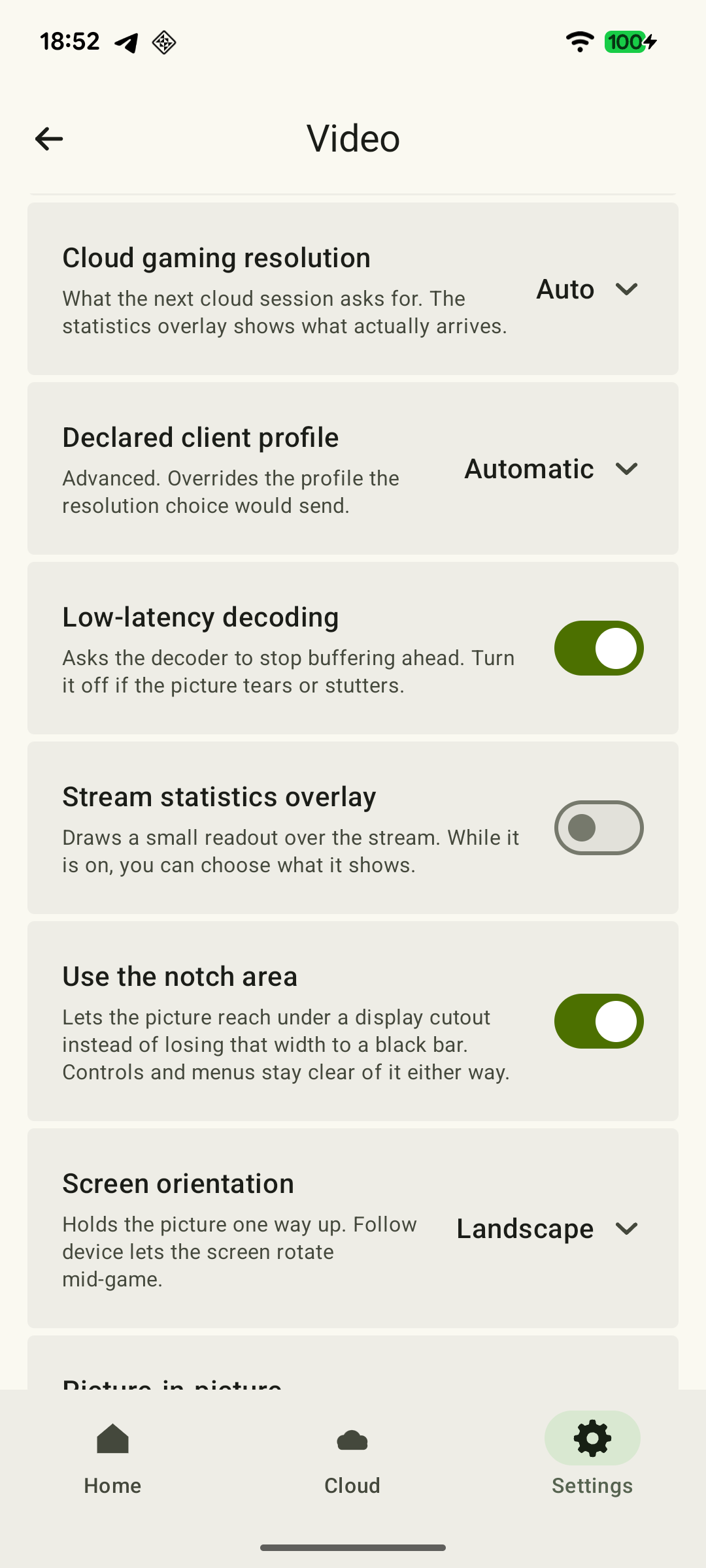
Enable XBPlayer statistics during streaming. Record frame rate, video bitrate, “Decode” and the increase in the cumulative packet-loss counter over equal intervals, especially when a stutter occurs. “not measured” for ping does not mean 0 ms. See how to read the statistics fields. Keep the overlay in the same state for the attempts you compare.
Change the network, controller and display in turn
- Connect the Xbox to the router with Ethernet. Leave the receiving device in the same place and repeat the scene. If responsiveness improves several times in a row, the console’s wireless connection may have been adding delay.
- Check Wi-Fi on the receiving device. Keep the Xbox connection unchanged and move the phone or tablet closer to the main access point. Improvement near the router points toward checking that wireless segment. Pause background downloads in a separate attempt.
- Compare connection methods for one controller. If the device and controller support USB, compare it with Bluetooth. In both cases, the controller must send input through the device running XBPlayer. Connecting directly to the Xbox changes the entire input path and produces a different comparison.
- Check the display mode. If you play on a TV, compare its normal picture mode with Game Mode when available for the current app or HDMI input. Availability depends on the TV model and connection; find the exact option in its manual.
For each change, repeat the original setup and then the new one. If there is no difference, restore the previous setting and move to the next check. Changing the network, screen and controller all at once will not show which change helped.
Estimate response from an external recording
You need another camera that sees the button or touch and the streamed screen at the same time. Built-in screen recording does not capture the physical press or the moment the display shows the picture. Choose a high recording frame rate if the camera supports it, and provide enough light for the press to be visible.
- Record several identical presses with pauses between them. For each, find the frame containing your chosen visible sign of the press and the frame with the first image change. Use the same criterion for every attempt.
- Subtract the first frame number from the second. For example, frames 100 and 112 are 12 frame intervals apart. Do not count both boundary frames inclusively.
- Calculate the interval: latency in milliseconds ≈ number of intervals × 1000 / camera recording frame rate. Use the original capture FPS, not the game stream’s FPS, the screen refresh rate or the playback speed of a slow-motion clip.
Hypothetical example: 12 intervals recorded at 120 frames/s give about 100 ms; the recording step is about 8.3 ms. This is a calculation example, not a measured XBPlayer result. If the camera uses a variable frame rate or the editor adds or removes frames, dividing by one FPS value is unreliable. Keep the original recording; the calculation needs the actual capture intervals.
The visible moment of a press is not the moment it is registered electrically. Blur, rolling shutter and display scanning also affect the estimate. If each of the two markers can be wrong by one frame, marking error alone can reach two frame intervals—about 17 ms at 120 frames/s. That is not the complete measurement uncertainty.
Compare repeated trials using one camera and one method. Keep the range of values: a one-frame difference should not be declared a consistent improvement. The estimate applies to the chosen action and scene, not to every game on the device.
Estimate the interval from an external recording
Using the method above, enter the other camera’s original capture frame rate and the number of intervals between the two markers. Frames 100 and 112 are 12 intervals apart. Game FPS, screen refresh rate and slow-motion playback rate are unsuitable for this calculation.
The result applies to the selected visible events in one trial. Repeat the action several times and keep the range. A one-frame error at each marker can produce up to ±2 frame intervals; this is not the total uncertainty. A variable-frame-rate recording or altered frame set requires calculation from the original capture timing.
Choose the next check from the result
If wiring the console or moving closer to the router helps, continue with the Wi-Fi and Ethernet checks. If freezes coincide with increasing loss, investigate packet loss and jitter. If the network appears stable but smoothness worsens as you play, check frame delivery and device load.
If you do not find the cause, keep the receiving device model, XBPlayer version, controller connection method, network conditions and recordings of the two setups you compared. Send them to hi@hetko.eu: these details are more useful than one ping value. Keep a setting that produces a repeatable improvement in your scene.
Sources and further reading
- XBPlayer: features and diagnostics FAQ — XBPlayer diagnostic metrics and compatible Bluetooth/USB controllers. Decoding time describes video processing only, not full control response.
- Xbox Remote Play — Remote Play streams games from your own console. The page’s requirements apply to Microsoft’s official connection method.
- Better xCloud: stream metric definitions — Definitions of RTT, decoded-frame FPS and average decoding time in Better xCloud. Formulas and update intervals apply to that tool.
- NVIDIA: Understanding and Measuring PC Latency — Technical explanation of total PC latency: input, processing and display. Helps distinguish stages of response.
- NVIDIA: measuring system latency — The difference between network and total system latency, and measurement with a high-speed camera. The home method in the article provides an approximate comparative estimate.
- Samsung: TV Game Mode — Game Mode’s low-latency purpose, with availability and settings dependent on TV model and connection.
Get the key points
Open a summary request with this article’s link. For Gemini, the request is copied — paste it into the chat.