
Network and quality
Blurry picture in Xbox Remote Play: what to check
Compare a still frame with motion, then check the source, network and stream quality. Sharp but small text needs a separate in-game interface adjustment.
On this page
If the picture in Xbox Remote Play is blurry, first compare a still scene with a camera turn. If detail disappears only in motion, check compression and delivery stability. If everything is always unclear, compare the stream with the display connected to the Xbox and check stream resolution. If letters are sharp but too small, you need in-game text settings or another screen: increasing bitrate will not enlarge the interface.
Distinguish motion blur from a constantly unclear picture
Choose a familiar location with text, straight lines and a textured surface. Stop the camera, inspect the details, then turn smoothly. Repeat this section after each change: different lighting, weather or routes make results harder to compare.
- Details return when movement stops. The stream may struggle to preserve them in motion. Rapidly changing scenes are harder to compress, but the game itself can also create blur.
- Large blocks appear or part of a frame briefly distorts. Relate the defect’s timing to stream diagnostics. The appearance of the distortion alone does not prove a network cause.
- Edges are unclear even in a stationary menu. Check the source picture, stream resolution and screen scaling.
- Letter outlines are distinct, but you must move very close to read them. Check in-game text size separately.
Compare the same scene on the display connected to the Xbox
If you are near the console, view the same objects over HDMI. Account for screen sizes and viewing distances: this is a useful comparison, not a precise measurement of stream quality. If blur is visible there too, the game itself or the TV’s picture processing may be responsible.
If the game lets you adjust motion blur, temporarily disable it and repeat the camera turn. If the effect disappears on both the TV and stream, the game setting explains at least part of the problem. Keep whichever option you prefer after testing. Higher transmission quality cannot restore details already missing from the source frame. If you cannot currently access the Xbox display, continue checking the stream without treating in-game blur as ruled out.
Which check matches your picture?
Compare a still frame with a camera turn in one scene. Several cards may fit; perform the checks one at a time.
The Xbox’s own display is blurry too
If the same blur is visible over HDMI, check the game’s motion-blur effect if it can be adjusted. If the direct display is unavailable, continue checking the stream while remembering that source blur has not been ruled out.
Distortion coincides with packet loss
Repeat the scene after pausing a nonessential download. Then separately compare Ethernet on the Xbox or a location near the router. Coinciding readings and symptoms suggest the next check but do not establish the cause.
XBPlayer statistics: packet loss, jitter, FPS and decoding →The stream loses detail only in motion
If the bitrate cap is already enabled and the network is stable, raise the ceiling slightly and compare a new session. If the limiter is off, do not enable it to “increase quality”: even 15 Mb/s may reduce the stream. Restore the original value if there is no improvement.
Xbox streaming quality: resolution, bitrate and FPS →A still frame is unclear only in the stream
At 720p, compare 1080p with the same bitrate cap. In Remote Play controls, confirm the built-in restart; after changing general settings, start a new session. You do not need to manually restart an already refreshed stream again.
Xbox streaming quality: resolution, bitrate and FPS →Letters are sharp but physically small
Check text, interface and subtitle sizes in the game itself. Open the map and inventory separately: one setting may not enlarge everything. If the game’s options are insufficient, compare a larger screen.
Small Text in Xbox Games on Your Phone: What You Can Adjust →Change one setting per attempt. A higher bitrate does not enlarge the interface or restore details missing from the source game.
Check the network when the picture turns blurry
Enable XBPlayer’s diagnostic overlay and watch bitrate and packet loss during your chosen section. Distortion repeatedly coinciding with loss is a reason to check the connection. Low bitrate alone does not prove insufficient speed: the amount of data also depends on the scene. No displayed losses does not rule out every transmission problem either. See the network diagnostics guide for details.
For a comparison attempt, pause large background downloads. Then, checking each change separately, connect the Xbox to the router by cable and try playing on the phone closer to the main Wi-Fi access point. If only a change of location helps, use the wired and wireless connection checks. Away from home, consider both the home connection’s upload speed and the receiving device’s network.
A speed test measures data transfer under its own test conditions, not continuous frame delivery during play. A repeatable result in your usual playing location matters more for choosing settings than the highest test number or your plan’s advertised speed.
Choose resolution and a bitrate cap without overloading the network
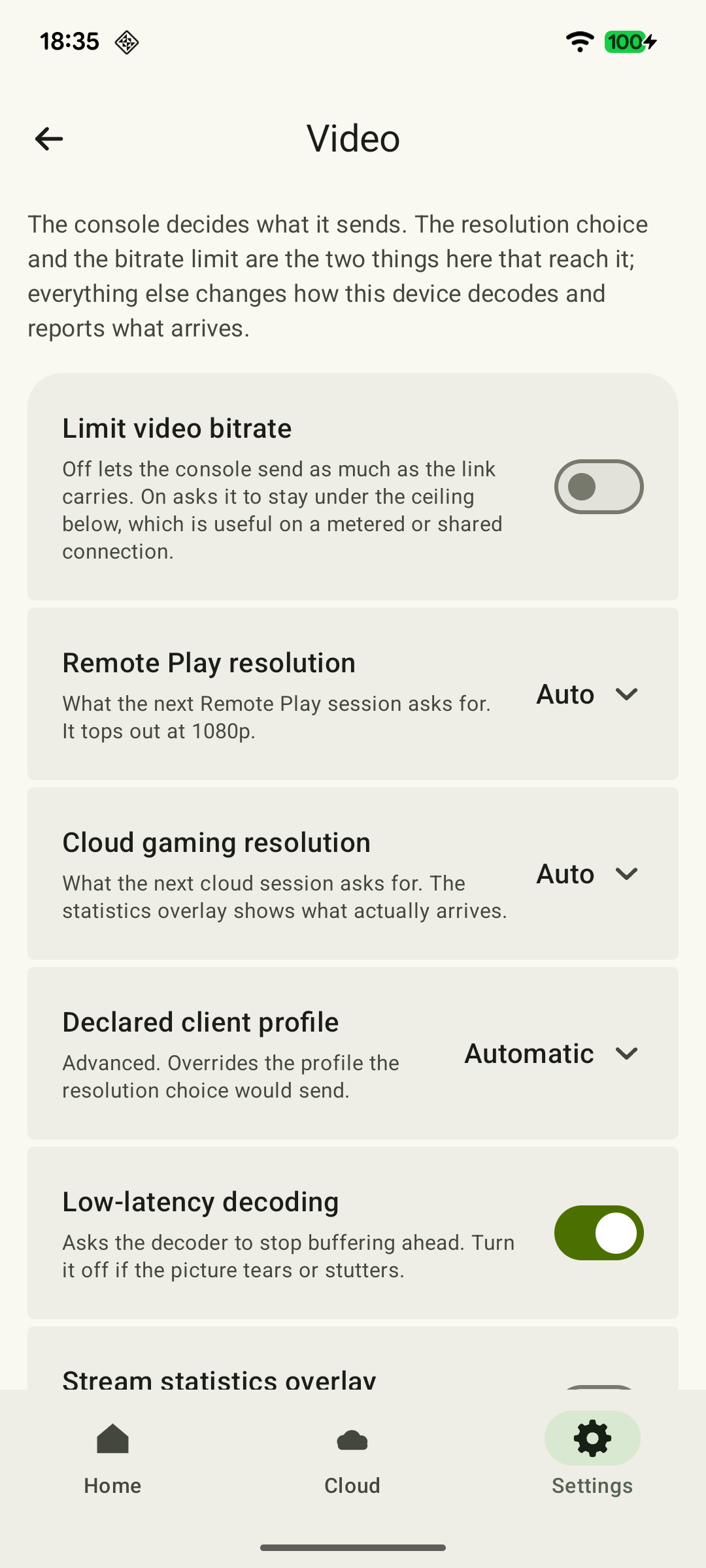
Under “Settings → Video”, Remote Play offers “Auto”, 720p, 1080p and 1080p (HQ). “Limit video bitrate” is off by default. The settings table explains the difference between a quality request and the stream you actually receive.
 Enlarge screenshot
If you change resolution in the active Remote Play controls, confirm the offered restart: XBPlayer creates a new stream itself, so a second manual reconnection is unnecessary. After changing resolution or the bitrate cap in the general “Video” settings, end the stream and start a new session. Then compare the same scene. For cloud gaming, start a new cloud session; the Remote Play restart dialog does not apply to it.
- Detail disappears only in motion, and the cap is already enabled. On a stable network, try raising the selected ceiling slightly while keeping the resolution. Compare the same scene after starting a new session. If the limiter is off, there is no cap to “raise”: enabling even 15 Mb/s may reduce the available stream rather than improve the picture.
- Raising it introduces freezes or new distortion. Restore the previous ceiling and start a new session. If the problems were already present, try a lower cap separately, then a lower resolution. This tests load; it is not a final network diagnosis.
- Static text is unclear at 720p. Compare 1080p under the same conditions. Test HQ separately: its name does not guarantee more detail, and that profile has compatibility considerations for Xbox apps.
Keep an option that helps in the game without new freezes or worse response. If there is no difference, return to the last working value. Raising the ceiling does not force the encoder to send more data continuously.
Check text size and image scaling
A large screen viewed up close makes the stream’s limitations more visible. A 4K screen does not itself turn a 1080p stream into a native 4K image. Scaling and sharpening can alter edges, but are not equivalent to transmitting additional source detail.
A phone can have the opposite problem: the picture is sharp enough, but the text is physically small. In the game’s own settings, check interface, text or subtitle size if those options exist. Larger subtitles do not necessarily enlarge the inventory and map, so check every screen you need. If the game’s options are insufficient, compare usability on a larger device at your normal viewing distance. Use the small-screen readability checks.
Judge the improvement in play, not from one frame
After changing a setting, read the chosen text again, repeat the camera turn and play for a few minutes. A good setting preserves the details you need without new freezes or noticeably worse response. Record what you changed and the result.
You can save screenshots at the same scale to compare still areas. Use the original files: sending them through a messaging app may add compression. A screenshot does not show changes over time, and screen recording adds load and compression of its own. Make your final assessment while playing without recording.
Sources and further reading
- XBPlayer: Remote Play quality and diagnostics — The app’s official website: installation channels, general help and team contact.
- Xbox Remote Play — Remote Play streams installed games from your own Xbox. The page’s requirements apply to Microsoft’s official connection method.
- XBPlayer: Remote Play & Cloud — Google Play — XBPlayer quality and bitrate settings. Final quality depends on the device, connection, console and service.
- Microsoft Learn: Video Encoding with Temporal Compression — General principle of interframe compression: its efficiency depends on motion and image changes.
- RFC 8836: Congestion Control Requirements for Interactive Real-Time Media — Requirements for real-time interactive video: timely delivery, adaptation to available bandwidth and consideration of competing traffic.
- Xbox Accessibility Guideline 101: Text display — Effects of screen size and viewing distance on readability. Text-adjustment recommendations for game developers; check the options available in the particular game.
Get the key points
Open a summary request with this article’s link. For Gemini, the request is copied — paste it into the chat.