
Network and quality
Xbox Remote Play stuttering: how to find the cause
Compare one scene on the console and in the stream, then check the network and receiving device. Stream FPS, decoding time and screen refresh rate show different things.
On this page
If Xbox Remote Play stutters, first compare the same scene on the display connected to the Xbox and in the stream. Then check XBPlayer’s diagnostic readings, the network and the receiving device. Change one condition at a time: a steady average FPS does not guarantee smoothness or show where the problem occurs.
First compare one scene on the Xbox and in the stream
Choose a short, repeatable section: walking down a corridor, smoothly turning the camera in a training area, or a game replay. Keep the initial stream settings. Use the same scene and roughly the same duration for each comparison.
At home, watch this section on the TV or monitor connected directly to the console. Because the stream is delayed, compare the same game event rather than simultaneous movement on both screens. If the stutter occurs at the same point in the direct output, check the game’s behavior first. If it offers a performance mode, compare that with the current mode without changing other settings.
If the direct output looks smooth but the stream jerks, move on to video delivery and presentation. Away from home, you can start with the following checks, but without a direct display you cannot confidently rule out the game itself.
Why game FPS, stream FPS and screen refresh rate differ
| Metric | What it describes | What it does not tell you |
|---|---|---|
| Game FPS | How many new frames the game creates on the Xbox per second. | Whether all those frames reach the receiving screen on time. |
| Video stream FPS | Video frame rate at a particular stage: encoding, reception or decoding. Its exact meaning depends on the counter. | Whether the game creates that many distinct images or the screen presents them evenly. |
| Screen refresh rate, Hz | How many times the display refreshes per second. | Whether each refresh shows a new game frame. |
For example, repeating one image in a video stream does not add a new camera or character position. The screen can also show the previous frame again. A reading of 60 in stream diagnostics therefore does not necessarily mean 60 new game frames every second.
XBPlayer’s “Frame rate” field uses a fresh measured presentation rate; if the platform does not provide one, it uses the decoding rate. This is not a counter of new frames from the game itself. A value over an interval also does not describe every short gap between adjacent frames.
Presentation timing matters too. If some frames stay on screen longer than others, motion looks uneven even with a good average FPS. At an evenly spaced 60 frames per second, the interval is about 16.7 ms. This is an arithmetic example, not a universal decoding-time threshold.
Relate stutters to XBPlayer diagnostics
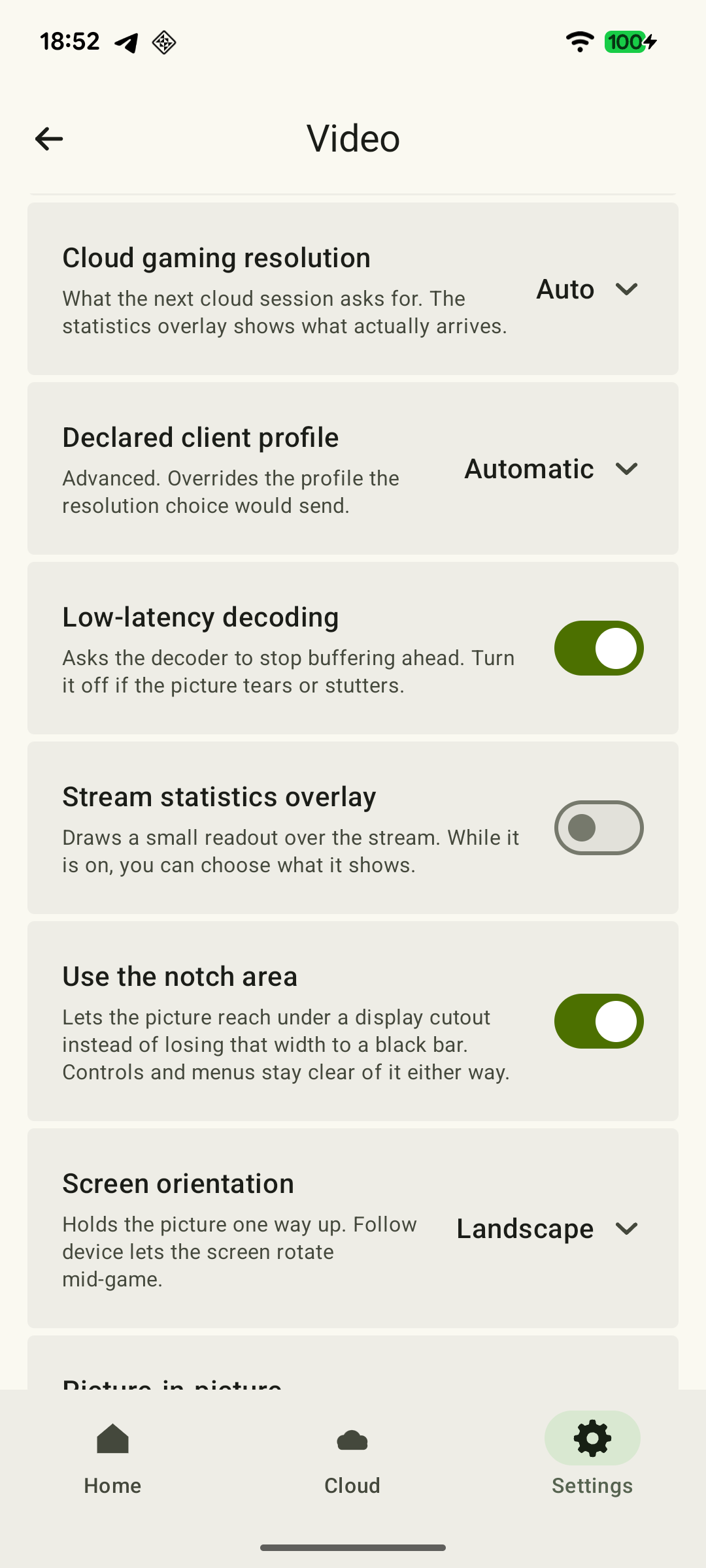
Enable diagnostic readings during the stream. XBPlayer diagnostics include frame rate, bitrate, packet loss and decoding time. Repeat the scene and note which values change around a visible stutter.
 Enlarge screenshot
- Packet loss and audio interruptions. Look at the cumulative counter’s increase over equal periods within the session. An increase coinciding with stutters gives you a reason to start with the network. Zero losses alone do not prove that frames arrive evenly.
- Decoding time. This shows the average time from the decoder queue to an output frame, including waiting. An increase is a reason to compare device load and operating conditions. It is not the interval between displayed frames or the full delay from a button press to the picture.
- FPS and bitrate. Read changes alongside the symptoms. Low bitrate alone does not prove insufficient network speed, and stable FPS does not rule out brief stutters.
Compare values from the same diagnostic tool: different clients may use different formulas and averaging intervals. If motion is smooth but buttons respond late, start with the input lag checks.
Check the network one change at a time
- Pause background downloads on the Xbox and other devices using the connection. Repeat the scene and compare stutters and packet loss.
- Repeat the test on the receiving device near the main router. If 5 GHz Wi-Fi is available, compare that connection separately from other changes.
- If the Xbox uses Wi-Fi, try connecting it to the router with Ethernet. Keep everything else the same.
- When using Remote Play away from home, try another receiving network with the same console, game and device. Repeatable improvement narrows the search to the changed part of the connection, but does not yet identify a particular router or provider.
Record the result after each step. If a change does not help, restore the original condition before the next check. If it helps, repeat the comparison before keeping the new setup. The packet loss and jitter guide explains the readings.
Check decoding, heat and display mode
If network checks do not explain the stutters, compare the start of a session with the same scene after extended play. Note heat, charging and Battery Saver. Stop unnecessary demanding tasks. If the phone overheats, stop playing, disconnect charging and let it cool in a cool place; follow the manufacturer’s instructions if a system warning appears. See the heat and battery usage article for details.
Separately compare 720p with the 1080p or 1080p (HQ) mode you are using. In the Remote Play controls, confirm the offered restart; after changing the general “Video” settings, start a new session manually. Only then repeat the scene and compare smoothness and “Decode”. Improvement does not prove the device is underpowered: resolution also affects the amount of data. Keep the other settings unchanged; see quality settings.
If Android lets you choose the screen refresh rate, record the current mode and compare the available options in the same scene. The maximum Hz in the specifications does not guarantee that the system uses it in the app: Battery Saver may affect mode selection. A higher refresh rate does not guarantee that stutters disappear either. Restore the previous mode if there is no improvement.
How to confirm the result and continue investigating
Treat a change as useful if it helps in several comparable attempts. If a second compatible device is available, end the stream on the first device, then start a new Remote Play session on the second using the same Xbox, game and network. Test one client at a time. A problem on only one device is a reason to investigate its settings and the client’s behavior; identical stutters on both leave shared causes, including the console and network.
If the cause remains unclear, email hi@hetko.eu with the device model, Android and XBPlayer versions, Xbox connection method, stream settings and a list of comparisons with results. A short recording can show the type of stutter, but first check whether it occurs without recording: screen capture adds load and can change what you observe.
Sources and further reading
- XBPlayer: Remote Play diagnostics and settings — The app’s official website: installation channels, general help and team contact.
- W3C: Identifiers for WebRTC’s Statistics API — Definitions of decoding time, stream frames and interframe intervals in WebRTC. The formulas apply to WebRTC statistics.
- Android Developers: Frame Pacing library — Explanation of frame pacing and the display repeating the previous frame when no new one is available.
- Android Developers: Frame rate — The difference between content rate and display refresh rate, the effect of display mode on even presentation, and Battery Saver restrictions. Available settings depend on the device.
- Google Pixel: Help keep your phone from feeling too warm or hot — Google’s advice for an overheating Pixel: stop using it, disconnect charging and let it cool. Consult the relevant instructions for another device.
Get the key points
Open a summary request with this article’s link. For Gemini, the request is copied — paste it into the chat.