
Choose a client
What can replace XBPlay? Android, iPhone and Steam Deck options
Choose an XBPlay replacement by platform and game mode. An old client license does not grant a new one; check games and saves under the same Xbox profile.
On this page
XBPlay, XBXPlay and XBPlayer are different apps. If you need an XBPlay replacement, establish two things first: which device you use, and whether you connect to your Xbox or Microsoft's cloud. Different options suit these uses.
What happened to XBPlay?
XBPlay's developer announced the end of support on September 15, 2025 and said it would be unpublished from September 30. The Steam page, checked on October 24, 2026, no longer offers new purchases. That is reason enough to prepare another supported way to connect.
Unavailable new purchases do not prove that every installed copy has stopped working. If yours works, preserve useful settings and test a replacement first. Ending support also does not imply an automatic refund or license transfer to another app.
Which options fit your device?
| Use case | Where to start | What to compare |
|---|---|---|
| Android, your own Xbox | Official Remote Play or XBPlayer; XBXPlay and XBPlayer | On-screen controls, controller profiles, stream quality and purchase terms |
| Android, games without a console | Xbox Cloud Gaming in a browser, XBPlayer, Better xCloud | Access to the required game, comfortable input and cloud settings |
| iPhone or iPad | XBPlayer for iOS/iPadOS or the official browser route | OS requirements, on-screen controls and sign-in convenience |
| Steam Deck | Greenlight or XBPlayer | Built-in controller, starting and ending a normal session |
| Windows, macOS or Linux | Greenlight and appropriate official Xbox web options | Support for your system and specific game mode |
XBPlayer is available for Android, iPhone/iPad and Steam Deck. Its Android version needs Android 10 or later; iOS/iPadOS needs 18 or later. Other clients have their own requirements: check before buying. A similar name does not establish a shared developer, shared license or compatible settings format.
What carries over when you switch?
The Xbox game runs under a Microsoft/Xbox profile, while the client carries picture and input. Start the new client with the same account, console and game edition. Check that the expected progress loads before continuing. For switching between console and cloud, use the separate save checks.
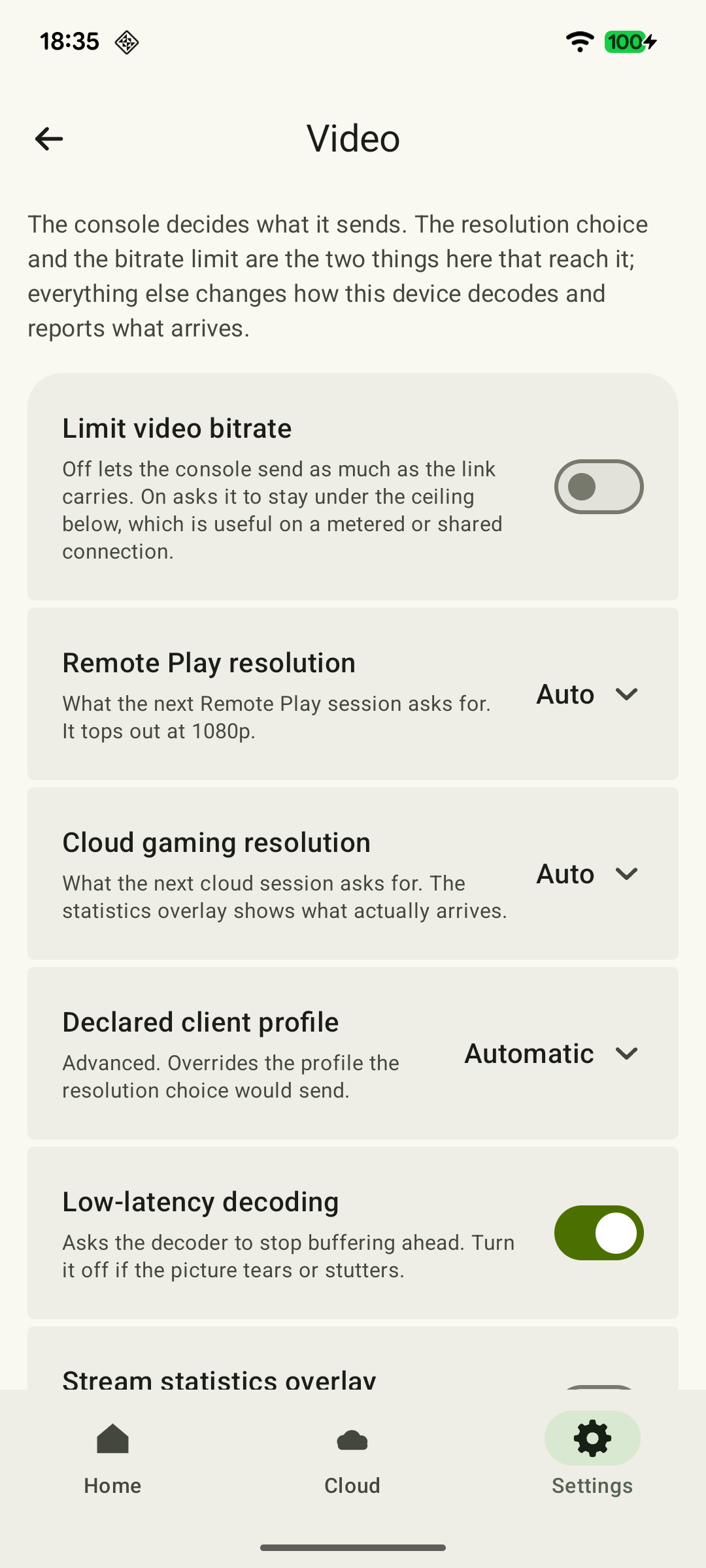
Button layouts, video settings and the XBPlay purchase belong to the old client. Do not expect them to appear automatically in another app. Keep screenshots of useful settings, note button mappings and separately check the new client's supported imports; do not rename an arbitrary file to an XBPlayer format.
Switch through one tested session
- In XBPlay, save the game and end the stream. Note the Xbox profile, console, game and control features you need.
- Install the replacement from the developer's official source. For XBPlayer, start at the official website; for Steam Deck, use setup after installation.
- Sign in to the same Microsoft account. For Remote Play, select the same Xbox; for the cloud, find the exact edition the account can access.
- Check picture, commands, sound and loading a save using the complete protocol. Leave the new client's default settings in place at first.
- After successful play, configure your touch profile or controller, then assess paid-access terms if you need it.
Do not pay for another client merely because a game disappeared from the cloud catalog: changing apps does not add cloud rights. If every option asks you to buy the game, start with the account, license and available edition.
 Enlarge screenshot
How to make the final choice
Without a physical controller, comfortable combinations and an on-screen button editor matter. On Steam Deck, built-in control support and a normal end-of-game workflow matter. Away from home, run a separate external test. Compare one scene on one network: a client name or FSR support does not prove lower latency.
XBPlayer payment, an XBXPlay license and Microsoft Game Pass are different purchases. Check the offer contents and platform for the particular app. Cloud plan selection is covered in the Game Pass guide for phone gaming.
Prepare your move from XBPlay
Test the replacement with your own use case before making the final choice.
The mode and device are identified
Your Xbox or the cloud; Android, iPhone/iPad, Steam Deck or a computer.
Xbox Remote Play or Xbox Cloud Gaming: which should you use? →Old client settings are preserved
Record useful mappings and parameters without assuming automatic import.
How to remap controller buttons in XBPlayer →The new client loaded the required game
Check the account, edition and save.
Xbox Cloud Saves: How to Continue a Game from Your Console →A normal session finished successfully
Use the complete picture, controls and audio test.
Your first XBPlayer session: a checklist before extended play →If an error occurs, specify the client, platform, game and message. You can send the support form through your email app.
Sources and further reading
- XBPlay — Steam listing — The page states that the app is unavailable for new purchases on Steam. This does not establish the state of installed copies.
- XBPlay Update: Ending Support — developer announcement — On September 15, 2025, the developer announced the end of support and the intention to unpublish on September 30.
- XBPlayer — official website — Client features and the central starting point for downloads.
- Xbox Remote Play — Microsoft — Xbox One/Series, remote features and separate requirements for games and online modes. The official web route's system requirements are not XBPlayer requirements.
- Xbox Cloud Gaming — Microsoft — Cloud catalog, supported devices, certain free games and selected purchased games. A separate announcement establishes the dates of monthly limits.
- XBXPlay — official repository and README — Android 6.0+, Remote Play, touch/remapping/FSR/PiP, standalone APK and a separate Google Play license. Features are based on the developer's documentation, without an independent latency comparison.
- Greenlight — official repository — Remote Play and xCloud, Linux/Steam Deck, Flathub and releases; N key for Xbox and the --fullscreen option.
Get the key points
Open a summary request with this article’s link. For Gemini, the request is copied — paste it into the chat.