
Choose a client
How to choose an Xbox Remote Play client before buying
Identify the feature you need, compare clients under the same conditions and read the purchase offer. Use one session test for picture, controls and audio.
On this page
Before buying an Xbox Remote Play client, answer three questions: what should it improve, does that work in your game, and what exactly does the payment include? Check launch and quality once using the standard first-session test. This article explains how to use the result to choose a client and decide whether to pay.
Identify your essential feature
| Your reason for choosing | The result you need | Where to find the XBPlayer setting |
|---|---|---|
| Playing without a separate controller | The combinations you need work, and buttons do not cover important interface elements | Touch layouts |
| Awkward controller commands | The right assignments are saved in a profile | Profiles and remapping |
| Unwanted stick movement | The smallest sufficient dead zone eliminates slight drift without unnecessary loss of precision | Dead zones |
| Playing away from home | Connection and wake-up work over an external network | Remote Play away from home |
| Talking with an Xbox party | Game audio is audible and the microphone scenario you need works | Party chat microphone |
Different clients may use the same names for features. What matters is the finished result: for example, a comfortable layout for your game, rather than simply the word “remap” in a description. If your main option already meets your needs, you do not have to pay for another client for an unspecified improvement.
Compare clients under the same conditions
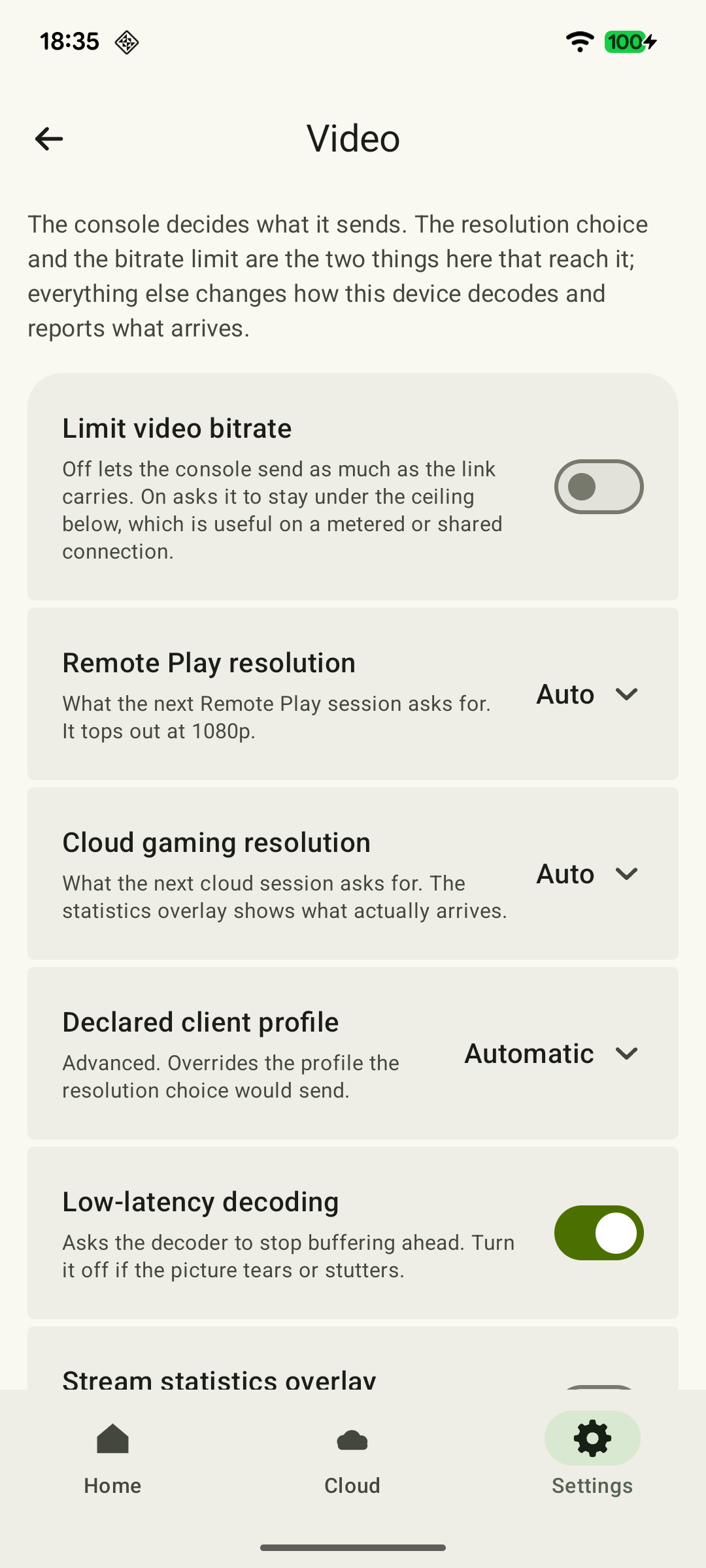
Use one Xbox, device, game, network and controller. Repeat a familiar scene in each client to compare picture and responsiveness; assess the usability of different touch layouts separately. If one client was tested at home and another over mobile data, you cannot attribute the whole difference to the app.
 Enlarge screenshot
Complete the picture, controls, audio and saved-progress loading test without creating another checklist. Then assess a session of your usual length: a brief launch does not reveal the full heat buildup or grip comfort. For travel, add an external-network test; for docking, use your own screen and controller.
Turn the result into a decision
| Result | What to do |
|---|---|
| The essential feature works, and the rest of the game feels comfortable | Compare purchase terms and decide whether you need paid access |
| The same problem occurs in every client | Check what they share: the Xbox, game, network or device |
| The failure occurs in only one client | Send the developer the version, scene and exact message; do not treat another payment as a fix |
| You could not test the main feature | Do not consider it confirmed by marketing copy; complete the required scenario first |
A subjective impression of responsiveness is useful for a personal choice. A numerical latency ranking needs measurements under the same conditions. FPS, bitrate and decoding time alone do not prove that one client is faster.
Read the purchase terms
- What access includes. What the payment unlocks or removes: ads, a minute balance, a particular feature or installation rights.
- Duration. A one-time purchase or subscription; for a subscription, renewal and the next payment.
- Platforms and store. Which devices the purchase covers, where to manage it and how to restore it after reinstalling.
- Separate game rights. The client does not include an Xbox game license or Microsoft services.
XBPlayer's free Android version lets you start with a time balance. The paid offer removes app ads and the need to replenish that balance; your device shows the current duration and price. Consider XBPlayer terms and Game Pass terms separately.
Where to start choosing
For your own Xbox, compare official Remote Play and XBPlayer or XBXPlay and XBPlayer. For Steam Deck, compare Greenlight and XBPlayer. If you want to play without a home console, that is a different task: browser or app for Cloud Gaming.
Decide before paying
Use the first session you have already completed, then check four purchase conditions.
The main feature delivered the result you needed
Record one reason for choosing the client and the specific result in your game.
Your first XBPlayer session: a checklist before extended play →The essential scenario has been tested
Playing at home, traveling, voice or an external display—only the scenario you are choosing the client for.
Xbox Remote Play away from home: checks before a trip →What is included, duration and renewal are clear
Check the exact offer on your device, the store account and how to restore the purchase.
XBPlayer free mode and Pro: minutes, purchases and restoring access →Game rights have been checked separately
A game license and Microsoft service are not purchased with the client.
An Xbox game you own asks you to buy it again: account, license and cloud →If an error remains, the support form will help you describe it to the developer. Your email app sends the message.
Sources and further reading
- XBPlayer — official website — Client features and the central starting point for downloads.
- XBPlayer: Remote Play & Cloud — Google Play — Hetko app; Remote Play/Cloud, cloud game search, Android minutes and Pro. Check the type and price of a specific purchase offer in that offer.
- Xbox Remote Play — Microsoft — Xbox One/Series, remote features and separate requirements for games and online modes. The official web route's system requirements are not XBPlayer requirements.
Get the key points
Open a summary request with this article’s link. For Gemini, the request is copied — paste it into the chat.