
Choose a client
Official Xbox Remote Play or XBPlayer: which to use on Android?
Browser Remote Play starts without a separate installation. XBPlayer adds its own control editor and stream settings; compare the same game on your device.
On this page
For Remote Play on Android, you can open the official Xbox site or use XBPlayer. If the browser already plays your game comfortably, it is sufficient. Try XBPlayer when you need a custom on-screen button editor, controller profiles or detailed streaming settings. Both options connect to your Xbox; cloud games are compared separately.
What stays the same in both options
You need an Xbox One or Series X|S, remote features enabled, internet access and an installed game you have the right to play. Game Pass is not required for Remote Play itself; the game's access and online-mode requirements still apply. If the game will not open on the console, fix that before choosing a client.
What each option offers
| Task | Official Remote Play | XBPlayer on Android |
|---|---|---|
| Start without a separate installation | Open xbox.com/remoteplay in a supported browser | Install the app; minimum Android 10 |
| Connect a physical controller | Microsoft specifies a compatible Bluetooth controller | Compatible Bluetooth/USB controllers, profiles, remapping and dead zones |
| Customize on-screen controls | Control options are determined by Microsoft's web interface | Resize, reposition and reassign controls; copy and import layouts |
| Choose Remote Play parameters | Manage the options available in the official web client | Auto / 720p / 1080p / 1080p (HQ), with a separate optional bitrate limit |
| Investigate stuttering | Use the game's behavior and information available in the web client | FPS, video bitrate, loss and decoding statistics |
| Pay for the client | No XBPlayer purchase required | Free Android mode with minutes or the displayed paid offer |
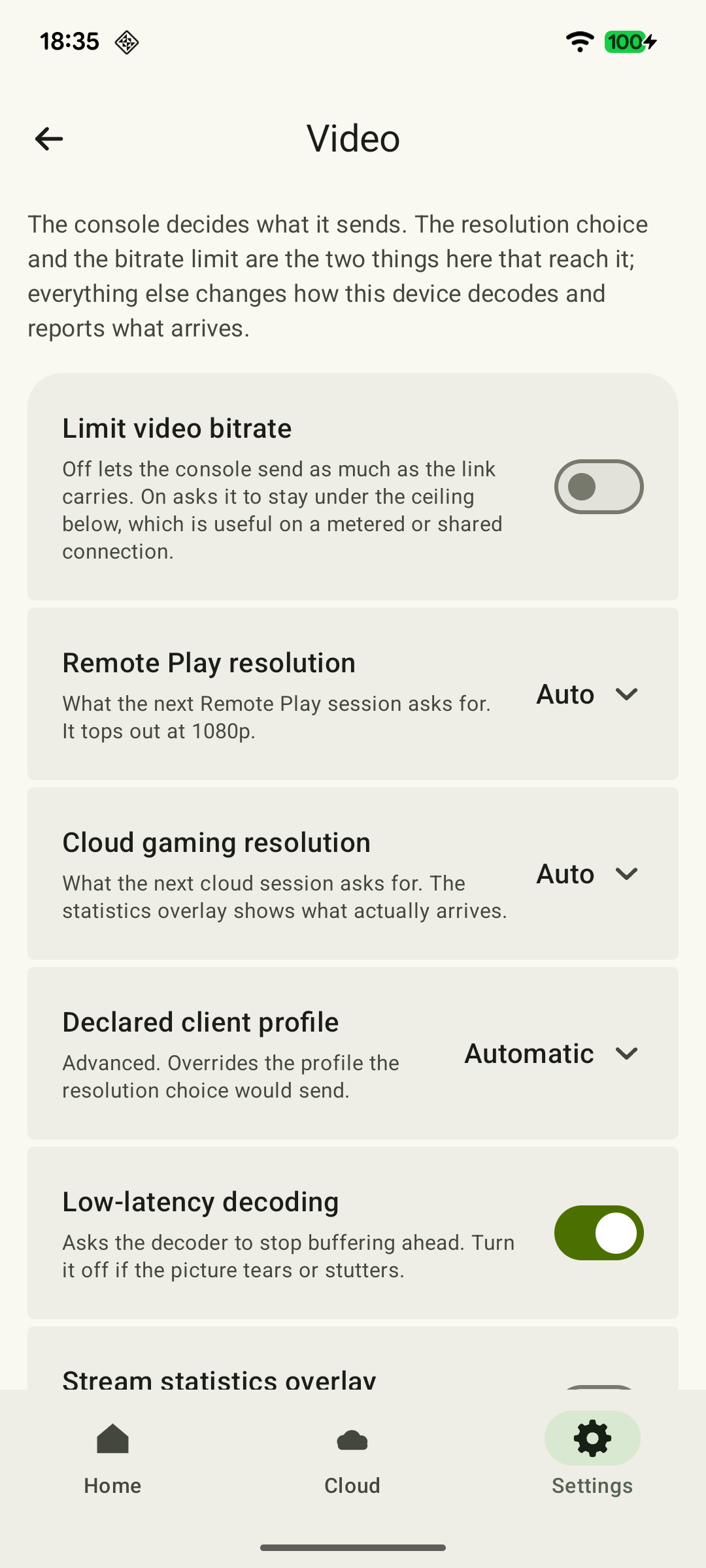
The resolution shown in XBPlayer is a session request, not a guaranteed result. The bitrate limiter is off by default; when enabled, its range is 500–15,000 kbit/s. Applying changes and reading actual results are explained in the quality reference.
A layout editor and the presence of on-screen buttons are different features. To play without a physical controller, assess the controls available in your specific web session or use XBPlayer's on-screen controller. It sends controller commands and does not change the Xbox game's own interface.
How to start comparing
- Launch a familiar game on the console and enable remote features. Leave the Xbox on for the first attempt.
- On your phone, open xbox.com/remoteplay, sign in to Microsoft and connect to your Xbox.
- End the first session, open XBPlayer with the same account, select the Xbox under “Your consoles” and tap “Start Remote Play”. The full Android guide helps with first-time sign-in.
Keep the device, network, controller and familiar game sequence the same. If one test uses home Wi-Fi and the other uses mobile data, the result does not isolate the difference between clients. Get both options launching successfully before comparing them.
Settings that can justify switching
- A button covers the map or is hard to reach. Move it in the touch editor and repeat the required combination.
- The physical controller produces unfamiliar commands. Create a button profile; investigate drift separately through dead zones.
- You want to aim by moving the phone. Set up the gyroscope with an appropriate activation method.
- The stream stutters. Compare the symptom with stream statistics, without treating decoding time as total input latency.
 Enlarge screenshot
What XBPlayer's paid option means
Free Android mode uses a time balance replenished by optional ads. App ads do not appear during gameplay; reaching zero does not end the current session. The paid offer removes XBPlayer ads and the balance requirement. Duration, price and renewal depend on the offer shown on your device; see payment details.
Do not buy a client to fix an unexplained network error. If a particular setting helped, assess it in a session of your usual length. The criteria for choosing before buying help compare results and license terms; there is no latency winner here without equivalent measurements.
Sources and further reading
- XBPlayer — official website — Client features and the central starting point for downloads.
- XBPlayer: Remote Play & Cloud — Google Play — Hetko app; Remote Play/Cloud, cloud game search, Android minutes and Pro. Check the type and price of a specific purchase offer in that offer.
- Xbox Remote Play — Microsoft — Xbox One/Series, remote features and separate requirements for games and online modes. The official web route's system requirements are not XBPlayer requirements.
- Xbox mobile app — Microsoft — Mobile Xbox app: purchases, downloads to a console and communication. Official Remote Play and cloud launch addresses; Safari and a shortcut on iOS.
Get the key points
Open a summary request with this article’s link. For Gemini, the request is copied — paste it into the chat.