
Choose a client
XBXPlay or XBPlayer: which to choose for Xbox Remote Play on Android?
XBXPlay focuses on Remote Play from your own Xbox. XBPlayer also has a cloud catalog. Compare the features you need on your device: both offer remapping, on-screen buttons and FSR.
On this page
XBXPlay and XBPlayer are different Xbox clients. XBXPlay focuses on Remote Play from your console. XBPlayer supports both Remote Play and Xbox Cloud Gaming. For your own Xbox, the choice depends on your device, the controls you need and the result in your game; test cloud play separately.
Choose a mode and check Android first
| Criterion | XBXPlay | XBPlayer |
|---|---|---|
| Minimum Android version | Android 6.0 according to the developer's documentation | Android 10 |
| Games from your own Xbox | Remote Play from Xbox One / Series X|S | Remote Play from Xbox One / Series X|S |
| Playing without your own console | XBXPlay's documented use is connecting to your own Xbox | A separate Xbox Cloud Gaming catalog |
| Touch controls | A customizable on-screen layout | An on-screen element editor, profiles and layout import |
| Physical controller | Bluetooth / USB and remapping | Bluetooth / USB, profiles, remapping and dead zones |
| Image processing | FSR processing is listed | FSR on a supported Android configuration |
| Payment | A paid license for the selected channel | A free Android time balance or a paid offer |
XBXPlay information comes from its developer's documentation, checked on October 24, 2026. A minimum OS version does not guarantee comfortable streaming on every older phone. If your device runs Android 6–9, it does not meet XBPlayer's minimum OS requirement; XBXPlay's lower minimum still needs to be considered alongside the device's capabilities.
If you do not have an Xbox at home, see the comparison of the official browser and XBPlayer for cloud play. Buying a Remote Play client does not create a home console or include Microsoft's cloud access rights.
Which features are not exclusive
Both clients describe on-screen buttons, controller remapping and FSR. Listing these names therefore does not produce an automatic winner. What matters is your result: whether two actions are easy to press together, the layout you need is saved, and image processing helps on your particular screen.
- Touch play. Repeat the combinations you need in your game; check that your thumbs do not hide the map or prompts. In XBPlayer, start with the layout editor.
- Physical controller. Check triggers, sticks and buttons, then configure a profile. For slight drift, a separate dead-zone test is useful.
- Image processing. Compare the same part of a scene with the effect on and off. Sharpening does not add details absent from the original video stream.
- An additional scenario. Test gyro, an external display and picture-in-picture on your own platform, rather than relying on a feature name from another build.
XBPlayer video settings
Remote Play offers “Auto”, “720p”, “1080p” and “1080p (HQ)”. The separate bitrate limiter is off by default; when enabled, it sets a ceiling of 500–15,000 kbit/s. Requested quality is not a guarantee of the actual stream. See the quality reference for how to apply settings and compare the result.
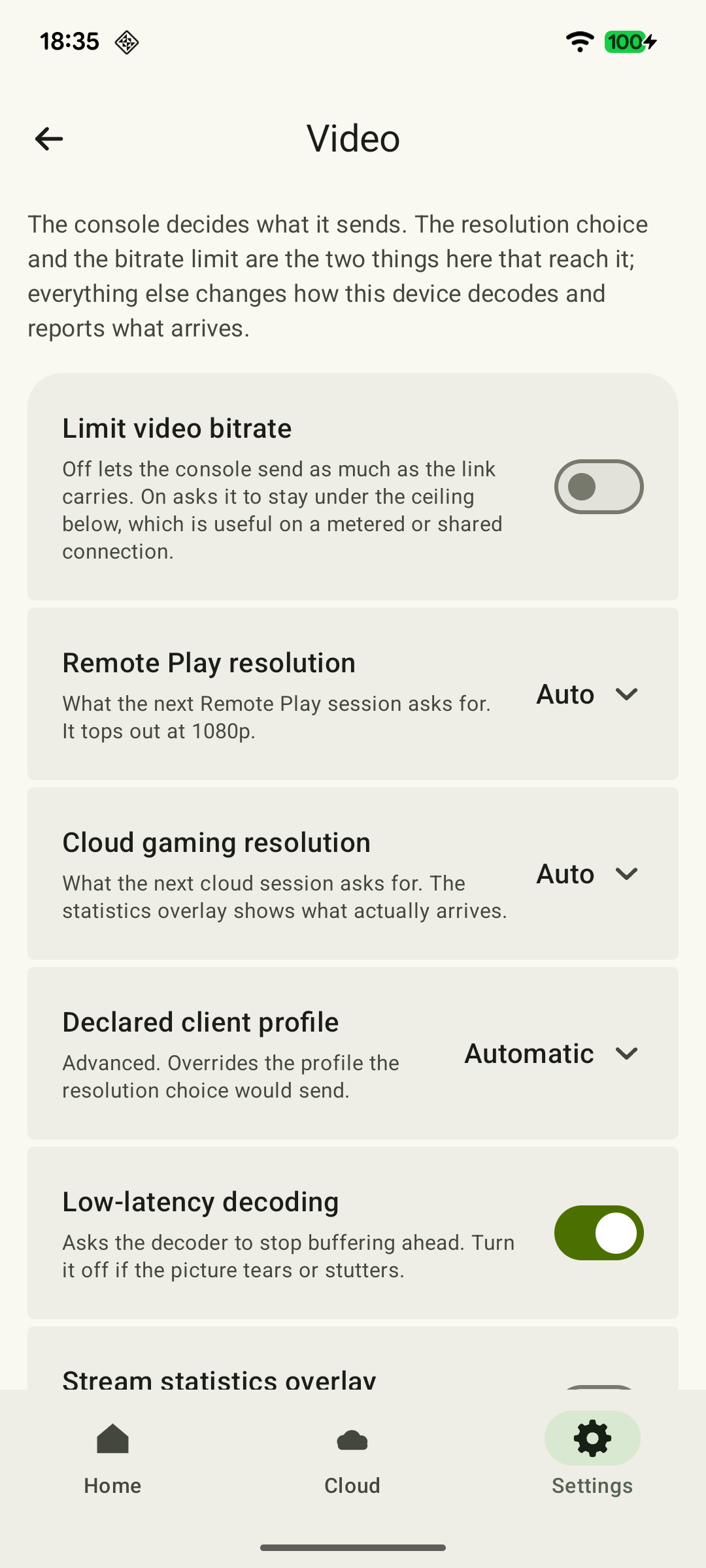 Enlarge screenshot
Built-in statistics help relate stuttering to FPS, bitrate, increases in packet loss and frame processing. They do not measure the entire path from input to picture. Without measuring both under the same conditions, you cannot declare XBPlayer or XBXPlay faster; your own repeatable test is more useful than such a promise.
Licenses: check the purchase channel
For the standalone version of XBXPlay, the developer describes a one-time personal license valid on the owner's compatible Android devices. XBXPlay's Google Play and standalone licenses are separate: do not treat a purchase through one channel as activation of the other. Check the selected offer for exactly what it includes and the price.
XBPlayer's free Android mode uses a time balance replenished through ads. The paid option removes app ads and the balance requirement; the offer on your device shows its duration, price and renewal terms. Buying the app does not include Xbox games or Game Pass. For details, see minutes and paid XBPlayer.
How to decide
- Launch the game on your Xbox and make sure the profile has the right to play it.
- Compare clients on one device and network, with the same controller and a familiar scene. For XBPlayer, use the Android Remote Play guide.
- Complete the first full session, then evaluate the additional feature you need.
- Compare the result and license terms using the purchase criteria. If you already have a suitable license and everything works comfortably, another purchase is optional.
Official XBPlayer installation links are collected on the project website. For XBXPlay, use the channels its developer lists; a similar filename does not verify the app's source.
Which difference matters to you?
Start with the limitation or feature that is driving your choice of client.
Your device runs Android 6–9
XBPlayer requires Android 10. Check the other client's requirements and the official web option.
XBPlayer requirements: Android, iPhone, iPad, TV and Steam Deck →You want to play without your own Xbox
Check the cloud game and Microsoft's conditions first.
Which Game Pass do you need for phone gaming and Xbox Cloud Gaming? →You need comfortable on-screen buttons
Assess the specific combinations in your game.
Xbox touch controls in XBPlayer: buttons, layouts and transfers →Your main question is payment
Check the platform, channel, duration and purchase restoration.
How to choose an Xbox Remote Play client before buying →Sources and further reading
- XBXPlay — official repository and README — Android 6.0+, Remote Play, touch/remapping/FSR/PiP, standalone APK and a separate Google Play license. Features are based on the developer's documentation, without an independent latency comparison.
- XBPlayer — official website — Client features and the central starting point for downloads.
- XBPlayer: Remote Play & Cloud — Google Play — Hetko app; Remote Play/Cloud, cloud game search, Android minutes and Pro. Check the type and price of a specific purchase offer in that offer.
- Xbox Remote Play — Microsoft — Xbox One/Series, remote features and separate requirements for games and online modes. The official web route's system requirements are not XBPlayer requirements.
Get the key points
Open a summary request with this article’s link. For Gemini, the request is copied — paste it into the chat.