
Start playing
Xbox Remote Play or Xbox Cloud Gaming: which should you use?
Remote Play needs your Xbox with a compatible game installed. Cloud Gaming needs an available cloud game and the right account access. Start by checking the game.
On this page
Choose Xbox Remote Play to play a compatible game installed on your Xbox on another screen. Choose Xbox Cloud Gaming if you do not have a console or would prefer to run the game in the cloud. XBPlayer supports both modes; check access to the game first, then compare connection quality.
Where to start
Check access to the game you want, then set up the appropriate mode.
The game runs on my Xbox
Start with Remote Play. Enable remote features and test your first session at home with the console switched on.
How to set up Xbox Remote Play on Android with XBPlayer →I do not own an Xbox
Check the exact title and edition at xbox.com/play under your account, and service support where you will play. If cloud launch is available, proceed to Cloud Gaming setup.
How to start Xbox Cloud Gaming on Android with XBPlayer →The game is available both ways
Compare a familiar scene on one device, with the same controls and network. Assess responsiveness, small text, audio and picture freezes.
The game will not run on Xbox and is not in the cloud
Check the edition and your right to play first. Another client will not add it to the catalog or replace buying the game.
An Xbox game you own asks you to buy it again: account, license and cloud →Buying XBPlayer does not include games or cloud access. For play away from home, separately check the network and service terms at your destination.
Where the game runs: your Xbox or the cloud
With Remote Play, your Xbox One or Xbox Series X|S runs the game. The console sends video and audio to another device and receives your controls. The TV can be used for something else, but the Xbox itself remains occupied by the game.
 Enlarge screenshot
With Cloud Gaming, the Xbox cloud service runs the game. You do not need a home console or to install anything on one. In both modes, your device receives a video stream rather than downloading the game to run offline.
| What to compare | Remote Play | Xbox Cloud Gaming |
|---|---|---|
| Your own Xbox | Required, with power and a network connection | Not required |
| Game source | A compatible installed game that can run on the console | A game available to your account in the cloud catalog |
| Subscription | May be required by the game or its online mode | Depends on the game and cloud access terms |
| Connection away from home | Depends on both your device's network and the Xbox's home network | Depends on your device's connection to the cloud service |
| Buying XBPlayer | Does not include games or Game Pass | Does not provide access to the cloud service |
Check the device, console and access requirements
XBPlayer works on Android and Android TV, iPhone/iPad and Steam Deck. Android requires Android 10 or later; iPhone and iPad require iOS/iPadOS 18 or later. The requirements table will help you choose the right version; download links are collected on the official website. Controls and image-processing features vary by platform.
Remote Play requires a Microsoft account with an Xbox profile, a console with remote features enabled, and a compatible game installed. Leave the Xbox connected to power and the network; waking it remotely requires a suitable standby mode. The app cannot turn on a console with its power disconnected. Game Pass is not required for Remote Play itself, but may be needed for the game or its online mode.
For cloud play, check service support in your country, the game you want and your account's access. Xbox lists Game Pass Essential, Premium and Ultimate plans, with access through a free Microsoft account for certain free-to-play games. Before paying, check whether your game is included in the plan you choose. Subscription terms and announced changes to cloud access are covered in the guide to choosing Game Pass for phone gaming.
Start by launching the game you want
- For Remote Play, launch it on the console. Open the game on your Xbox under the right profile. If it needs an update, purchase or subscription renewal, resolve that on the console first. A library tile alone does not confirm your right to play.
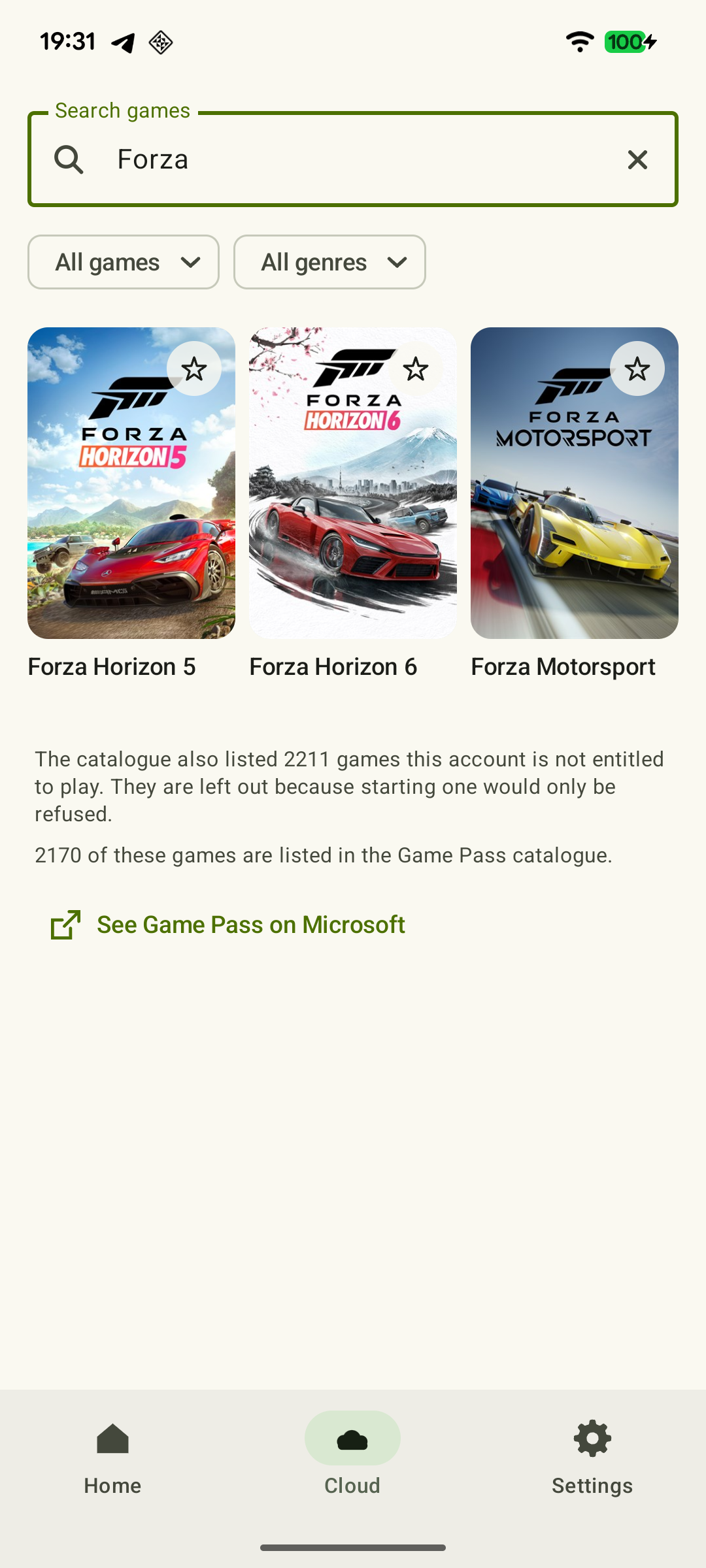
- For cloud play, use the official catalog. Sign in at xbox.com/play and find the exact title and edition. An Xbox game you own can be streamed from the cloud only if the service supports it; check before buying.
- Check your progress. Make sure the right profile is selected and the expected save slot is visible. The same title on mobile, PC and console does not guarantee shared progress. If a save is missing, find out why before continuing.
Choosing a mode at home and while traveling
At home, if the TV is occupied and your Xbox is already set up, start with Remote Play. A first session on the same local network helps you check the connection and controls. Follow the Android Remote Play guide to prepare. If the console will not connect, check its power, network and remote features.
If you do not have an Xbox, check the game in the cloud catalog and proceed to your first cloud session on Android. If launch is unavailable, check the account, region and game requirements on the official website. Installing another client does not add a game to the catalog.
Before traveling, test Remote Play from a different network: a successful connection at home does not prove it works from outside. Both your phone's connection and the upload from your home network matter. For cloud play, check service availability in your destination country. Your home Xbox is not involved in that session.
Compare responsiveness on your network
If a familiar game is available through both modes, compare them on one device, with the same controls and in the same location. Check text readability, response to button presses, audio and picture freezes in a quiet scene and while moving the camera. Repeat the short test at your usual playing time.
XBPlayer's diagnostics include frame rate, bitrate, packet loss and decoding time. They help you decide what to investigate, but do not replace assessing the full response to an input. Change one factor at a time, such as the phone's position relative to the router or a background download.
Neither mode is universally faster: the route to your console differs from the route to the cloud service. Keep the option that launches your game and works consistently in your conditions.
Sources and further reading
- XBPlayer — official website — Client features and the central starting point for downloads.
- Xbox Remote Play — Microsoft — Xbox One/Series, remote features and separate requirements for games and online modes. The official web route's system requirements are not XBPlayer requirements.
- Xbox Cloud Gaming — Microsoft — Cloud catalog, supported devices, certain free games and selected purchased games. A separate announcement establishes the dates of monthly limits.
- Official Xbox Cloud Gaming catalog — Cloud game search and the selected purchased-games section. Check a specific game's availability after signing in to your account.
- Upcoming Changes to Xbox Cloud Gaming — September 3, 2026 — Monthly allowances of 5/10/15 hours were announced for November 2026; those monthly limits do not apply before the change. No exact day or universal price was announced.
Get the key points
Open a summary request with this article’s link. For Gemini, the request is copied — paste it into the chat.