
Choose a client
Better xCloud or XBPlayer for cloud gaming on Android?
Better xCloud offers an Android app and an Edge userscript; XBPlayer installs from Google Play. Compare controls, settings and payment, then try the same cloud game on your phone.
On this page
Try Better xCloud if you want Clarity boost, Xbox Cloud Gaming web settings or Edge extensions. XBPlayer offers a cloud catalog in a separate app, its own touch-layout editor and controller profiles. Better xCloud also has an Android app based on WebView. Choose by the feature and installation method you need, and compare quality and responsiveness in the same cloud game.
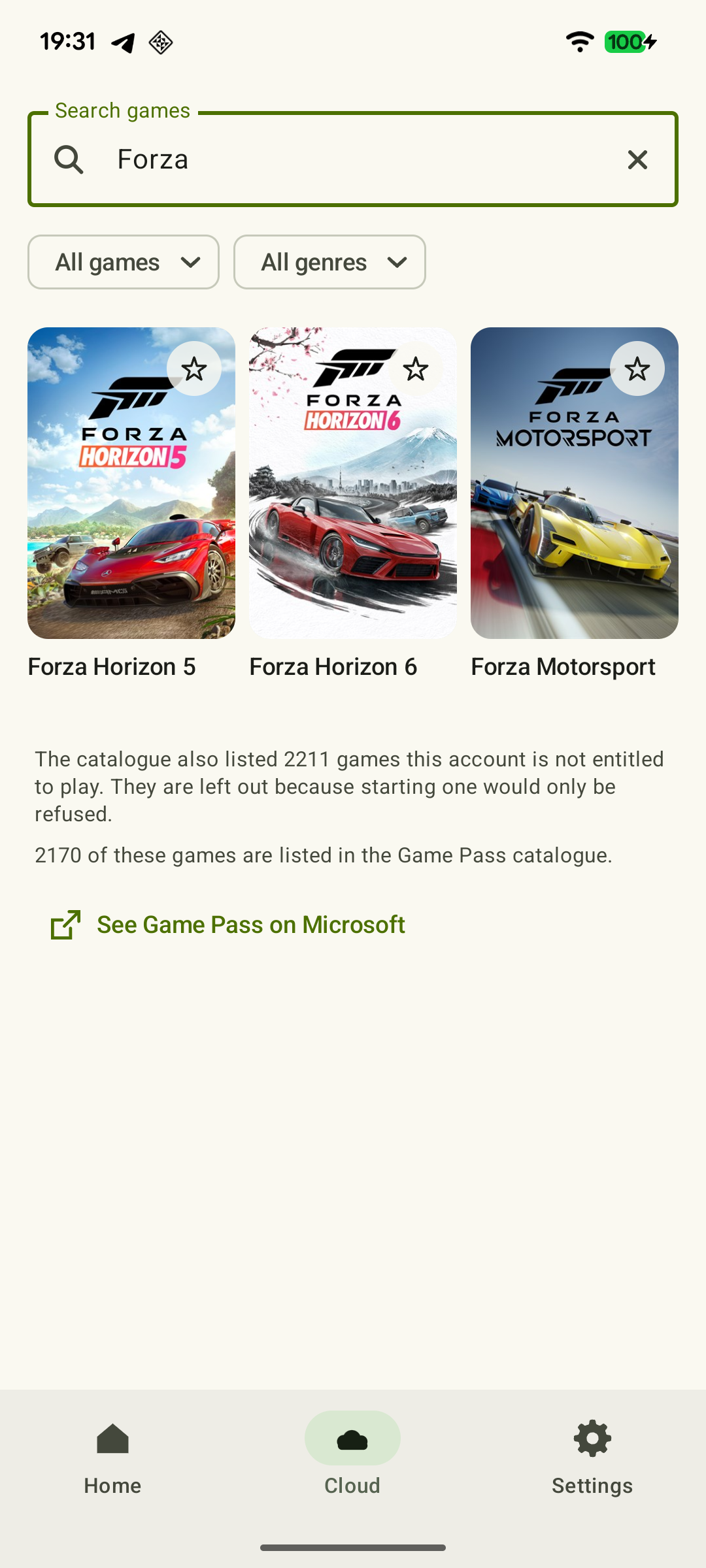
Start by launching the same cloud game
In this comparison, both clients connect to Xbox Cloud Gaming. The game runs on Microsoft's server; you do not need a console. Choosing Remote Play from your Xbox in one client and cloud play in the other would also compare different streaming sources.
 Enlarge screenshot
Sign in at xbox.com/play in a supported browser and check access to your game. Access depends on the catalog, region and account. Microsoft lists cloud access for eligible games in Game Pass Essential, Premium and Ultimate; some free-to-play games, such as Fortnite, are available with a free Microsoft account. Buying an Xbox game alone does not make it available in the cloud. If it also fails on Microsoft's site, resolve game access or connectivity first.
Three configurations are available on Android
- Better xCloud app. The official instructions specify Android 8.0 or later. This is a WebView app with an integrated userscript, a script that extends the Xbox Cloud Gaming website. The project's home page labels it beta. Download the APK from the developer's repository through the Android instructions, install it and sign in to Microsoft.
- Better xCloud in a browser. The current Android browser instructions use Edge: install the Tampermonkey extension, enable the developer mode specified in the instructions, then add Better xCloud as a script inside Tampermonkey. Open xbox.com/play afterward. The extension alone, without the script, is not enough. The project recommends trying the app first and using the browser option if the app has problems.
- XBPlayer. Open the XBPlayer website and follow the Android link, check installation availability for your device, install the app and sign in to Microsoft. Then open the cloud library and choose an available game. See the Xbox Cloud Gaming launch instructions for XBPlayer for details.
Record which Better xCloud version you installed. Troubleshooting needs the APK and WebView versions, or the Edge, Tampermonkey and script versions. The client name alone does not describe the configuration.
Controls, picture and diagnostics
| Feature | Better xCloud | XBPlayer |
|---|---|---|
| Touch controls | The on-screen controller can be enabled for all games; dedicated ready-made layouts are published for selected games | Move, resize and reassign touch controls, and save layouts |
| External input devices | The Android app documents mouse and keyboard support for compatible games; this feature is unavailable in the mobile browser | A compatible Bluetooth or USB controller, button remapping, stick dead zones and profiles |
| Picture | Target resolution, preferred bitrate limit and Clarity boost sharpening; some methods need WebGL2 support | Cloud resolution Auto / 720p / Maximum; an optional 500–15,000 kbit/s limit, and image processing on a supported device |
| Diagnostics | PING, FPS, BR, packet and frame loss; documentation specifically notes an Android issue with DT | Frame rate, bitrate, packet loss and decoding time |
For Better xCloud, these features are described in Global settings, Clarity boost and Native Mouse & Keyboard. Custom layouts for selected games do not mean one ready-made layout suits every game.
 Enlarge screenshot
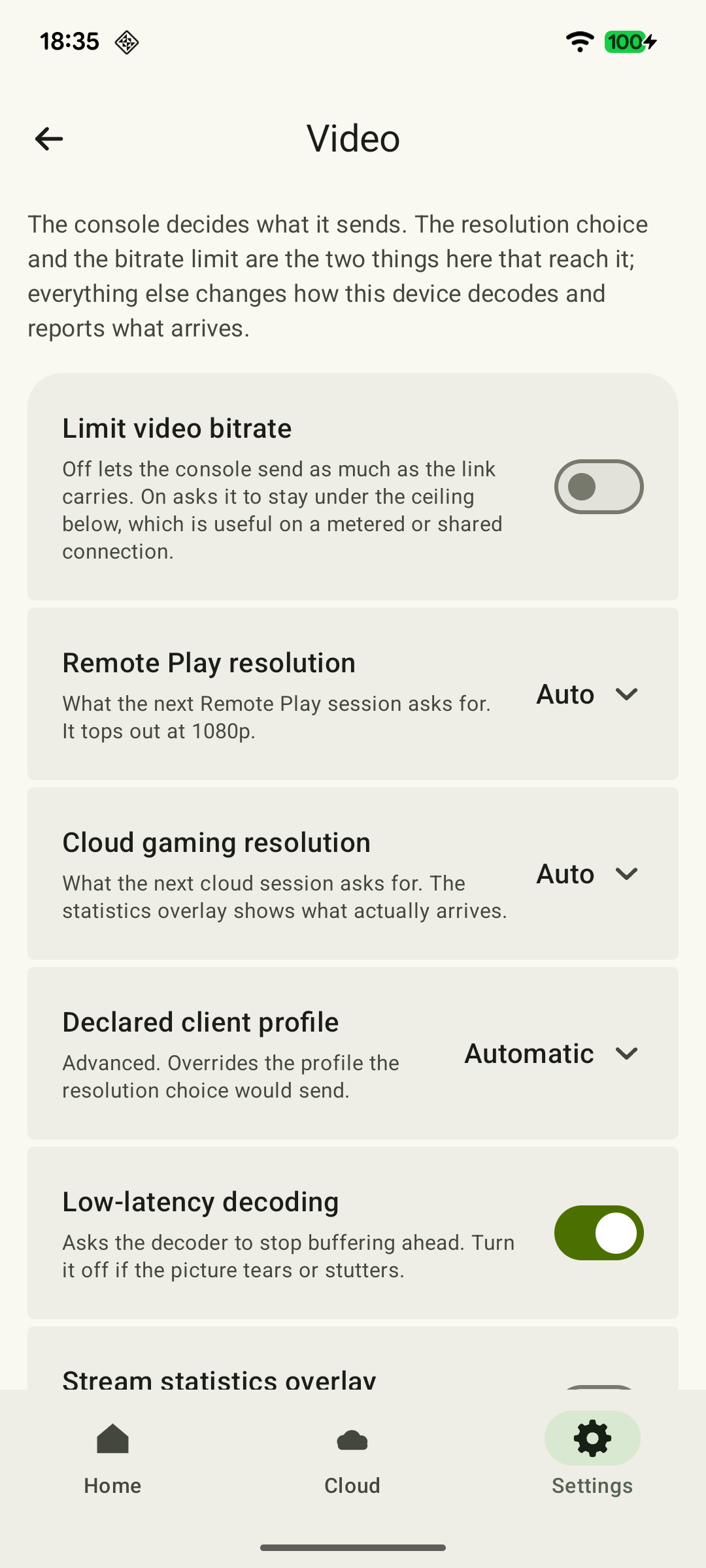
In XBPlayer, open “Settings → Video → Cloud gaming resolution”. The options are “Auto”, “720p” and “Maximum”. The bitrate limiter is off by default: an inactive limit does not mean a 15 Mbit/s ceiling. When enabled, it can be set from 500 to 15,000 kbit/s. To check a new resolution or bitrate, save, end the cloud session and start a new one. See the quality settings table for details.
Neither Clarity boost nor the resolution selected in a client guarantees that the server supplies quality above the account's allowance. Clarity boost processes the received image. The result also depends on the device, network and cloud service.
Client pricing and cloud access are separate
Better xCloud is free. The userscript source is published under MIT in its repository. The Android app has a different status: its separate repository README describes a testing phase and source publication after stable version 1.0. The userscript being open source should not be attributed to the entire Android build.
In XBPlayer's free Android mode, new sessions use a time balance. Optional ads replenish it; app ads do not appear during play, and reaching zero does not interrupt the current session. The paid offer removes XBPlayer ads and the balance requirement. Check its duration, price and renewal before confirming a purchase.
Better xCloud being free and buying XBPlayer do not provide games, Game Pass or additional Microsoft service time. Client and cloud terms are covered separately in the XBPlayer payment guide and Game Pass guide.
How to test your choice on your phone
- Compare launch. Use one account, phone, network and cloud game. Start with ordinary settings. If only one client fails, record the error and component versions; launch the same game again on Microsoft's site.
- Test controls in the game. Perform familiar actions: movement, camera rotation, holding a trigger and opening the menu. For touch controls, also check that buttons do not hide important interface elements. Save a comfortable layout.
- Assess the picture in one scene. Choose a location with small text and movement. Change one available parameter at a time and note whether text becomes easier to read and whether stuttering appears. If results worsen, restore the previous setting.
- Check a fresh launch. Wait for the game to save progress, end the session and start another. Confirm the control settings you need are retained. Separately test returning after briefly switching apps: running in the background alone does not guarantee session or progress retention.
Diagnostics help explain observations, but identical metric names do not make them fully comparable. In Better xCloud documentation, FPS is decoded frames per second, PING is the round trip to the server, and DT is decoding time. An Android issue is explicitly noted for DT. Neither PING nor decoding time equals the entire delay from input to picture.
Keep the client whose features work on your device and whose terms fit your needs. If you are choosing between Microsoft's ordinary website and XBPlayer without Better xCloud, use the browser and app comparison.
If the comparison reveals a failure
These details help reproduce the problem; you do not need a separate report for every impression.
The configuration is known
Record the APK/WebView or Edge/Tampermonkey/userscript versions for Better xCloud, and the XBPlayer and Android versions for the app.
The mode and game match
Both tests use Cloud Gaming, one Microsoft account, one game and one network.
The symptom is reproducible
Specify the action or scene, error message and launch result at xbox.com/play.
Xbox Cloud Gaming will not launch a game: what to check →The setting was applied to a new session
A new session was started after changing resolution/bitrate; actual quality was checked against statistics.
Xbox streaming quality: resolution, bitrate and FPS →The support form prepares a message for the team. Review the text first; your email app sends the message.
Sources and further reading
- Better xCloud — Introduction — Better xCloud description and the Android app's beta status.
- Better xCloud — Android browser — Current sequence: Edge on Android, Tampermonkey, developer mode, userscript installation.
- Better xCloud — userscript repository — Userscript source code and MIT license.
- Better xCloud for Android — app repository — The README reports a testing phase; app source code is promised after stable version 1.0.
- Better xCloud — Global settings — Stream settings, touch controller and limitations of individual features.
- Better xCloud — Clarity boost — Image processing and the WebGL2 requirement for AMD FidelityFX CAS.
- Better xCloud — Native Mouse & Keyboard — The Android app supports mouse and keyboard in eligible games; mobile browsers are excluded.
- Better xCloud — Stream stats — Definitions of PING, FPS, DT, BR, PL and FL, and the Android DT caveat.
- Xbox Cloud Gaming — Microsoft — Cloud catalog, supported devices, certain free games and selected purchased games. A separate announcement establishes the dates of monthly limits.
- Upcoming Changes to Xbox Cloud Gaming — September 3, 2026 — Monthly allowances of 5/10/15 hours were announced for November 2026; those monthly limits do not apply before the change. No exact day or universal price was announced.
- XBPlayer — official website — Client features and the central starting point for downloads.
- XBPlayer: Remote Play & Cloud — Google Play — Hetko app; Remote Play/Cloud, cloud game search, Android minutes and Pro. Check the type and price of a specific purchase offer in that offer.
- Better xCloud — Android app — Web-app-based APK with an integrated userscript, Android 8.0+, official GitHub channel and app-specific features.
- Xbox Game Pass — Microsoft plans — Essential, Premium and Ultimate support cloud use; the PC-only plan differs. Catalogs, regional terms and automatic renewal.
Get the key points
Open a summary request with this article’s link. For Gemini, the request is copied — paste it into the chat.