
Choose a client
Xbox Cloud Gaming on Android: browser or XBPlayer?
Start in a browser to check game access. Try XBPlayer for control customization and diagnostics; compare picture quality and responsiveness on your own phone.
On this page
A supported browser is enough to start Xbox Cloud Gaming on Android. XBPlayer is worth trying if you need customizable on-screen buttons, controller remapping or streaming diagnostics. The app does not unlock additional games by itself. Compare picture quality and responsiveness in the same game on your own phone and usual network.
| If you need to… | Where to start |
|---|---|
| Launch a game without installing a new client | The official xbox.com/play browser service |
| Move on-screen buttons or save your own layout | XBPlayer's layout editor |
| Configure a physical controller profile | XBPlayer profiles |
| Use web-client extensions | The separate Better xCloud and XBPlayer comparison |
Check access to the cloud game first
In both cases, Xbox Cloud Gaming runs the game while the phone receives video and sends commands. You do not need your own console. XBPlayer is an independent third-party client, not an official Microsoft app.
Open xbox.com/play in a supported browser on Android, sign in to Microsoft and find your game. Microsoft lists Google Chrome among supported browsers; use the current version. Check whether you can launch the game with your account and in your region. If you cannot, first investigate the service's message: installing another client does not by itself replace a subscription or the right to play a game.
Terms depend on the game and Game Pass plan; Ultimate is not required in every case. Some free-to-play games, such as Fortnite, are available with a free Microsoft account in a supported region. Buying an Xbox game also does not guarantee cloud access: the game must support it, and the account must meet the service's conditions.
Continue in this guide
Browser: a quick start and Xbox Touch in selected games
If the game launches, a compatible controller works and the interface is readable, a browser may meet your needs. Try a normal session: can you comfortably expand the picture, do browser elements get in the way, and is it easy to return after switching apps? A result on another phone does not replace this check.
To play without a physical controller, choose a game with Xbox Touch support: official touch controls are available only in some cloud games. Check the catalog badge and the controls available after launch. One game's touch layout does not promise the same support in another.
If the browser does not recognize your controller, check its Android connection first. Then return to the game and try the commands again. If the stream itself does not start, record the error message and check the account, game availability and connection. Do not buy an app simply to try to fix an unidentified error.
XBPlayer: an on-screen controller and your own layout
Follow the Android link on the official XBPlayer website and install through Google Play, sign in to the same account and choose the cloud library. The Xbox Cloud Gaming launch guide for XBPlayer will help with the first connection.
In XBPlayer, you can move and resize on-screen elements, save layouts and remap a physical controller's buttons. This helps when a button covers the minimap or a trigger is difficult to reach. Choose one such problem and check whether the setting solves it.
XBPlayer's on-screen controller sends controller commands. This differs from official Xbox Touch support in selected games: it does not make an Xbox game's entire interface touch-operated. For example, selecting an inventory item may require a stick and a confirmation button instead of tapping the item itself.
Save a working layout before editing it. To see more of the game, change the elements' position or opacity. A fully transparent button can still respond to touches; remove an unwanted element from the layout to disable its input. See the on-screen button setup guide for details. After making changes, test combinations such as moving while jumping or aiming while firing.
Cloud picture quality and statistics
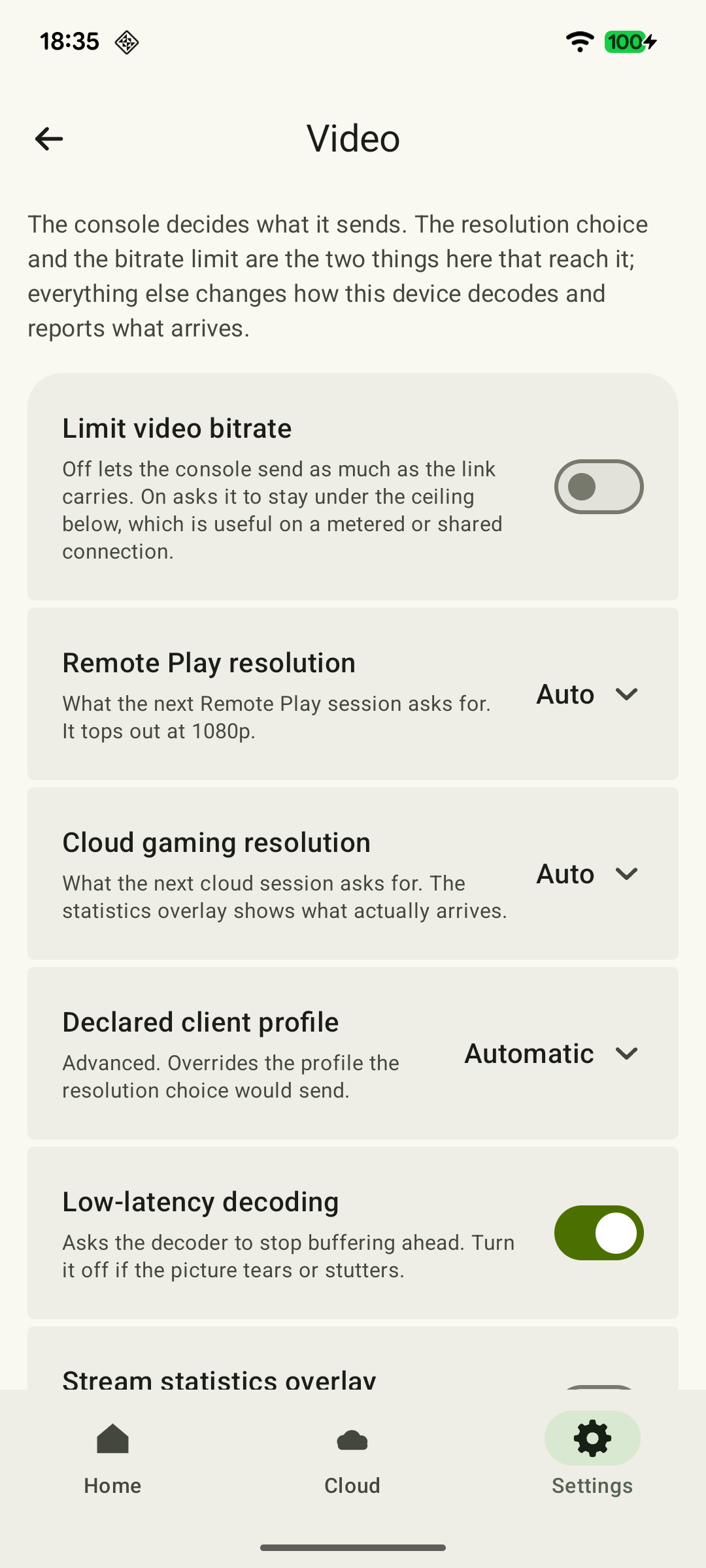
“Settings → Video → Cloud gaming resolution” offers “Auto”, “720p” and “Maximum”. The optional bitrate limiter sets a ceiling of 500–15,000 kbit/s. It is off by default, so 15 Mbit/s should not be treated as an unconditional app ceiling.
 Enlarge screenshot
The resolution and limit are requested for a new session. Save first, end the current cloud stream and start a new one. “Maximum” does not grant access to quality above what the service allows for the account. See the quality reference for additional settings and how they apply.
Statistics show FPS, actual video bitrate, cumulative packet loss and frame-processing information. Compare the increase in losses over equal time periods. Decode is not the complete delay from input to picture; the statistics guide explains these values.
How to compare both options on your phone
Use one phone, account and network, and a familiar short sequence. Connect the same physical controller to compare responsiveness. Assess touch layouts separately: changing the input method itself changes how the game feels.
- Launch the game in the browser. Test camera rotation, small text and familiar actions.
- Wait for progress to save, end the session and repeat the sequence in XBPlayer. Do not change networks or start background downloads between attempts.
- Record startup waiting time, picture stutters, disconnections and awkward commands separately. A queue before launch is not the same as input delay during play.
- Repeat the comparison in the opposite order and at your usual playing time. Cloud session conditions can change even on the same home network.
For a personal choice, it is enough to establish which option works better for your situation. A claim about an exact latency difference requires measurements; subjective impressions and a diagnostics overlay alone do not establish it.
Should you pay for XBPlayer after testing?
XBPlayer's free Android mode uses an app time balance. The paid offer removes XBPlayer ads and the need to replenish that balance, but does not include games, Game Pass or Microsoft cloud hours. Check the offer on your device for its duration and renewal terms. See the free and paid XBPlayer guide for details and the Game Pass guide for service access rights.
If the browser already works well for you, there is no requirement to switch. If XBPlayer solves a specific control problem or helps you investigate streaming issues, verify that in free mode and decide based on normal sessions.
Sources and further reading
- Xbox Cloud Gaming — Microsoft — Cloud catalog, supported devices, certain free games and selected purchased games. A separate announcement establishes the dates of monthly limits.
- XBPlayer — official website — Client features and the central starting point for downloads.
- XBPlayer: Remote Play & Cloud — Google Play — Hetko app; Remote Play/Cloud, cloud game search, Android minutes and Pro. Check the type and price of a specific purchase offer in that offer.
- Touch controls: make them your own — Saving a layout, opacity without disabling input, and removing an unwanted element.
- Upcoming Changes to Xbox Cloud Gaming — September 3, 2026 — Monthly allowances of 5/10/15 hours were announced for November 2026; those monthly limits do not apply before the change. No exact day or universal price was announced.
Get the key points
Open a summary request with this article’s link. For Gemini, the request is copied — paste it into the chat.