
Network and quality
Remote Play at a hotel: what to do when your Xbox will not connect
Complete the guest Wi-Fi sign-in on the device you play on, then try the same Xbox over mobile data. Use the result to choose your next check.
On this page
If Xbox Remote Play will not connect through hotel Wi-Fi, first complete the guest-network sign-in on the device you are playing on. Then try the same Xbox over mobile data. Working websites alone do not establish that the network allows a game stream.
This guide covers connecting to your home console through XBPlayer. You need access to the hotel Wi-Fi and, if possible, mobile internet with a suitable data plan. If you have no alternative network, start with Wi-Fi sign-in and save the exact error message for hotel support.
Complete Wi-Fi sign-in on the gaming device
- Check the network name. Connect to the Wi-Fi named in the hotel’s instructions. For a clean test on a phone, temporarily turn off mobile data: automatic switching could hide a Wi-Fi problem.
- Open the sign-in page. Select the system notification asking you to sign in to the network. If none appears, open a new page in your browser. If the portal still does not appear, ask the hotel for its sign-in URL or instructions for your device.
- Complete authorization. Enter the code supplied by the hotel or accept the terms. Check that a new external web page loads after sign-in, then start a fresh connection to the console in XBPlayer.
- Record the result. A console missing from the list, a connection error and a stream that starts but freezes are different symptoms. Save the error text and the time of the attempt.
Signing in on a phone does not necessarily authorize a tablet. Check the portal on the device you actually use for gaming. Ask how long access lasts and how many devices are allowed. If the network asks you to sign in again after a break, renew the authorization. Captive-portal support on Android TV depends on the device; follow the hotel’s or manufacturer’s instructions.
Compare hotel Wi-Fi with mobile data
Check your plan’s terms, especially while roaming: streaming uses mobile data, and tethering may have separate restrictions. For a short test on a phone, turn off Wi-Fi and enable mobile data. On a tablet, connect to a phone hotspot.
The hotspot phone must share mobile data. Some phones can share an existing Wi-Fi connection too. Disconnect the hotspot phone from the hotel Wi-Fi; otherwise, you will not be testing an independent connection.
Keep the gaming device, account, console and stream settings the same. First check whether the connection starts at all; if it does, open the same game. Then return to hotel Wi-Fi and try again soon afterwards. Compare where the failure occurs and how the video behaves, not just speed-test results.
| Result | Next step |
|---|---|
| Works over mobile data, but repeatedly fails to start on hotel Wi-Fi | Ask hotel support to check network restrictions and your device’s access. The difference links the failure to that network or its route, but does not by itself prove deliberate blocking. |
| Fails on both networks | Check whether the home Xbox is reachable, powered and online. One failed mobile test does not prove a console fault: mobile connections can have restrictions too. |
| Video starts on both networks but freezes at the hotel | Continue with the stream-stability checks below; the connection has already been established. |
| Works after signing in to Wi-Fi again | Ask how long authorization lasts. If the problem returns after a break, check the portal first. |
If Remote Play used to work at home but now fails from external networks, continue with the away-from-home connection guide. Restore the Wi-Fi and mobile-data settings you need after the comparison.
If video appears but freezes
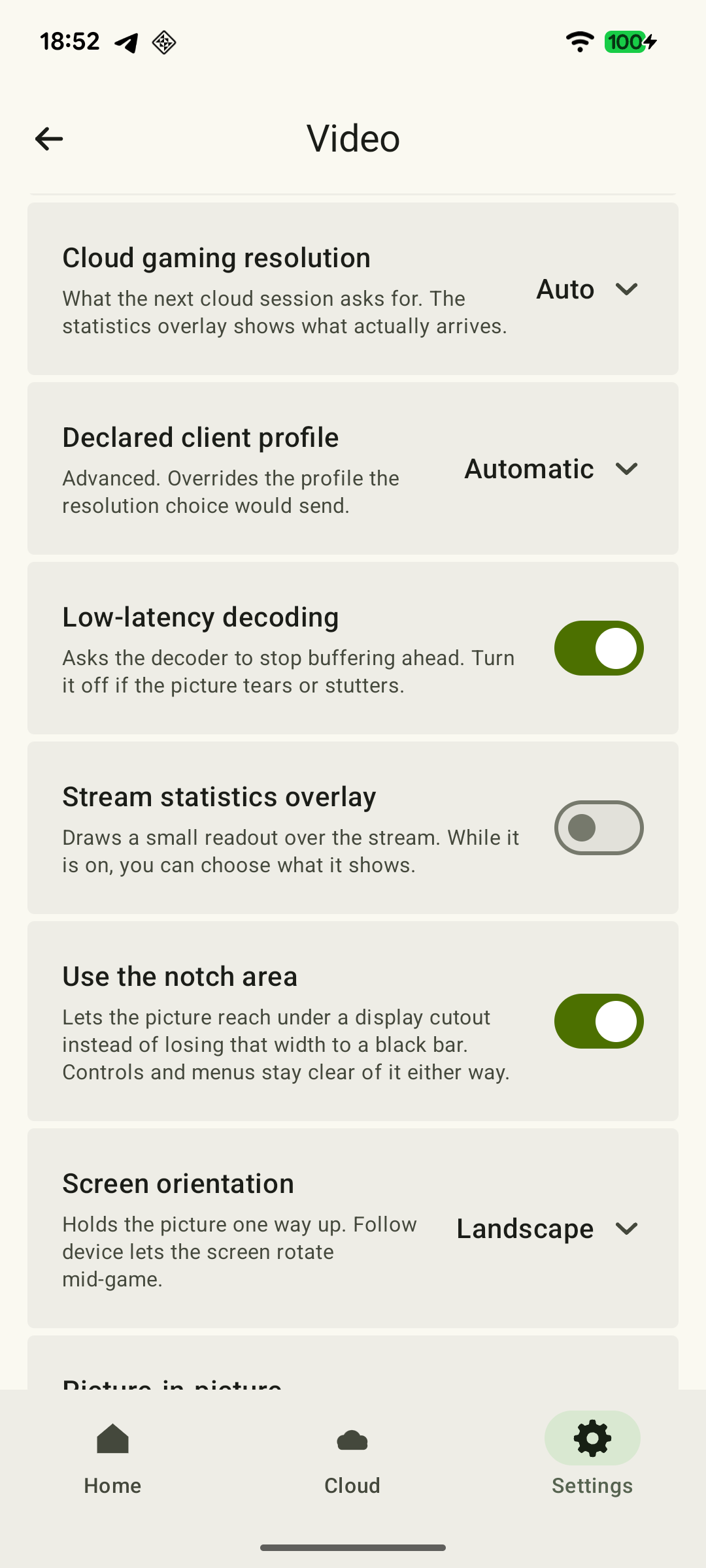
Pause background downloads on the gaming device and try another location with a more reliable Wi-Fi signal. In XBPlayer, try 720p as a separate comparison. If the bitrate limiter is off, enable a cap; if it is on, lower it. Confirm the restart in the active Remote Play resolution panel, or start a new session yourself after changing the general video settings. Change one setting at a time and repeat the same game scene. Quality settings and when they take effect.
 Enlarge screenshot
In XBPlayer diagnostics, compare frame rate, bitrate and increases in the packet-loss counter over equal periods. Decode relates to video queueing and processing on the device, not total input delay. If streaming becomes more stable, keep the suitable setting for the trip. Lower quality will not fix an incomplete Wi-Fi sign-in or a blocked connection.
If the stream starts but keeps freezing, move on to packet loss and jitter or stutter troubleshooting. Return to console-reachability checks if a new session will not start at all.
When guest-network device isolation matters
Guest Wi-Fi can prevent visitors’ devices from communicating directly. This is called client isolation. If your Xbox is at home, it is on another network: an inability to reach another hotel guest’s device does not explain a Remote Play failure over the internet.
If you brought the Xbox with you and connected both it and your tablet to the hotel Wi-Fi, local communication restrictions do matter to your setup. Ask hotel support whether communication between those devices is allowed and which connection method they support.
What to tell hotel support
Provide the network name, gaming-device model, time of the error, error text and mobile-data comparison result. For example: “I have signed in to the guest Wi-Fi and websites load. Connecting to my Xbox at home fails. The same tablet connects successfully over mobile data.”
Ask whether game streaming is permitted and whether speed, time or device-count limits apply. Ask about local communication if the console is also at the hotel. Staff do not need your Microsoft password or account sign-in codes to investigate the network.
What to check at home before your next trip
Test Remote Play from an external network in advance: connect to the Xbox, start the installed game you want and check console wake-up. Finish updates, save your progress and leave the Xbox on a reliable home connection with remote features enabled.
Sleep mode is needed to wake the console remotely. Account for active hours: outside that schedule, the console may shut down completely. If the Xbox is already on, choosing Shutdown mode does not by itself disable remote features. A console without power cannot be woken. If you are already traveling and the Xbox is unavailable, someone at home may need to check its power and connection. Avoid changing home-router settings at random.
Sources and further reading
- Xbox Remote Play — Remote Play streams installed games from your own Xbox and requires remote features to be enabled. This page’s requirements apply to Microsoft’s official connection method.
- XBPlayer: Remote Play and Cloud Gaming — The official app website and download links. Detailed definitions of diagnostics and how settings take effect are covered in the relevant guides.
- Google Pixel Help: fix Wi-Fi connection problems — Signing in to a public network through a notification or a new browser page, comparing networks and automatic mobile-data switching. Menu names vary by device.
- Android Help: share a mobile internet connection — Phones can share mobile data, and some models can share Wi-Fi. Carriers may restrict tethering or charge extra.
- Cisco Meraki: splash-page traffic flow and troubleshooting — Authorization applies to a client device and can expire; access before sign-in depends on network rules. This is an implementation example, not a description of a particular hotel.
- Cisco Meraki: Wireless Client Isolation — Isolation limits communication between local clients. Connecting to a home Xbox over the internet goes beyond the guest local network.
- Xbox Support: Xbox power modes — Sleep is needed for remote wake-up. In Shutdown mode, remote features are available while the console is on.
- Xbox Wire: active hours in Sleep mode — Outside active hours, the console shuts down fully; during active hours, it is available for Remote Play.
Get the key points
Open a summary request with this article’s link. For Gemini, the request is copied — paste it into the chat.