
Gaming routines
How to Prepare Xbox Games and Saves for a Trip
Leave your game at a convenient stopping point, check access in your destination country and prepare a separate game for offline periods. External Xbox access has its own test guide.
On this page
Before a trip, prepare the game, a resume point and a backup for time without a connection. A game installed on your home Xbox, access to its cloud version and a local phone game are three different ways to spend your time. Choose the ones you need in advance so you can focus on playing while away.
Decide where you will play and how you will finish
| Part of the trip | What to prepare | What should be ready before leaving |
|---|---|---|
| A quiet evening at the hotel | A game and familiar save for Remote Play or cloud play | Clear access, comfortable controls and a way to save the evening's progress |
| A break before boarding or a connection | A finite drill, a race or an already familiar section | You know the endpoint and will not have to abandon a team |
| A stretch without internet | A separate local game on the device | It actually opens offline, including the save you need |
Start with one or two games you want to return to. For a short break, see activities with clear endings. Save an online match or expedition with friends for a time when you can finish it. XBPlayer streams over a network; it does not download the Xbox version to your phone for offline play.
Leave your save at a convenient point
- Finish game updates and required add-on installations on your home Xbox. Open the game under the Xbox profile you will use on the trip.
- Load the desired campaign, world or character. Choose a clear next goal: an unlocked race event, the start of a quest or a morning on the farm.
- Save using the game's intended method and wait for writing to finish. During initial preparation, if it is safe, quit the game itself and load that save: returning to a still-running session does not check saved progress.
- After quitting, leave the console connected to the network if you will continue through the cloud. Transfer steps and conflicts are covered in the Xbox saves guide.
In Xbox Stardew Valley, leaving the farm at the morning after a completed day is convenient. The next session starts with a new plan rather than unfinished, unsaved chores. In Minecraft, choose the world and work location in advance; a mobile copy and the same world on Xbox need different access methods. Read more about the Xbox Stardew farm and Minecraft worlds.
Confirm access through your chosen method
Remote Play. Before leaving, run the external connection and Xbox wake test. The expected result is a console that wakes and opens the game through another network. Power and home internet must stay on; sleep active hours need to cover your planned playing time, accounting for time zones. The external-access guide includes console settings and the trial-connection sequence.
Xbox Cloud Gaming. Open the exact game in the official cloud catalog under your account. The listing shows launch access; check destination-country support separately on the Xbox regions page. Rights to a console game, its cloud launch and an expansion differ. Current access types and Microsoft terms are covered in the client and Xbox payment guide.
If you plan to move from Xbox to the cloud, open the compatible cloud version once before the trip and compare your progress. If you see an older point or a conflict, stop and follow the synchronization-check sequence: playing on from an older copy makes choosing the right save harder.
Prepare controls and an offline backup
Connect the controller you will take to your travel phone or tablet. If you use touch controls, save a comfortable layout and make sure the map, pause and save controls are accessible, not just movement. A device in a holder should still provide access to its charging port; setup compatibility is covered in the accessories guide.
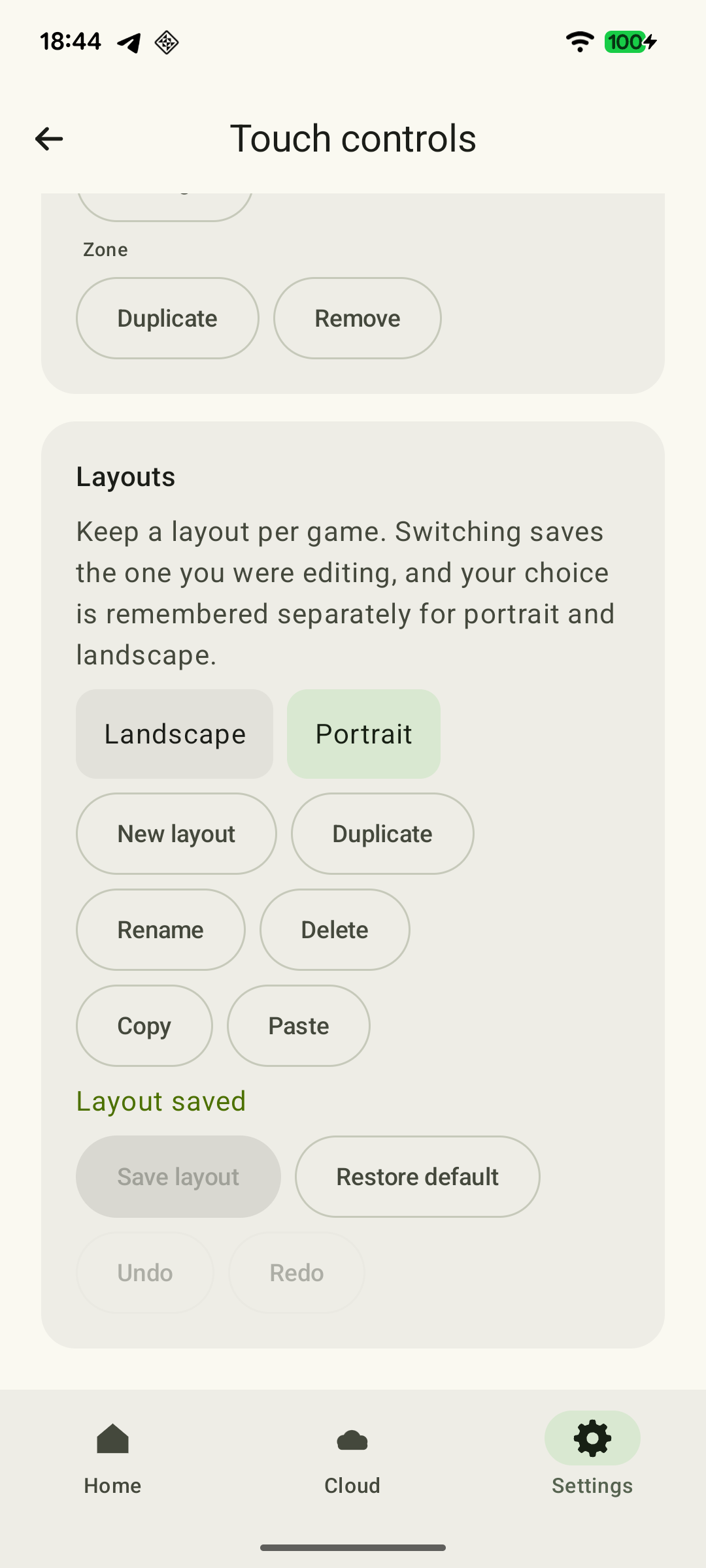 Enlarge screenshot
For time without a connection, install a separate local game. Open it at home with Wi-Fi and mobile data turned off: an app icon finishing its download does not establish that all files and the mode you need are available. Mobile Minecraft and Stardew Valley have their own purchases and saves; they will not automatically open an Xbox world or farm. Your backup can be a completely different game that is easy to start and finish offline.
At your destination: connect and start your chosen activity
At a hotel, complete the Wi-Fi sign-in page first. For mobile internet, check roaming and your remaining allowance; the data-use calculator helps estimate consumption. For guest-network problems, use the hotel guide; if your home Xbox cannot be reached externally, use external-access troubleshooting.
Load the prepared point and start your chosen goal. When finishing, save according to the game's rules, wait for writing and end the stream. If the connection dropped earlier, compare the latest available progress when you return. Use the buffer before boarding to finish properly rather than add one optional lap or fight.
Games and ways to continue are ready
Choose Remote Play, cloud play or both. Mark the preparation results; the detailed network test is in a separate guide.
An activity and stopping point are chosen
You have a clear goal and a way to finish it before the next stage of your trip.
15–20 Minutes on Xbox: Three Activities for a Short Break →The progress you need opens
The selected campaign, world or character loads under the correct profile.
Xbox Cloud Saves: How to Continue a Game from Your Console →Your travel setup is ready
Controls work on the device you are taking; the menus you need and charging are available.
Controller, phone mount or stand: a setup for Xbox on your phone →Remote Play: the external test passed
Xbox wakes and opens the game through an independent external network; power and home internet will stay on.
Xbox Remote Play away from home: checks before a trip →Cloud: the game and destination country work
You have cloud-launch entitlement for the required edition, your destination country is supported and the correct progress is visible.
How to start Xbox Cloud Gaming on Android with XBPlayer →A local backup game is ready
A separate game opens without Wi-Fi or mobile internet on the travel device itself.
A successful check on one network does not guarantee another. If the result is unclear, you can contact the team using the support form; you do not need to diagnose it yourself.
Sources and further reading
- Xbox Remote Play — Streaming installed games from your own Xbox One or Series X|S with remote features enabled.
- How to set up remote play — Xbox Support — Xbox remote features and the path to their console settings.
- About power options on Xbox One and Xbox Series X|S — Shutdown allows remote features while the console is on; Sleep is needed for remote wake.
- The Xbox April Update is Rolling Out Soon — Xbox Wire — Official description of active-hours scheduling: the console shuts down fully outside the schedule.
- Xbox Cloud Gaming — Xbox Cloud Gaming: supported games, regions, devices and access requirements.
- Understanding the Game Saves sync flow — Microsoft Learn — Synchronization needs a network; local saving and uploading to the cloud are separate, and conflicts are possible.
- Saves — Stardew Valley Wiki — Community reference: saving at the end of the day.
- XBPlayer — Official Website — XBPlayer: Remote Play, Xbox Cloud Gaming, controller support and customizable on-screen controls.
Get the key points
Open a summary request with this article’s link. For Gemini, the request is copied — paste it into the chat.