
Network and quality
How much data does Xbox streaming use per hour?
At an average video bitrate of 10 Mbps, one hour carries 4.5 GB of video. Total usage is higher: measure it on your device and plan around your data allowance.
On this page
At an average video bitrate of 10 Mbps, Xbox streaming sends 4.5 GB of video per hour. This is a calculation example, not a measurement of XBPlayer’s data use. For your own session, use video data in GB = average video bitrate in Mbps × hours × 0.45. Audio and other network traffic are separate, so it is best to measure total usage on Android or iPhone and iPad.
How to calculate video data from bitrate
The formula needs the actual average video bitrate over the session. Your internet plan’s speed, a speed-test result and the bitrate limit set in the app do not replace that value. A momentary diagnostic reading does not describe the whole session either: the stream can change during play. If you do not know the average bitrate, measure usage on Android or iPhone and iPad.
The factor of 0.45 comes from converting units: there are 3,600 seconds in an hour, 8 bits in a byte and 1,000,000,000 bytes in a decimal gigabyte. For half an hour, enter 0.5 hours.
| Example average video bitrate | Video data in 30 minutes | Video data in one hour |
|---|---|---|
| 5 Mbps | 1.125 GB | 2.25 GB |
| 10 Mbps | 2.25 GB | 4.5 GB |
| 15 Mbps | 3.375 GB | 6.75 GB |
The table illustrates the formula; these are not mandatory settings. Audio, control inputs, protocol overhead and possible retransmissions also use data. There is no single percentage to add for every connection. If a measured figure already includes some of that traffic, do not add it again.
GB here means decimal gigabytes. Do not confuse it with GiB: 1 GiB is 1,073,741,824 bytes. Check the units before comparing a calculation with a device counter or your remaining allowance.
How much data will the video use?
Enter the average video bitrate, session length and number of similar sessions. The initial 10 Mbps and 60 minutes are an example you can change.
If you enter a bitrate cap instead of an average, treat the result as a hypothetical scenario. The stream does not have to stay at that cap throughout the session.
Not sure of the average bitrate? Measure total usage on Android or iPhone and iPad.
Which connection uses your data allowance?
Cloud Gaming receives the stream over the internet. With Remote Play away from home, the console sends data over your home connection and your phone receives it through the network where you play. If your phone uses mobile data, it draws from that SIM’s allowance. Home upload traffic matters too if your home plan has a data cap.
With a direct local connection between the Xbox and a device on the same home network, the video stream stays inside that network. However, connecting to the same Wi-Fi does not establish the route: the stream may use a relay server, while sign-in and other features contact the internet. Wi-Fi may also come from a phone or a router with a SIM card, in which case external traffic uses a mobile allowance.
How to measure XBPlayer data usage on Android
To measure mobile usage, run a short session through the SIM you want to test. Check that enough data remains before you begin: even 10 minutes of streaming can use a noticeable share of your allowance.
- On a Pixel, open Settings → Network & internet → SIMs → App data usage. On older versions, the route may be Internet → the settings icon beside your carrier → App data usage. On other devices, find mobile data usage in Settings; the name varies by manufacturer.
- Select the right SIM and reporting period. Find XBPlayer in the list and record its data usage before the session. If the app is not listed yet, first check that it has already used the mobile network.
- Turn off Wi-Fi, confirm the mobile connection and stream for 10–15 minutes. Record the duration, whether you used Remote Play or Cloud Gaming, and the selected quality. Keep stream settings unchanged during the measurement.
- End the stream, wait for the counter to update and subtract the starting value from the ending value. If the value has not changed, check the SIM, reporting period and whether the session really used mobile data.
- Repeat the measurement in a normal game scene with movement. For planning, use the higher measured hourly usage: one quiet scene can give an estimate that is too low.
If you play through a phone hotspot, the XBPlayer mobile-data counter on the connected device does not measure the hotspot SIM’s usage: that device sees a Wi-Fi connection. Compare total mobile usage on the phone providing the hotspot before and after the session. Pause unrelated downloads and disconnect other hotspot clients during the measurement, or their traffic will be included.
Android and your carrier may report different figures. Check your paid allowance with the carrier; use the phone’s counter to compare sessions.
How to measure usage on iPhone and iPad
Open Settings → Cellular (the section may be called Cellular Data on iPad) and find XBPlayer in the app list. Record its usage for the current period. Turn off Wi-Fi, confirm that the correct SIM is selected and play for a known duration. After finishing, return to the statistics and subtract the starting value. You do not need to reset all statistics for this comparison.
This counter measures cellular data. If you play through another phone’s hotspot, measure usage on the phone providing it. As on Android, check the exact remaining paid allowance with your carrier.
How many hours will your remaining data cover?
Divide the measured data by the session duration in hours. For example, if the counter increases by 2 GB in 30 minutes, that works out to 4 GB per hour. If you have 8 GB left for gaming after setting aside data for navigation, messaging and background tasks, it should cover about two hours under similar conditions. This is a worked example, not an XBPlayer test result.
When calculating from a system counter, do not add audio or network overhead that it has already counted. Leave a margin of your choice for changes in usage. Check your carrier’s hotspot terms: tethering may have a separate cap or extra charge even on an otherwise unlimited plan.
Before a trip with Remote Play, set a data warning. On a Pixel, look for Data warning & limit in the carrier settings. A warning only notifies you; a configured limit automatically turns off mobile data and can interrupt a session. Finish with enough time to save your progress.
How to reduce data usage and check the savings
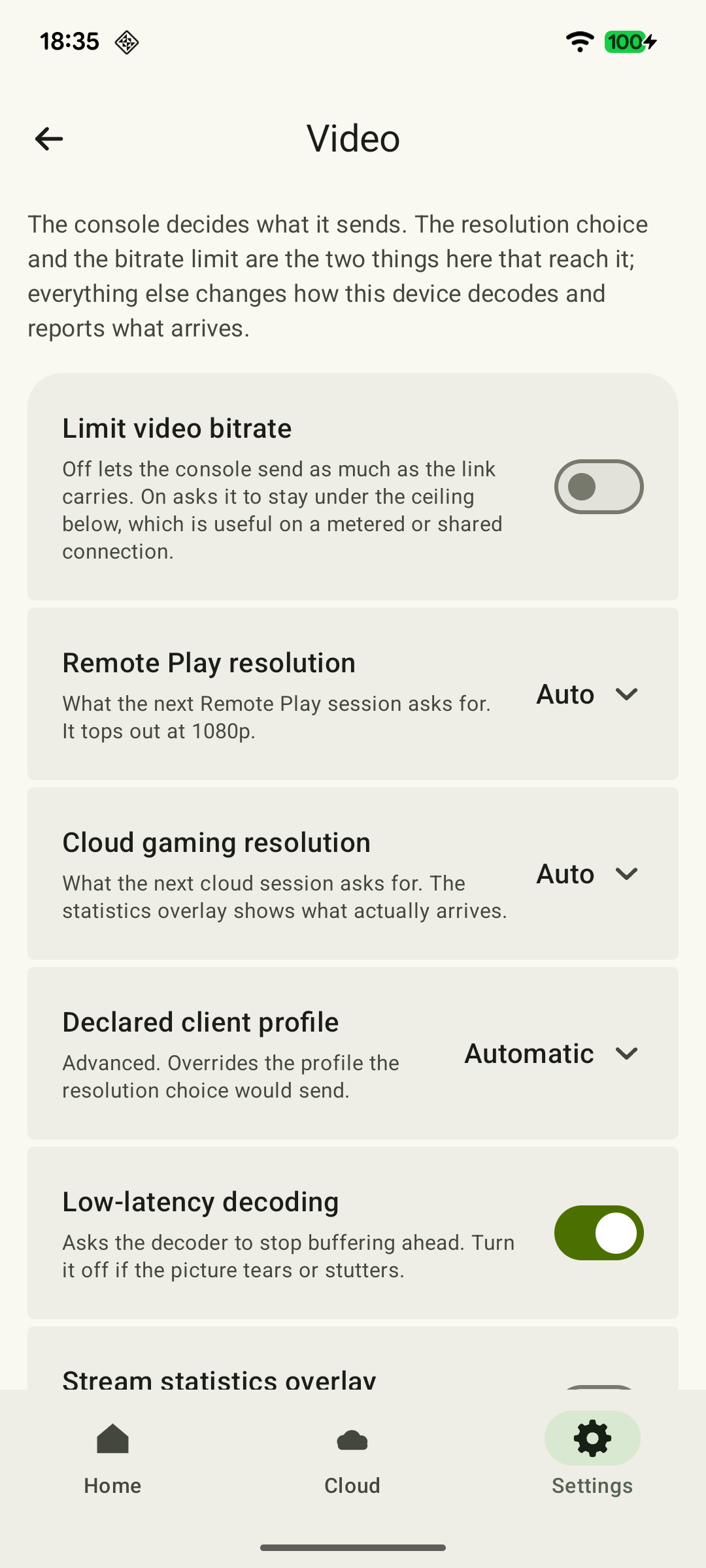
If the Remote Play bitrate limit is off, turn it on and choose a cap to limit video data. If it is already on, lower the value. You can separately compare the current resolution with 720p. Change one setting at a time: after changing the general video settings, start a new session. In an active Remote Play session’s resolution panel, confirm the offered restart; you do not need to reconnect again afterwards. Where to find the settings and when they take effect.
 Enlarge screenshot
Repeat a similar section of gameplay and measure usage again. Make sure text and details remain readable. A limit sets the maximum video bitrate; it does not mean that the app sends data at that rate throughout the session.
In Cloud Gaming, the highest available resolution depends on your account and the service. Use the options offered for that mode; do not assume that Remote Play stream controls also apply to cloud gaming. The resolution, bitrate and FPS guide explains the differences.
To reduce mobile usage specifically, play for less time or use Wi-Fi with a suitable data plan. Check that the Wi-Fi network is not itself using a limited mobile allowance.
Sources and further reading
- XBPlayer: Remote Play and Cloud Gaming — The official app website and download links. Detailed definitions of diagnostics and how settings take effect are covered in the relevant guides.
- XBPlayer: Remote Play & Cloud — Google Play — XBPlayer streams games from a console or the cloud. Mobile-data charges depend on your carrier’s plan; measure usage for your settings with the system counter.
- Google Pixel: reduce and manage mobile data usage — How to view app data usage, choose a reporting period, set a warning and turn off data at a limit on Pixel. Carrier accounting may differ.
- Android: share a mobile connection by hotspot or tethering — Sharing mobile internet with other devices; carrier restrictions or extra charges may apply.
- NIST: binary and decimal data units — 1 byte = 8 bits, 1 GB = 10⁹ bytes and 1 GiB = 2³⁰ bytes. The factor 0.45 is calculated from the units and the length of an hour.
- Apple: cellular data usage on iPhone and iPad — Where to find app statistics, select a line and check carrier figures.
Get the key points
Open a summary request with this article’s link. For Gemini, the request is copied — paste it into the chat.