
Troubleshooting
Sound lags behind video in Xbox Remote Play: what to check
Start with one repeatable scene and an audio output comparison. Then check whether the audio delay stays constant or grows during streaming.
On this page
If sound lags behind the picture in Xbox Remote Play, first repeat the same scene through the device’s speakers instead of Bluetooth headphones or an external sound system. Then restore the original output and compare again. A repeatable difference suggests that the audio path needs checking. If there is no difference, observe whether the sync problem appears immediately or grows during the session.
An audio sync problem is a gap between a visible event and its sound: for example, you see a hit before you hear it. If the picture and sound arrive together but both lag behind a button press, use the input lag checks. These problems can occur together.
The same audio output checks on the receiving device apply to Cloud Gaming. Compare within one cloud session; the TV connected to your home Xbox is not a reference screen for a cloud game.
Prepare a scene for comparison
Choose a familiar action with a distinct sound: changing a menu selection or a visible hit. Repeat it several times at a comfortable volume. Background music is unsuitable for this check because it may have no unambiguous event on screen.
Compare the sound and picture from the same Remote Play session on the device you are playing on. Stream audio and the picture on a TV connected directly to the Xbox take different paths; comparing them does not show sync within the stream.
If the effect occurs in only one game, try another action or another game. If you can access the console, you can separately view the same scene without Remote Play to notice any delay built into the game itself. Those viewing conditions differ, so do not use them to measure stream latency precisely.
Change only the audio output, then switch back
- Repeat the selected scene with your usual headphones or sound system. Note whether the sound matches the event, follows it or comes before it.
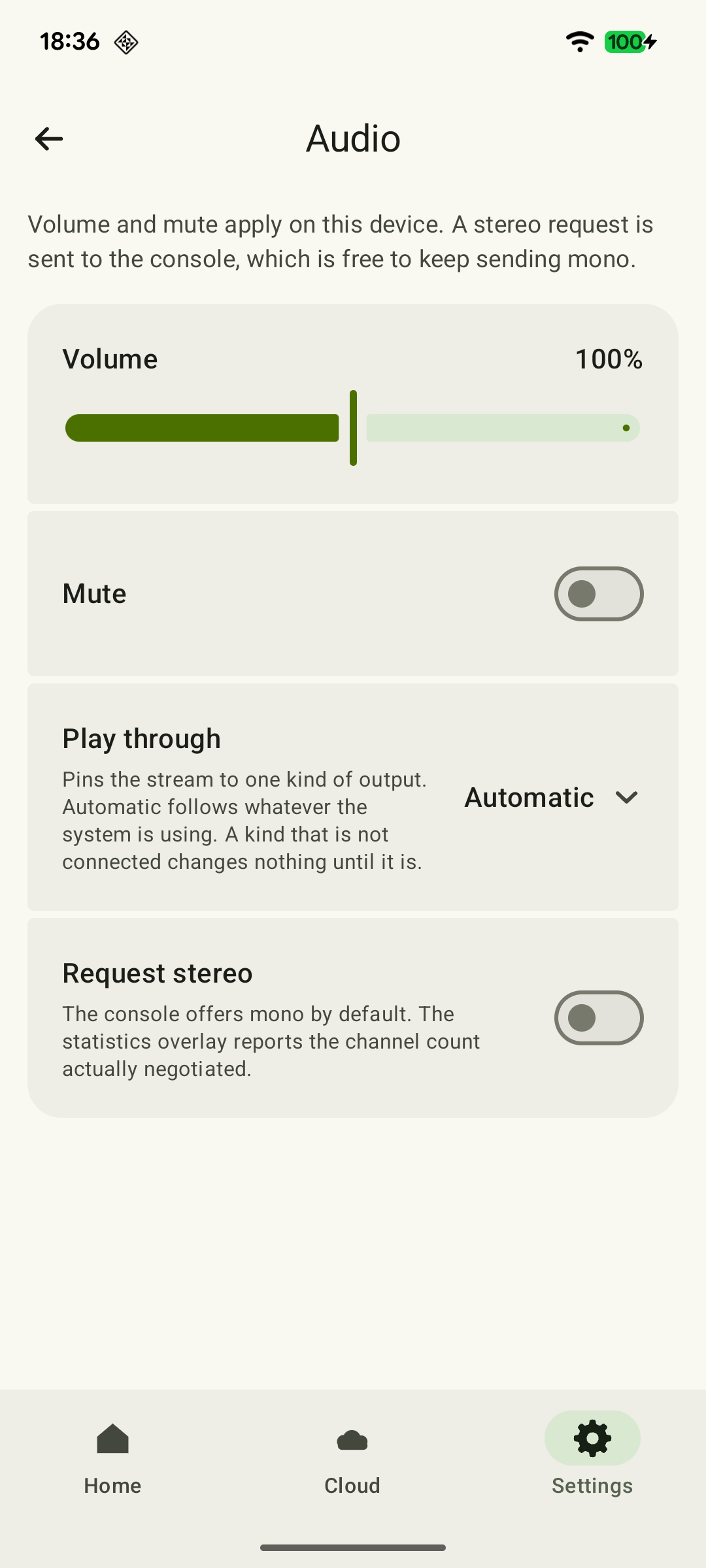
- Switch audio to the built-in speakers of the phone, tablet or TV running XBPlayer. Keep the same game, network and stream settings.
- Repeat the scene, then restore the previous audio output and check once more. If changing the output requires a new Remote Play connection, compare sessions at the same point after startup.
If the delay decreases on speakers and returns with headphones, continue checking that connection. If a suitable wired output is available, you can make another comparison; buying an adapter is not necessary for the first test. If you cannot hear a difference, move on to observing the session. If there is no sound at all, first check the audio output and volume.
 Enlarge screenshot
What the audio output comparison showed
Compare a familiar action with the original output, through built-in speakers, then with the original output again. Keep one network and the same settings; after reconnecting, compare the same stage of the session.
Better on speakers, worse again with the original output
Check the headphones’ or external sound system’s connection specifically. Separately test a low-latency mode described in its manual or an already available wired output. For a TV, first find out what Audio Sync changes; increasing the delay of sound that is already late will not help.
Changing output makes no difference from the start
Check another distinct action or another game. At a safe point, reconnect Remote Play with the previous settings. If the result persists, record the comparison conditions for support.
The gap grows as you play
Record when it appears, the increase in packet loss and the measured A/V offset, if available. If stuttering occurs at the same time, continue checking the network. If the gap also grows on speakers and reconnecting helps only temporarily, send your observations to the XBPlayer team: an exact diagnosis is not required to contact us.
XBPlayer statistics: packet loss, jitter, FPS and decoding →Picture and sound match, but both lag behind a button press
This observation concerns input latency. Check the path from the button press to the response; matching sound and picture does not measure that delay.
Xbox Remote Play input lag: how to find the cause →Describe what you observe in words: “later”, “earlier” or “I cannot hear a difference”. Do not convert impressions into milliseconds without measurement. Audio sync problems and input lag can occur together.
Check the Bluetooth headphones’ operating mode
Bluetooth audio can be delayed: Sony describes audio sync problems in videos and games for its WF-series headphones. This is one possible cause of lag; your comparison result applies to your particular device and headphones.
If the headphone manual describes a gaming or low-latency mode, test it in a separate comparison. Change one setting at a time. Do not treat a mode or codec change as a fix until the improvement repeats in your chosen scene. If there is no difference, restore the original setting.
On a TV, find out what Audio Sync changes
On Android TV, compare the built-in speakers with a soundbar or another external system. Keep the picture on the same screen. Then consult the manual for your exact model: adjustment availability depends on the device and connection. For example, Samsung lists Audio Sync limitations for Bluetooth and USB.
Record the original value before changing it. If the setting only adds audio delay, increasing it will not fix sound that is already late. This limitation is explicitly stated in JBL’s Audio Sync guide. If an additional delay is already set, test reducing it separately.
Other sync features may delay the picture to match the sound. Sony warns that A/V sync can make a game feel less responsive. After this adjustment, assess both synchronization and control response. Sound matching the picture does not necessarily mean total latency has decreased. If there is no improvement, restore the original value before changing anything else.
Note whether the delay grows while you play
Check the scene at the start of a session and again after a chosen interval, such as ten minutes. Record the time and result. Note whether video stutter, noticeable device heating or a network change came before the difference. Do not change the network and audio output at the same time.
In XBPlayer’s statistics, record frame rate, video bitrate, the increase in packet loss and “Decode” before and during the problem. If “A/V offset” is measured, record it too. A positive value means video is behind audio in the measured part of the stream. This is a mismatch between timelines at the transport boundary: additional headphone or TV delay is not included. “Not measured” does not mean zero. See the statistics table for the full explanation.
If the sync problem coincides with stutter and packet loss, continue with the network checks. Coincidence alone does not prove the cause. At a safe point in the game, reconnect Remote Play with the same settings. If synchronization temporarily returns, record how many minutes pass before the problem recurs: restarting is a test here, not a guaranteed fix.
If the problem occurs with only one audio output, use the output that keeps sound aligned with the picture for gaming. If the gap also grows on speakers and reconnecting helps only temporarily, send those observations to hi@hetko.eu, even if you have not identified the cause.
Send support your comparison results
Prepare the device and audio equipment models, system and XBPlayer versions, game, audio connection method and time until the problem appears. Add the result of changing output, reconnecting and each setting you tested. Send the available results to our team at hi@hetko.eu.
Descriptions such as “the sound is noticeably later”, “I cannot hear a difference” or “the delay grows” are enough. Do not convert subjective impressions into milliseconds. If you attach an external recording, explain how you made it: microphone position and recording processing can affect the observation. These materials help reproduce the problem but do not replace precise measurement.
Sources and further reading
- XBPlayer — Xbox Remote Play and cloud gaming — XBPlayer diagnostic metrics, advice on changing one setting at a time, and Android TV support.
- Xbox Remote Play — Remote Play streams games from your own console. The page’s requirements apply to Microsoft’s official connection method.
- Sony: The audio lags on the Bluetooth Headphones when I watch videos or play games — Read the official help for the specified Sony WF models: wireless playback can lag, with results also depending on the app. No universal latency values are given.
- Samsung soundbar is out of sync with the TV — Samsung’s guide says Audio Sync depends on the model and is unavailable when Bluetooth or USB is the source. This limitation is not attributed to all manufacturers.
- JBL: What does the Audio Sync function do? — For the listed JBL soundbars, Audio Sync adds audio delay and does not fix a picture that is already ahead of the sound.
- Sony Help Guide: Adjusting the AV sync setting — The guide warns that A/V sync correction can delay the picture and make games feel less responsive; matching sound and picture does not mean lower total latency.
Get the key points
Open a summary request with this article’s link. For Gemini, the request is copied — paste it into the chat.