
Gaming routines
Small Text in Xbox Games on Your Phone: What You Can Adjust
Start with the game's text settings, then check dialogue, inventory and the map. Stream resolution affects sharpness; physical letter size depends on the game area on the screen.
On this page
If text in an Xbox game is too small on your phone, first check font, subtitle and interface settings in the game itself. Then return to the same dialogue, items and map. Raising stream resolution may make letters sharper, but with the interface and displayed game size unchanged, it will not make them physically larger.
Separate small text from a blurry picture
Open a static menu and look at its labels. If letters are sharp but you need to bring the phone closer to read them, start with in-game text scaling. If outlines break up or merge even in large labels, investigate causes of a blurry picture. When fingers or on-screen buttons cover text, clear that part of the image first.
Compare the height of the visible game picture without black bars. The full display diagonal says little about text size: phones with different aspect ratios can give the same console frame different amounts of screen space.
Settings to try in specific games
Change one setting at a time and return to the same scene. The names below help you find the relevant feature; labels and positions depend on the game's language and version.
- Baldur's Gate 3. Increase dialogue text size in the game's settings. The separate Book Text Size option controls text in books, notes and scrolls. Then check an ability description in the radial menu: reading a book comfortably does not yet establish that the combat interface is comfortable. Controls are covered in the BG3 on Android guide.
- Starfield. Before loading a save, open settings from the main menu and find Large Menu Fonts. Enable it, load the game and compare the same quest-log and item screens. Check subtitles separately: successful menu enlargement does not guarantee comfortable dialogue.
- Minecraft on Xbox, Bedrock Edition. Try GUI scaling. Then open inventory, read labels and select an item on the hotbar. Separately check block-placement precision: enlarging the interface does not itself enlarge objects in the game world.
If suitable enlargement is unavailable or helps only part of the interface, check the remaining screens. Large subtitles alone do not make a game comfortable on a phone.
Check four tasks using one save
In a strategy game such as Age of Empires II, begin with the Xbox tutorial: radial menus, resources and the minimap need to be readable with your controls. Scaling-setting names from a PC guide cannot automatically be applied to the Xbox version.
Use a familiar save and hold the phone at your usual comfortable distance. Check the game language you intend to use: line lengths and wrapping can differ. Start with quiet screens, then move to actions where indicators need to be noticed quickly.
- Dialogue. Read a long line and every response. Make sure the line fits on screen and you can finish subtitles before they disappear.
- Inventory. Compare two items and identify the difference in their stats. Check the small explanations as well as item names.
- Map. Find your position, objective and route. Then see whether the minimap markers you need remain distinguishable during play.
- An active scene. Watch health, resources or ammo while continuing the main action. Choose a familiar, safe section.
For each task, note “comfortable,” “needs adjustment” or “needs a larger screen.” After changing the font or subtitle background, repeat that task, then quickly check the others: larger text can occupy more space and cover important details.
Make room by moving on-screen controls
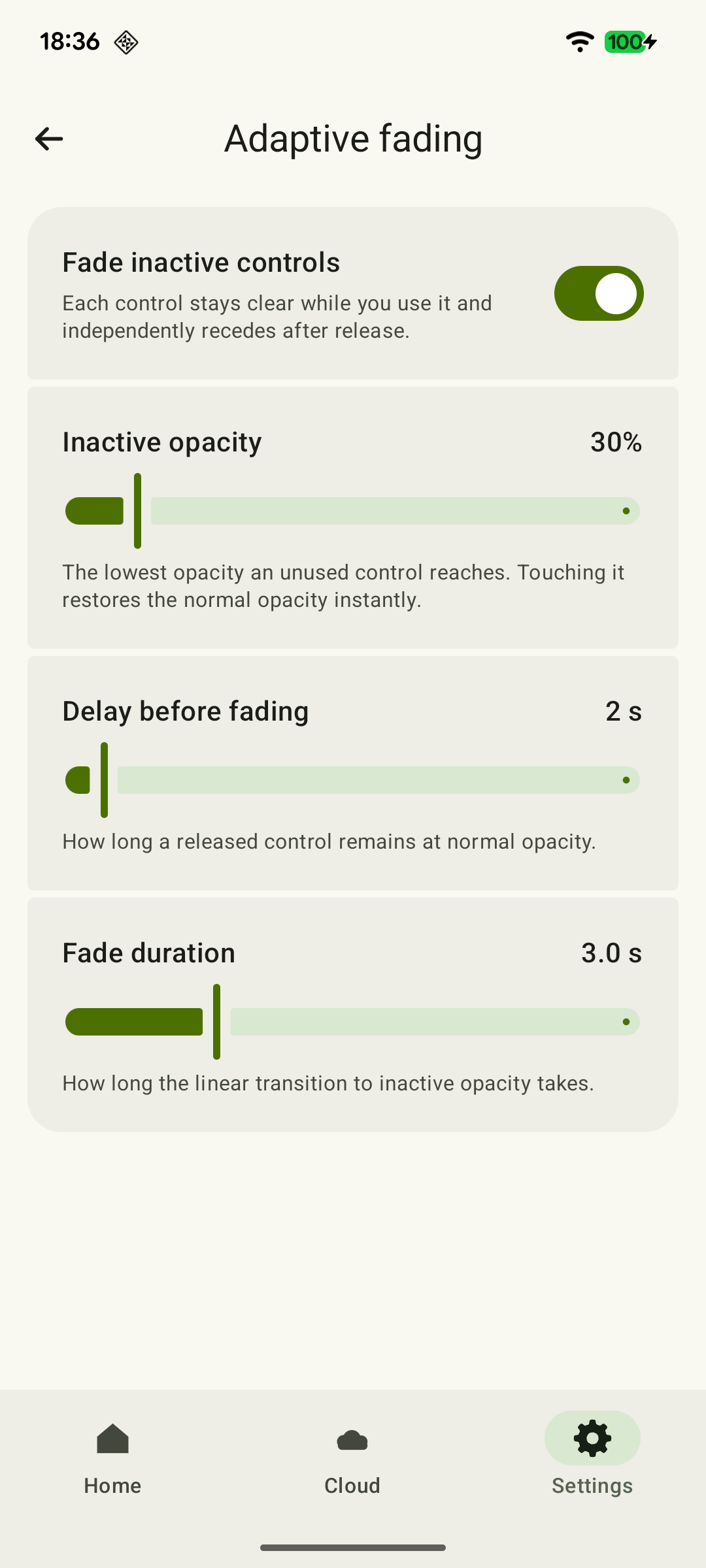
In XBPlayer, you can move buttons and change their size and transparency. Save a copy of a good layout before experimenting. Transparency helps you see the picture, but an invisible button may still respond to touches. If a control is unnecessary and interferes with input, delete it from the layout copy. Changing buttons will not enlarge the game's text.
 Enlarge screenshot
A compatible physical controller lets you keep your fingers off the game area. After changing input methods, recheck the areas previously covered by hands or buttons.
When a tablet or television will help
If, after available adjustments, you still need to bring the phone closer, guess labels or skip descriptions, repeat the same tasks on a larger screen if one is available. On a television, check reading from your usual seat: the larger picture is viewed at a different distance. The Android TV game-selection guide can help.
This check applies to both Remote Play and cloud play. Remote Play streams from your Xbox; cloud play separately requires checking the specific game's availability and account rights. A game appearing in these examples does not itself mean it is available to you in the cloud.
Compare text size on two screens
To compare devices, you can measure your own game frame. Take a screenshot with the text you want and use an image editor to measure one visible letter's height in pixels. Record the full game frame's pixel height from the same image. Exclude black bars and the phone's frame from these measurements; do not crop the edges of the game itself.
Use a ruler to measure the displayed game picture's height on the device in millimeters. For a full, uncropped frame, the calculation is: letter height in pixels ÷ frame height in pixels × displayed game height in millimeters.
A hypothetical example: 24 ÷ 1080 × 70 ≈ 1.56 mm. If the same frame is displayed at a height of 140 mm, the letter becomes approximately 3.11 mm. Use your own measurements to compare devices. Check comfort at your usual viewing distance: contrast, typeface and display duration matter alongside letter height.
Letter height on your screen
Letter height on your screen
An optional device comparison using one screenshot. It helps estimate physical letter size; start with game text settings and a comfortable viewing distance.
The result is a geometric estimate for one letter. It does not determine reading comfort: check the same text at your usual distance, considering contrast, typeface and how long it is displayed.
Sources and further reading
- Xbox Accessibility Guideline 101: Text display — The role of screen size, viewing distance and text settings; measuring text from a screenshot. The article's example is geometry, not an XAG standard.
- Baldur’s Gate 3 — Patch 2 — Official confirmation of a dialogue text-size setting.
- Baldur’s Gate 3 — Patch 7 — Book Text Size applies to books, notes and scrolls; the page also notes the console update release.
- Baldur’s Gate 3 — Hotfix 27 — Dated confirmation of Patch 7's console release on October 1, 2024.
- Starfield Update 1.10.31 — Official Large Menu Fonts fix notes confirm that the option exists.
- Minecraft Accessibility — The current Bedrock Edition accessibility overview explicitly lists GUI scaling.
- Minecraft Bedrock — Update 1.20.10 — Confirms additional GUI enlargement for all platforms.
- Getting Started with Age of Empires II: DE — Xbox — Official training specifically for the console version.
- Age of Empires II: Definitive Edition on Console — Xbox controller interface, radial menus and tutorials.
- XBPlayer On-Screen Controls — XBPlayer on-screen control positions, sizes and transparency, saving layouts and deleting unwanted buttons.
- Xbox Remote Play — Streaming installed games from your own Xbox One or Series X|S with remote features enabled.
- Xbox Cloud Gaming — Xbox Cloud Gaming: supported games, regions, devices and access requirements.
Get the key points
Open a summary request with this article’s link. For Gemini, the request is copied — paste it into the chat.