
What to play
Minecraft on Android: stream from Xbox or use the mobile version?
Remote Play lets you continue a world on your Xbox using an Android screen. Playing directly on the phone needs the mobile version; a Bedrock Realm can host a shared world.
On this page
To continue an Xbox Minecraft world on Android, connect to your console through Remote Play in XBPlayer. The game and world stay on Xbox, while your phone displays the stream and sends inputs. To run Minecraft on the phone itself, install the mobile version: an Xbox license and installing XBPlayer do not provide it.
Where will your Minecraft world run and be stored?
Choose the setup that fits. Remote Play continues the game on Xbox; mobile Minecraft runs separately on Android.
Continue the same world on Xbox
Check the world under the correct profile on your console, then connect through Remote Play. The world keeps running on Xbox, while your phone provides the screen and controls. Streaming this way does not require a mobile Minecraft purchase or a Realms subscription.
How to set up Xbox Remote Play on Android with XBPlayer →Play a local world on Android
You need Minecraft for Android and a world available to the mobile game. Microsoft sign-in alone does not transfer a world from Xbox. An Xbox license and installing XBPlayer do not provide the mobile game.
Download a copy of an Xbox world to Android
The owner can upload the Xbox world to their Bedrock Realm and download it on Android under the same Microsoft account. Before replacing an occupied Realm slot, download the world already in it. Check a building in the new mobile copy: subsequent changes to that copy and the Realm are not merged. Opening the copy requires Minecraft for Android; XBPlayer does not transfer the world file.
Continue one shared world across devices
Use a single Bedrock Realm and join that same Realm from Xbox and Android. The owner needs a Realms subscription, and each player needs Minecraft on their platform. Check console multiplayer access separately for online play from Xbox; invited players do not need their own Realms subscriptions.
Detailed transfer steps and the official guide are below. Before disconnecting Remote Play, save and leave the world, then wait for the Minecraft menu.
How to open an Xbox world on your phone
- First launch Minecraft on Xbox under the profile that owns the save you want. Make sure the world appears in the list and contains your latest buildings. Streaming requires an installed game and valid access to it.
- Prepare Xbox One or Series X|S for Remote Play using the Android connection guide. Enable remote features and check the connection at home. The console must remain accessible while you play.
- Sign in with Microsoft in XBPlayer and connect to your console through Remote Play. Open Minecraft on the streamed screen, check the game profile and select your familiar world.
If the world is missing, check the console, profile and Minecraft edition first. Do not create a new world with the same name in the hope of restoring the old one: that will be a different save. If the world is also missing when playing on the television, streaming is not the problem.
Why the world did not appear in mobile Minecraft
Current Minecraft versions for Xbox and Android are both Bedrock Edition, but local worlds do not become shared simply by signing in to the same Microsoft account. Remote Play opens the save on Xbox; launching the Android app opens worlds available to the mobile game. Separately created or copied worlds do not automatically merge changes.
A Realm for Bedrock Edition can provide one world accessible from both platforms. The Realm owner pays for the subscription; invited players do not need their own Realms subscriptions. Everyone still needs the game on their respective platform. Ordinary Xbox streaming does not require Realms.
To move a copy of an Xbox world into the mobile game, the official Realms route works as follows:
- The owner uploads the Xbox world to a chosen slot in their Bedrock Realm. Before replacing an occupied slot, download the world already there: replacement can cause progress to be lost.
- On Android, the owner signs in to the same Microsoft account and opens that Realm world's settings. Downloading the world to the device creates a local copy; the steps are in the Minecraft guide.
- Open the downloaded world on the phone and check a familiar building. Subsequent changes in the local copy and the Realm will remain separate. To continue one shared world, join the Realm itself from both devices.
You do not need to transfer a world just to use a different screen. If playing your Xbox from a phone is enough, stay with Remote Play. Other device-switching scenarios are covered in the Xbox saves article.
Controlling blocks and inventory through Remote Play
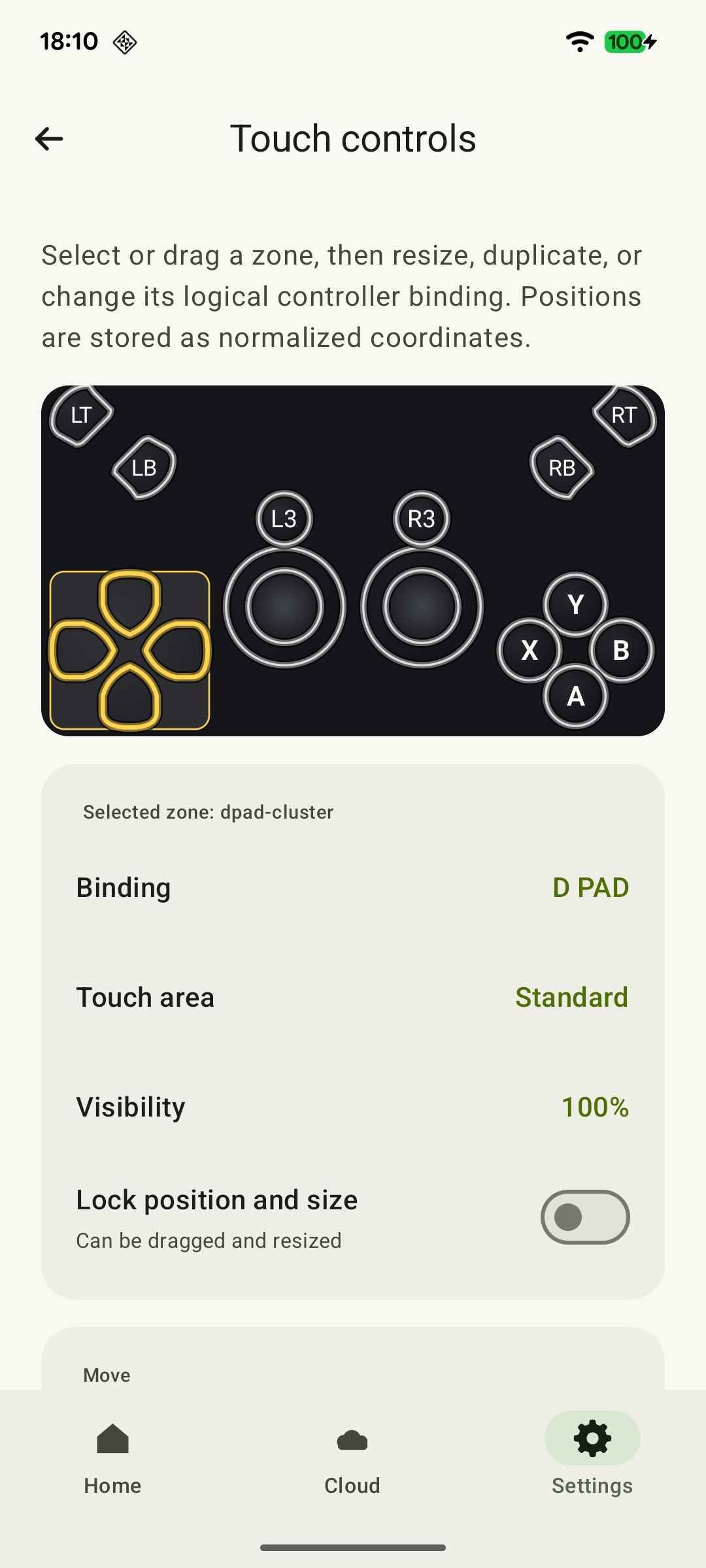
Mobile Minecraft has its own touch controls. In XBPlayer, on-screen buttons send controller commands to the console game: touching a block or inventory slot in the streamed picture does not perform the corresponding mobile-interface action. You can also use a compatible physical controller.
 Enlarge screenshot
These buttons are useful in Minecraft's default Xbox layout. If you changed assignments in the game or XBPlayer, check your own layout.
| Action | Xbox button |
|---|---|
| Break a block or attack | RT; mining in Survival usually requires holding it |
| Place a block | LT, with a suitable block selected and the crosshair aimed |
| Jump | A |
| Open inventory | Y |
Try the controls in a separate Creative world: place several blocks, correct one mistake and move an inventory item. To check holding the mining input, use a separate Survival world: an ordinary block breaks instantly in Creative. There is no need to change the mode of a valuable world for this check.
Before adjusting touch buttons, save a copy of a layout that works. Position the main actions so your fingers do not cover the crosshair. Transparency clears the view, but a fully transparent button may still accept touches. If you do not need a control at all, delete it from the layout. See the XBPlayer on-screen buttons guide for details.
What you need to play together on Xbox and Android
Use current Bedrock versions for regular cross-platform play. Java Edition uses a different server system; the old Minecraft: Xbox One Edition also differs from modern Bedrock. First agree on which world to open: a host's session or a shared Realm.
Remote Play does not add a second independent player: Xbox remains your gaming device. Your friend on Android launches their own Minecraft and joins online under their own account. Check multiplayer permissions, especially for child accounts. Online play on Xbox requires a subscription with console multiplayer access; a Realms subscription does not replace it.
Ending a session and continuing your build later
Before ending Remote Play, open the Minecraft menu and leave the world using Save & Quit. Wait until you return to the game menu, then end the stream. Closing the client alone does not replace leaving the world.
Next time, connect to the same Xbox and open the world under the same profile. If you moved to a mobile copy or a Realm, check the world in which you last built.
Sources and further reading
- Xbox Remote Play — Streaming installed games from your own Xbox One or Series X|S with remote features enabled.
- Minecraft — Mojang's App on Google Play — A separate paid Android version of Minecraft Bedrock; Creative, Survival and cross-platform play information.
- Minecraft: Java and Bedrock Platforms and Features — Bedrock crossplay between Xbox and mobile devices; controller and touch-input support.
- Minecraft Realms — A Bedrock Realm across devices, the owner's subscription, no separate Realms subscription for invited players; consoles require a platform subscription for online play.
- Change Your Realm Worlds — Uploading a local world to a Realm slot and downloading a Realm world to a device. Warning to save the previous world before replacing a slot.
- Minecraft Controls — Xbox buttons for jumping, inventory, interacting and mining; differences between Creative and Survival.
- The Better Together Update for Minecraft is here — Historical confirmation of the transition from Minecraft: Xbox One Edition to Bedrock Minecraft with cross-platform play.
- Touch Controls: Make Them Your Own — XBPlayer on-screen control positions, sizes and transparency, saving layouts and deleting unwanted buttons.
Get the key points
Open a summary request with this article’s link. For Gemini, the request is copied — paste it into the chat.