
What to play
Halo Infinite on Android: Launching, Campaign and Controls
Stream Halo Infinite from Xbox One or Series X|S to Android. First check access to the mode you want, then adjust your aim in the free Academy.
On this page
You can play Halo Infinite on Android through XBPlayer: Remote Play sends the picture from your Xbox One or Xbox Series X|S, while your phone sends control inputs. Console multiplayer is free and does not require Game Pass; the campaign needs separate access rights. Start with a Weapon Drill in the free Academy: choose a weapon, complete the exercise and get a result. You can then move to the campaign if you have access, or to regular matches.
What you need for the campaign and multiplayer
| Xbox mode | Access requirements |
|---|---|
| Multiplayer and Academy | Free Halo Infinite and an Xbox profile. This game's online multiplayer does not require a Game Pass subscription. |
| Solo campaign | The Campaign component installed and access through an Xbox purchase or an active subscription whose catalog includes it. |
| Online campaign | Up to four participants. Everyone needs campaign access; online play on a console requires a subscription with console multiplayer. |
Remote Play does not change these terms. Buying the campaign on Steam does not grant the right to launch it on Xbox. If a campaign you already bought asks for payment, check the profile, game updates and Campaign installation first.
Halo Infinite is also listed in Xbox Cloud Gaming. This method does not need your own console, but game and campaign access depend on the cloud catalog, region and account entitlements. Free console multiplayer does not mean free cloud play. Before subscribing, open the Halo Infinite listing under your account; launch-method differences are covered in the Remote Play and cloud comparison.
Launch Halo Infinite from your console on your phone
- Install and update Halo Infinite on Xbox. Launch it under the profile you will use and open the desired mode. This checks access before you set up the phone.
- If your account has campaign access but it is not installed, press Menu in Halo Infinite's main menu, open Manage Game, select Campaign and Apply. Wait for the download, then try launching again. If Campaign cannot be selected, check game updates and the correct profile.
- Enable Xbox remote features and leave the console on for the first check. Connection preparation is covered in the first Remote Play session guide.
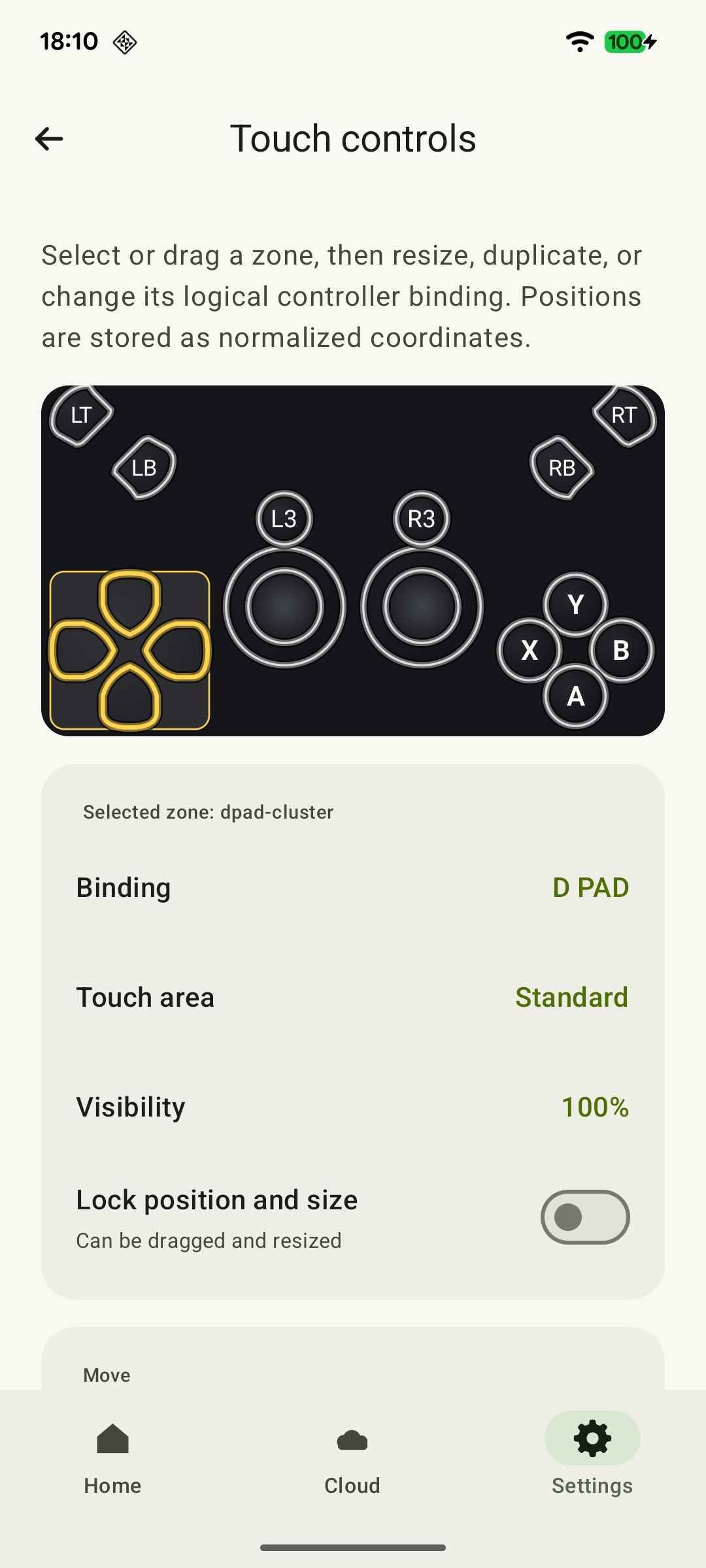
- Install XBPlayer on Android, sign in to the same Microsoft account and connect to your console through Remote Play. For physical controls, connect a compatible controller to your phone by Bluetooth or USB; you can also use XBPlayer's on-screen buttons.
The console session should appear on your phone. Launch Halo Infinite and make sure you can navigate its menu. If Xbox is not connected, restore Remote Play using the guide above first: changing in-game sensitivity will not fix the connection.
Start with Academy and stationary targets
From Halo Infinite's main menu, open Academy → Weapon Drills. Choose a weapon and the first drill tier, where bots stand still and do not shoot back. Smoothly aim at one target, stop the reticle, strafe and aim again. Then add firing and reloading. Repeat the same sequence after each settings change.
To try several actions in succession, open Academy → Training Mode. During training, press Menu → Training Options: you can choose weapons and equipment, change bot numbers and adjust their behavior. Try moving, aiming, jumping and using equipment. Leave training through Menu → Leave Game.
Check buttons and aiming behavior
Open Menu → Settings → Controller. Button Layout shows the selected scheme: Default, Bumper Jumper and other options assign buttons differently. First check the actions in the game, then edit XBPlayer's layout. For the default scheme, check these controls:
 Enlarge screenshot
- The left stick moves; the right stick turns the camera and aims. Make sure you can use them together.
- X reloads or interacts, depending on context. Try it after firing a short burst.
- RB uses equipment. If it does not work, check its icon: equipment may be unavailable or still on cooldown.
- Menu opens the game menu. Keep this button accessible in your touch layout too.
Under Controller, check Hold to Zoom, which determines whether you must hold the zoom button. Choose the behavior you prefer and repeat the drill with a scoped weapon. Do not enable several ways of latching the same command in the game and client at once; try one first.
If you overshoot targets, change one Look Sensitivity or Look Acceleration setting at a time and repeat the drill. If movement feels delayed, first compare playing directly on Xbox with streaming, then check the phone connection and controller. Hit counts in a random online match do not measure latency.
Leave room for shields, radar and targets
On your phone, check whether shields, ammo and the equipment icon stay visible while moving. Assess the radar in a mode where it is enabled. For text, open Settings → Accessibility: Text Size changes interface text size, while Subtitles settings let you enlarge subtitles and change their background opacity. Enlarging XBPlayer's on-screen buttons does not enlarge Halo Infinite's labels.
A controller keeps your fingers off the image. For touch controls, save a copy of your layout and position fire, jump and equipment so you can reach them while aiming. Transparency clears the view, but an invisible button may still accept touches; delete an unwanted control from the layout copy. Details are in the shooter on-screen button guide.
Advertised 4K or 120 FPS for local console play does not guarantee the same stream on Android. Check readability and motion during streaming itself. If distant targets and prompts remain too small, use the small-screen check or try a tablet.
Continuing the campaign and ending a session
With Remote Play, you use the game's saves on the same Xbox; no campaign file needs to be transferred to Android. In the Campaign menu, Continue resumes the latest save, while Load Game lets you choose another. Before disconnecting the stream, make sure the game has saved a checkpoint and leave through the game menu. Closing XBPlayer is not itself a save command.
Moving from console to Xbox Cloud Gaming requires the same profile and completed Xbox save synchronization. If the cloud shows older progress, check the profile and save on the original console, then launch again after synchronization. Follow the continuing a game in the cloud guide.
After training, move to regular matches, and to ranked play once familiar actions no longer require searching for buttons or dealing with disconnects. End an online session after the match: disconnecting your phone does not pause online play.
For a short break, choose one finite Weapon Drill: its menu retains your best result. For the story, continue the campaign from its checkpoint; for competition, choose a match you can finish. The Party Chat guide helps prepare Xbox party communication through Remote Play.
Try Halo Infinite controls in Academy
Mark the results of your initial setup. Menu paths are above; you do not need to repeat the drills before every regular session.
You can stop the reticle on a target
In Academy → Weapon Drills, select the first tier. Aim at a stationary bot, stop the reticle, strafe and aim again. Change one sensitivity setting at a time.
Movement and commands work together
In Training Mode, try moving, aiming, firing, reloading, jumping and equipment. Check assignments against your Button Layout; if equipment does not work, check its availability and cooldown.
Touch controls for shooters: an Xbox Remote Play layout →Zoom behaves as expected
With a scoped weapon, check holding and releasing zoom. If needed, change Hold to Zoom in the game and try again.
Shields and prompts remain visible
While moving, check shields, ammo and equipment; check the radar if enabled in this mode. If text is small, try Text Size and Subtitles under Accessibility.
Small Text in Xbox Games on Your Phone: What You Can Adjust →The menu and training exit are accessible
Open Menu and find Leave Game. End training with that command. Move to a regular match once you no longer have to search for the right buttons.
Academy helps you find comfortable controls. With Remote Play, compare the same scene directly on Xbox and through the stream if inputs feel delayed. For cloud play, compare the available client and network. Check campaign saving separately.
Sources and further reading
- Halo Infinite — Xbox — Xbox One and Series X|S, free multiplayer and the scope of advertised 4K/120 FPS.
- Xbox Remote Play — Streaming installed games from your own Xbox One or Series X|S with remote features enabled.
- XBPlayer — Official Website — XBPlayer: Remote Play, Xbox Cloud Gaming, controller support and customizable on-screen controls.
- How to Install Halo Infinite on PC and Xbox Consoles — Halo Support — Multiplayer without Game Pass; Campaign installation through Manage Game; profile/update checks; a Steam purchase applies only to Steam.
- Guide to Halo Infinite Game Modes — Halo Support — Campaign purchase or access through an applicable subscription; training modes.
- Halo Infinite — Xbox Store — Cloud availability and account terms; a subscription requirement for paid console online modes.
- Halo Infinite (Campaign) — Xbox Store — Online campaign co-op for up to four participants.
- Guide to Halo Infinite Menus — Halo Support — Academy, Weapon Drills, Training Mode; Campaign → Continue and Load Game; consequences of leaving a match.
- Halo Infinite Academy — Halo Support — Weapon Drills, difficulty tiers, stars and high scores; the difference between finite drills, Endless and Training Mode.
- Guide to Halo Infinite Game Settings — Halo Support — Menu → Settings → Controller, Button Layout, sticks, Hold to Zoom, sensitivity and acceleration.
- Equipment in Halo Infinite — Halo Support — Default RB, equipment icon and cooldown after use.
- Collectibles in Halo Infinite Campaign — Halo Support — X is the default Interact/Reload action.
- Accessibility Features in Halo Infinite — Halo Support — Settings → Accessibility; Text Size, subtitle size and background opacity.
- Xbox Cloud Gaming — Xbox Cloud Gaming: supported games, regions, devices and access requirements.
- Xbox Play Anywhere — Progress is saved to Xbox under the account and is available on supported devices.
- Xbox on Samsung TVs — Official Xbox Podcast — Save synchronization between devices and cloud play.
- XBPlayer Touch Controls — XBPlayer on-screen control positions, sizes and transparency, saving layouts and deleting unwanted buttons.
Get the key points
Open a summary request with this article’s link. For Gemini, the request is copied — paste it into the chat.