
Devices
Xbox on an Android tablet: setting up the screen and controls
Launch a familiar game on your tablet and check small text and button combinations. Compare touch controls with a controller and stand before buying accessories.
On this page
To play Xbox games on an Android tablet, install XBPlayer and choose Remote Play from your console or Xbox Cloud Gaming. You can use XBPlayer's touch buttons or a compatible controller. The app receives a stream: the game itself runs on Xbox or in the cloud, rather than being installed on Android.
Start with the tablet you already own and a familiar game. First achieve a reliable launch, then check three things: interface readability, access to the button combinations you need, and how comfortable the device is to hold.
Launch a game from your console or the cloud
- Prepare the tablet. Charge it, connect to a stable network and pause large background downloads during testing. On a tablet running Android 10 or later, open the XBPlayer website and follow the Android link to Google Play. If the store reports incompatibility, do not treat the device as supported based on its Android version alone.
- Install XBPlayer and sign in to Microsoft. Choose the account with access to the required console or cloud game. The app does not include games or cloud-service access.
- Choose the game source. Remote Play needs an Xbox One or Series X|S with remote features enabled, the game installed and permission to play it. The same home network is convenient for the first connection; follow the Android Remote Play instructions. Cloud play does not need a console: check the game at xbox.com/play, service availability in your region and account terms, then open the Xbox Cloud Gaming guide. A game purchase alone does not guarantee cloud launch.
- Wait for the picture and test a simple action. Open a game menu, move the character or turn the camera. If the session will not start, first troubleshoot the connection using the guide for your chosen mode; choosing a stand or layout will not fix that problem.
Check small text and the picture edges
Start with the tablet in landscape orientation. Open an inventory, map or subtitled conversation: these scenes make readability easier to assess than a general view of the game world. Make sure interface edges are visible and touch buttons do not cover prompts.
Black bars can appear because the screen and stream have different aspect ratios. If the whole game area is visible, bars alone do not indicate a fault. Do not fill the screen by stretching or cropping if that distorts the picture or hides useful elements.
If text is too small, first look for interface and subtitle size options in the game. Then check the tablet's position. Brightness does not enlarge letters, and higher streaming resolution does not replace interface scaling. If the game lacks the necessary settings, use the small-screen readability checks before choosing another tablet.
Choose your grip and layout
If you hold the tablet, start with the sticks beneath your thumbs and check whether you can move while pressing the required button. On a stand, you can place the screen closer to eye level and use a separate controller.
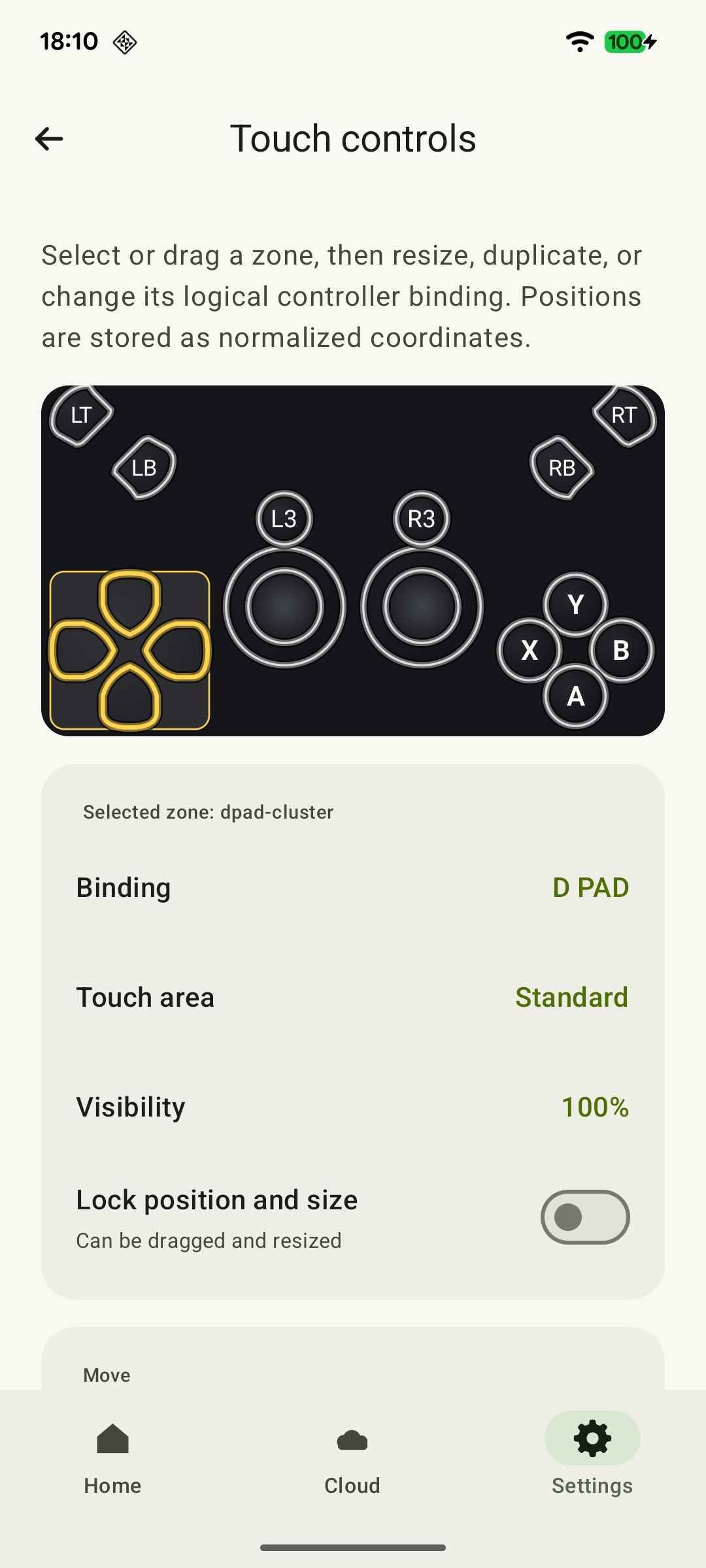 Enlarge screenshot
XBPlayer saves layouts separately for portrait and landscape windows. When the window's orientation actually changes, the layout assigned to that orientation is selected. If the stream is locked to landscape, simply rotating the tablet will not switch layouts.
Step-by-step setup for two grip styles, control sizes and importing is covered in tablet touch layouts. Here, choose the screen's physical position: a larger display does not help if you must hold it too far away or cover text with your fingers.
Compare touch controls with a controller and stand
If you already have a compatible controller, connect it to the tablet by Bluetooth or USB. For Bluetooth, follow the controller's pairing instructions and check the connection in Android settings. For USB, use a cable or adapter suitable for both tablet and controller; the cable must carry data.
In the game, test both sticks, main buttons, bumpers and triggers: successful pairing does not prove every action works. If the controller will not connect, start with its battery, pairing mode or USB cable. If it connects but a button performs a different action, check mappings in the game and XBPlayer.
Place the tablet on an existing stable stand or suitable case. Check that the angle stays fixed, the support remains steady when touched, and the charging port is unobstructed. Compare two setups in the same part of the game: holding the tablet with touch controls, and resting it on a stand with a controller. Note where the interface is easier to read and combinations are easier to perform without constantly adjusting your grip. This comparison does not need a predetermined screen angle or viewing distance.
Check battery use and comfort during a normal session
Once a short launch works well, try a session of your usual length. Record starting and ending charge, brightness, duration and whether a charger is connected. Compare battery use under similar conditions; one session does not precisely predict an entire evening.
If your hands tire or you keep leaning toward the screen, take a break and change your grip, the tablet's position or the input method. Do not continue testing through discomfort. If the device displays an overheating warning, stop playing and follow the manufacturer's advice; do not cover a running tablet with fabric.
If freezes appear over time, do not attribute them to heat just because the case is warm. After a break, check background downloads and repeat the same section closer to the router. If the problem persists, return to troubleshooting for your streaming mode.
Before ending the session, wait for saving to finish according to the game's rules. Save the touch layout that works and remember the stand's position so the next session starts from a tested setup.
Make one change, then test again
Use a familiar scene after a successful launch. If there are several problems, change one element and compare the result.
Small text
If the game allows it, enlarge the interface or subtitles, then revisit the same map or conversation from your usual position. Required text should be readable without repeatedly leaning toward the tablet.
Small Text in Xbox Games on Your Phone: What You Can Adjust →A button combination is difficult
In a copy of the layout, move the required button closer to a free finger while leaving room for the stick. Repeat the combination: it should work without regripping the tablet or accidentally pressing a nearby button.
Xbox touch controls in XBPlayer: buttons, layouts and transfers →Holding the tablet tires your hands
Take a break. If you have a stable stand and compatible controller, try the same scene with the screen supported. Compare hand position and readability before buying accessories.
An invisible button still responds
Check transparent elements in a copy of the layout. Move a button you need, and delete one you genuinely do not need. Touching the freed area should no longer trigger the old action; other necessary commands must remain available.
Xbox touch controls in XBPlayer: buttons, layouts and transfers →Save the successful layout. If you feel discomfort, stop testing and change the device’s position.
Sources and further reading
- XBPlayer — official website — Client features and the central starting point for downloads.
- XBPlayer: Remote Play & Cloud — Google Play — Hetko app; Remote Play/Cloud, cloud game search, Android minutes and Pro. Check the type and price of a specific purchase offer in that offer.
- Controller and screen: build a comfortable setup — Advice on tablet grip, a stand, controller checks and button mappings.
- Touch controls: make them your own — Moving and sizing touch controls and saving a layout copy. Transparency does not disable touches; an unnecessary element can be deleted.
- Xbox Remote Play — Microsoft — Xbox One/Series, remote features and separate requirements for games and online modes. The official web route's system requirements are not XBPlayer requirements.
- Xbox Cloud Gaming — Microsoft — Cloud catalog, supported devices, certain free games and selected purchased games. A separate announcement establishes the dates of monthly limits.
Get the key points
Open a summary request with this article’s link. For Gemini, the request is copied — paste it into the chat.