
Controls
XBPlayer touch layout on a tablet: handheld and on a stand
Adjust button spacing for handheld play or a tablet stand. XBPlayer applies your chosen landscape or portrait layout when the window orientation changes.
On this page
For Xbox touch controls on an Android tablet or iPad, place sticks and frequent commands within comfortable finger reach. Configure the layout in the position you will use for play: handheld and stand setups need different button distances. XBPlayer lets you move and resize controls, change their transparency and save several layouts.
Choose the tablet’s position first
A large screen does not mean every part is easy to reach. Simply stretching a phone layout may put central buttons too far from your thumbs. Start with your grip and support:
- Hold the tablet or place it on a stable stand in your chosen orientation.
- Launch a familiar game in XBPlayer and open touch layout settings. Save a copy of the working layout before making changes.
- Touch the screen where your fingers land without effort, then move them a little to each side. Use these areas as guides for sticks and main buttons.
Your left and right hands may prefer different points, so symmetry is optional. The editor’s basic features are covered in the XBPlayer touch controls guide.
Installation, mode selection and large-screen setup are covered in the tablet gaming guide. Here, the focus is the distance between touch controls and the combinations you can reach.
Handheld: leave room for stick movement
Place the stick centers at the comfortable points you found. Move each finger through the full required range: neighboring buttons should not obstruct maximum deflection. Then place frequent actions nearby. In an adventure, these might be jump and interact; in a racing game, throttle and brake.
Enlarge a button until you can hit it reliably while keeping gaps between controls. If you hit a neighboring command, move the buttons apart first. Making them larger can sometimes worsen the problem. Check that the minimap, prompts and other important indicators remain visible with your fingers on screen.
Do not place important commands right against the system-gesture area. If a system panel opens instead of the game action, move the control inward and repeat the movement. If you constantly have to adjust your grip on a heavy tablet or hold it with tense hands, try a support: moving buttons alone cannot fix an uncomfortable grip.
On a stand: adjust the angle and finger access
Set distance and angle first: the screen should be easy to see, and the tablet should not slide or wobble when touched. Try resting your forearms on a table and using index fingers. The lower side areas of the screen are a useful starting point if you can reach them without leaning forward.
Rearrange the controls for this hand position. Test holding a command while moving a stick as well as individual taps. Your hand should not cover the target or a required indicator. If you keep reaching toward the screen, bring the stand closer and reassess the layout.
At a desk, you can also connect a compatible controller through Bluetooth or USB. The tablet’s distance can then be chosen primarily for readable text and visible detail.
Working areas for two positions
The following suggestions are for manual setup: choose distances for your tablet, grip and game. Start with a landscape window; save a separate comfortable selection for portrait.
| Control | Tablet held in your hands | Tablet on a stand |
|---|---|---|
| Left and right sticks | Lower side areas under your thumbs’ natural positions; leave room for full movement. | Lower side areas under index fingers with forearms supported on the table. Set the angle and distance first. |
| Frequent buttons | Near the relevant thumb, outside the stick’s full travel. Do not move them to the center for symmetry. | Near the index finger’s working area; an adjacent finger can handle a separate hold if the hand does not cover the game. |
| Commands needed together with a stick | Try an upper side edge for an extra finger only with a stable grip; a shooter can use Aim. | Place the held command beside the working area, leaving room for a second finger without covering the stick. |
| Pause and menus | A reachable area outside the main movements, without having to lift both hands from the device. | A reachable side area you can touch without moving the tablet. |
| Clear game area | The center, crosshair and required indicators should remain visible with fingers on screen. | Keep the same areas visible; also check whether your hand covers them from above. |
If buttons do not fit beside the sticks, first reduce the set to commands needed by the current game and check menus separately. A tablet does not require moving every control toward the center just because there is more space there.
Fade useful buttons and remove unnecessary ones
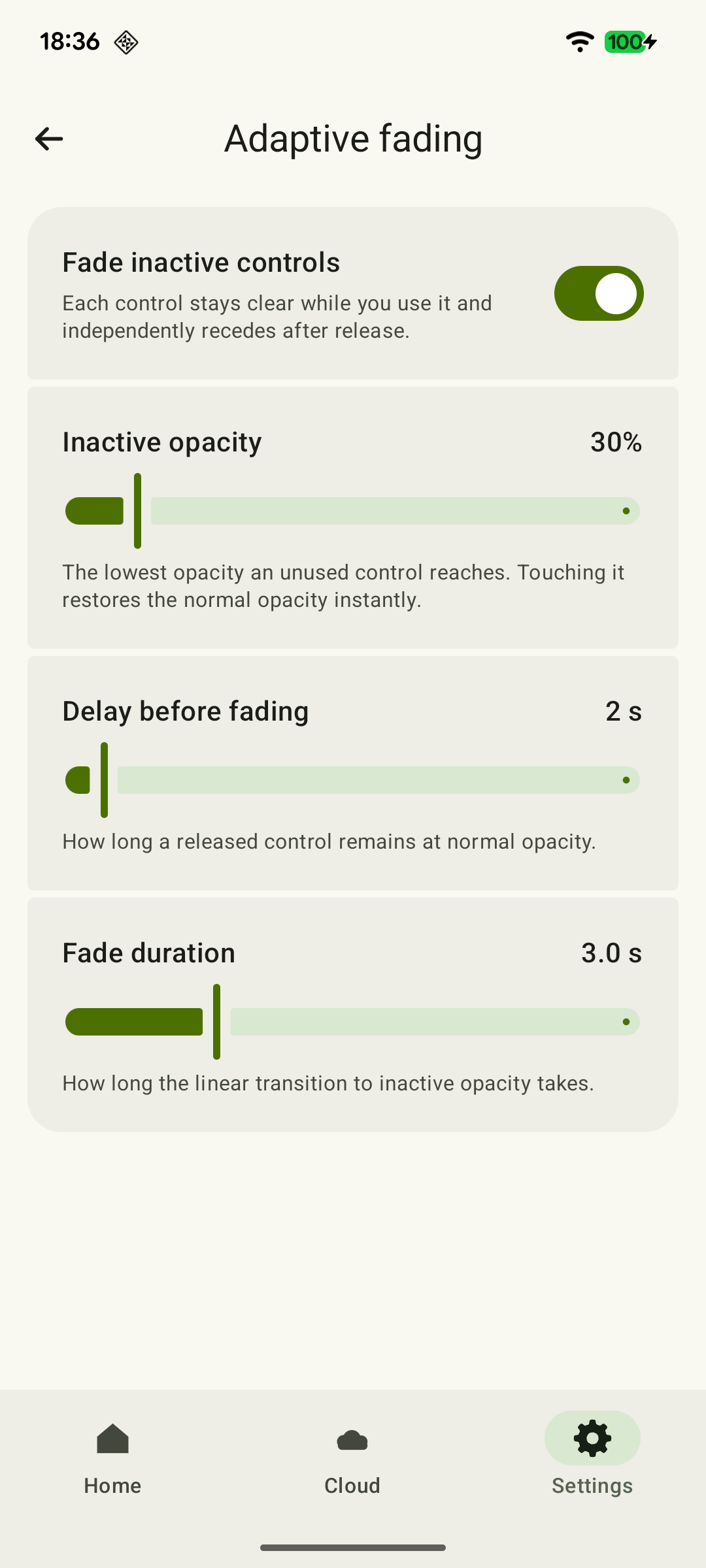
Reduce a useful button’s opacity or enable adaptive fading; a fully transparent zone may still accept touches. Remove an unnecessary control from the layout copy after checking menus, and see the touch controls reference for latching rules.
 Enlarge screenshot
Test actions needed at the same time
Choose training or a familiar section where a mistake will not spoil your progress. Test combinations for your game:
- Adventure: move and jump, then try turning the camera while moving. If your finger cannot reach jump, move that button closer.
- Racing: hold throttle while steering, then release it and press brake. Make sure this does not require a tablet grip change. See the racing layout for details.
- Shooter: combine movement, aiming and firing. If both thumbs are busy with sticks, try a separate index-finger button or an Aim zone combining a held command with aiming. The options are covered in the shooter layout.
Open pause and inventory separately, then return to the game. If something goes wrong, change one troublesome control and repeat the same action: this makes it easier to see whether the change helped.
Save variants for grip and orientation
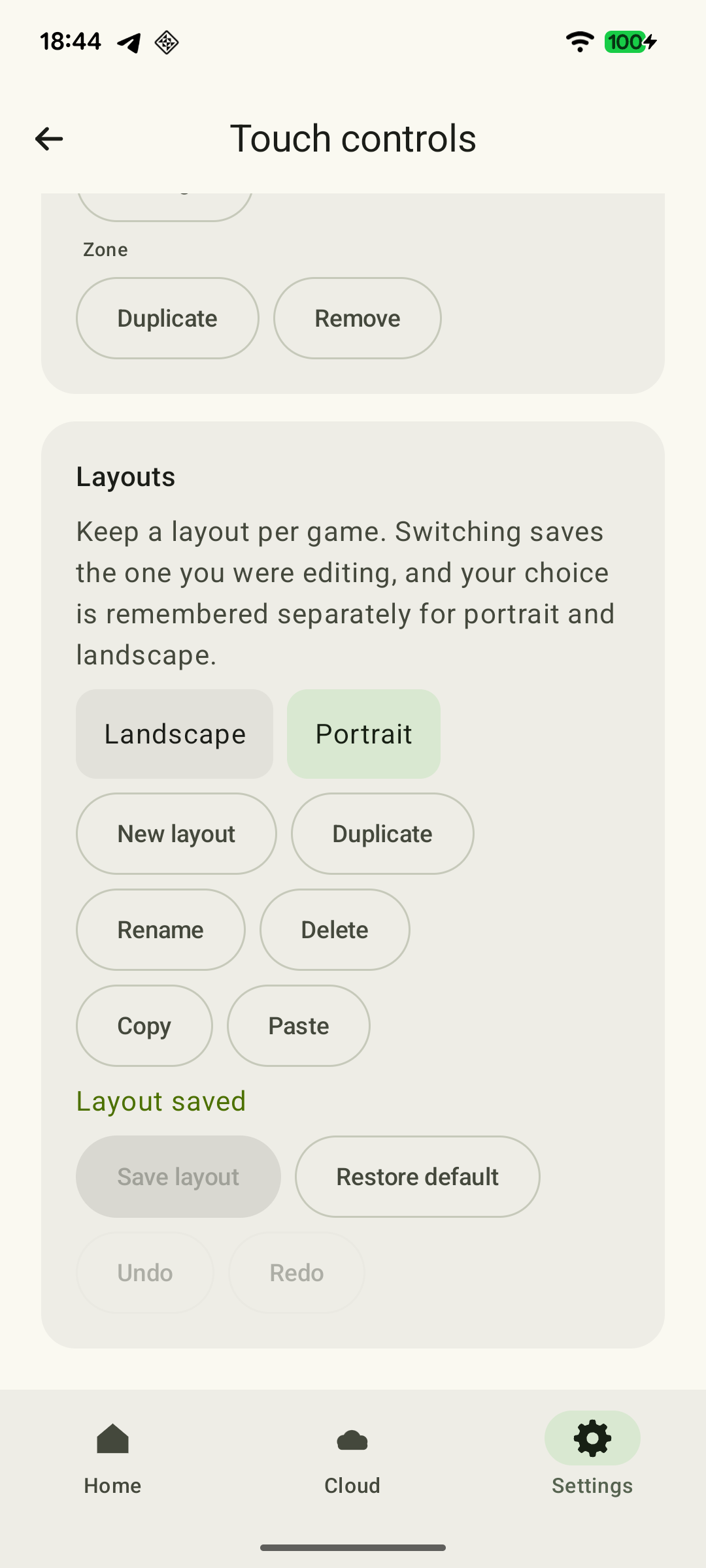
Save comfortable handheld and stand layouts separately and select the one you need in the library. XBPlayer remembers separate choices for landscape and portrait windows and automatically uses the corresponding layout when window orientation changes. Physically rotating a device with landscape orientation locked does not change the window. In both variants, check edge buttons, full stick travel and menu access.
 Enlarge screenshot
To transfer a layout to another device, copy it as text from the layout library and paste it into XBPlayer on the second device. Then recheck distances for its screen and your hands. After changing system navigation or interface scale, also start by checking controls at the edges while keeping the previous working version.
Is the layout ready for this tablet position?
Check the setup you will use: handheld or on a stand. If you use both, complete the list separately for each.
The tablet is stable and frequent commands are easy to reach
Hold it in your gaming grip or position the stand. Press the main commands several times: the device should not wobble and your hands should not need to move for every action.
Sticks and edge buttons do not cause unintended actions
Move the sticks through the full required range and press neighboring controls. If an accidental command or system gesture occurs, move buttons apart or inward.
Xbox touch controls in XBPlayer: buttons, layouts and transfers →The view is clear and required menus are accessible
With fingers on the main controls, check important indicators. Open pause and inventory. A transparent button stays active; remove a control from the copy only if it is truly unnecessary.
Xbox touch controls in XBPlayer: buttons, layouts and transfers →Your game’s combination works without changing grip
Test the example you need: movement with jump; steering with throttle and a transition to brake; or movement with aiming and firing. If it fails, change one control and repeat the combination.
The selection is saved for the required grip and window orientation
In a new session, check the layout name and a couple of actions. If you play in both window orientations, select and test a layout in each. Switch handheld/stand layouts manually.
Ticks apply to this grip and this game. Landscape and portrait windows remember separate choices; with landscape locked, simply rotating the tablet does not change the selection.
Sources and further reading
- XBPlayer — Xbox Remote Play and cloud gaming — Android tablets, touch control customization, and compatible Bluetooth/USB controllers.
- Touch controls: make them your own — Editing controls, transparency and removal, latching, copies, manual selection and text transfer of layouts.
Get the key points
Open a summary request with this article’s link. For Gemini, the request is copied — paste it into the chat.