
What to play
Forza Horizon 6 on Your Phone: Xbox and Cloud Play
Begin a journey through Japan on your phone: choose Remote Play or the cloud, unlock the first events and set up controls while keeping the road in view.
On this page
You can play Forza Horizon 6 on Android and iPhone by streaming from your Xbox Series X|S or Xbox Cloud Gaming. Released on May 19, 2026, it takes you on a new journey through Japan, with city streets, mountain roads and Horizon events. Your phone receives the picture and sends inputs; no separate APK of the Xbox version is needed.
Choose how to launch
| Method | What you need | When to choose it |
|---|---|---|
| Remote Play | Xbox Series X|S, FH6 installed, launch entitlement under your profile and remote features prepared | You want to continue on your own console |
| Xbox Cloud Gaming | FH6 cloud-launch access under your Microsoft account and a supported country | You do not own a Series X|S, or a cloud session is more convenient now |
Xbox One cannot run the installable version of FH6. Having that console at home does not provide a Remote Play route for the sixth game. Forza Horizon 5 has different platform requirements; you do not need to buy the new game to continue Mexico and your current FH5 collection.
 Enlarge screenshot
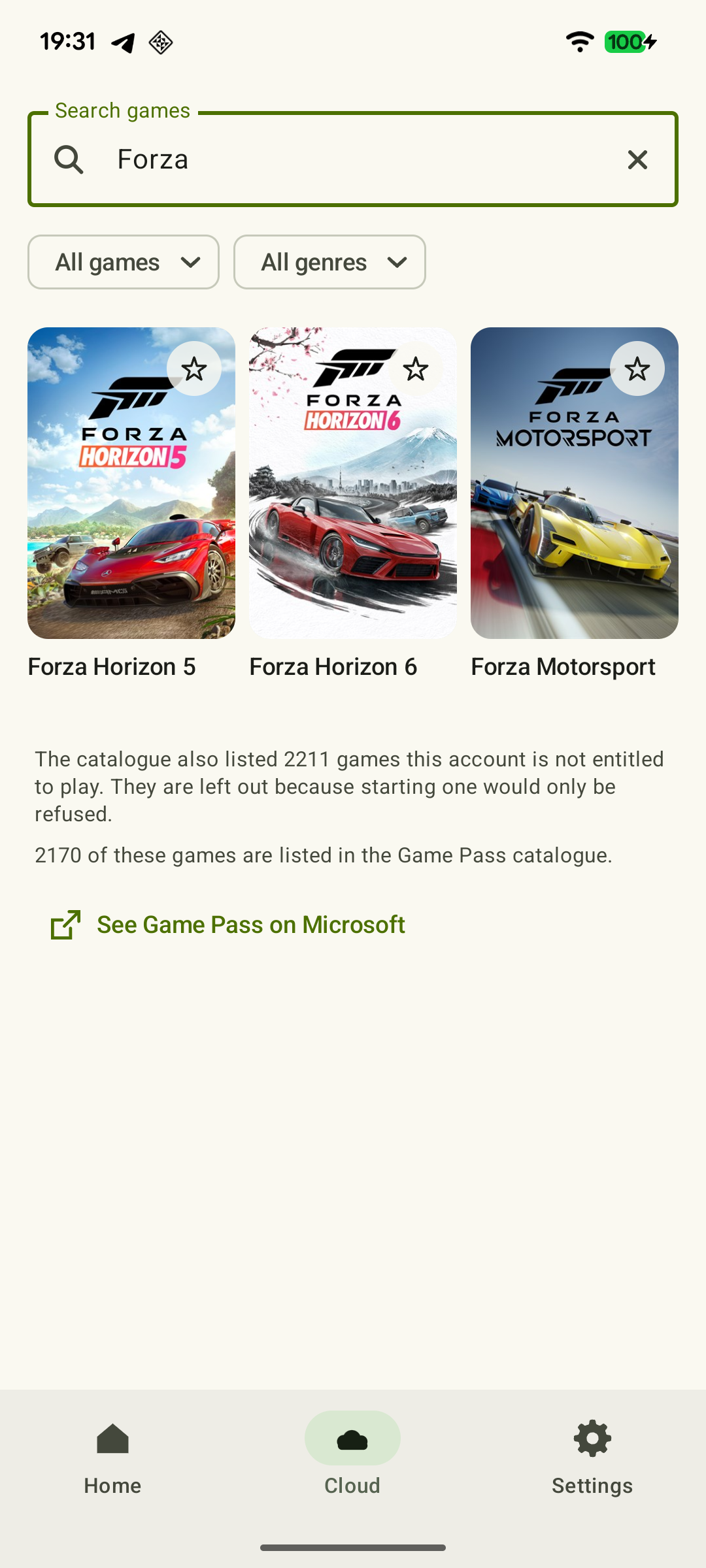
As of October 24, 2026, the FH6 cloud listing confirms streaming a purchased copy with Game Pass Essential, Premium or Ultimate. Open it under your account: if your offer already gives you access, use the launch option shown. Buying the Premium Upgrade add-on bundle does not replace the base game. XBPlayer does not include an FH6 license or Game Pass.
Connect from Android or iPhone
- Install XBPlayer using your platform's link on the homepage and sign in to the Microsoft account with the game and progress you need.
- For Remote Play, open FH6 on Series X|S first. Then choose your console in XBPlayer and connect. If this is your first remote launch, use the step-by-step Android setup or iPhone/iPad guide.
- For the cloud, choose Cloud Gaming and find the exact title Forza Horizon 6. Launch the game available to your account; full sign-in and search steps are in the cloud guide.
- Connect a controller to the phone or enable XBPlayer's on-screen controls. Make sure inputs reach the phone session, rather than only coming from a controller left connected to the console.
What to do after your first sign-in
Start a new campaign with the introduction instead of looking for a free-roam button. The prologue introduces different cars and roads; then you receive your own car and open the map. The official first-drive guide names Shirakawa Circuit and Hokubu Time Attack among the early events.
For a first complete activity, choose the unlocked circuit race: reach the finish, view the result and then decide whether you want another race or exploration. For a drive without competition, choose a point on the map and head toward it. If time is short, return to an event you already know; complete the prologue and new-profile setup beforehand.
A controller and on-screen pedals
With a physical controller, use FH6's current layout. To change it, open Settings → Controller Settings → Custom Controller Profile; you can start from a copy of the default layout. Throttle, braking and steering must remain accessible together; changing one command should not remove your way to open the menu.
 Enlarge screenshot
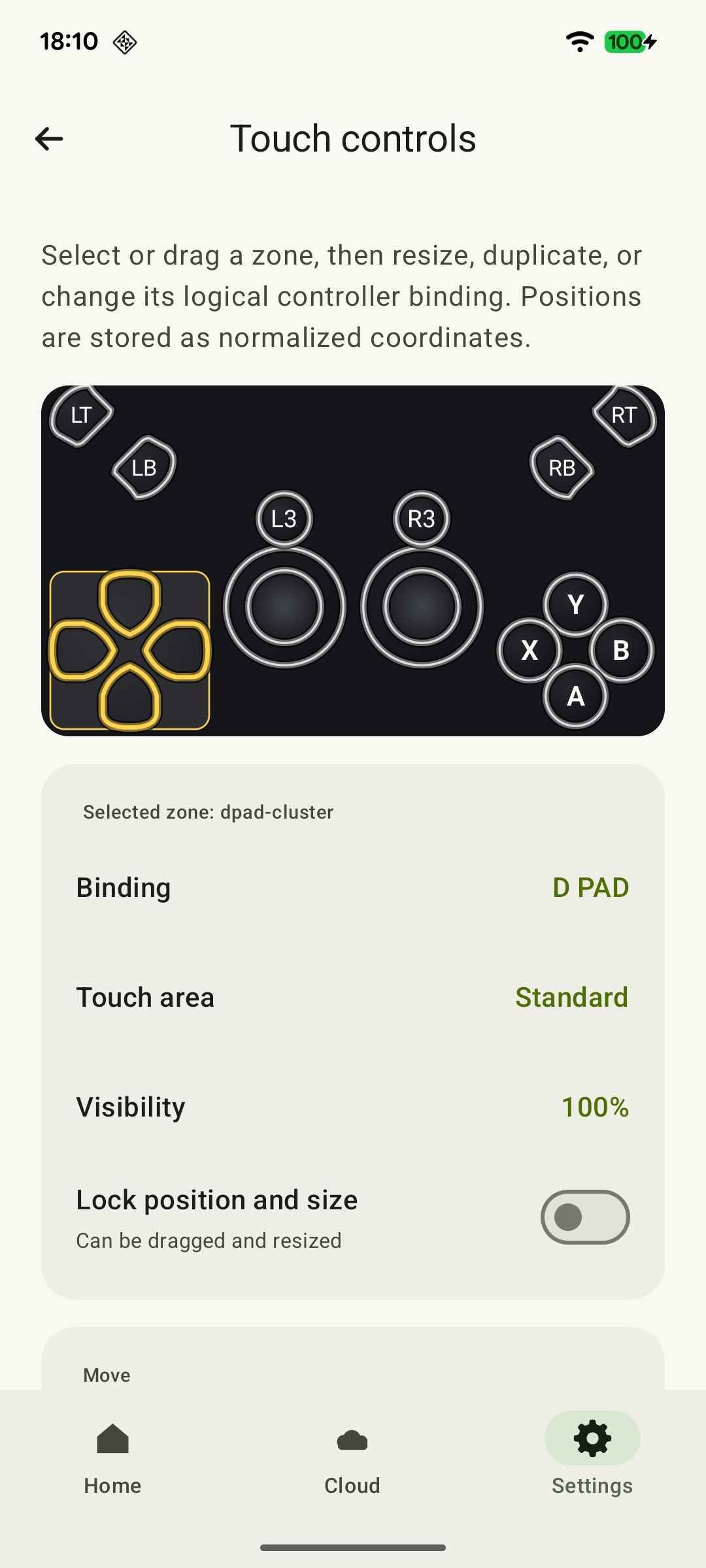
For touch controls, a useful starting arrangement is the left stick on the left and throttle/brake on the right with a gap between them. Build this arrangement to fit your screen. In XBPlayer's editor, a standalone trigger control lets you vary its input level by moving a finger along its height; a trigger in a shoulder cluster uses a preset level. Choose the appropriate control type to modulate a pedal. Details and saving your layout are in the racing touch-control guide.
First take a corner with the throttle applied, release the pedal and brake while continuing to steer. Then adjust Forza's familiar assists. Change one layer at a time: touch-control positioning, client sensitivity and game assists solve different problems. Keep your fingers clear of the next corner and minimap.
Larger text and a clear view of the road
Settings → Accessibility contains Increased Text Size for menus and separate subtitle-size/background options. High Contrast can help text stand out against a busy background. These features improve interface visibility but do not enlarge the road itself; choose a suitable camera for your view.
In cockpit view, Car Proximity Radar can help: its position and audio cues are set in Settings → Gameplay & HUD. It helps you notice nearby cars. Do not expect FOV settings from a PC guide in the Xbox version simply because you are viewing the stream on a phone.
To take in the scenery at a relaxed pace, AutoDrive is available in Horizon Life Free Roam: set a waypoint on the map and enable it through ANNA. It is an in-game driving aid, not an XBPlayer feature or a promise of automatically completing competitions.
How to continue later
Finish the chosen event and wait for progress to save before leaving. With Remote Play, you control the same game on your home Xbox; moving to the cloud requires completed synchronization of a compatible save under the same profile. If an older point or a conflict appears, do not continue over it: follow the save-checking sequence.
For your next evening, choose another direction: another unlocked race, exploring a road or tuning a favorite car. The Xbox racing roundup compares this rhythm with FH5, Motorsport and DIRT 5.
Sources and further reading
- Forza Horizon 6 Now Available — Forza Horizon 6's May 19, 2026 release on Xbox Series X|S and PC, cloud play and Premium Upgrade requirements.
- Forza Horizon 6 — Xbox Cloud Gaming — FH6 cloud listing: as of October 24, 2026, purchased-game streaming is listed with Game Pass Essential, Premium or Ultimate.
- First Drive: A Forza Horizon 6 Starting Guide — The prologue, opening up the map and the early Shirakawa Circuit and Hokubu Time Attack events.
- Forza Horizon 6 Accessibility Support — Text, subtitle and contrast settings, Car Proximity Radar, AutoDrive and a custom controller profile.
- XBPlayer — Official Website — XBPlayer: Remote Play, Xbox Cloud Gaming, controller support and customizable on-screen controls.
Get the key points
Open a summary request with this article’s link. For Gemini, the request is copied — paste it into the chat.