
Controls
Touch layout for Xbox racing games: throttle, brake and steering
Put steering on the left and pedals on the right, then check their release. A separate Trigger varies with vertical finger position; group and Aim triggers use a set level.
On this page
For racing through Xbox Remote Play, start with this touch layout: steering on the left, throttle and brake on the right, with a gap between the buttons. Then check the action sequence: steering while accelerating, releasing the throttle before braking, and accelerating on exit. If you need throttle and brake together, assign a separate finger to one pedal.
Open a racing game from your Xbox in XBPlayer on Android, iPhone or iPad. Save a copy of a good layout before changing it. The app lets you resize and move touch controls and save variants; general techniques are covered in the touch controls guide.
Choose commands from your game’s control scheme
Open the control scheme in the game itself and find steering, throttle and brake. If they are assigned to the left stick, RT and LT, configure those controls in XBPlayer. You may also need the handbrake, gear shifts, look back, camera change and reset-to-track commands. With a manual transmission, keep both gear-shift commands within reach.
Keep pause and menu controls accessible. Move infrequent commands out of the way first, then remove unnecessary controls from the layout copy after testing. If you only need a clearer view of the road, make buttons more transparent. This does not disable touch: an invisible control can still activate under your finger. Do not remove reset-to-track just because you did not need it on a straight.
Place the pedals for your chosen grip
With a two-handed grip, the left thumb steers and the right moves between throttle and brake. Put the pedals near each other with a clear gap. Your finger should find the required area without looking down and avoid the neighboring button when releasing the first. If pressing both pedals together is awkward, try moving throttle to the top edge for an index finger.
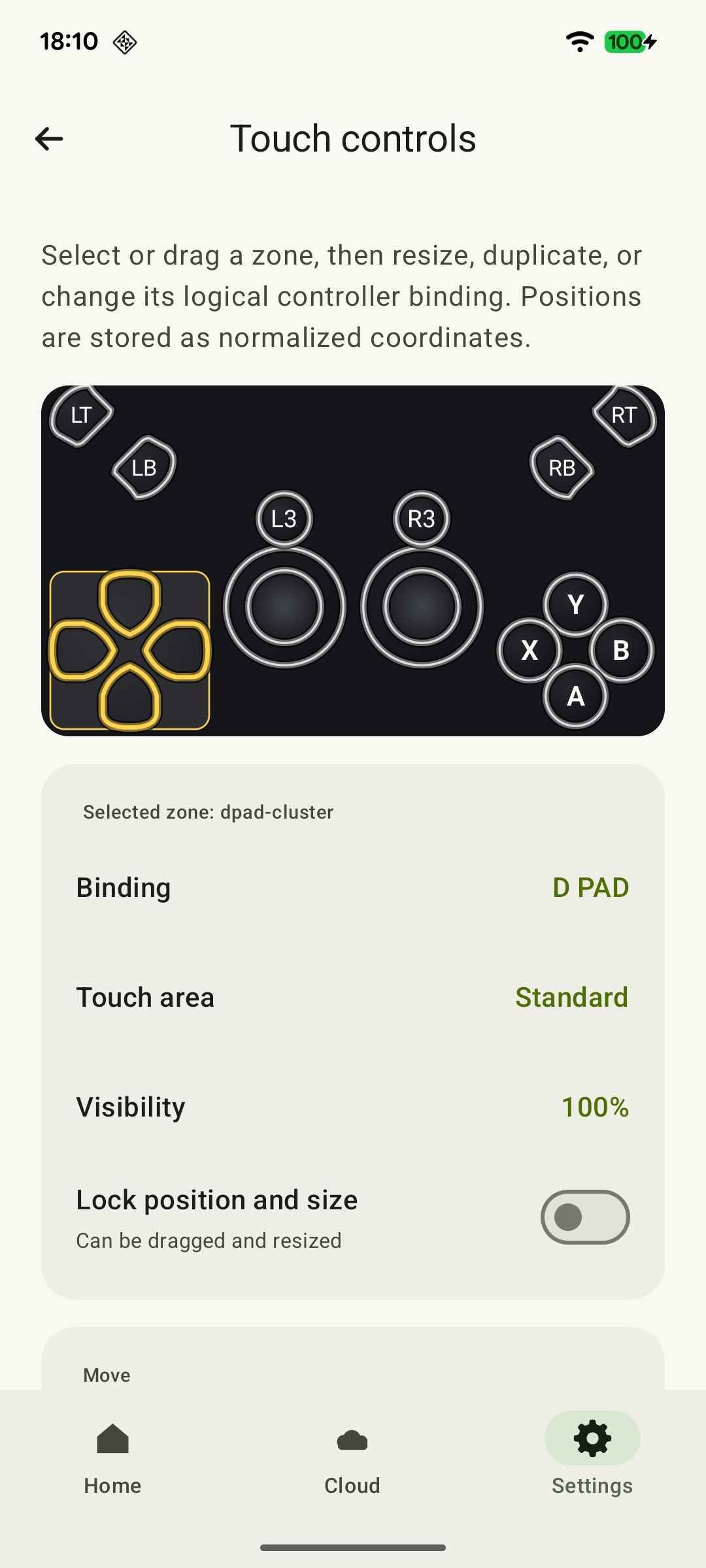 Enlarge screenshot
This grip works only if the device stays stable. Drive through several corners: if you have to change your grip or strain the index finger, return throttle to your thumb or try a controller. On a tablet, find support or a stand first. See the touch layout guide for a large screen.
Choose the in-game camera before finalizing button placement. Keep the road ahead, minimap and tachometer visible if you use it to shift gears. Leave room around the stick for finger movement; the layout does not need to be symmetrical.
Two layouts for a test drive
The following layouts are for manual setup in the editor. Adjust sizes and distances for your screen and grip. RT/LT bindings apply only when your game assigns throttle and brake to them.
| Zone | Two thumbs | Throttle under an index finger |
|---|---|---|
| Bottom left | Left stick under the thumb: steering. | The same steering position. |
| Bottom right | Separate vertical RT and LT Trigger zones side by side with a gap. The right thumb moves between pedals. | A separate LT Trigger under the right thumb: brake. |
| Top right | Leave clear or put an infrequent command outside finger movement. | A separate RT Trigger under the right index finger: throttle. Check a stable grip and full finger travel within the zone. |
| Near the working zones | Handbrake and gears, if needed, separate from the pedals. | Place handbrake and gears so you do not have to release the pedal needed at that moment. |
| View and menus | Keep the road, minimap and tachometer visible; keep pause and reset-to-track accessible. | The same requirements for visibility and menus. |
The first option suits alternating throttle and brake. The second lets you hold both pedals separately while steering, provided the device rests securely in your hands or on a support. If the upper pedal forces you to change your phone grip, return to the first option or compare a controller.
Check pedal release and range
Start with “Latch” off for throttle and brake. Lift your finger: the pedal command should release. Test latching separately and check release with a second touch; general limits are described in the touch controls guide.
| Zone type | How the press is set | When to use it |
|---|---|---|
| Separate Trigger — LT or RT | The finger’s vertical position within the zone changes the analog trigger value. It does not measure pressure on the glass. | When you need to vary throttle or braking without releasing the pedal. Make the zone tall enough for comfortable, smooth finger movement. |
| Trigger in a shoulder group | Sends the fixed level set in “Trigger pull”: 10–100%, default 100%. | When a preselected level is enough. Enlarging the button does not change that level by itself. |
| Trigger as an Aim zone’s held command | The same configured 10–100% level; finger movement controls the selected stick. | For combining a held command with stick movement if the game needs it. This is not continuous pedal adjustment by finger position. |
For the layouts above, choose separate Trigger controls specifically. In a safe scene, slowly move your finger along the zone’s height and watch the game’s input indicator or telemetry if available. Check different levels and a return to zero on release. Compare the pedal command, not just vehicle acceleration: gear, car and driving assists affect acceleration too.
If small, precise throttle changes matter in your game, compare the touch trigger with a compatible physical controller. Analog input capability does not mean the glass feels the same as a controller trigger.
Compare layouts on one section of track
Choose training or a quiet drive with a straight and several corners. Keep the car, camera, weather and assist settings unchanged if possible. The aim is to find awkward movements and accidental presses; lap time should not be the main criterion.
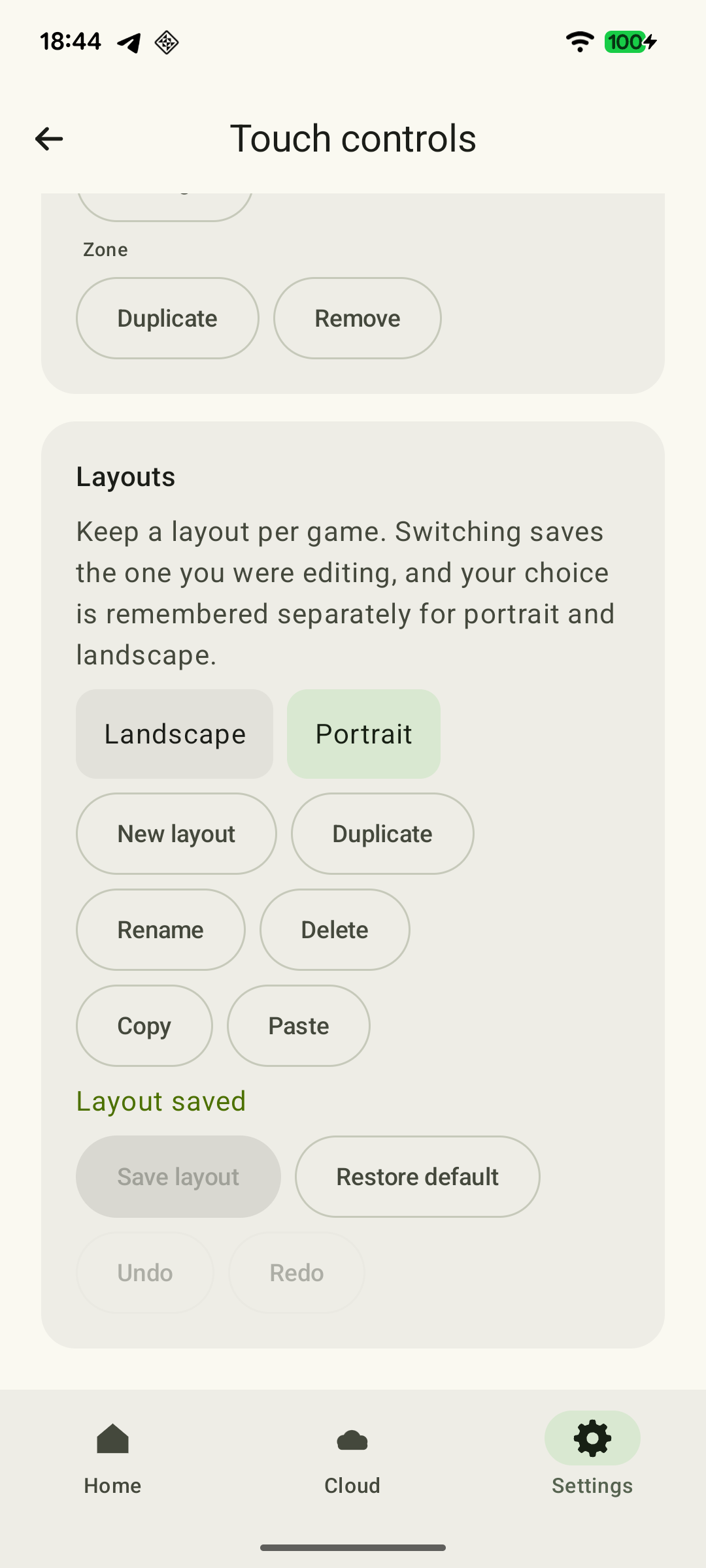 Enlarge screenshot
- On a straight, hold throttle and make a few small steering corrections. Check whether you have to loosen your grip.
- Before a corner, release throttle and press brake. Watch the on-screen highlights: does throttle stay held, or does your finger hit a neighboring button?
- Drive through the corner and add throttle again. If you use throttle and brake together, test that combination with steering separately.
- On a quiet section, test camera changes, gear shifts or another required command. Make sure you can open the pause menu and return to the game.
If touches land in the wrong place, change only one thing: enlarge the brake, space the pedals farther apart or move an extra button. If throttle does not release when you lift your finger, check its latch again. Repeat the same section and compare accidental presses and grip changes. Several repetitions show a layout’s comfort better than one good lap.
What to adjust after the test drive
Save the starting layout first and repeat one familiar section. Change one setting for the difficulty you choose.
Your finger hits the neighboring pedal
Move throttle and brake farther apart or change one button’s size. Repeat the transition from throttle to brake: the highlight should follow the intended touch.
Xbox touch controls in XBPlayer: buttons, layouts and transfers →Throttle stays active after release
Check the throttle trigger’s latch and disable it for the normal test. If the game shows input, make sure throttle returns to zero. The car continuing to move does not itself mean throttle is held.
Xbox touch controls in XBPlayer: buttons, layouts and transfers →You need steering and both pedals together
If the device has enough support, try moving throttle under an index finger. Repeat the combination. If it requires an awkward grip change, restore the previous layout or compare a compatible controller.
Bluetooth or USB for Xbox Remote Play: which to choose →Hands or buttons cover the road
Choose the game camera and move controls away from important areas. Transparency does not disable touch; remove only an unnecessary button from the copy after checking access to menus and reset-to-track.
Xbox touch controls in XBPlayer: buttons, layouts and transfers →You cannot hold partial throttle
Make sure throttle is a separate Trigger, then move your finger vertically within the zone while watching the game’s input indicator. A trigger in a shoulder group or Aim uses a set 10–100% level, not this form of continuous modulation.
This is a reference for the result of a test drive. Check pedal commands using an input indicator if the game provides one: acceleration also depends on gear, car and assists.
Adjust driving assists and save the result
If the game offers automatic shifting or braking assistance, try them separately from layout changes. They may reduce the number of actions, but do not fix an incorrect touch. Drive the familiar section again after each change.
Save the layout when you can turn without unintended presses, pedals release as expected, and required commands and menus are accessible. If smooth modulation or combining several buttons remains difficult, try a compatible Bluetooth or USB controller.
Sources and further reading
- XBPlayer — Xbox Remote Play and cloud gaming — Android phones and tablets, touch controls, and compatible Bluetooth or USB controllers.
- Touch controls: make them your own — Layout size, position and copies, transparency and removal, highlighting, and latching individual buttons and triggers.
Get the key points
Open a summary request with this article’s link. For Gemini, the request is copied — paste it into the chat.