
Network and quality
Xbox Remote Play through a phone hotspot: setup and troubleshooting
Connect the device running XBPlayer to your phone’s hotspot, then check the mobile connection and Wi-Fi separately. A 5G icon alone does not promise smooth gameplay.
On this page
You can use Xbox Remote Play through a phone hotspot: the phone shares mobile internet over Wi-Fi, while another device running XBPlayer receives the stream from your home Xbox. Check your plan and connection first, then compare play next to the phone with play at your usual distance. A 5G icon alone does not tell you whether the stream will be stable.
Check your Xbox and data plan first
You need an Xbox One or Series X|S with remote features enabled and the game installed, a phone with mobile data, and a device running XBPlayer. In this setup, the Xbox stays at home on your home network. If you have not set up Remote Play yet, start with the first-connection guide and test at home before traveling. Working on the home network helps verify the setup, but does not yet establish access from outside it.
Ask your carrier whether your plan allows tethering, whether it has a separate allowance, whether speed drops after that allowance is used, and what roaming terms apply. Google notes that carriers may restrict tethering or charge extra for it. Your remaining general data allowance may differ from the amount available for hotspot use. Estimate data usage before a long session.
Connect the XBPlayer device to your phone
- Check mobile internet. On the phone providing the hotspot, disconnect from any external Wi-Fi network and open a web page using mobile data. This tests the carrier connection itself.
- Turn on the hotspot. Find it in the phone’s settings or quick controls, set a password and note the network name. The menu name depends on the phone model.
- Connect the second device. On the phone or tablet running XBPlayer, select that network in the Wi-Fi list and enter the password. Check that it can open a web page too. Pause background downloads and disconnect unnecessary hotspot clients during the test.
- Start Remote Play. Connect to your console in XBPlayer and open a game. For the first test, keep both devices close together and stay in one place.
If internet access works on the gaming device but the console will not connect, move on to troubleshooting Remote Play away from home. Changing stream resolution is not a substitute for checking whether the console is reachable.
Where does the problem start?
Check mobile internet on the hotspot phone and web access on the XBPlayer device. Then work through the relevant cards one at a time.
The XBPlayer device has no internet access
Check that it is connected to the correct hotspot and that mobile internet works on the hotspot phone without external Wi-Fi. If the carrier connection works, check hotspot settings and your plan’s terms before trying the game.
Websites load, but your home Xbox is unavailable
Move on to external Remote Play troubleshooting. Compare the same Xbox and gaming device over another available network. Lowering video quality does not check the connection to the console.
Xbox Remote Play works at home but not over mobile data →Hotspot play is worse, or stuttering increases with distance
Repeat the scene on the same gaming device beside the hotspot phone. If the improvement is repeatable, check placement and available Wi-Fi bands. If you compared two different devices, also account for their video processing and your plan’s restrictions.
2.4, 5 or 6 GHz Wi-Fi for Remote Play: which band should you use? →The device gets very hot over time
If it becomes very hot or shows a warning, stop the session and follow that device manufacturer’s guidance. Once it has cooled naturally, repeat a short test in a ventilated spot. Do not deliberately reproduce overheating.
Phone heating up or losing battery during Remote Play? What to check →The hotspot allowance is used up
Check the carrier’s terms for continued access. Estimate data use and suitable quality for future sessions; lowering bitrate does not restore data you have already used.
How much data does Xbox streaming use per hour? →Your home Xbox remains the source for Remote Play. Compare the same game, settings and mode. Mobile 5G and 5 GHz Wi-Fi describe different parts of the connection.
Do not confuse mobile 5G with 5 GHz Wi-Fi
5G refers to the carrier’s mobile network. 5 GHz is a Wi-Fi band used between the hotspot phone and the gaming device. They are separate links: good mobile reception does not remove interference or a weak signal on the local hotspot connection.
Remote Play also has a home end: the Xbox sends video through its own internet connection. If the stream stutters, check whether a large upload is using your home connection’s upstream capacity. With Xbox Cloud Gaming, the home console does not send the game stream. Keep the same mode selected when comparing connections.
Change distance and quality one variable at a time
Keep the hotspot phone still in a spot with reliable mobile reception. Compare play beside it with play at your normal distance. If stuttering happens only farther away, start with device placement. If a band selector is available, try 5 GHz Wi-Fi at close range; both devices must support it. See the Wi-Fi band guide for details.
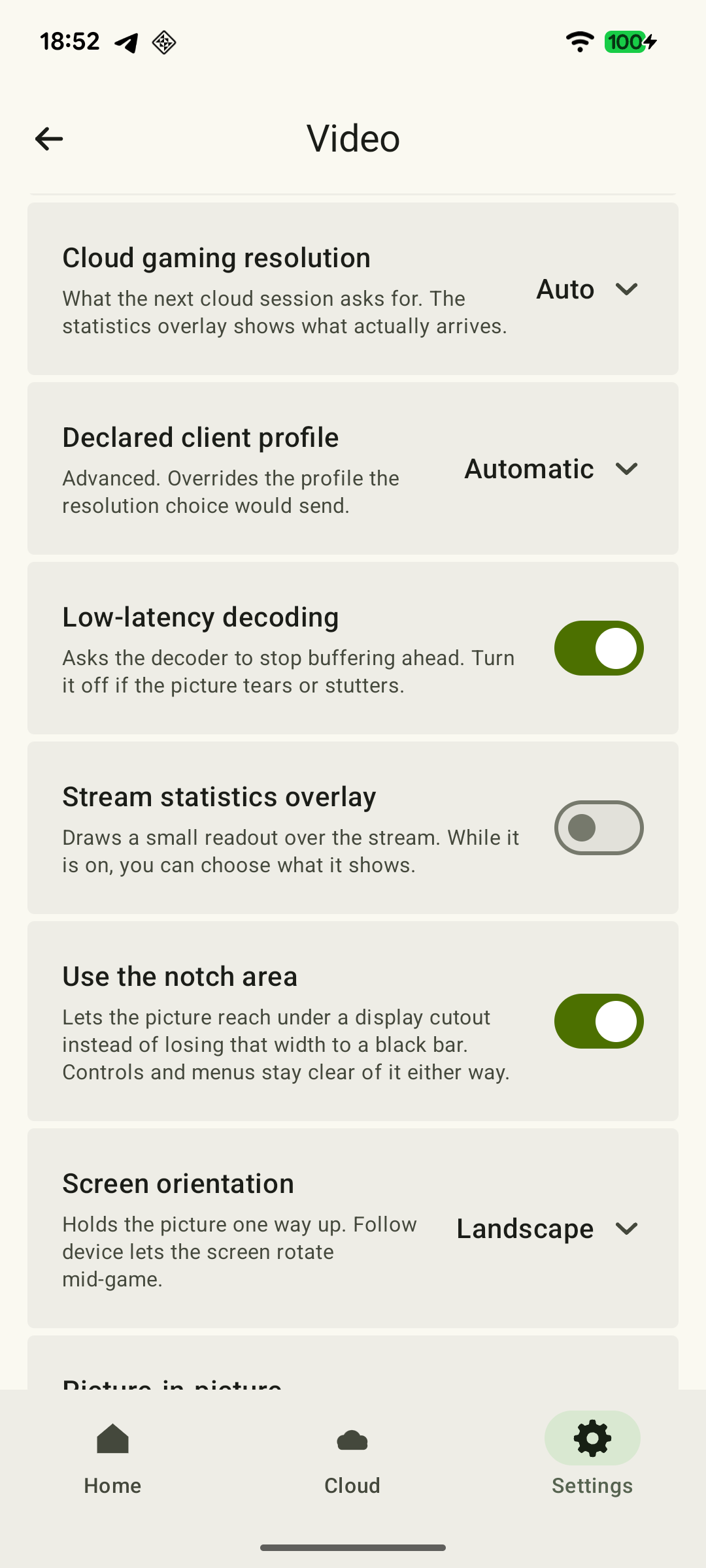
If the stream starts but stutters, enable the Remote Play bitrate limit if it is off, or lower the existing cap. In a separate comparison, try 720p instead of the current resolution. Start a new session after changing the general video settings. If you change resolution in the active Remote Play panel, confirm the offered restart; a second manual restart is unnecessary. Exactly when settings take effect. Repeat the same section of gameplay after each change. An improvement suggests suitable quality settings for those conditions, but does not prove which link caused the problem. A lower bitrate can reduce future data use; it cannot restore an exhausted allowance.
Compare direct mobile data with hotspot use
If the phone containing the SIM can run XBPlayer, first turn off the hotspot and play a short session directly on that phone over mobile data. Then end the stream, turn on the hotspot and repeat the same game section on the second device. Use the same quality settings, stay in the same location and run the tests one after the other.
 Enlarge screenshot
Record whether the game starts and when stutters or disconnects occur. In XBPlayer diagnostics, compare frame rate, bitrate and increases in the packet-loss counter over equal intervals. Decode includes waiting for the decoder and processing the frame; it is not the full delay from button press to image. The diagnostics guide explains the readings.
If direct mobile play works well but the hotspot does not, check the hotspot Wi-Fi, your plan’s tethering restrictions and the second device. This comparison does not isolate a single cause: the phone and tablet process video differently, and mobile-network load can change between sessions. Repeat the comparison. If both options are unstable, try another reception location and check the home end of Remote Play.
Check whether the hotspot gets worse as the phone heats up
Compare the start of the session with play after some time has passed. Keep the phone in a ventilated place, out of a closed bag and direct sunlight. Google lists hotspot use, active data transfer and charging as sources of heat on Pixel phones; overheating can limit performance and connectivity. Protection on other models depends on the manufacturer.
If a temperature warning appears, stop the workload and follow the phone’s instructions. For Pixel, Google recommends unplugging the charger, moving the device somewhere cooler and leaving it unused until it cools. See the phone-overheating guide for further checks.
Keep a note of working settings, the phone’s position and data usage per session. Before buying another plan or new equipment, repeat the test under your normal conditions: one good speed test does not replace a stable gaming session.
Sources and further reading
- Android Help: Share a mobile connection by hotspot or tethering — Sharing mobile data over Wi-Fi, connecting with a network name and password, and possible carrier restrictions or extra charges.
- Google Pixel: Help keep your Pixel phone from feeling too warm or hot — Hotspot use, data transfer and charging can generate heat. The performance and connection limits and overheating steps described apply specifically to Pixel.
- Xbox Remote Play — Remote Play from Xbox One or Series X|S requires remote features and an installed game; mobile data can be used. This page’s requirements apply to Microsoft’s official connection method.
- XBPlayer: Remote Play and Cloud Gaming — The official app website and download links. Detailed definitions of diagnostics and how settings take effect are covered in the relevant guides.
- Microsoft Support: Wi-Fi and your home layout — 5 GHz is a Wi-Fi band. Distance and obstacles affect connection quality.
- Apple Support: Use 5G with your iPhone — 5G is a mobile-network technology. The setup instructions on this page apply to iPhone.
Get the key points
Open a summary request with this article’s link. For Gemini, the request is copied — paste it into the chat.