
Network and quality
2.4, 5 or 6 GHz Wi-Fi for Remote Play: which band should you use?
Start with 5 GHz, then compare the available bands where you actually play. Both your router and device need to support 6 GHz; Wi-Fi 6 alone does not guarantee it.
On this page
For Xbox Remote Play, start with 5 GHz Wi-Fi close to your router, then test it where you normally play. If 5 GHz is unreliable through walls, compare it with 2.4 GHz. If both your router and device support 6 GHz, try that band too. Judge the connection by disconnects, smoothness and responsiveness in the game: the highest speed-test result does not necessarily produce the best stream.
Wi-Fi 6 and 6 GHz describe different things
2.4, 5 and 6 GHz are radio frequency bands. Wi-Fi 5, Wi-Fi 6 and Wi-Fi 7 are generations of wireless technology; Wi-Fi 6E extends Wi-Fi 6 into the 6 GHz band. A “Wi-Fi 6” label on its own does not mean that a device supports 6 GHz.
To connect on 6 GHz, both the router and the device running XBPlayer must support that band. Check the specifications of the exact models, support in your device’s operating system and availability in your country. A compatible router cannot add 6 GHz support to an older phone. Your Xbox can still use Ethernet or a different Wi-Fi band on the same home network.
Do not confuse 5 GHz Wi-Fi with 5G. The former connects a device to a router or phone hotspot; the latter is a generation of mobile networks. When you use a phone as a hotspot, either link can limit the stream independently.
How distance and walls affect each band
| Band | When to try it | What can get in the way |
|---|---|---|
| 2.4 GHz | Your device is far from the access point or separated from it by walls. | Nearby networks and other devices may cause interference. Good coverage does not guarantee a steady stream. |
| 5 GHz | A good starting point for Remote Play when coverage is adequate. | Walls and distance usually weaken the connection more than they do on 2.4 GHz. |
| 6 GHz | Both devices are compatible and the access point is close enough. | Support depends on hardware and region. Walls may cancel out its advantages. |
These are starting points for testing, not promises of speed or range. Wall materials, access-point placement, antennas and interference all affect the result. There is no universal distance or number of walls at which you should switch bands.
First, check what your device is connected to
A single network name can cover several bands and access points. Your phone chooses a connection using its own rules and information supplied by the network. Look for the current frequency and access point in the device’s Wi-Fi details or the router’s interface, where available.
If your router lets you temporarily give each band a separate name, that can make comparisons easier. Record the original settings and follow the instructions for your model. If you cannot choose a band manually, note which one the device actually uses: two sessions on the same frequency band do not compare different bands.
On a mesh network, compare bands on the same node if possible. A strong signal from that node says nothing about the quality of its connection to the main router. If the device switches nodes, you are testing a different network path. If the stream stutters as you move between rooms, note whether it happens when the device changes nodes.
Compare streams with the same settings
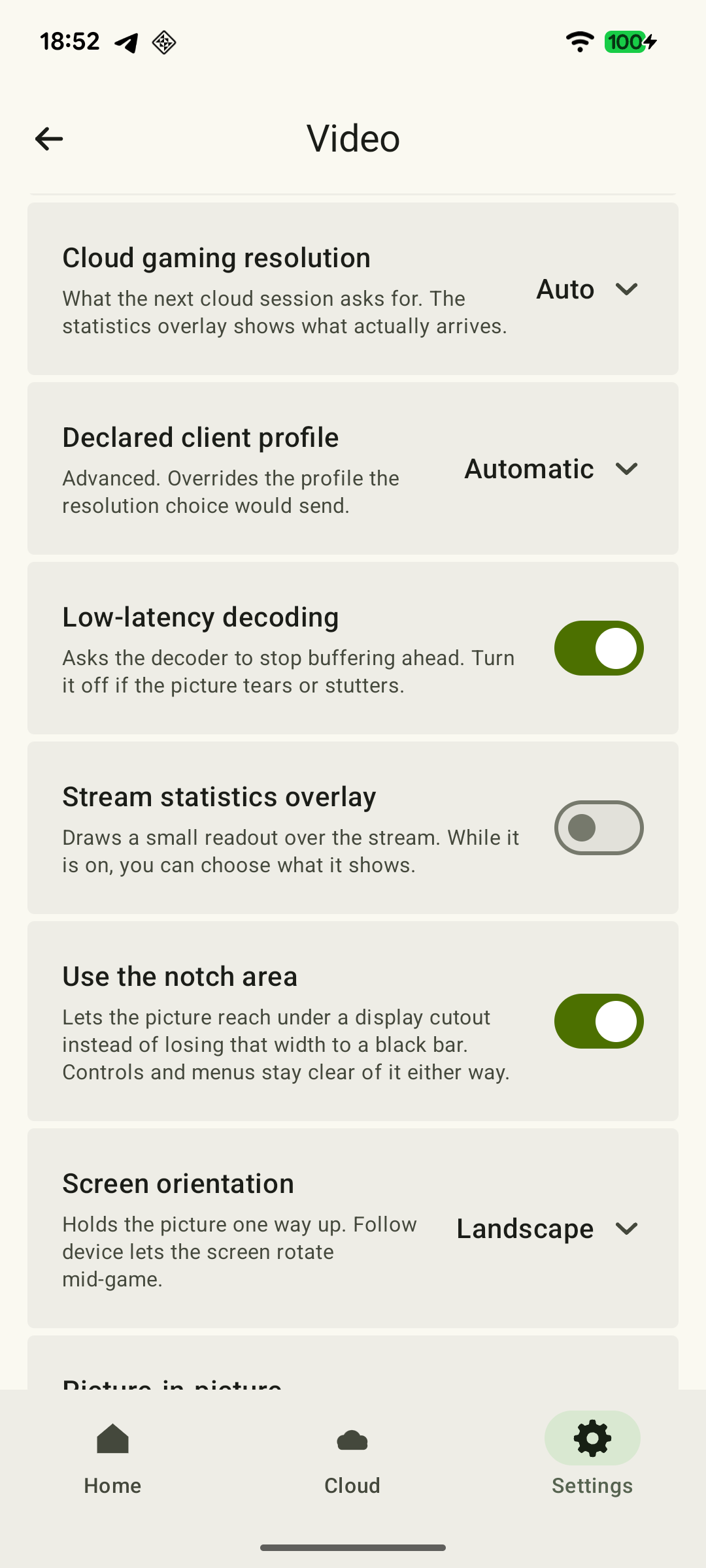
- Put your device where you normally play. Use the same console and a familiar scene. Keep the resolution, bitrate limit and controller connection unchanged. Pause background downloads for the comparison.
- Connect to the first available band and confirm the actual frequency. Play for a few minutes, including camera movements and normal gameplay actions.
- Note disconnects, stutters, audio dropouts and changes in responsiveness. In XBPlayer diagnostics, compare frame rate, bitrate and the increase in the packet-loss counter over equal periods. Do not compare final totals from sessions of different lengths. Decode includes the time a frame waits for the decoder and the time spent processing it; it does not measure the full delay from a button press to the image. How to interpret these readings.
- Repeat the same scene on another band, in the same spot and for roughly the same amount of time. Then return to the first band: this helps reveal whether network load changed during the test.
- If both bands perform poorly, repeat the comparison closer to the same access point. Improvement at a shorter distance is a reason to investigate coverage. Do not change channel width, firmware and router placement at the same time.
A short comparison can reveal obvious differences, but it does not establish that a connection will stay stable all evening. Keep a note of the location, band, access point, stream settings and any problems you noticed.
 Enlarge screenshot
Confirm your choice in a normal session
Keep the option that works consistently where you play, and test it at your usual gaming time. If 5 GHz gives you a steady stream, there is no need to replace equipment just to get 6 GHz. If every band struggles through several walls, look at access-point placement or the links between mesh nodes.
For a stationary console, try connecting it by Ethernet while leaving your XBPlayer device on Wi-Fi. That removes one wireless link from the path. If every band stutters in the same way even near the router, continue with the stream-stutter troubleshooting guide: changing the frequency alone will not identify the cause.
Sources and further reading
- Xbox Remote Play — Microsoft recommends 5 GHz Wi-Fi for Remote Play. The system requirements on this page apply to Microsoft’s official connection method.
- Intel: Wi-Fi 6 vs. Wi-Fi 6E/7 — Explains Wi-Fi 6, 6E and 7. To use 6 GHz, both the router and receiving device need to support the band. The Windows instructions apply to that platform.
- Intel: 2.4 GHz vs. 5 GHz vs. 6 GHz — 6 GHz availability depends on the hardware, operating system and regional rules.
- Microsoft: Wi-Fi and your home layout — The bands differ in coverage and how well they cope with obstacles. 2.4 GHz generally passes through walls more effectively; coverage on 5 and 6 GHz needs to be checked.
- Google: How 2.4, 5 GHz, and 6 GHz bands work — One network name can cover several bands; the client device helps determine which connection is used. Separate network names and frequency information depend on the router model.
- XBPlayer: Remote Play and Cloud Gaming — The official app website and download links. Detailed definitions of diagnostics and how settings take effect are covered in the relevant guides.
Get the key points
Open a summary request with this article’s link. For Gemini, the request is copied — paste it into the chat.