
Troubleshooting
Phone heating up or losing battery during Remote Play? What to check
Compare short unplugged sessions and change one setting at a time. Check brightness, the network and battery saver. Stop playing if a temperature warning appears.
On this page
If your phone heats up during Xbox Remote Play, unplug the charger, move it out of direct sunlight and stop unnecessary screen recording or large downloads. Let it cool, then start with a comfortable screen brightness. If rapid battery drain remains a concern, compare two sessions of equal length, changing one setting at a time.
The game runs on the Xbox, but the phone receives and decodes video, displays it and sends your inputs. The same general steps apply to Xbox Cloud Gaming, where a Microsoft server runs the game. Choose stream settings for your mode using the quality guide. A warm case alone cannot tell you the battery’s condition or the cause of battery drain.
If the phone becomes very hot or displays a temperature warning, stop the session. Follow the manufacturer’s instructions. For Pixel, Google recommends unplugging power, moving the phone somewhere cooler and leaving it unused until it cools. Do not try to finish a measurement if the device is already limiting operation or shutting down.
What to check before comparing sessions
Compare usage after the phone has cooled normally, in a ventilated spot out of direct sunlight. Record the brightness, network and background tasks. These conditions are your baseline for later attempts.
Open the system battery settings and check usage by app. On Pixel, this is Battery → Battery usage; other phones have different menu names and features. The statistics can help identify background activity, but their reporting period may not match your gaming session. An app’s share of that report is not directly equivalent to the percentage of battery charge spent during that game.
Record whether battery saver is enabled, including any automatic activation. It can change the test conditions: on Pixel, for example, it affects apps, display smoothness and mobile-network selection. Check your manufacturer’s documentation for your model. If a power-saving mode turns on during a measurement, note it and do not compare the result directly with a session where it remained off.
How to compare battery use without charging
Use the same phone and a familiar section of a game. Fifteen minutes is a convenient starting point; it is an observation period, not a battery-life target. Both attempts should begin at a similar charge level after the phone has returned to its normal state.
- Record the model, Android and XBPlayer versions, starting charge, brightness, network type and stream settings. Keep the charger disconnected in both attempts.
- Play for the chosen duration in one location. Do not change brightness or settings during the session; repeat the same game section where possible.
- Record the remaining charge, any stuttering and any system messages. The difference between starting and ending charge is the drop in percentage points over that interval.
- End the session and let the phone cool. Change one setting, such as brightness, then repeat the test for the same length of time.
- If the result appears better, repeat the comparison once the device is ready for normal use again. Keep the change only if the difference is repeatable and you are happy with the gaming experience.
Battery percentage is an operating-system estimate, so a small difference between attempts may be normal variation. Do not turn a short measurement into a promise of an exact number of gaming hours. Percentages from different phones are not directly comparable without accounting for battery capacity and condition either.
Why charging needs a separate assessment
Charging can add heat. If the problem usually occurs while playing with power connected, first try a similar session unplugged. There is no need to deliberately reproduce severe heating while charging.
The change in battery percentage while plugged in reflects charging and consumption together. It does not measure Remote Play’s power use, so do not compare it with the charge drop during an unplugged session. If the problem happens specifically when charging, follow the phone and charger manufacturers’ guidance.
What to change after the first measurement
- Brightness. Try a lower comfortable setting under the same lighting. If automatic brightness changes noticeably, the comparison no longer isolates the setting you chose.
- Network. If reliable Wi-Fi is available, compare it with mobile data in the same place while keeping stream settings unchanged. Neither network type guarantees the same savings on every phone. Providing a hotspot adds load; see the hotspot guide for its specific considerations.
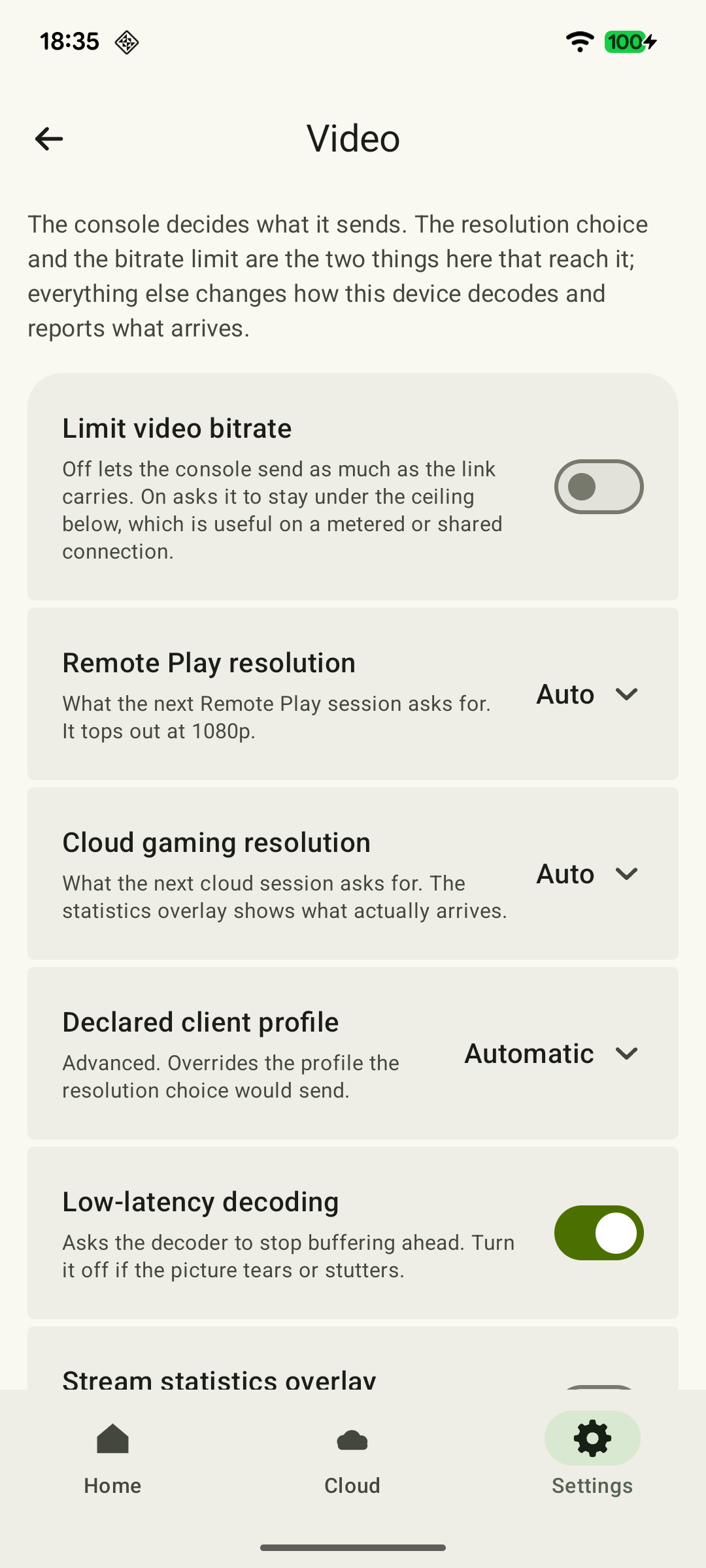
- Video quality. If you use 1080p for Remote Play, try 720p separately. When changing resolution in the active stream panel, confirm the offered restart. If you changed the general video settings, start a new session yourself. An automatic restart does not require a second manual one. Record the original setting and compare readability, smoothness and battery use: lowering quality does not promise a particular saving. See the resolution, bitrate and FPS guide.
 Enlarge screenshot
How to investigate stuttering that develops over time
If the phone remains comfortable to use and there are no system warnings, compare XBPlayer diagnostics at the start of the session and when stuttering begins: frame rate, bitrate, Decode and increases in the packet-loss counter over equal intervals. Record how much time passed before the deterioration and which conditions changed.
A higher Decode reading is a reason to investigate video queueing and processing on the device. It is not proof of overheating or a measure of the full delay from input to image. Packet loss requires a separate network check. Even smoothness returning after a break does not establish the cause by itself; other conditions may have changed too. See Remote Play stutter troubleshooting for the next steps.
If warnings, shutdowns or unusual battery use also recur in other apps, contact the phone manufacturer’s support team. If the problem occurs only in XBPlayer, send our team the device model, software versions, session conditions and diagnostic observations. That record is more useful than concluding that the battery is faulty because the case felt warm once.
Sources and further reading
- Google Pixel: Help keep your Pixel phone from feeling too warm or hot — Possible causes of Pixel heating during data transfer and charging, and steps to take when it overheats. These recommendations apply to Pixel; follow your own manufacturer’s instructions.
- Google Pixel: Fix battery drain problem — Viewing Pixel battery use under Battery → Battery usage. Menu names and available features may differ on other models.
- Google Pixel: Use Battery Saver on a Pixel phone — Automatic battery-saver activation and its effects on Pixel apps, display and mobile connectivity.
- XBPlayer: Remote Play and Cloud Gaming — The official app website and download links. Detailed definitions of diagnostics and how settings take effect are covered in the relevant guides.
- Xbox Remote Play — Remote Play streams installed games from your own console. This page’s requirements apply to Microsoft’s official connection method.
Get the key points
Open a summary request with this article’s link. For Gemini, the request is copied — paste it into the chat.