
What to play
Fortnite on Android Through Xbox: Launching and Controls
Fortnite on Android through Xbox Cloud Gaming needs neither a console nor paid Game Pass. Remote Play streams from your Xbox; controls and account links need separate checks.
On this page
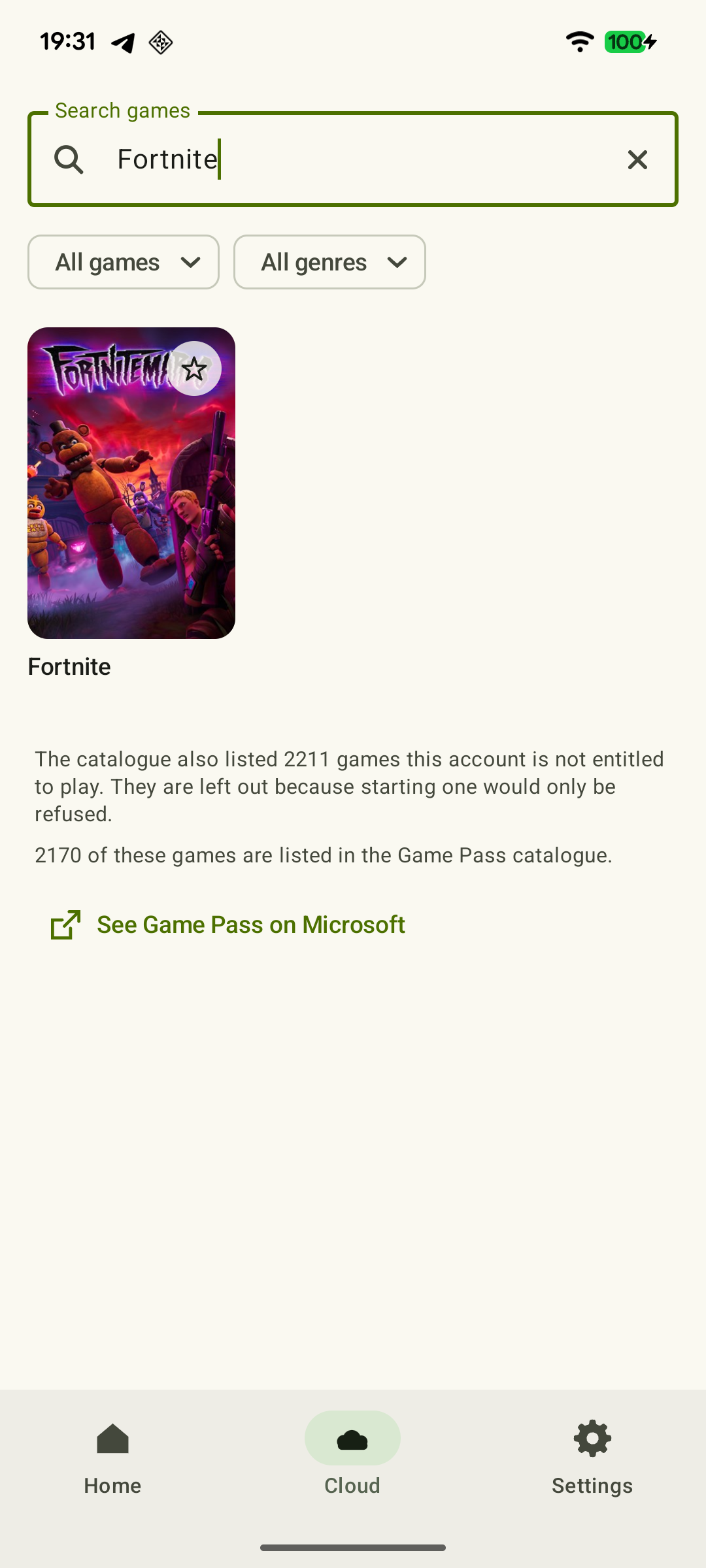
To play Fortnite on Android without your own Xbox, open xbox.com/play in a supported browser, sign in with Microsoft and choose Fortnite. In supported regions, this game does not require paid Game Pass; touch controls and compatible controllers are supported. If Fortnite is already installed on your Xbox, you can stream it to your phone through Remote Play, including with XBPlayer.
Choose where Fortnite will run
| Method | What you need | Where the game runs |
|---|---|---|
| Xbox Cloud Gaming | A free Microsoft account, a supported region, device and browser, and stable internet | On a Microsoft server; no Fortnite installation is needed on your phone |
| Remote Play through XBPlayer | Xbox One or Series X|S with Fortnite installed and remote features enabled, an Xbox account and a connection to the console | On your Xbox; the phone receives the stream and sends inputs |
| Mobile Fortnite | A compatible Android phone, the installed game and an Epic account | On your phone; online play still requires internet access |
Epic confirms free Fortnite cloud play through Xbox Cloud Gaming. That is Fortnite's arrangement within Microsoft's service. Other cloud games and XBPlayer access have separate terms.
To install the game on your phone, start from the official Fortnite Android page: it currently offers Epic Games Store and Google Play. Choose the option available for your device. These instructions cover phones and tablets; Android-version availability does not establish Android TV compatibility.
Launch the game using your chosen method
Xbox cloud play without a console
- On Android, open xbox.com/play in a supported browser, such as Google Chrome or Microsoft Edge.
- Sign in to the Microsoft account whose Xbox profile is linked to your Fortnite progress. If you previously played only on PC or a phone, first check that Xbox is linked to the correct Epic account.
- Select Fortnite and start the session. Wait for the lobby, then check your name and familiar items.
- Use the provided touch controls or connect a compatible controller to your phone.
If launching is unavailable, check support for your region and browser, and make sure you are signed in. Buying Game Pass is not required to resolve this kind of Fortnite error. Access terms and links to supported devices are on the Xbox Cloud Gaming page.
 Enlarge screenshot
Remote Play from your Xbox
- Install or update Fortnite on the console itself and launch it to the lobby. Make sure the correct Xbox profile and familiar progress are selected.
- Enable Xbox remote features. For the first connection, leave the console on and connect your phone to the same home network.
- Open XBPlayer on your phone, sign in with Microsoft and connect to your console through Remote Play. You should see Fortnite running on your Xbox.
- Choose an XBPlayer on-screen layout or the controller connected to your phone. Check the controls before starting a match.
If Fortnite will not launch on Xbox itself, fix the console-side problem first. If the game works but XBPlayer will not connect, check remote features and the connection. Remote Play streams the game installed on the console; a detailed comparison of launch methods is in the Remote Play and cloud guide.
Check progress through your Epic account
For shared progress, Xbox and mobile Fortnite must use one Epic Games account. You do not need to copy a save file from the console to Android. Before the first match, check your name, locker items and familiar progress. V-Bucks have separate rules for moving between platforms: a currency balance alone is not a substitute for checking the account.
If items or progress are missing, open Epic's Xbox syncing guide and check sign-in through the Xbox icon. Do not unlink accounts at random or purchase content again. Epic warns that separate progress from multiple accounts cannot be merged into one.
Adjust controls in the app that provides them
- Mobile Fortnite. It has its own touch interface. Following Epic's instructions, open the profile icon at the top right, then the three-line menu and HUD Layout Tool. Action guidance is in the same menu under Controls Help.
- Official cloud play. Fortnite supports mobile touch controls and compatible controllers. Touch support here does not establish that another client has the same gestures or menus.
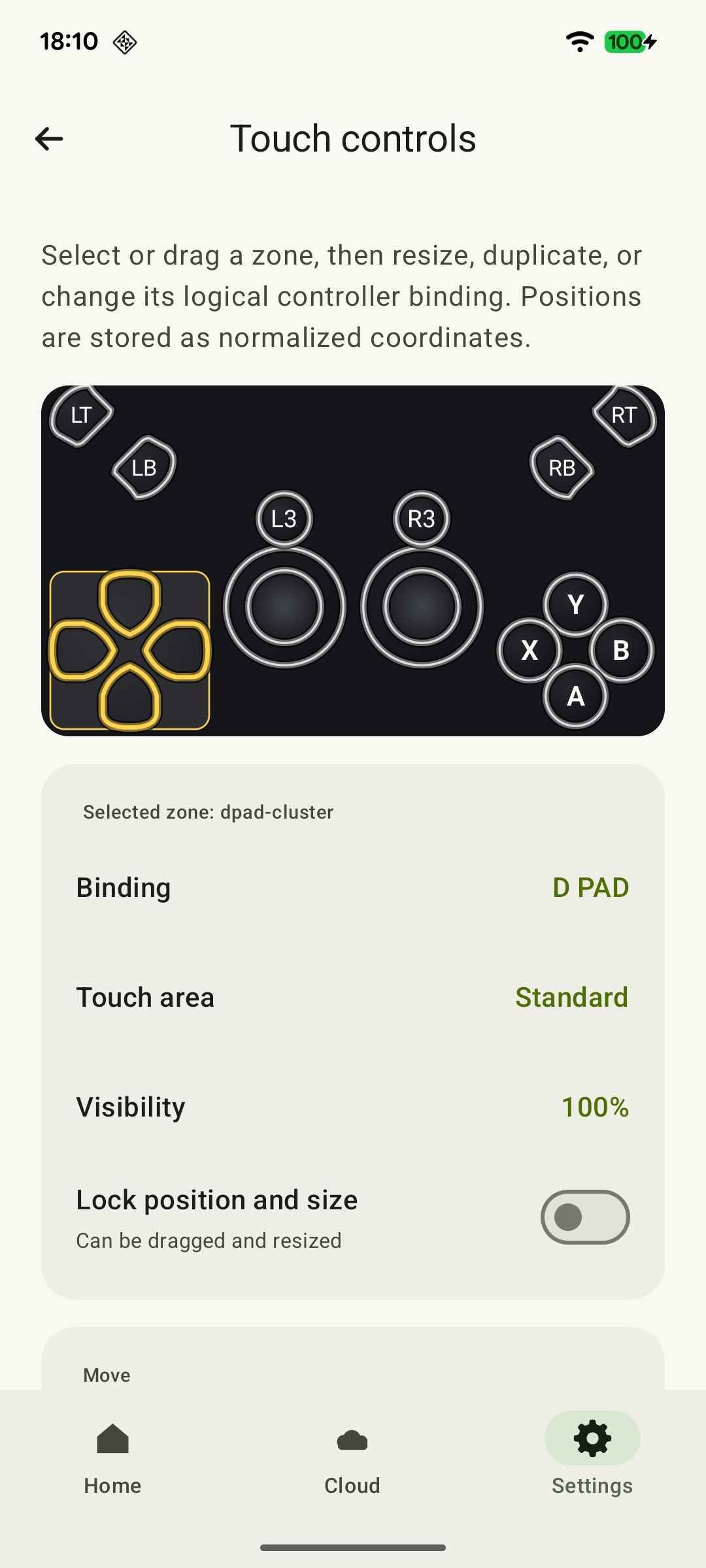
- XBPlayer. On-screen sticks, triggers and buttons are configured in the client: you can change size, position and assignments, and save layouts. This is a virtual controller over the stream, not Fortnite's mobile-interface editor.
Save a comfortable layout first, then change one control at a time. Keep the crosshair, ammo count and quick item selection clear. If your fingers regularly cover an opponent, try a physical controller. Button placement principles are explained in the shooter touch-control guide.
 Enlarge screenshot
Check Zero Build and building separately
Zero Build removes building, letting you focus on movement and firefights. The building variant adds placing and editing structures; choose it if that part of combat interests you. Look for the Build/Zero Build choice in Battle Royale options: the toggle is confirmed in Epic's official update notes. A separate Zero Build tile is not required.
For Battle Royale with building, add selecting a piece, placing it and editing to your check. On a practice island available in your game, complete one sequence: move while turning the camera, jump, pick up an item, switch weapons, aim and perform the building actions you need. Repeat it after changing the layout. Judge whether the whole sequence feels comfortable. If inputs are delayed, check the connection separately.
Fortnite modes are not equally available on every device. In particular, Epic says Save the World is unavailable on mobile devices both locally and through cloud services. Having that mode on your home Xbox does not mean it will appear in an Android cloud session.
Check communication before a team match
Ask a friend to confirm that they hear your microphone through your chosen setup. Hearing game audio in your headphones does not establish this. Then check target and indicator readability in motion and start with an unranked match. General criteria for choosing controls and modes are in the phone shooter guide.
After setup, play a regular match in your chosen variant and leave time to finish it. For an Xbox party through Remote Play, there is a separate microphone and Party Chat setup; Fortnite's own voice belongs to the game's settings.
Fortnite check before your first match
First choose how to launch the game and set up controls using the article. Mark what works in your game; check voice if you plan to play with a team.
The correct lobby is open on your phone
Open Fortnite using your chosen method: official Xbox Cloud Gaming, Remote Play from your Xbox or the standalone Android game. For Remote Play, first check that it launches on the console itself.
Xbox Remote Play or Xbox Cloud Gaming: which should you use? →Your familiar progress is there
Compare the profile, locker items and familiar Epic progress. If they differ, stop and check account linking; do not unlink Xbox at random or buy items again.
The main actions are accessible
In a quiet practice session, move while turning the camera, jump, pick up an item, switch weapons and aim. If a finger covers the target, change one control and repeat the same check. The linked guide covers XBPlayer's on-screen buttons; in the standalone Android version, use Fortnite's own control editor.
Touch controls for shooters: an Xbox Remote Play layout →Your chosen Battle Royale variant is checked
In Zero Build, movement, looking and firing are accessible. If you chose building, placement and editing are also accessible. You do not need to check the other variant to mark this item.
For team play: communication is checked
Ask a teammate to confirm they can hear you through your chosen channel, and check their reply. If there is no voice, check microphone permission and the input device in the communication app you use.
After practice, start with an unranked match. If inputs are delayed or the picture freezes, check your connection before the next game.
Sources and further reading
- Epic: Fortnite on Xbox Cloud Gaming — The official free Fortnite launch method through a browser with Xbox Cloud Gaming, touch controls and controllers.
- Xbox Cloud Gaming — Xbox Cloud Gaming: supported games, regions, devices and access requirements.
- Xbox Remote Play — Streaming installed games from your own Xbox One or Series X|S with remote features enabled.
- Epic: Fortnite on Android — Official Fortnite installation options on Android through Epic Games Store and Google Play.
- Epic: purchases and progress across platforms — Shared progress with one Epic account; separate V-Bucks conditions.
- Epic: sync Xbox progress across devices — Checking the account by signing in through Xbox; progress from different accounts cannot be merged.
- Epic: customize the HUD on Mobile — Confirmed path to the HUD Layout Tool in mobile Fortnite.
- Epic: controls on Fortnite for iOS/Android — Path to the built-in Controls Help.
- XBPlayer — Remote Play and Xbox Cloud Gaming — XBPlayer: Remote Play, Xbox Cloud Gaming, controller support and customizable on-screen controls.
- Epic: Battle Royale — Zero Build is a Battle Royale variant without building.
- Epic: v41.00 update notes — The official fix note confirms a Build/Zero Build toggle when entering BR/Reload.
- Epic: Save the World on mobile devices — Save the World is unavailable on mobile devices locally or through cloud gaming; this support page does not establish Remote Play restrictions.
Get the key points
Open a summary request with this article’s link. For Gemini, the request is copied — paste it into the chat.