
What to play
Diablo IV on Android Through Xbox: Launching, Characters and Controls
Keep playing your character, use your familiar skill rotation and choose loot for your build. Learn how to launch the game, use the controls and end the session properly.
On this page
Diablo IV on Android through Xbox lets you continue your character, fight with a familiar build and sort loot after returning to town. Remote Play streams the game from your console; the cloud option requires Diablo IV access in Xbox Cloud Gaming. First choose the correct Battle.net character, then prepare your frequently used skills, evade and potion.
Prepare Xbox and connect from your phone
- Install and update Diablo IV on Xbox. Make sure your profile has access to the game and any required expansions. Launch the game on the console itself first: it should connect to the servers and show your characters.
- Enable Xbox remote features and set up the connection using the first Remote Play launch guide. Diablo IV requires internet and a Battle.net account; online multiplayer on a console requires a suitable Game Pass subscription.
- Sign in to XBPlayer on Android with the correct Microsoft account, choose your console and connect through Remote Play. Use a compatible controller or XBPlayer's on-screen buttons.
If Diablo IV already fails to launch on the television, resolve game access, updates or the Blizzard connection first. Stream settings will not fix that error. If everything works on the console but the phone will not connect, start with Remote Play troubleshooting.
Xbox Cloud Gaming is a separate launch method without your own console. Before choosing it, find Diablo IV in your account's cloud catalog and check whether you can launch it in your region and plan. Having it installed on Xbox does not by itself establish cloud access. Service terms are covered in the subscriptions and payment guide.
Find your character and check Battle.net
On the character screen, check the name, level and realm: Seasonal or Eternal. Also make sure you have selected the right character mode, including Hardcore if you play it. Use a regular character for your first connection and new-layout check.
Diablo IV progress is stored with Blizzard and tied to the Battle.net account you played on. With Remote Play, you continue the same console session; no save needs to be moved to Android. If characters are missing, first check the Xbox profile and linked Battle.net account. Do not change links at random: connecting a different account may remove access to your previous progress. If you cannot find the original account, contact Blizzard support.
Diablo IV supports cross-progression, but game and expansion entitlements must be checked separately. On another platform, use the same Battle.net account and make sure the required content is available. Diablo Immortal is a separate game; you cannot continue a Diablo IV character there.
Try skills, evade and healing
In a familiar place without a difficult fight, repeat your character's normal sequence: movement, an attack skill, a second skill, evade and a health potion. Then try it while changing direction. Every needed action should remain accessible without spending time looking for buttons.
 Enlarge screenshot
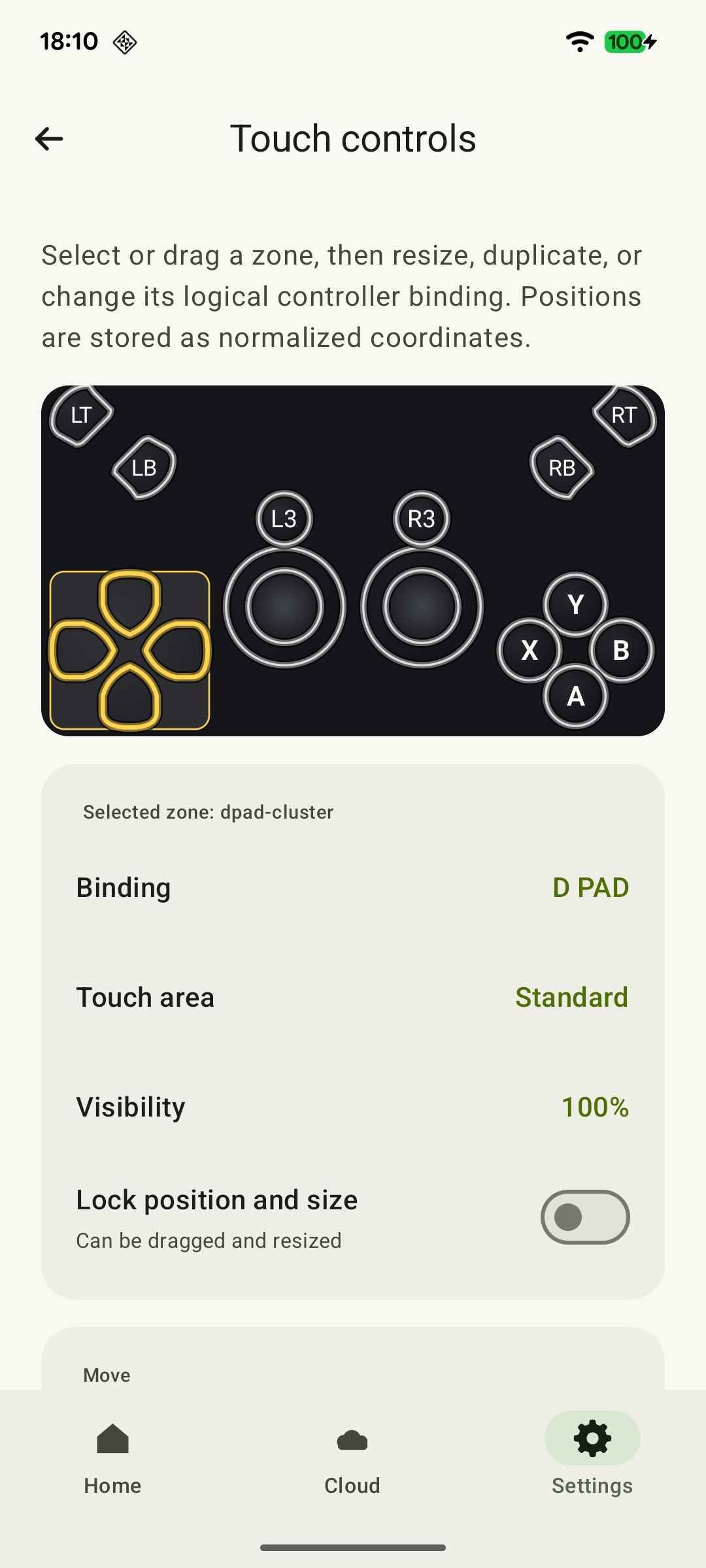
On a touch screen, leave enough space between skills, evade and the potion. If a finger covers an enemy or interferes with movement, reposition the button in XBPlayer. Then repeat the sequence: check your own build, because its input frequency and targeting requirements are specific to it.
Diablo IV's own settings let you remap controller buttons. Held skills can be toggled with a press, and targeting can retain a target lock. Try a relevant option in a quiet situation and change one setting at a time so you can understand the result. If on-screen buttons do not support confident combat for you, connect a physical controller.
Enlarge text before sorting loot
First open Diablo IV's settings and choose a larger font size. Then open your inventory in town and compare two items from the same category. Make sure you can read properties, trigger conditions and confirmation prompts, not just rarity colors and large numbers.
Place XBPlayer's buttons so they do not cover comparison panels. Larger on-screen buttons are easier to hit, but game text size is changed separately. If even the larger font is uncomfortable, use the small-screen interface check or continue on a tablet or television.
Until then, postpone selling, salvaging and other important decisions about unfamiliar items. An item that looks worse on one statistic may help your build through other properties.
Leave the game before disconnecting the stream
For a short break, choose one familiar goal and allow time to return to town. An activity's name does not guarantee its duration: that depends on difficulty, character and group. If playing with others, agree on when to leave and check communication beforehand. Hearing game audio is not enough to confirm that the microphone works.
- Finish the fight and return to town. If using a portal, wait for the transition to finish and your character to appear in town.
- Use Diablo IV's menu to leave the current game and wait for character selection.
- Then end the stream in XBPlayer.
Do not treat an open menu or minimized XBPlayer as a safe break. With Remote Play, disconnecting the phone does not itself end the game on Xbox. Saved character progress does not mean you will resume an unfinished activity at the same second after signing in. Do not rely on closing the client to save a character when the connection drops.
End your first mobile session this way after a few ordinary fights. Once controls, item reading and quitting feel straightforward, choose a longer goal. The short-session guide helps with planning; continuing on another device is covered in the saves and versions article.
For a self-contained session, choose a familiar combat task and finish by returning to town: compare loot, clear inventory space and leave to character selection. In Hardcore, do not use a stream disconnect to escape danger. For an Xbox party through Remote Play, use the Party Chat setup; in-game voice is configured separately.
Sources and further reading
- Diablo IV — Xbox — Xbox One and Series X|S, cross-progression, edition contents, required internet/Battle.net and a console multiplayer subscription.
- Xbox Remote Play — Streaming installed games from your own Xbox One or Series X|S with remote features enabled.
- XBPlayer — Remote Play and Xbox Cloud Gaming — XBPlayer: Remote Play, Xbox Cloud Gaming, controller support and customizable on-screen controls.
- Blizzard Support: Lost Progress, Cosmetics, Licenses after Link Change? — Official support-staff post: progress is stored with Blizzard and tied to the original Battle.net account; changing links may hide previous characters.
- Blizzard: Combatting Demons with Accessibility in Diablo IV — Text size, button remapping, toggled held skills and persistent target lock.
- Blizzard: Prepare for the Reckoning — Lord of Hatred Draws Near — Seasonal versus Eternal Realm; expansions and general updates have separate access requirements.
- Xbox Cloud Gaming — Xbox Cloud Gaming: supported games, regions, devices and access requirements.
Get the key points
Open a summary request with this article’s link. For Gemini, the request is copied — paste it into the chat.