
What to play
Age of Empires II on Android Through Xbox: Launching and Controls
Launch the Xbox version of Definitive Edition and start with the Wallace campaign. Learn unit selection, the radial menu, minimap and pausing before your first major battle.
On this page
You can play Age of Empires II: Definitive Edition on Android by streaming from your Xbox One or Series X|S with Remote Play, or through Xbox Cloud Gaming if you have access to the game. For your first session, connect a controller and start the single-player William Wallace campaign. It teaches the console commands while helping you judge whether the map is readable on your screen.
Your phone receives the Xbox version. This does not install the PC version on Android; Age of Empires Mobile is a different game.
Prepare the game and choose a stream source
For Remote Play, install Age of Empires II: Definitive Edition on your Xbox and make sure it launches under the correct profile. You need game access through a purchase or a subscription that includes it. Expansions depend on your edition and licenses. Then enable console remote features and connect from XBPlayer; the steps are in the Remote Play on Android guide.
 Enlarge screenshot
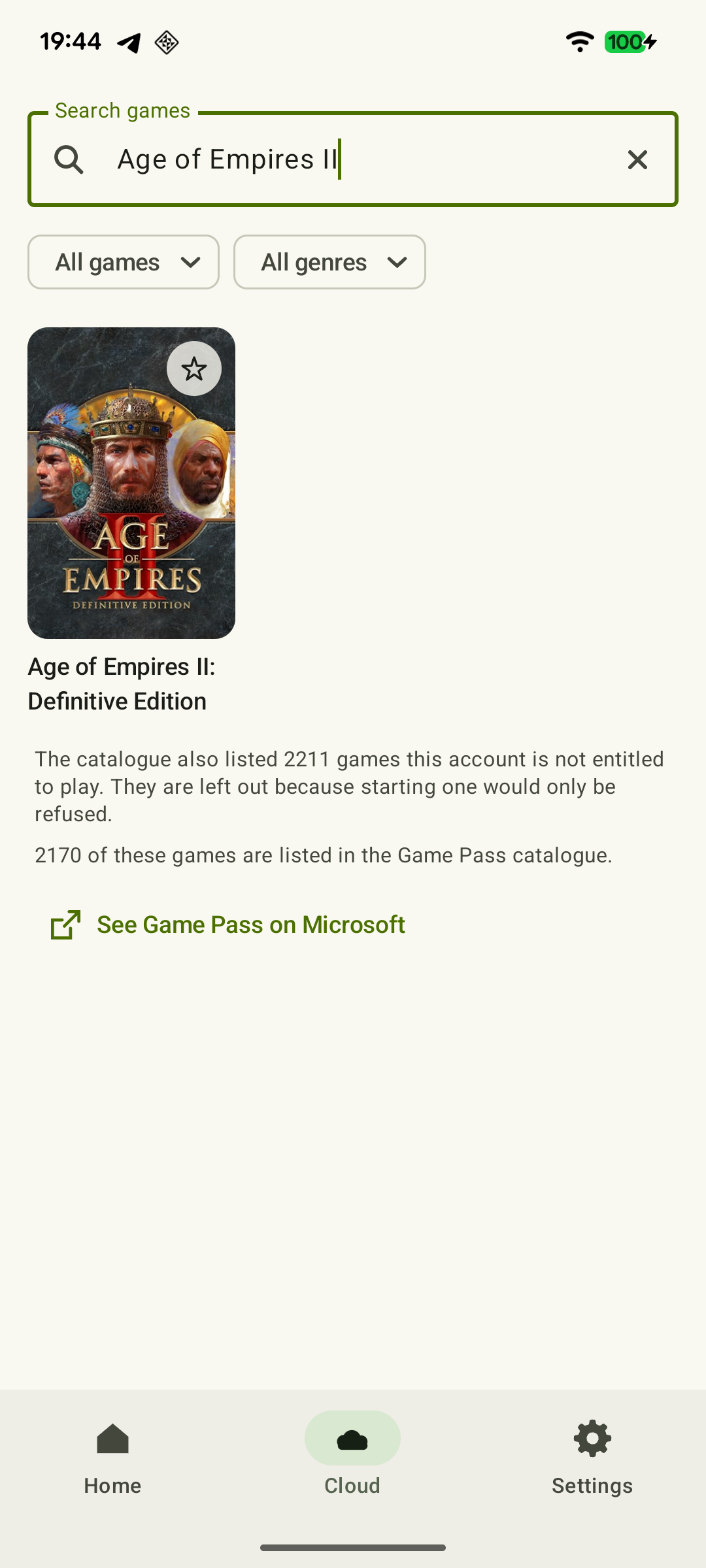
Cloud play does not require your own console. The Xbox listing marks the game as available for cloud play, but check it in the catalog under your account before a session: access depends on region and Game Pass plan. If launching is unavailable, compare the listing's requirements and profile first. Installing XBPlayer does not itself provide the game or a subscription. The two connection methods are explained in the Remote Play and Cloud Gaming comparison.
Connect a compatible controller to Android by Bluetooth or USB, open the stream and try navigating the game menu. If the game also fails to launch on the console itself, address that first; phone picture settings will not fix it.
Start with the William Wallace campaign
The official Xbox guide recommends this campaign for learning the basics. From the main menu, choose Single Player, then Campaigns and William Wallace. Confirm with A. Even if you have played extensively on PC, complete the first missions: the console interface uses a different input scheme.
Follow the campaign objectives in order: assign a villager to gather resources, switch to a building and return to the selected villager. Finish the current tutorial objective before moving on, so the commands immediately contribute to developing your settlement. Later, select a small group of troops and send them toward a visible landmark. The result should be clear on screen: the right object is selected, villagers are working and the group moves to the chosen spot.
If a neighboring object is selected, do not press repeatedly. Check the cursor position and highlight first. This makes it easier to distinguish missing a small target from a delayed command.
Learn object selection and the radial menu
These basic commands come from the official Xbox guide. They apply to the default scheme; after remapping, follow the game's prompts and your XBPlayer profile.
 Enlarge screenshot
| Task | Action |
|---|---|
| Select an object | Place the cursor over a villager, unit or building and press A. |
| Move selected units | Place the cursor over an empty location and press A. |
| Open an object's commands | Hold RT to open the radial menu. |
| Return to the Town Center | In the normal map view, press D-pad down. |
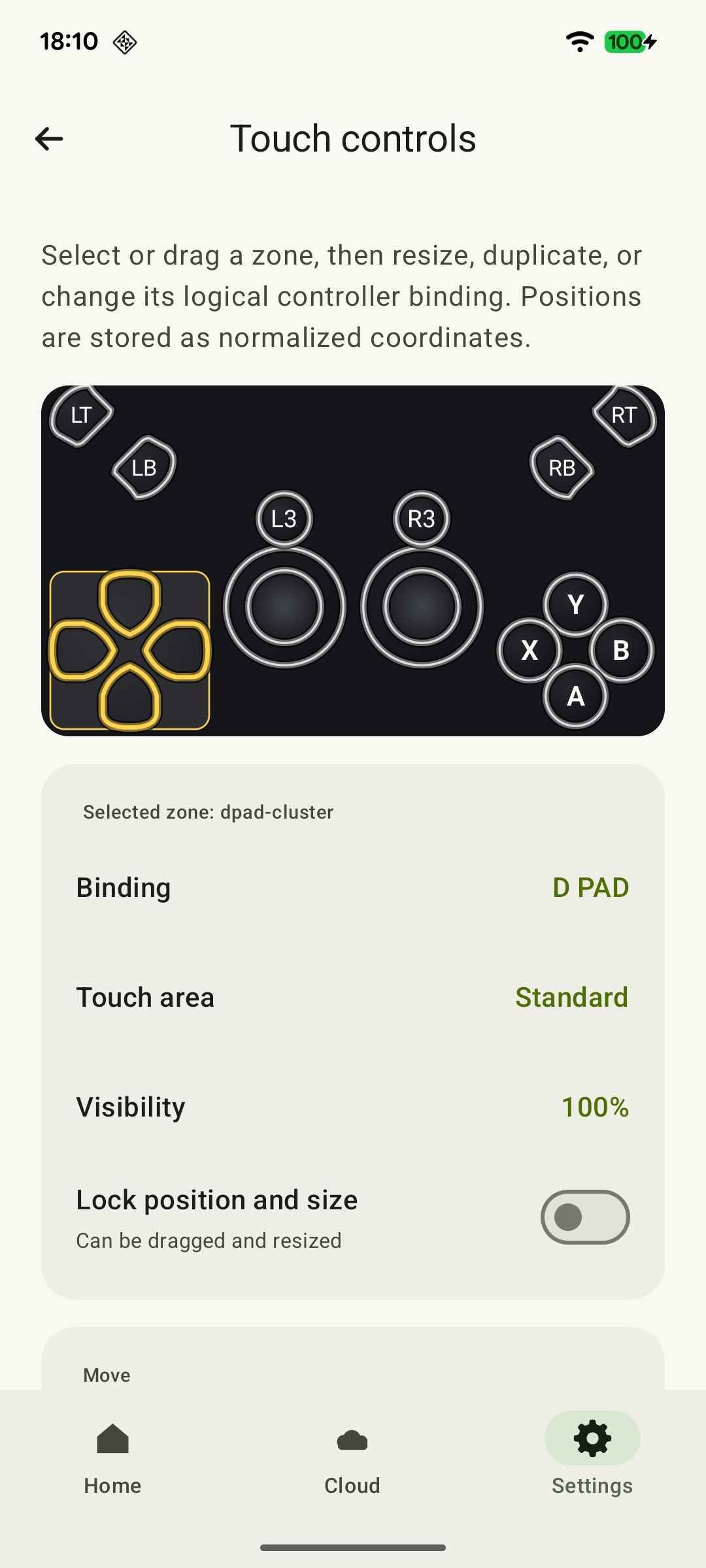
Check whether you can read a command's name and cost without closing the menu. A physical controller leaves the screen clear of fingers. With on-screen controls, position buttons so resources and the minimap remain visible, and try holding RT separately. For setup, see the XBPlayer touch-layout guide.
Tapping a unit in the video stream does not replace a mouse click: XBPlayer's on-screen controls send controller commands. The Xbox version itself supports a mouse and keyboard. For XBPlayer, start with the controller scheme described here. Mouse support in the Xbox game does not mean touches on the stream become mouse clicks.
Try the minimap and moving between areas
In the default scheme, RB expands the minimap. On the expanded map, move the cursor to a location and press Y to move the main view there. Note that D-pad assignments change while the minimap is expanded.
First find your base, then a distant group of troops. Move to the group, issue one order and return to the economy. If every transition ends in a long search, repeat the exercise in a quiet mission and assess whether the icons are distinguishable.
A dense group of units is a more useful screen check than one large building. See whether you can distinguish selected soldiers from their neighbors while keeping track of resource stocks. If the stream is sharp but elements remain too small, moving on-screen buttons will not enlarge the game's interface. Check available display settings in the game itself or repeat the same section on a larger screen. Selection criteria are covered in the Android TV gaming guide.
Use the game's pause and check how to resume
In single-player, the Menu button (≡, called Start in the guide) opens the menu and pauses the game. In multiplayer, the same menu opens without stopping the match. Minimizing the stream or opening XBPlayer's panel does not replace the game's pause.
Before a long session, check saving in your chosen single-player scenario. If manual saving is available, create a separate test save, find it in the load list and confirm that it returns to the expected point. Do not overwrite an important game for this check. If the save is missing, check the profile and the game version you launched first.
Move on to a major battle once you can confidently issue orders and return to your economy. Add an online match after that: there, searching for buttons and studying the map takes time while opponents keep acting.
Try the AoE II tutorial on your phone
A short summary of your introduction to Xbox controls. Only mark saving where it is available; this is not a required repeat before every game.
The villager carries out the assigned task
Assign a resource-gathering task, switch to another object and find the villager again. They should be working where you intended. If you missed, check the cursor and highlight first.
The command and cost are readable
Open the selected object's radial menu and read the command name and cost. If an on-screen button covers a label, change the layout and try again.
Xbox touch controls in XBPlayer: buttons, layouts and transfers →You can return from your troops to the base
Use the minimap to reach a group, issue one order and return to your economy. If icons are indistinguishable even in a sharp picture, check the game's display settings or a larger screen.
Small Text in Xbox Games on Your Phone: What You Can Adjust →The single-player pause stops the action
In a single-player mission, open the game menu and check that movement stops. XBPlayer's panel cannot do this; opening this menu in an online match does not stop opponents.
If available: manual saving is checked
Create a separate test save, find it in the load list and check that it returns to the intended point. Do not overwrite an important game. If saving is unavailable, skip this item.
Start a major game after checking the commands you need. Successful single-player pausing does not establish that an online match can be stopped.
Sources and further reading
- Getting Started with Age of Empires II: DE — Xbox — The William Wallace campaign and official tutorial-launch path through Single Player and Campaigns.
- Controlling Your Empire & Gathering Resources — Xbox — Basic console-layout commands, the expanded minimap and the distinction between single-player and multiplayer pausing.
- Age of Empires II: Definitive Edition — Xbox Store — Xbox One, Series X|S, cloud play and console mouse/keyboard support. Individual account access is checked separately.
- Xbox Remote Play — Streaming installed games from your own Xbox One or Series X|S with remote features enabled.
- Xbox Cloud Gaming — Xbox Cloud Gaming: supported games, regions, devices and access requirements.
- XBPlayer — Remote Play and Xbox Cloud Gaming — XBPlayer: Remote Play, Xbox Cloud Gaming, controller support and customizable on-screen controls.
Get the key points
Open a summary request with this article’s link. For Gemini, the request is copied — paste it into the chat.