
What to play
Baldur's Gate 3 on Android: Xbox streaming and controls
Use your Xbox Series X|S or Xbox cloud play for Baldur's Gate 3 on Android. Connect first, then try radial menus, text and saving.
On this page
You can play Baldur's Gate 3 on Android through XBPlayer: stream the installed game from your Xbox Series X|S with Remote Play, or launch a version available to your account in Xbox Cloud Gaming. The phone receives picture and sound while the game runs on a console or cloud server. You can finish a conversation, make a party decision or complete a turn-based battle on your phone. Set up radial menus and text so you can choose dialogue or a target without guessing, then save the result before a break.
How to launch BG3 from your Xbox
- Prepare the console. Install BG3 and available updates on Xbox Series X|S. Launch it under your profile and open the campaign you want. Xbox One cannot install this console version.
- Enable Xbox remote features. Leave the console on for the first connection and check Remote Play at home. General preparation is covered in the playing Xbox on a phone guide.
- Connect from Android. Install XBPlayer, sign in to the correct Microsoft account and choose your console for Remote Play. Connect a compatible controller to the phone or use XBPlayer's on-screen buttons.
- Check the campaign. Your phone should show the game from the same Xbox. Find the desired save and make sure the correct characters and location have loaded.
Remote Play does not require exporting a save to Android or enabling Larian Cross-Save: you continue playing on your own console. If the campaign also fails to open on the television, first address game launching, the profile and required mods on Xbox. Video-stream settings will not fix a save-loading error.
Can you launch BG3 without your own console?
The Xbox Store listing shows Baldur's Gate 3 as available for cloud play with a game purchase and Xbox Game Pass Essential, Premium or Ultimate. This method does not require your own Xbox. Open XBPlayer's cloud library under your account and check the BG3 listing: launching also depends on region and account entitlements. Cloud support does not mean the game purchase is included in the subscription.
Before moving from your Xbox to the cloud, wait for progress to synchronize and check the desired save. BG3 has a separate Larian Cross-Save service for transfers between platforms; it is not part of the Remote Play connection. The different ways to continue are explained in the Xbox and cloud saves article.
Try the radial menu before your first fight
With a controller, BG3 places actions in circular, or radial, menus. Follow button prompts in the installed game: XBPlayer remappings can change familiar inputs.
 Enlarge screenshot
- In a quiet location, open the action menu and find a basic attack, jump and a frequently used ability. Move to the neighboring radial and back.
- Highlight an ability that requires a target and read its description. Cancel target selection before executing the action. Canceling preparation does not refund resources already spent or undo a completed turn.
- Switch to another party member and repeat the search. Their actions differ, so checking one familiar radial is not enough.
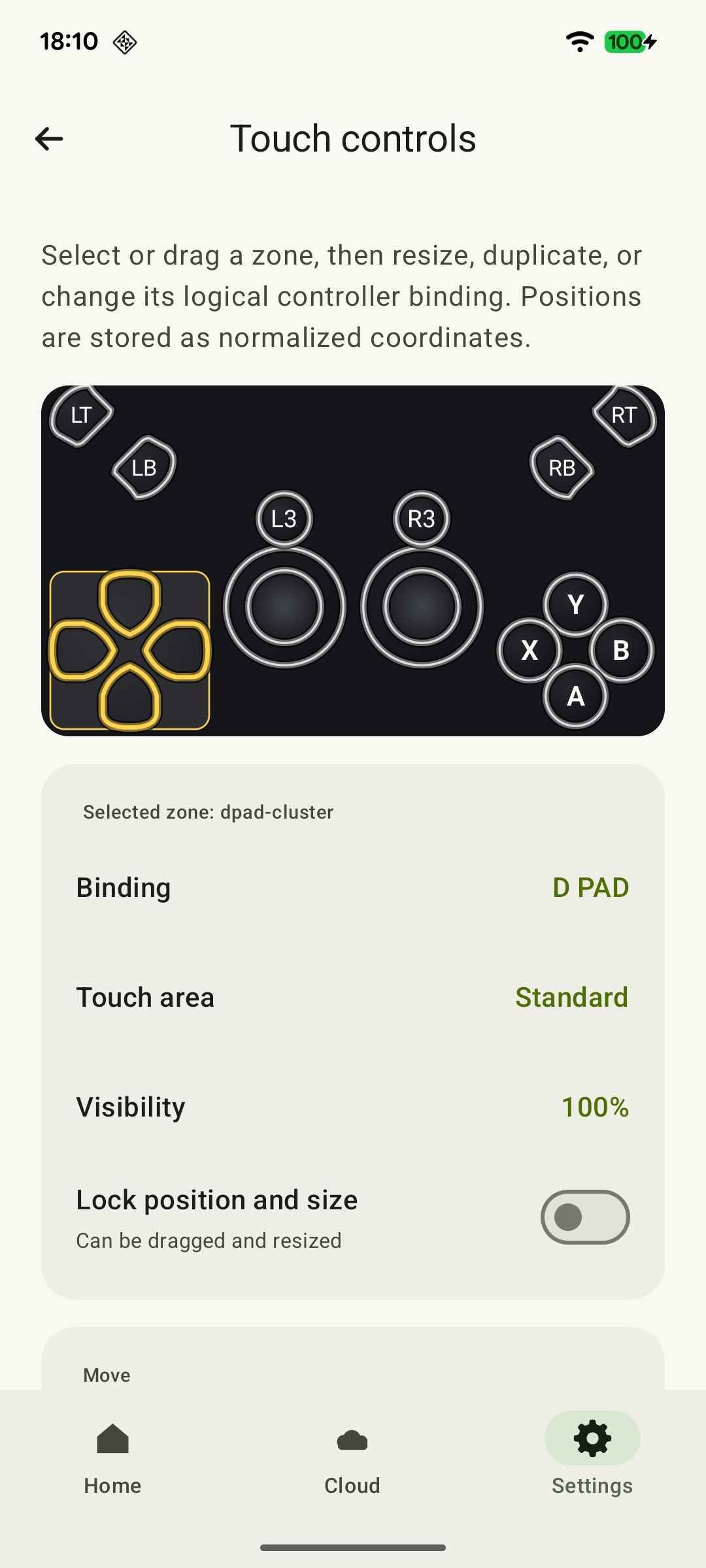
XBPlayer's on-screen buttons send controller commands; they do not provide direct touch control of BG3's items and characters. Position buttons and sticks so your fingers do not cover the selected ability's label. Save a working layout before changing it; details are in the touch-control guide. The contents of the radial menus themselves are changed in the game.
If a menu freezes or selections behave incorrectly, compare the same situation on the television with a controller connected to Xbox. If the problem repeats, check BG3 updates: Larian has released fixes for radial-menu freezes. If it happens only on the phone, check the touch layout and the controller connected to Android separately.
Compare dialogue, an item and a book
Open a long line of dialogue, an item description and a book or note. Read them at your usual phone distance. In an item description, you need to distinguish small numbers and effect conditions, not just the name.
Check BG3's available subtitle and text options. Book Text Size in the English interface also applies to notes and scrolls. It is not a universal interface scale: after changing it, look again at an ability description and the inventory.
A physical controller keeps fingers off the screen but does not enlarge the font. If labels remain too small, try a tablet or larger screen. More checks are in the small text in Xbox games article.
Check the target before confirming in combat
Turn-based combat gives you time to decide, but neighboring figures are easy to confuse on a phone. Before attacking, read the selected target's name and check range and action cost. Before moving, inspect the destination and remaining movement.
For the first check, choose a familiar campaign in which you can return to a save. Try moving, a basic attack and a targeted ability. Do not practice unfamiliar inputs in a valuable Honour Mode campaign: that mode does not let you freely return to previous saves to undo a poor decision.
Save before disconnecting the stream
Closing XBPlayer does not replace saving or guarantee that the game stops. Finish the dangerous section, save using an option available in your campaign and wait for writing to finish. For a long break, return to BG3's main menu, then end the stream. At the next launch, check the location and time of the desired save.
In co-op, coordinate saving and leaving with the host. BG3 supports online co-op for up to four players; since Patch 8, Xbox, PC, Mac and PS5 can also play together. Console online co-op needs a Game Pass plan with online multiplayer access; Remote Play does not remove that requirement. Friends join through BG3 itself.
For your first continuation, choose a conversation you want to finish or a familiar encounter in a regular campaign. Save after the result; in co-op, agree on stopping with the host. Checking that a save reloads only needs to be done during initial setup in a safe campaign—it is not a required step after every conversation or fight.
A first BG3 session on your phone
A one-time check of controls and continuing the campaign. Use a safe regular campaign to try saving; you can include the result in the support request below.
The correct campaign has loaded
Check characters and location after connecting to your Xbox or the cloud. If they differ, check the profile and source; Remote Play does not require enabling Larian Cross-Save.
Xbox Cloud Saves: How to Continue a Game from Your Console →An ability can be selected and canceled before execution
Move between radials, highlight an ability that requires a target and cancel preparation. Repeat with another party member. If the label is covered, adjust the layout.
Xbox touch controls in XBPlayer: buttons, layouts and transfers →Dialogue, an item and a note are readable
Read a long dialogue line, item properties and a note. After adjusting text, check all three screens: Book Text Size does not enlarge the entire interface.
Small Text in Xbox Games on Your Phone: What You Can Adjust →The target is distinguishable before confirmation
Select a target for a suitable ability, read the name, range and cost, then cancel. This check does not require attacking or spending a resource.
Saving and reopening have been checked
Save using an option available in your test campaign and wait for writing to finish. Return to BG3's main menu, reload the save you checked and compare location and characters. In co-op, the host does this by agreement.
Canceling a selection does not undo an executed turn. After normal play, also wait for saving before disconnecting the stream.
Sources and further reading
- Baldur’s Gate 3 — Xbox Store — Xbox Series X|S version, cloud play for the purchased game, online co-op and Xbox Play Anywhere.
- Xbox Remote Play — Streaming installed games from your own Xbox One or Series X|S with remote features enabled.
- XBPlayer — Features and Getting Started — XBPlayer: Remote Play, Xbox Cloud Gaming, controller support and customizable on-screen controls.
- Touch Controls: Make Them Your Own — XBPlayer — XBPlayer on-screen control positions, sizes and transparency, saving layouts and deleting unwanted buttons.
- Larian: Patch 7 Now Live — Book Text Size applies to notes and scrolls; an addendum to the announcement confirms the update's console release.
- Larian: Room Temperature Fix #33 — Fixes for freezing when selecting an ability in a radial menu and several Xbox issues.
- Larian: Community Update #25 — Honour Mode restricts returning to previous saves. This informs the choice of campaign for a control check.
- Larian: The Final Patch — Cross-Play — Patch 8: PC, Mac, Xbox and PS5 crossplay, plus Xbox Series S split screen.
- Larian Account Information — Larian Cross-Save is a separate progress-transfer service. Current support also sets storage of copies at up to six months; this is not the retention period for local Xbox saves.
Get the key points
Open a summary request with this article’s link. For Gemini, the request is copied — paste it into the chat.