
What to play
Starfield on Android: Launching, Text and Controls
Continue a quest, explore or fly on Android. Learn how to stream from Series X|S or the cloud, enlarge text, control your ship and save progress.
On this page
Starfield on Android lets you continue a quest, conversation or flight from your Xbox campaign. Remote Play requires Xbox Series X|S with the game installed; cloud play available to your account is the option without your own console. Ground combat and piloting use different commands, so first choose the activity you want to play and prepare the text and controls it needs.
Choose the game source and load the right character
- From your Series X|S. Launch Starfield on the console first and make sure your profile can access the game and load the save you want. Then sign in to XBPlayer on Android, choose your console and connect through Remote Play. Xbox remote features must be enabled; preparation is in the first-connection guide.
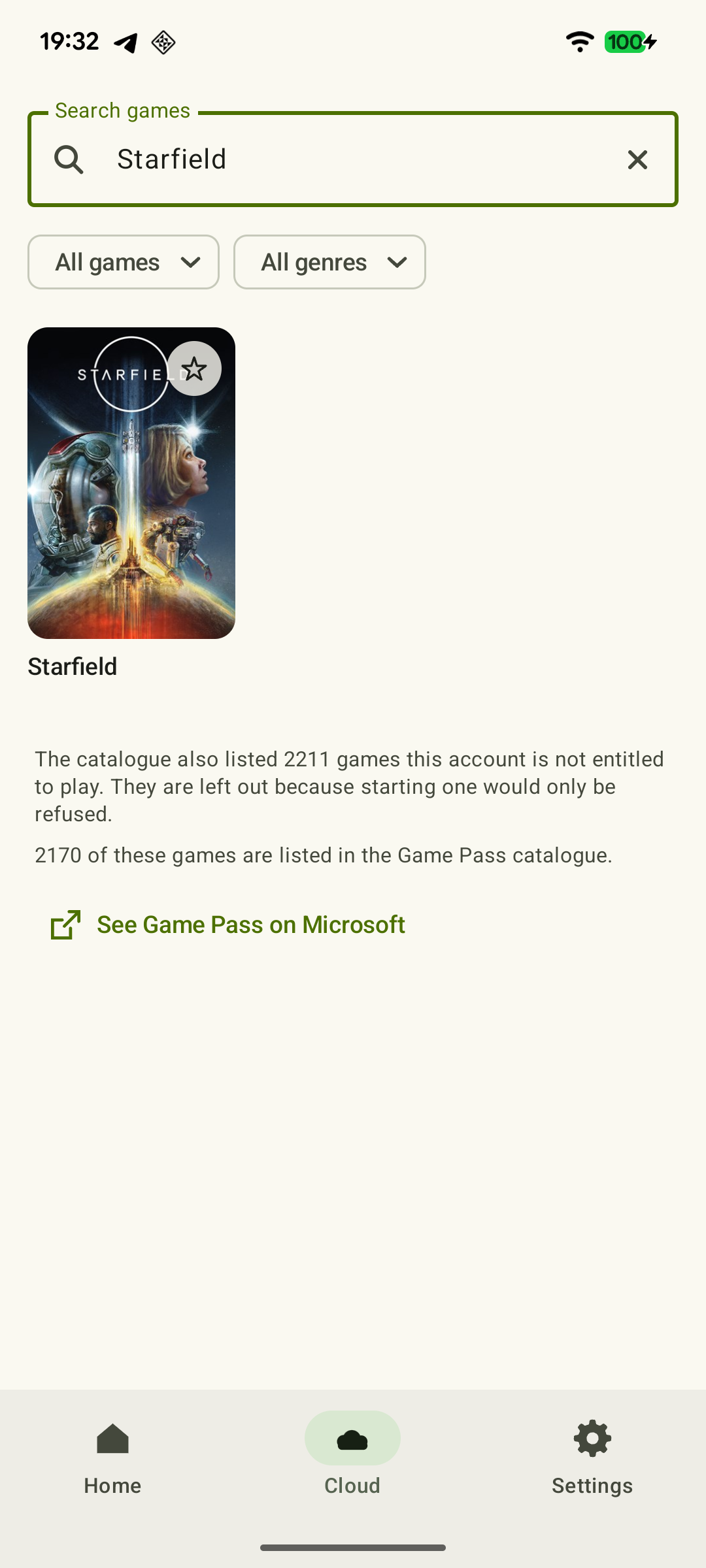
- Without your own console. Sign in to XBPlayer with the correct Microsoft account, open the cloud library and find Starfield. Check launch access under your own account: it depends on region, subscription and game entitlements. If launching is unavailable, start with Xbox Cloud Gaming preparation before buying the game or changing plans.
After loading, check the character, location and current quest. If the save uses add-ons, make sure they are available through your chosen launch method. With Remote Play, you control the same game on your console; no separate save copy is transferred to the phone. Moving between console and cloud requires the same Xbox profile and completed synchronization.
 Enlarge screenshot
If the cloud shows old progress, return to the device you last played on and check the profile and network connection. Do not delete saves as part of this check: Bethesda warns that deleting a file through the game menu also affects its cloud copy. Device-switching steps are in the continuing your game guide.
Set up subtitles and try a long conversation
From Starfield's main menu, open Settings → Accessibility. Enable Dialogue Subtitles for conversations and General Subtitles for other spoken lines. To enlarge menu text, try Large Menu Fonts. These labels refer to the game's English interface; change them in Starfield, not XBPlayer.
Load your save and open a conversation with several replies. Read a long line in full and make sure you can distinguish the selected response. Then open the quest log, find your current objective and return to it after moving to another entry. Check each screen separately: a menu-font setting does not guarantee the same enlargement for every label.
Large XBPlayer touch buttons make pressing easier, but do not enlarge game text. Choose dialogue with control buttons as you would on a controller: the client's touch layout does not turn console menus into directly tappable rows. If text remains too small, try a tablet or larger screen. If letters blur and then become clear again, check stream quality.
Try the inventory without making a test sale
Open one item category and compare two familiar items. Read their mass, stats and effect descriptions, then go back. Navigation is enough for the first check: you do not need to sell or discard anything. Before a real sale, separately check the selected item and action prompt.
In the default Xbox scheme, A confirms a menu selection, B goes back and LB/RB switch tabs. Follow the on-screen prompts for specific item actions. If you remapped buttons in the game or XBPlayer, account for your own scheme.
Position touch controls so your fingers do not cover item descriptions and prompts. A controller clears these screen areas but does not enlarge the font. Prepare equipment for the next part of your quest: read the objective, choose the right weapon and take items you intend to use. When you continue, the menu has a clear purpose—helping you reach the goal rather than spending the whole session sorting inventory. Further checks are in the phone RPG guide.
Check ground combat and flight separately
Create a manual save before trying a new layout. Start in a familiar area: move, turn the camera, aim and perform a normal combat sequence. In the default Xbox scheme, LT aims and RT fires. Check whether you can perform the actions you need simultaneously without covering the enemy with your fingers.
For the ship, run a separate check during a quiet stretch of flight. The default Xbox scheme uses these commands:
| Flight action | Command | What to check on your phone |
|---|---|---|
| Select a target | A | The intended object's highlight is visible |
| Select a ship system | D-pad left/right | The selected system's name and meter are readable |
| Change system power | D-pad up/down | You can adjust the selected system's power and restore it |
| Boost the ship | Left-stick click, LS | The command is accessible in your layout |
| Three weapon groups | RT, LT and Y | All three buttons are easy to reach |
Check assignments in the game's Settings → Controls. If ground controls feel comfortable but allocating ship power is awkward, change the layout or connect a controller. For a session of conversation and trading, choose a place where you can save before moving into difficult combat.
Save before disconnecting the stream
From normal gameplay, press Menu twice to open the pause menu. When saving is available, choose Save and create a separate file. Quicksave also records progress, but the next quicksave replaces the previous one. Wait for saving to finish and check the new entry in Load.
Then end the session. Closing XBPlayer does not replace saving in Starfield. If you plan to play in the cloud next, quit the game on the console, leave the console connected to the network and wait for synchronization at the next launch. Check a familiar reference—location, quest or equipment—before continuing.
Sources and further reading
- Starfield — Xbox Store — Xbox Series X|S, PC and Xbox Cloud Gaming platforms; Xbox cloud saves support.
- Xbox Remote Play — Streaming installed games from your own Xbox One or Series X|S with remote features enabled.
- XBPlayer — Features and Getting Started — XBPlayer: Remote Play, Xbox Cloud Gaming, controller support and customizable on-screen controls.
- Starfield — Xbox Cloud Gaming — Starfield's cloud listing and Xbox cloud saves support; launch terms are displayed for the account.
- Xbox Cloud Gaming — FAQ — Xbox Cloud Gaming: supported games, regions, devices and access requirements.
- Bethesda Support — Enabling Starfield Subtitles — Settings → Accessibility and separate General and Dialogue subtitle switches. The linked official screenshot includes Large Menu Fonts.
- Bethesda Support — Xbox Controller: Controls, Starfield — Default buttons for menus, ground combat and the ship; remapping is taken into account.
- Bethesda Support — Starship Piloting: Controls — D-pad power allocation, LS boost, RT/LT/Y weapons and piloting settings.
- Bethesda Support — Starfield Saves — Pressing Menu twice opens the pause menu; Save versus Quicksave; deleting through the menu also affects the cloud copy.
Get the key points
Open a summary request with this article’s link. For Gemini, the request is copied — paste it into the chat.