
Controls
Xbox Remote Play for left-handed players: customize your controls
For touch, move stick controls to the sides that suit you. For a physical controller, use stick, trigger or A/B and X/Y swaps, changing one setting at a time.
On this page
To adapt Xbox Remote Play for left-handed use, start with one uncomfortable action: aiming, jumping, interacting or holding a button for a long time. XBPlayer lets you move and resize touch controls on phones and tablets and remap buttons on a physical controller. Choose the input method that suits you and test one change in a familiar game. Your dominant hand does not determine one correct layout.
| “Look with the left hand” layout | Touch-control placement |
|---|---|
| Left | Right-stick control: its command remains looking, but the left thumb operates it. |
| Right | Left-stick control: its command remains movement, but the right thumb operates it. |
| Fire and a frequent action | Separate reachable zones outside full stick travel. For a shooter, try Aim with the required held command and right stick. |
| Center and menus | Keep the center clear and pause accessible without losing a stable grip. |
This is a starting point for manual setup when the game uses the right stick for looking. First combine movement with looking, then looking with firing. Adjust size and spacing based on those two checks.
Prepare the starting setup and test goal
Start with a working Remote Play stream and a quiet game scene. Hold the device in your usual grip and perform the difficult action. Describe it specifically: “I release movement to jump”, “I cannot reach interact” or “It is hard to hold aim and fire together.”
Save a copy of a good touch layout before making changes. For a controller, record current button mappings or save the original profile. This lets you undo the experiment if the new setup interferes with another action. Choose one goal first, then decide whether to move a touch control, change a physical button’s command or find an in-game setting.
Adjust touch buttons for the left hand
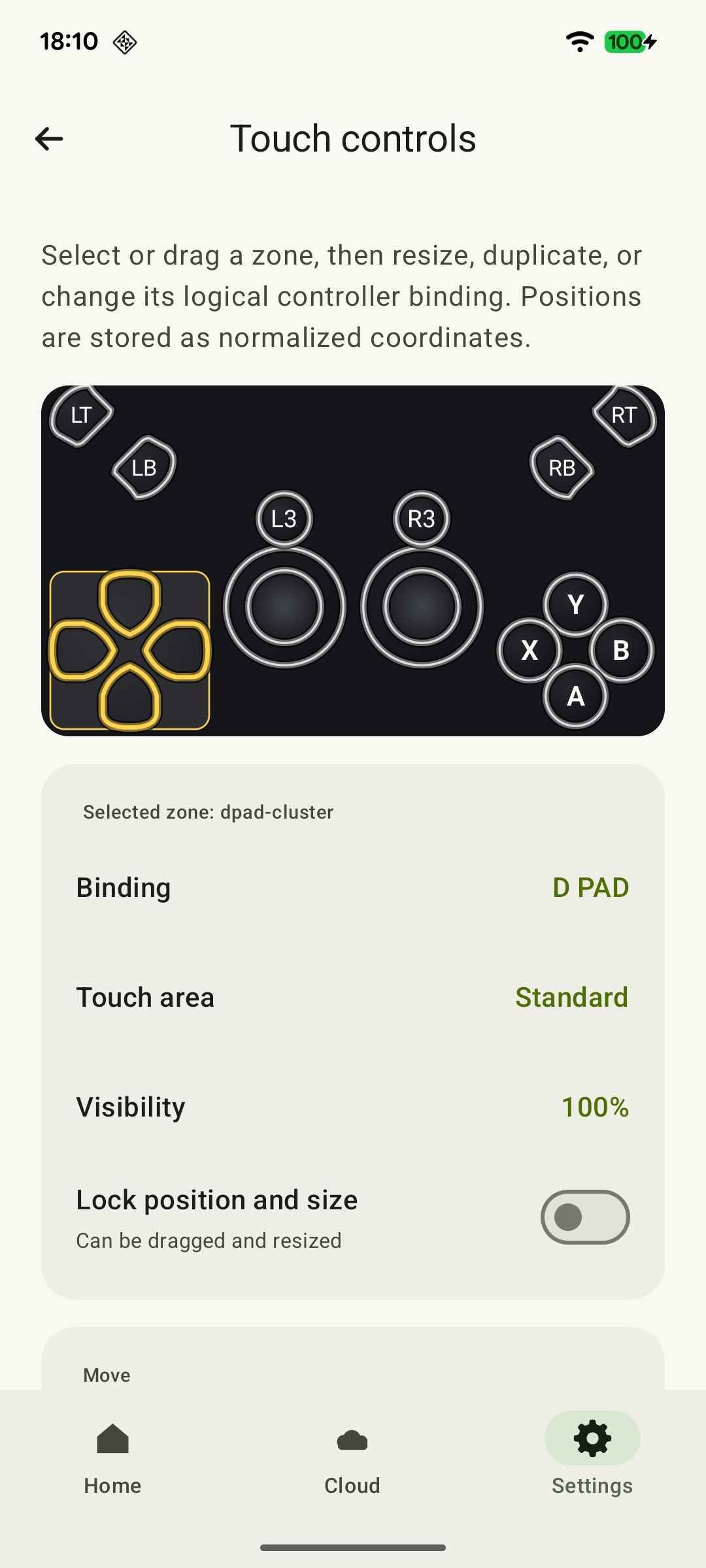
In XBPlayer’s touch layout editor, move the required control closer to the finger you prefer to use. Enlarge a button if you often miss it, and leave room between neighboring controls. Check whether the new position covers prompts or important indicators. An asymmetric setup can be comfortable.
 Enlarge screenshot
Distinguish the touch position from the command sent. To look with your left hand, move the right-stick control to the left and the left-stick control to the right. Their commands stay the same; the fingers operating them change. No special in-game scheme is required for this move. If the game has already swapped movement and looking, check both layers first so you do not accidentally undo the intended result.
If controls obstruct the game, adjust transparency or adaptive fading. If accidental touches on an unnecessary button are the problem, remove it from the layout copy: a fully transparent control may still accept presses. Before removal, make sure the command is not needed in menus or another situation. See the touch layout guide for the general procedure, and tablet controls for a larger screen.
Remap physical buttons without losing commands
If you use a controller, choose one frequent action and a more comfortable button for it. XBPlayer’s button settings map a physical button to an Xbox command; the game associates the received command with an action. Before changing anything, record where the selected button’s previous command will move.
Change mappings at one layer at a time. In addition to XBPlayer, the game or controller may have its own settings if the model supports them. Several successive remappings make the result harder to check. Start from a clear baseline and press both affected buttons after each change.
A game prompt may show A even though command A is assigned to another physical button. Follow the final mapping and check confirm, back and pause. If a required command is lost or an unexpected action occurs, undo the last change and check the other layers. See the guide to remapping without conflicts.
Ready-made swaps in the physical profile
Open “Settings → Controls → Controller profile”, save the original setup and create a separate one with “New profile”. Choose one operation, select “Save profile” and test it in the game.
| Switch | What changes | What to check |
|---|---|---|
| Swap sticks | The physical left stick sends the right-stick command and vice versa. | Movement, looking, then both together. Calibration stays with the physical source: its deadzone and inversion do not move to the other stick. |
| Swap triggers | The left and right trigger output commands are exchanged. | The required hold, release and analog range if the game uses it. |
| Swap A/B and X/Y | Both pairs of face buttons are swapped after manual remapping. | Confirm, back and the actions of all four buttons. This is not an A/B-only swap. |
For an individual command, use “Button mapping”: for example, move the Xbox jump command to a comfortable physical bumper after deciding where its previous action should go. A detailed example and simulator are in the remapping guide. For drift, adjust the deadzone of the physical stick producing unwanted input, even if a swap gives it a different in-game function.
Make long holds easier with the appropriate method
Look at the game’s control settings: if toggle aim or another toggle action is available instead of holding, try it and check how the action is canceled. It may be useful whether you use touch buttons or a controller.
XBPlayer offers a separate touch-control option: latching a supported button or trigger. After a touch, the press continues without a finger on the screen, and a second touch releases it. The feature does not apply to sticks or groups of controls and does not generate rapid repeated presses. Test it with ordinary hold behavior in the game first: enabling both the game’s toggle action and the button’s latch together makes the result harder to understand.
Test the combination and save a successful setup
Repeat the difficult combination, such as moving while jumping or looking while firing. Then perform nearby frequent actions and open a menu. Assess whether you change grip less often and can press the required buttons reliably. This tests comfort for your hands, not how quickly you can learn a layout.
If it is better, save the layout or profile and repeat the check in the next session. Before playing, check the selected layout: the app remembers separate choices for portrait and landscape windows, while you choose a different grip setup in the library. If the difficulty shifts to another frequent command, undo the last change and try a different size, position or binding.
Sources and further reading
- XBPlayer — Xbox Remote Play and cloud gaming — Touch-control size and position, physical-controller button remapping and saved profiles.
- Touch controls: make them your own — Official touch-zone guide: a layout copy, transparency, removal and latching of individual buttons.
Get the key points
Open a summary request with this article’s link. For Gemini, the request is copied — paste it into the chat.