
Network and quality
Remote Play on a mesh network or extender: how to find the cause of stuttering
Full Wi-Fi bars show signal strength to the access point your phone is connected to, not the quality of the whole network. Three short comparisons can help you decide which link to check.
On this page
If Xbox Remote Play works near the main router but stutters through a mesh node or range extender, compare it in three places: near the router, beside the intermediate node and where you normally play. Full Wi-Fi bars on your phone show the signal strength of the access point it is connected to. They do not establish the quality of its connection to the rest of the network.
Trace the path from the Xbox to your XBPlayer device
Note what the console and phone connect to, where the intermediate nodes sit and which links use cables. For example, the Xbox may connect to the main router by Ethernet, the router may connect wirelessly to a node in the hall, and that node may send the stream to a phone in the bedroom. In this setup, the video crosses two wireless links in succession.
The connection between nodes is called the backhaul. Depending on the equipment, it may use a cable, a dedicated radio band or the same wireless resources as client devices. An extender operating as a wireless repeater also adds an intermediate transmission. Speed does not necessarily drop by exactly half: the result depends on the device, operating mode and interference.
Check the network map in the manufacturer’s app or web interface. If the Xbox connects to an intermediate node, do not assume that the whole stream must pass through the main router. If both devices use the same node, the stream may not need that node’s link to the main router.
Xbox at the main router
Xbox and phone on the same node
With a direct local connection, the video path may not include the link to the main router.
Check the node’s connection, not just Wi-Fi bars
Your phone can have an excellent signal from a node that connects to the main network through several walls. Moving the phone closer to that node will not fix a weak node-to-router link. Conversely, a good backhaul does not rule out interference between the node and the phone.
Look for connected-client details and links between nodes in your system’s interface. Google Nest, for example, provides a separate mesh test for the connection between its Wi-Fi devices. Features and menu names vary by manufacturer. A “good” rating is a useful clue, but compare it with how Remote Play behaves. A transfer to another device on the same node does not test the entire path to an Xbox elsewhere on the network either.
Compare three locations under the same conditions
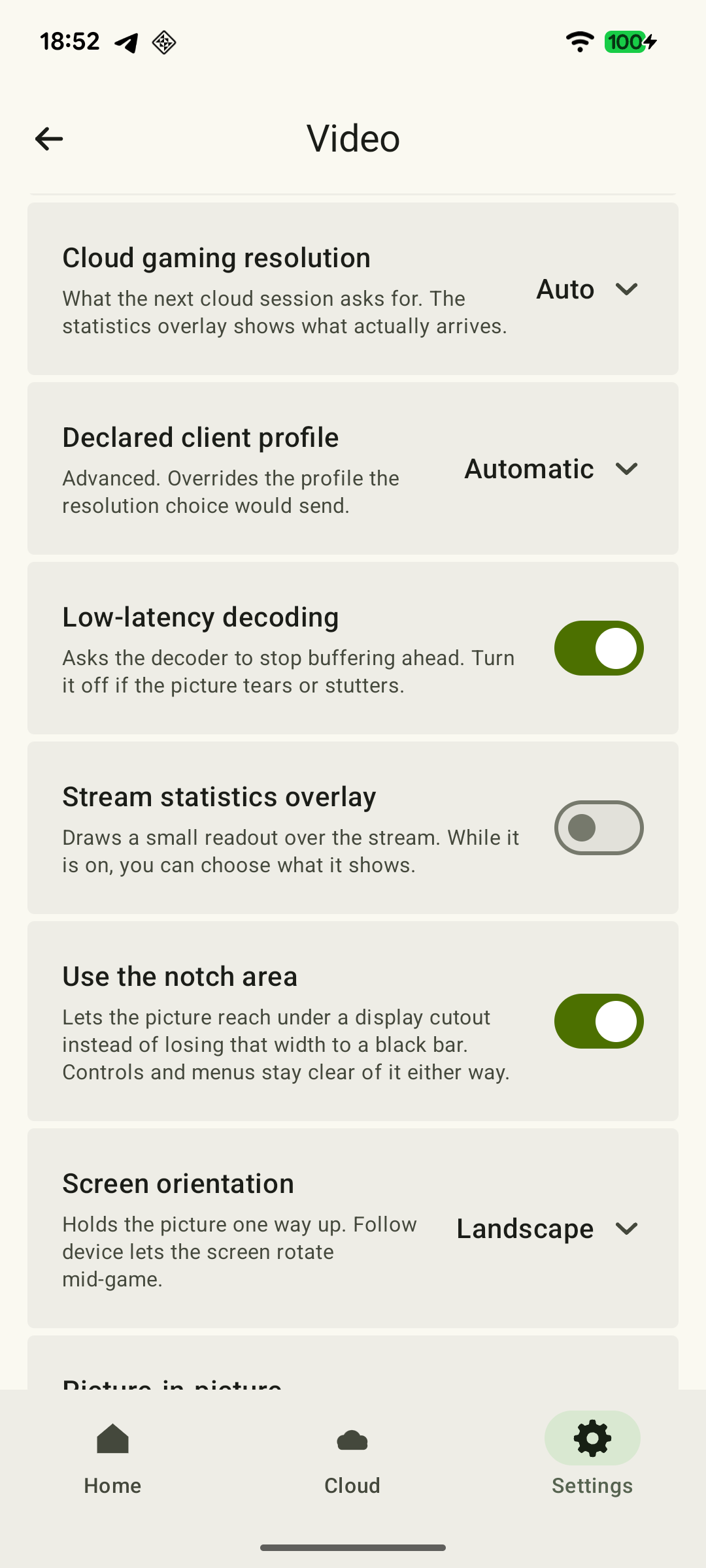
Run the test at home, connecting XBPlayer to your own console through Remote Play. Choose a repeatable scene and keep the resolution and bitrate limit the same between tests. Pause background downloads. If practical, temporarily connect the Xbox to the main router by Ethernet to remove the console’s Wi-Fi from the comparison. Otherwise, leave its connection unchanged and account for that link when interpreting the result.
 Enlarge screenshot
If you use a conventional range extender: when its network has a separate name, manually select the main network first and then the extender’s network. If the names are identical, look for the actual access point in the Wi-Fi details or equipment interface. If you cannot identify it, playing beside two different devices does not prove that the phone changed its network path.
- Near the main router. Check the client list to confirm that the phone connects directly to it. Play for a few minutes and note stutters, audio interruptions and disconnects.
- Beside the intermediate node. Confirm that the phone has switched to that node, then repeat the scene with the same settings and test duration.
- Where you normally play. Repeat the test and record which node the phone uses. If you cannot identify the access point, treat the comparison as less conclusive.
In XBPlayer diagnostics, compare frame rate, bitrate and increases in the packet-loss counter over equal intervals. If Decode changes noticeably, also investigate video queueing and processing on the device: it does not measure latency between mesh nodes. See the packet-loss and jitter guide for more detail.
| Result | What to check next |
|---|---|
| Stable near the main router, but stuttering even beside the node | Check the backhaul and the node itself. Being close to the phone does not rule out local interference, so this result alone does not prove a backhaul problem. |
| Stable beside the node, worse in a distant room | Check the link from the node to the phone and confirm that the phone has not switched to another access point. |
| Problems in all three locations | Check what all sessions have in common: the Xbox connection, background downloads and the XBPlayer device. Moving the node may not affect the cause. |
Move the node or try a wired backhaul
If the wireless link between nodes looks suspect, move the intermediate node closer to the device it receives data from. Choose an open spot with a reliable signal, then retest the game in the room where you want to play. There is no universal distance: walls and the layout change the conditions. Change one thing at a time so you can tell what helped.
If the equipment supports wired backhaul, a temporary cable between nodes can help test that link. Follow the manufacturer’s connection diagram and confirm in the network interface that the link is actually wired. If stuttering improves while the phone’s connection stays the same, that gives you another reason to investigate the wireless backhaul.
A cable from the Xbox to a mesh node replaces only the wireless connection between those two devices. The node’s connection to the rest of the network may remain wireless. For help choosing the first link to wire, see the Ethernet guide for Remote Play. For the phone’s wireless band, see the 2.4, 5 and 6 GHz Wi-Fi comparison.
Check whether stutters coincide with switching nodes
First play while staying in one place, then compare that with moving around your home as usual. If a stutter occurs only when entering another room, check whether the device changed access points at the same time. The client initiates roaming; network features and settings help it choose and move between access points. An identical Wi-Fi name alone does not guarantee a seamless transition.
If the system’s app shows connection history, compare the node-switch time with the stutter. Choose a stable location for a long session. If the problem remains after moving nodes and testing a cable, save the network layout and results from all three locations before contacting the equipment’s support team. Playing away from home adds an internet route to your home network; local testing does not rule out problems along that route.
Sources and further reading
- Google: Mesh test guide — Tests the link between the main router and additional points. A weak node connection can limit devices connected through it.
- Google: Where to place your Wifi devices — Node placement depends on the layout and obstacles. Test again after moving a node.
- ASUS: Which Wireless backhaul should I use? — Supported AiMesh models can use dedicated wireless backhaul or share a band with clients. Available options depend on the model.
- ASUS: Ethernet Backhaul Mode and Backhaul Connection Priority — Wired backhaul connects the router and nodes. Connection type and priority depend on the network layout and hardware capabilities.
- TP-Link: Why is my Range Extender not getting the same speed as the main router? — An additional wireless link can reduce throughput. The size of the reduction depends on the equipment and conditions.
- Cisco Meraki: Client roaming and connectivity decisions explained — The client decides when to roam. A closer access point does not guarantee an immediate switch.
- XBPlayer: Remote Play and Cloud Gaming — The official app website and download links. Detailed definitions of diagnostics and how settings take effect are covered in the relevant guides.
- Xbox Remote Play — Remote Play streams installed games from your own console. The requirements on this page apply to Microsoft’s official connection method.
Get the key points
Open a summary request with this article’s link. For Gemini, the request is copied — paste it into the chat.