
Network and quality
Remote Play lags during downloads: how to check for bufferbloat
Compare play with and without the background transfer first. Limit the task causing trouble and check shared Wi-Fi; router queue management is not always the next step.
On this page
If Xbox Remote Play lags during a download or backup, pause that task and repeat the same section of gameplay. If responsiveness returns and deteriorates again when the transfer resumes, start by limiting the transfer’s speed or scheduling it for another time. Before buying a new router, find out what is overloaded: home Wi-Fi, the internet connection or a device itself.
What bufferbloat is, and why high speed is not enough
When data arrives faster than a network device can send it, packets wait in a queue. A buffer helps absorb a short traffic burst. But if the queue stays large, it adds noticeable delay. Excessive waiting caused by these queues is called bufferbloat.
A download can remain fast while game inputs arrive late. A speed test’s megabits-per-second result therefore does not describe Remote Play quality on its own. However, stuttering under load does not prove bufferbloat: Wi-Fi contention, interference and limited equipment resources can produce similar behavior.
Find the link shared by the game and the transfer
Remote Play sends video from your Xbox. Identify the background task: a game update, a computer download, a photo upload or a backup. Record which device is running it and whether it is downloading or uploading.
| Where you play | What to check |
|---|---|
| At home, with a direct local stream | The video stream stays inside the home. An internet download can still interfere if it shares Wi-Fi, a wireless link between mesh nodes or router resources. |
| Away from home | The Xbox sends video through your home internet’s upload connection. A backup from a home computer can use the same capacity. At the phone end, video reception depends on its current connection. |
| On a guest or other shared network | Check background transfers near the phone. Home-router settings do not control queues on someone else’s network. |
Having the Xbox and phone at home does not guarantee a local path: XBPlayer may use an external relay server when a direct connection is unavailable. In that case, the internet connection also carries the stream. Do not choose a faster mobile plan before ruling out an overloaded home upload connection.
Repeat one scene with and without load
You need a familiar game section and one transfer that you can pause. Choose a time when testing will not disrupt other people using the network. Keep the phone’s position, connection method and stream quality unchanged. Use the same duration for all three stages: no load, transfer running, and transfer paused again.
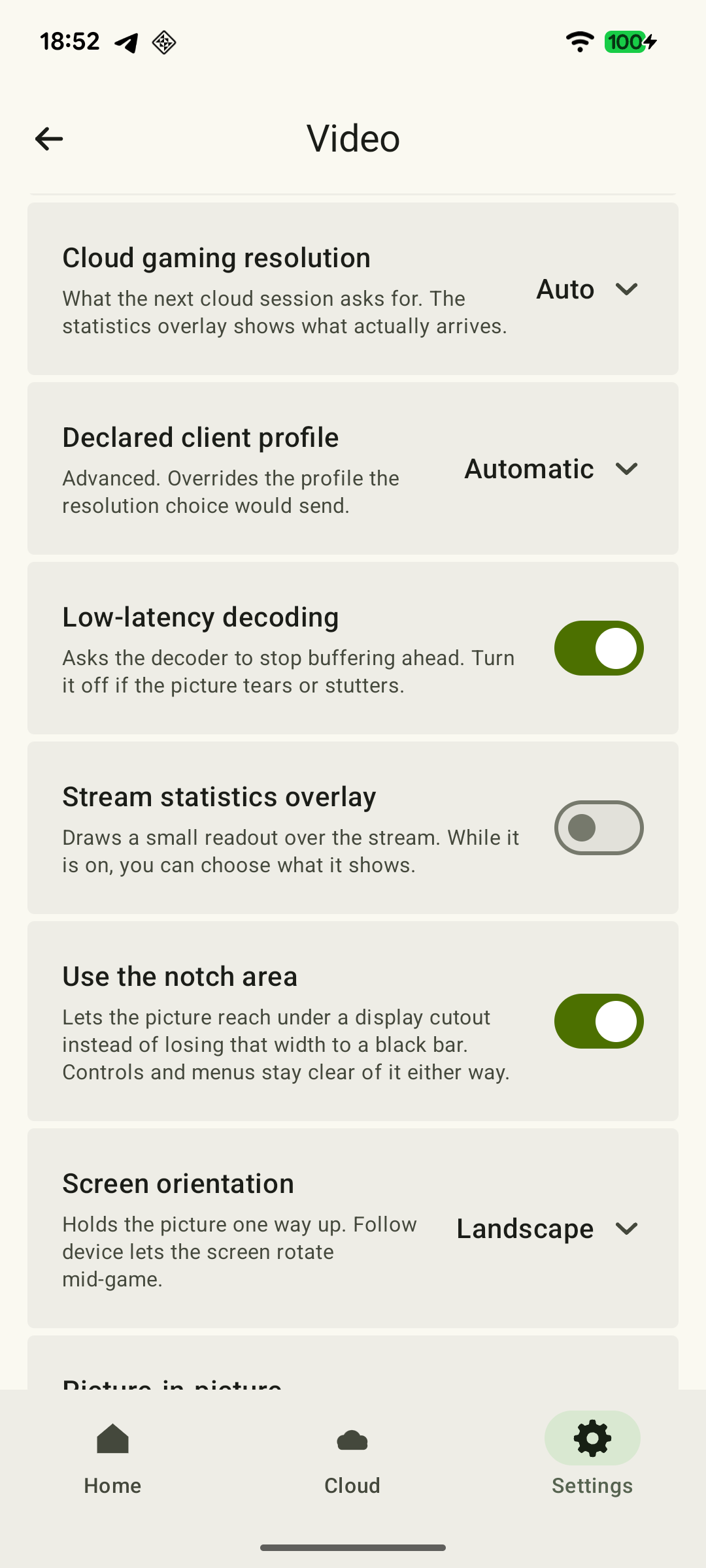 Enlarge screenshot
- Pause unnecessary downloads and uploads. Assess smoothness and responsiveness using a repeatable action without that traffic.
- Resume one known transfer. Note the device and direction: download or upload.
- Repeat the action in the same scene. Check whether the deterioration coincides with the transfer starting.
- Pause the task again. If responsiveness returns, repeat the cycle to see whether the association is consistent.
- If several tasks seem to interfere, test them separately. Starting a download and a backup together will not reveal which direction became the bottleneck.
In XBPlayer diagnostics, compare frame rate, bitrate and the increase in the packet-loss counter during each stage: ending value minus starting value. The running total may remain high after the download stops; it does not by itself show whether packets are still being lost. Decode includes queueing and frame processing in the decoder, not network bufferbloat. How to interpret the readings. Even zero packet loss does not rule out packets waiting in a network queue.
For an additional test, choose a tool from the Tests for Bufferbloat directory. Save the latency results with no load, during downloading and during uploading, along with the test time, server and connection method. If you have a computer with Ethernet, use it for this step to reduce the influence of Wi-Fi. Run the test separately from the game comparison because it creates its own traffic. Compare results obtained with the same method and server. They describe that network path, not latency to the Xbox, and do not automatically identify the device responsible.
What should you check after the load comparison?
Repeat one scene without the known background transfer, with it running and after pausing it. Work through the relevant cards one at a time.
Responsiveness returns after pausing the transfer
If the transfer must continue, set a speed limit in the program running it, if available. Limit the relevant direction: download or upload. Repeat the scene and leave capacity for the game and other tasks.
A home backup disrupts play away from home
If the association repeats, check the upload limit on the home device. Leave the phone’s network and stream quality unchanged. A download limit does not cap a separate backup upload.
Ethernet helped under the same load
Check the shared wireless link and repeat the comparison near the main access point. Account for wireless links between mesh nodes; one cable may not have removed them from the path.
Ethernet or Wi-Fi for Remote Play: which device should you wire first? →Stuttering remains without the background transfer
Continue with smoothness troubleshooting: compare the game on a directly connected display, video delivery and video processing. Stuttering alone does not establish bufferbloat.
Xbox Remote Play stuttering: how to find the cause →Motion is smooth, but buttons respond late
Check the delay from button press to image. Frame rate, packet loss and decoding time do not individually measure the whole chain.
Xbox Remote Play input lag: how to find the cause →The problem occurs only under load, and simple steps did not help
Use your model’s documentation to check whether queue management is available and whether it affects the overloaded link. Save the original values, change one setting and repeat the comparison. Restore the settings if there is no benefit.
A link between load and poorer performance does not by itself prove bufferbloat. Home QoS does not control queues at the provider or on another network.
Limit the transfer and check Wi-Fi first
If pausing helps, schedule the large transfer for another time. If it must continue, set a speed limit in the program running it, where available. Lower the limit gradually and repeat the game section. Leave room for the stream and other tasks; there is no universal value for every internet plan. Limiting a download does not limit a separate backup upload.
Next, check the shared wireless link. Connect the Xbox to the router by Ethernet if possible, then repeat the same load. Test the phone near the main access point. If this helps, work on Wi-Fi and device placement: an internet speed limit on the router may not affect local traffic. See the Ethernet and Wi-Fi comparison and mesh and extender troubleshooting guide.
How QoS differs from queue management
Device or traffic priority in QoS determines the order in which traffic is served. Priority alone does not remove long queues. Active queue management, or AQM, limits excessive waiting; SQM usually combines it with traffic scheduling and rate limiting. Implementations depend on the router and firmware, so the same feature name does not promise the same result.
Read the manual for your model and check which interface and traffic the feature affects. Queue management on the internet connection does not necessarily handle traffic inside the local network. If the feature suits your situation, save the original values and change one setting at a time.
If it asks for download and upload rates, measure available throughput without unrelated load and follow the manufacturer’s instructions. The speed advertised in your plan, or an arbitrary percentage of it, is not a substitute for configuring the actual connection. Then repeat the no-load, loaded and paused stages. Check the game and other tasks: rate limiting may reduce maximum download speed. If it does not help or makes things worse, restore the previous values.
When replacing the router makes sense
Consider replacement after a repeatable test and simple measures. If the existing router lacks the required queue-management feature or cannot run it at the throughput you need, you have a concrete requirement for a replacement. Choose by the supported feature and its limits, rather than a “gaming mode” promise.
If Remote Play lags even without background tasks, continue with input-lag troubleshooting. If the problem remains on a tested wired connection with spare home internet capacity, collect the times and repeated comparison results for your provider. Account for the phone-side network too. Home QoS does not control the provider’s equipment. The packet-loss and jitter guide explains further clues.
Sources and further reading
- RFC 7567: IETF Recommendations Regarding Active Queue Management — Sections 1.2, 2 and 2.1 cover queueing delay and how queue management and scheduling complement each other.
- Bufferbloat Project: Tests for Bufferbloat — Comparing latency without load, during downloading and during uploading. The tests create traffic and their results describe the network path being tested.
- Bufferbloat Project: Smart Queue Management — SQM combines queue management, traffic scheduling and rate limiting. Ordinary QoS priority is not equivalent to that combination.
- Ubiquiti: UniFi Gateway — Smart Queues — An example of queue management with separate upload/download settings and rate limits in UniFi Gateway. Follow the instructions for your model.
- XBPlayer: Remote Play and Cloud Gaming — The official app website and download links. Detailed definitions of diagnostics and how settings take effect are covered in the relevant guides.
- Xbox Remote Play — Remote Play streams installed games from your own Xbox. This page’s requirements apply to Microsoft’s official connection method.
Get the key points
Open a summary request with this article’s link. For Gemini, the request is copied — paste it into the chat.