
Install and sign in
Install XBPlayer on your device and sign in with your Microsoft account.
Play Xbox games on your screen.
Stream from your console or the cloud —
with a controller or touch controls.
CHOOSE YOUR PLATFORM
01 / FEATURES
Console, cloud and custom controls —
in one app.
Stream games from your Xbox One or Series X|S. Keep playing on your phone while the TV is busy.
Browse Xbox Cloud Gaming and play games available to your account. No console needed.
Move and resize touch controls or remap gamepad buttons without leaving your stream.
02 / INSIDE XBPLAYER
Sticks, triggers and buttons over your game. In the app, move and resize them, then save the layouts that work for you.
TOUCH CONTROL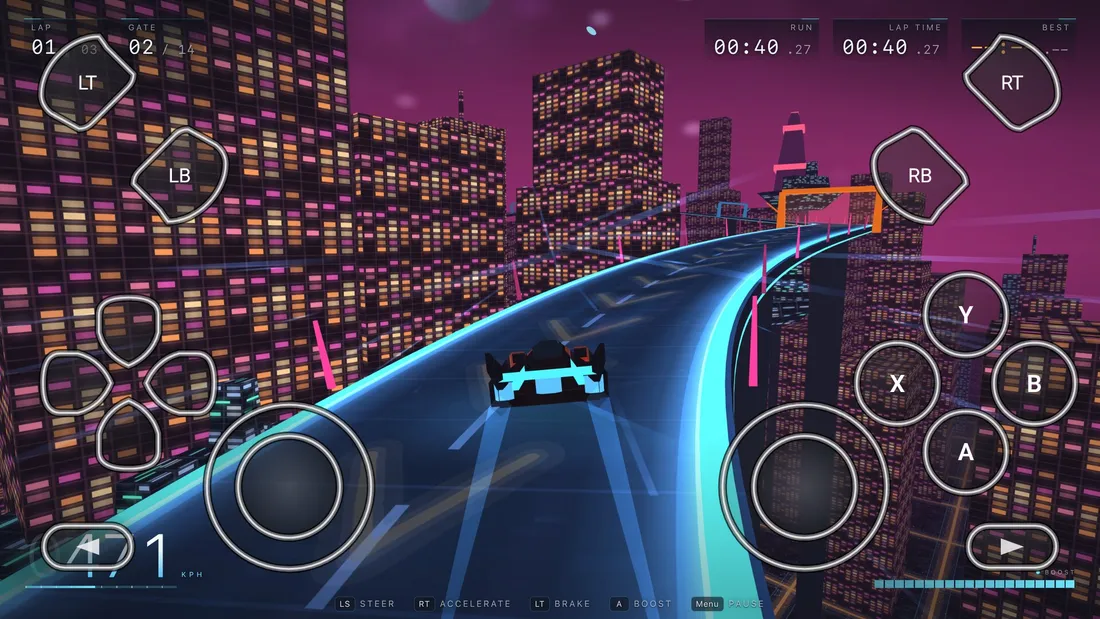
03 / YOUR NEXT MOVE
Three steps
to start playing.
Install XBPlayer on your device and sign in with your Microsoft account.
Connect to your console through Remote Play or open Xbox Cloud Gaming. Cloud gaming does not need a console.
Choose touch controls, a compatible gamepad or Steam Deck’s built-in controls.
04 / JOURNAL
One streams from your Xbox. The other streams from the cloud. Here is what each mode needs and when to use it.
Read articleButton size, stick placement and a comfortable grip matter as much as screen size. Here is where to start with your touch layout.
Read articleAndroid, TV, Steam Deck and iOS offer different ways to play. Find the screen and controls that suit your setup.
Read articleLET YOUR GAME GO FURTHER